Template Pricing Management
Topics Discussed
Template Pricing makes it easy to set consistent event rates for venues with automated event feeds such as Ticketmaster or StubHub. When a new event is added to ParkWhiz through one of these integrations, Template Pricing automatically applies your pre-set event rate, ensuring customers always see the correct price, rather than the lower default transient rate.
Key Things to Know
- Available for Reservations and On-Demand: Template Pricing works across both booking types.
- Admin Access Only: Only Seller account Admins can create or update pricing templates.
- Updated Nightly: Templates are applied during nightly processing. Events added today will typically show their pricing the next day.
- Manual Overrides Don’t Use Templates: If you manually create pricing for an event, template settings will not auto-populate. You’ll need to re-enter all details before saving to avoid errors.
Note: Template Pricing only applies to newly added events. Any events that were already in ParkWhiz before the template was created must be manually priced.Step 1: Create a Template Pricing group
Creating a Template Pricing group allows new events to be automatically priced based on your predefined template settings.
1. Navigate to the Location
Go to the ParkWhiz location where you want to set up Template Pricing and open the Pricings tab.

2. Select Template
In the Pricings section, choose Template.

3. Create a New Template
Click Add New Template Pricing Config.

4. Complete the Template Settings
Template Settings
- Name - Give the template a clear, descriptive name (e.g., Cubs Nighttime Rate).
- Applicable Venues - Select the venue(s) this template should apply to.
- Earliest Start Time - Set the earliest event start time that should trigger this template.
- Enabled - Uncheck to fully disable the template. Disabled templates will not create any new pricings.
Note" The Enabled checkbox stops pricing creation entirely, while Pause Pricing (covered later) allows pricing to be created in a paused state. Auto-Price Rules
- Include events that contain these words - If an event name includes at least one of the specified phrases, it will be auto-priced. Leaving this field blank will apply pricing to all events.
- Recommendation: For sports, the home team's name is an effective keyword (e.g., "Chicago Cubs"). For concerts, "tour" may be a suitable keyword for inclusion or exclusion.
- Exclude events that contain these words: If an event name contains any of these phrases, it will not be auto-priced. Exclusions take precedence over inclusions.
- Example: If "Yankees" is included and "Playoffs" is excluded, an event named "New York Yankees Playoffs" will not be included.
Important: The auto-pricer creates pricing whenever an event is added—whether it’s imported through Ticketmaster or StubHub feeds or manually created by our team.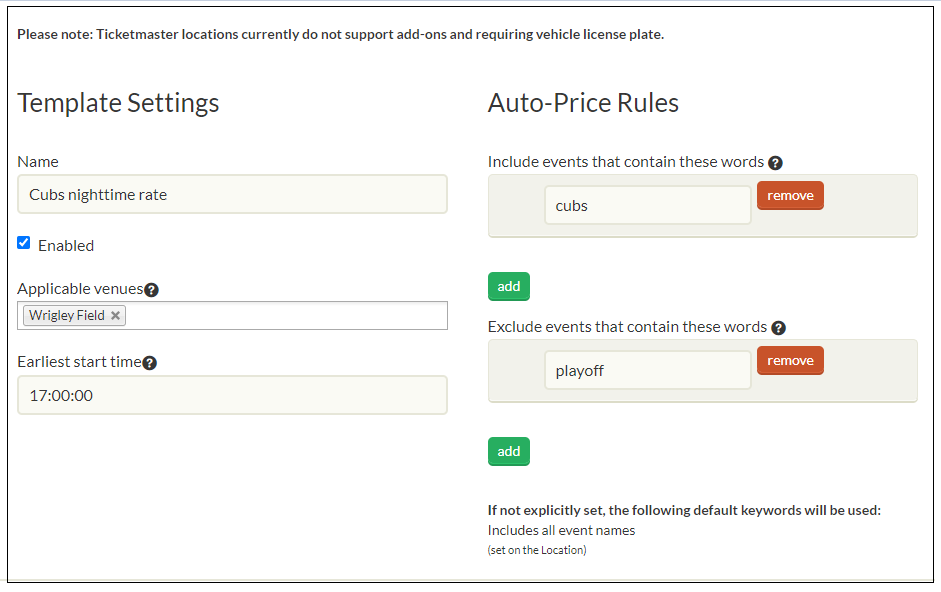
- Click Save Changes
Step 2: Set Template Pricing details
This step defines the event-specific pricing settings that your Template Pricing groups will apply automatically.
Go to the ParkWhiz location where you want to configure event pricings and open the Pricings section.

2. Select “Template”
Choose the Template tab.

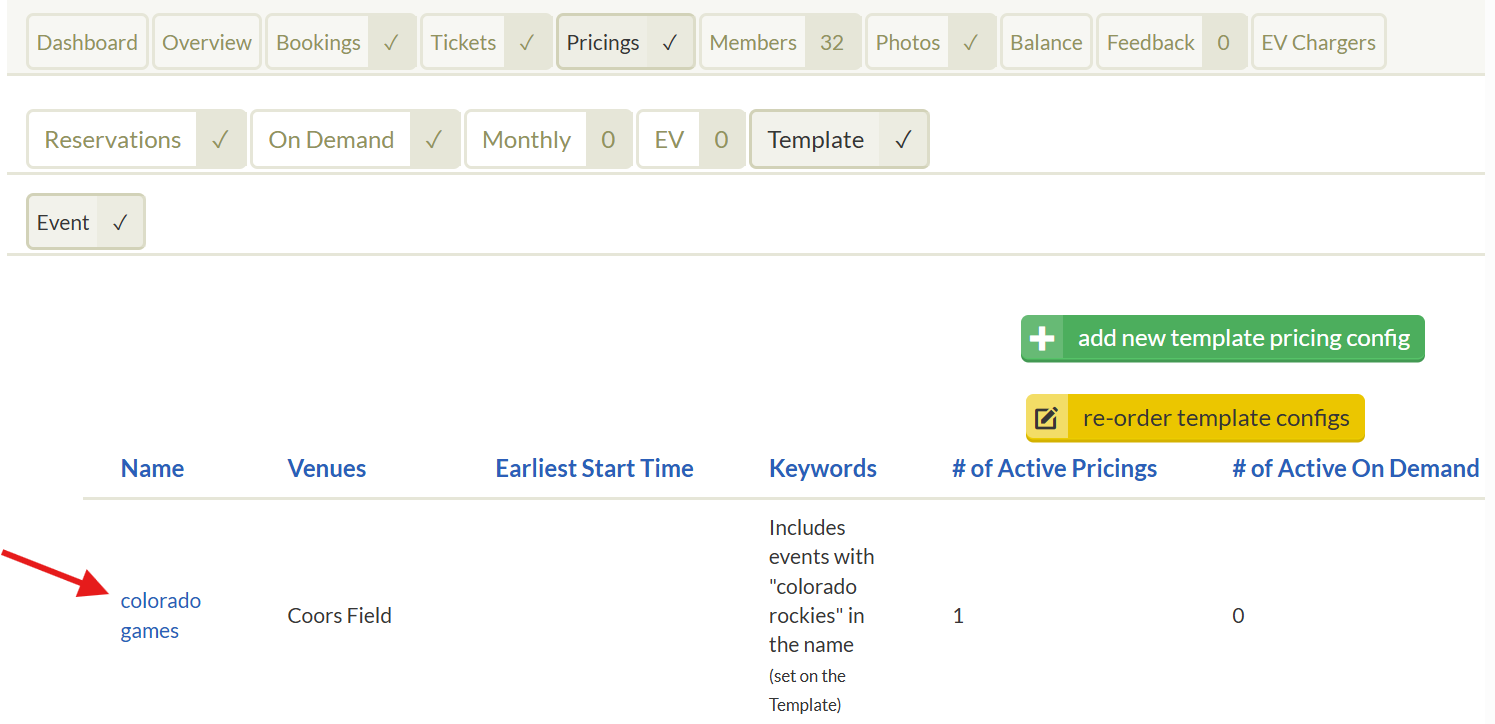
3. Open the Template Group
Click on the template pricing group you want to configure.
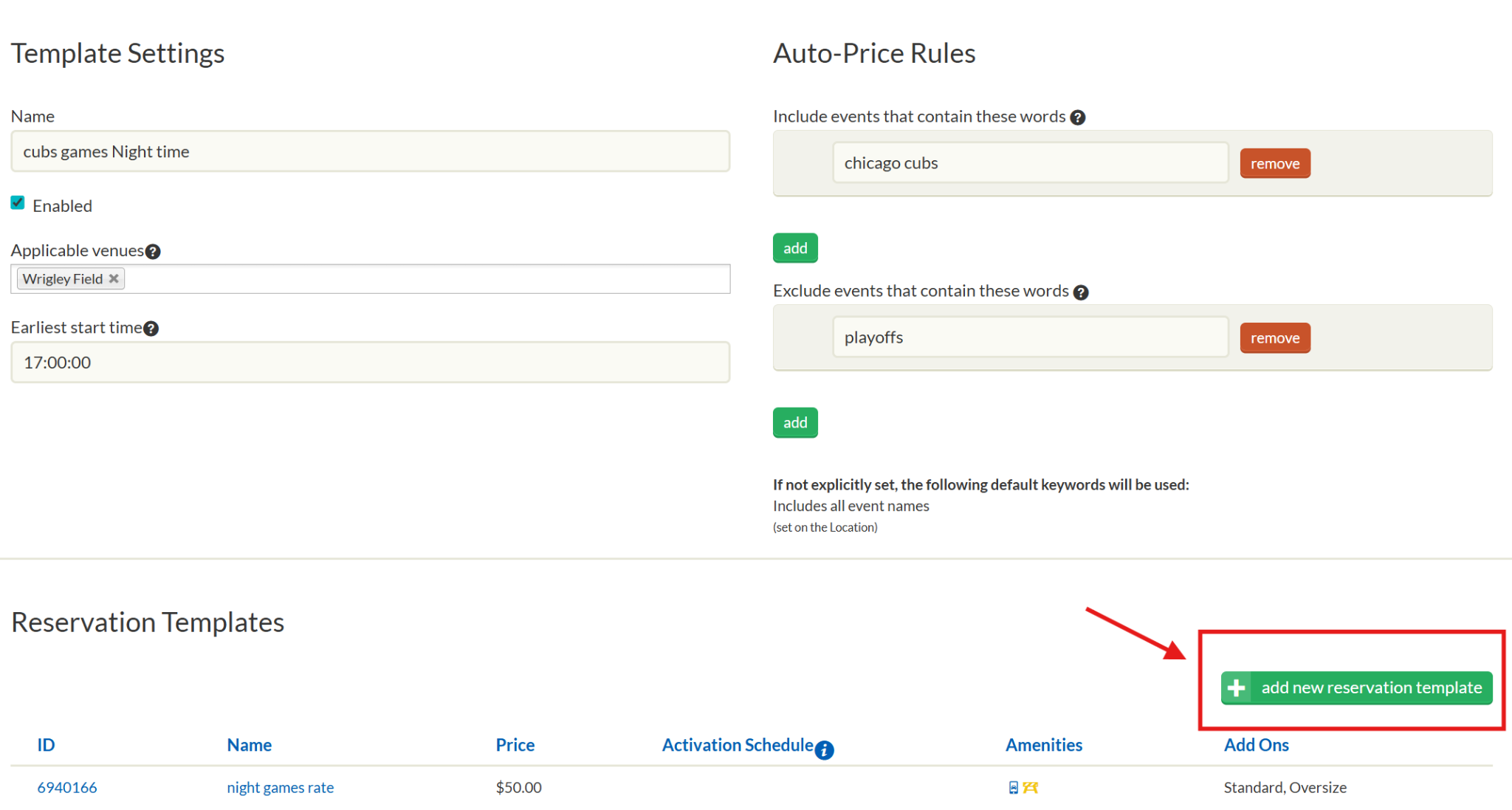
4. Add a New Reservation Pricing
Select Add New Reservation.
5. Complete the New Template Pricing Fields
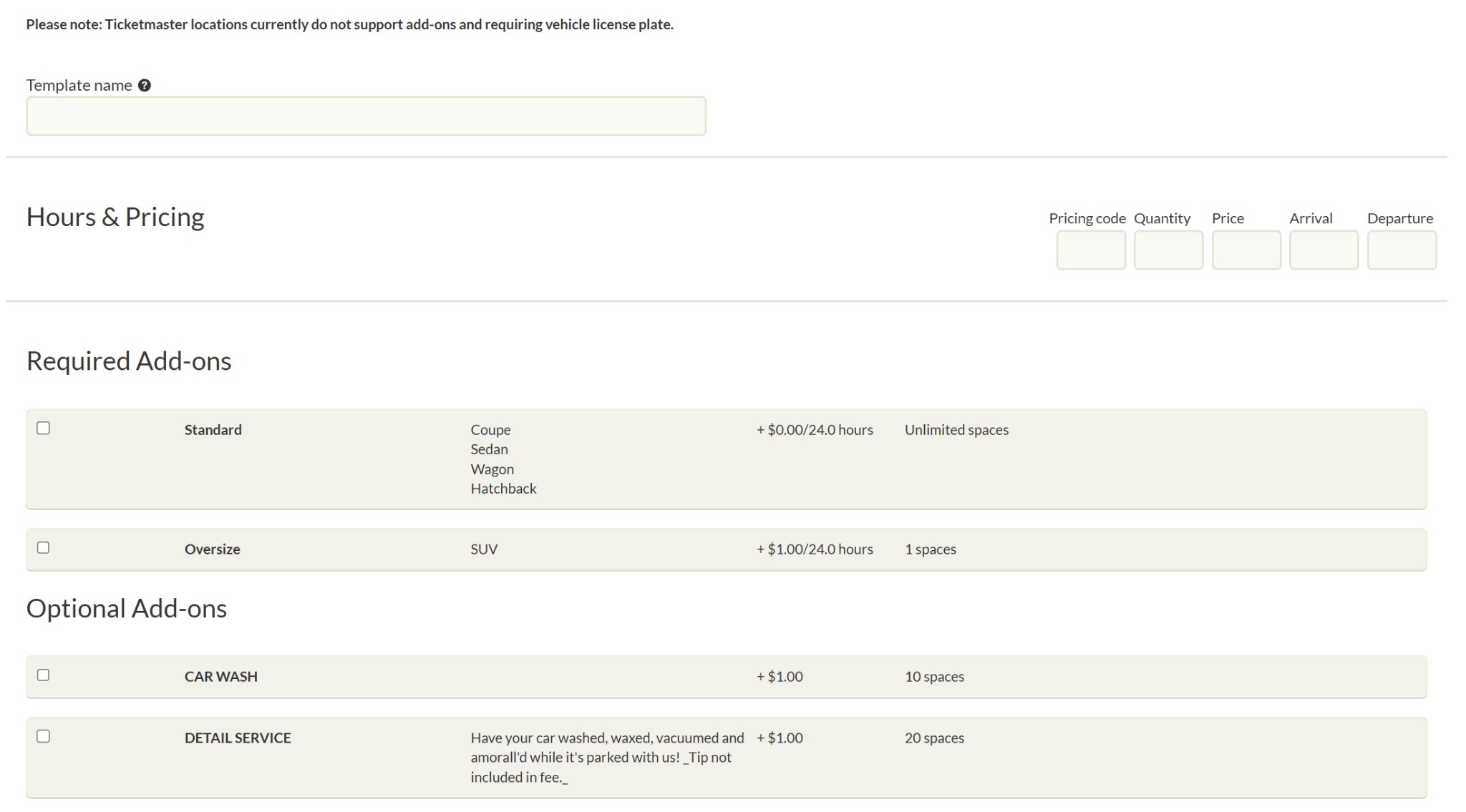
Hours & Pricing
- Pricing Code (Optional): Displays on the booking record and pass if filled in.
- Quantity: Maximum number of spaces available for this event pricing. (Not used for On Demand.)
- Price: The Seller Console (Base) price. Accepts numbers with up to two decimals.
- Arrival: Maximum hours customers may park before the event begins (must be ≥ 1).
- Departure: Maximum hours customers may park after the event ends (must be ≥ 1).
Required Add-Ons
Enables required add-ons automatically for this pricing.
Amenities
Select based on the facility.
"Smartphone Mobile Parking Passes" is a critical setting that impacts ParkWhiz app availability.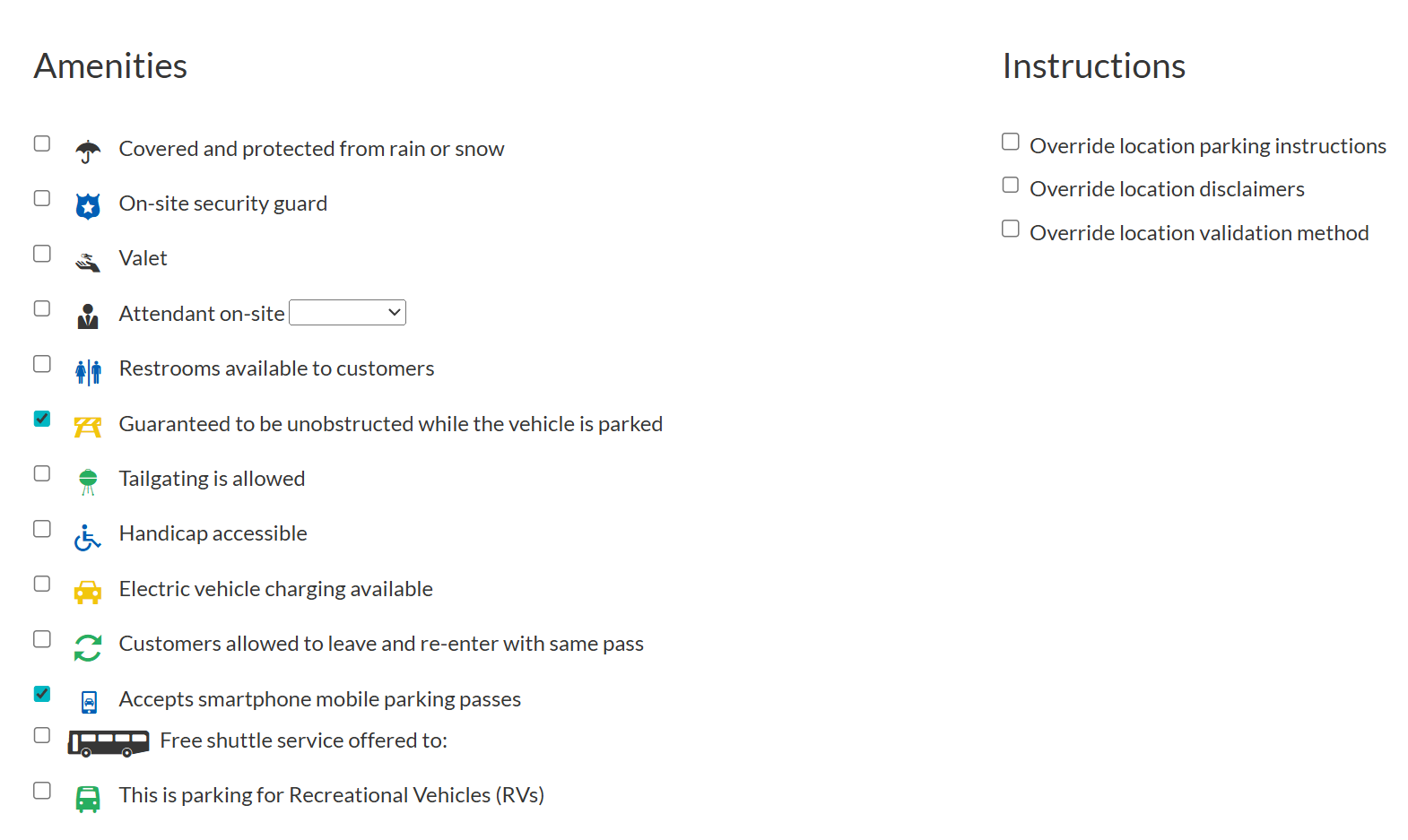
Instructions (Pricing-Level Overrides)
- Override Location Disclaimers: Uses pricing-level disclaimers instead of the location defaults.
- Override Location Validation Method: Uses pricing-level instructions instead of the location’s default Reservation Validation Story
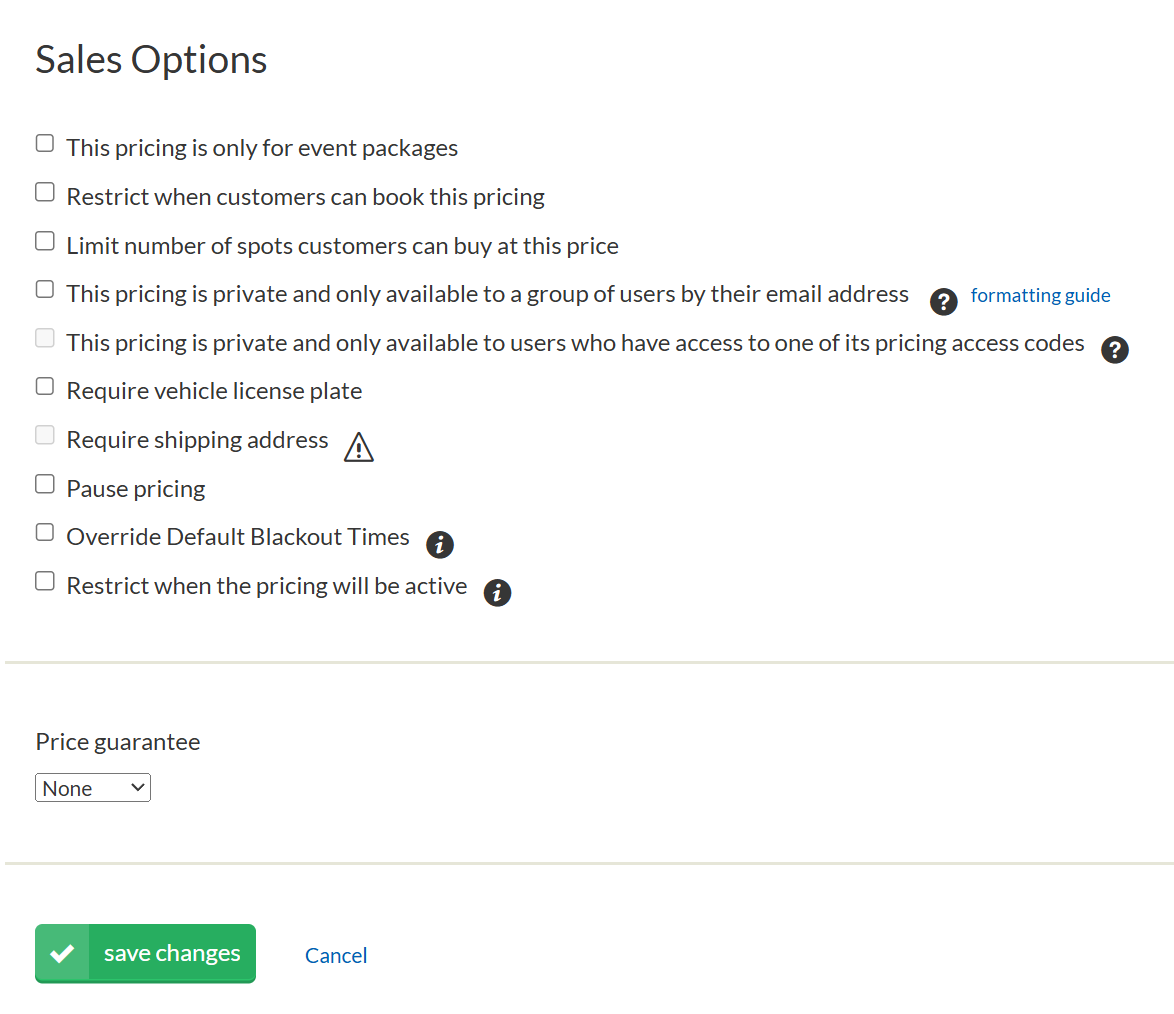
Sales Options
- This pricing is only for event packages: Use when the pricing is intended solely for event packages
- Require vehicle license plate: Enable if the location requires a license plate. Contact Support to enable "Require plate before purchase".
- Restrict when customers can book: Blocks bookings starting a set number of hours before the pricing’s start time. (Not applicable for On Demand.)
- Example: With a 0.5-hour restriction and a 10:00 AM start time, customers must book by 9:30 AM.
- Restrict when customers can cancel: Limits customer self-cancellations within a set number of hours before start time. (Controlled by Digital Solutions Support. Not applicable for On Demand.)
- Limit number of spots customers can buy: Caps the number of spaces per booking. (Not applicable for On Demand.)
- Private pricing for specific emails: Makes the pricing available only to listed email addresses.
- Private pricing via access codes: Makes the pricing available only to users with the appropriate pricing access code. (Not applicable for On Demand.)
- Pause pricing: Creates the pricing in a paused status.
- Reminder: Enabled (in Template Settings) stops pricing creation entirely, while Pause pricing allows creation but keeps pricing paused.
6. Save Your Pricing
Click Save Changes. Your new event pricing will now appear under the selected template group.
Managing Multiple Templates
Locations can use more than one Template Pricing group and can also include multiple Reservation Templates within each group.
Multiple Template Pricing Groups
You can add several Template Pricing groups to a single location. When multiple groups exist, the system processes them from top to bottom, so order matters.
- Place more specific or restrictive templates at the top.
- Place broader or general templates lower in the list.
- You can rearrange templates anytime using the “Re-order Template Configs” button.
Example:
If you need to price:
- Cubs night games at $75 and $85
- All other Cubs games at $50
Place the Cubs night-game template above the general Cubs template to ensure the correct rate is applied.
Multiple Reservation Templates Within One Template Pricing Group
A single Template Pricing group can contain multiple Reservation Templates. When the group is triggered, all Reservation Templates within that group are created automatically.
Example:
A Cubs night-game template could include two Reservation Templates—one at $75 and one at $80.
When a qualifying event is created, both pricing options will automatically be generated.
If you need to go back and edit event pricings after they've been created, please keep in mind you can only edit in batches of 20 at a time per location.Was this article helpful?
That’s Great!
Thank you for your feedback
Sorry! We couldn't be helpful
Thank you for your feedback
Feedback sent
We appreciate your effort and will try to fix the article