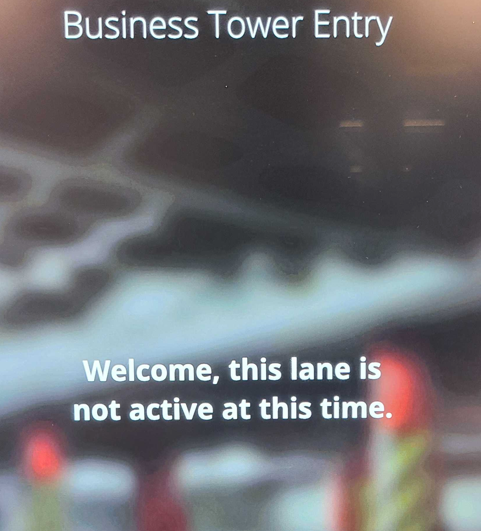
With Sleep mode, Parking Operators can place PARCS equipment in an inactive status, effectively preventing any parker from interacting with the device until it is enabled again, either manually or by schedule.
This feature is available for Entry and Exit kiosks, POFs, and Pedestrian Door in any form factor.
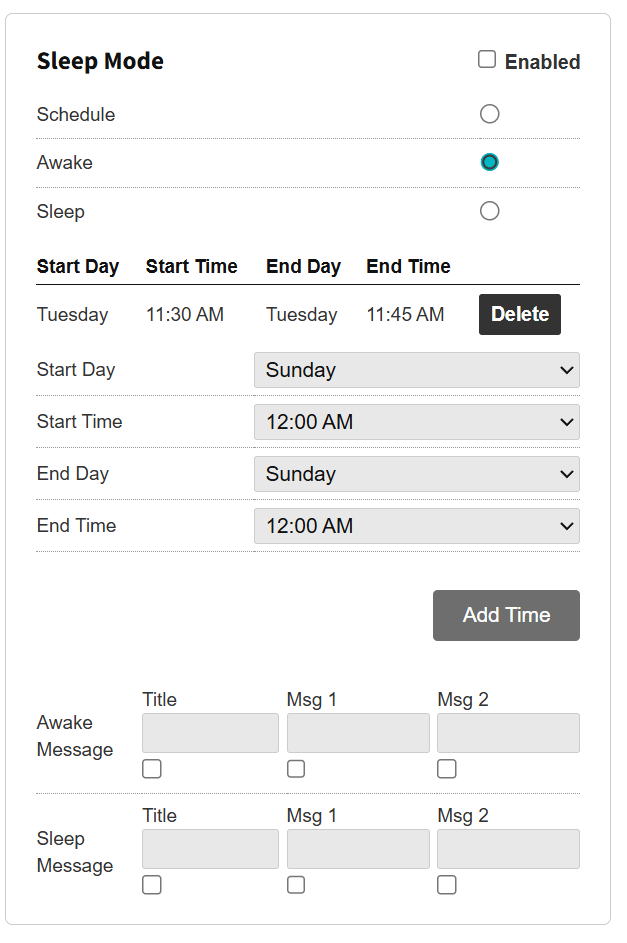
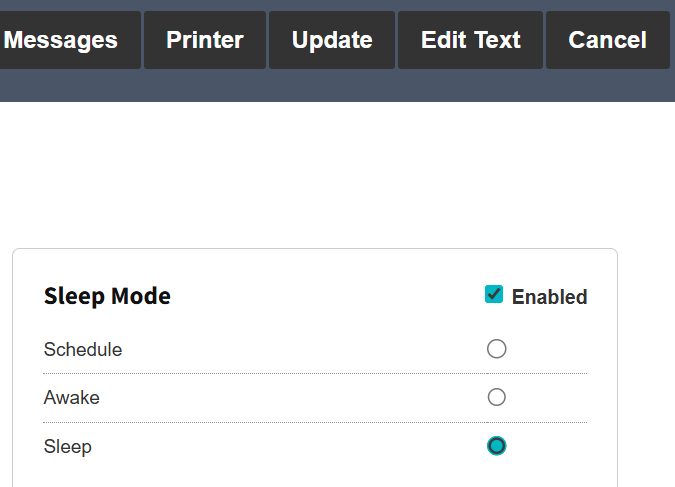
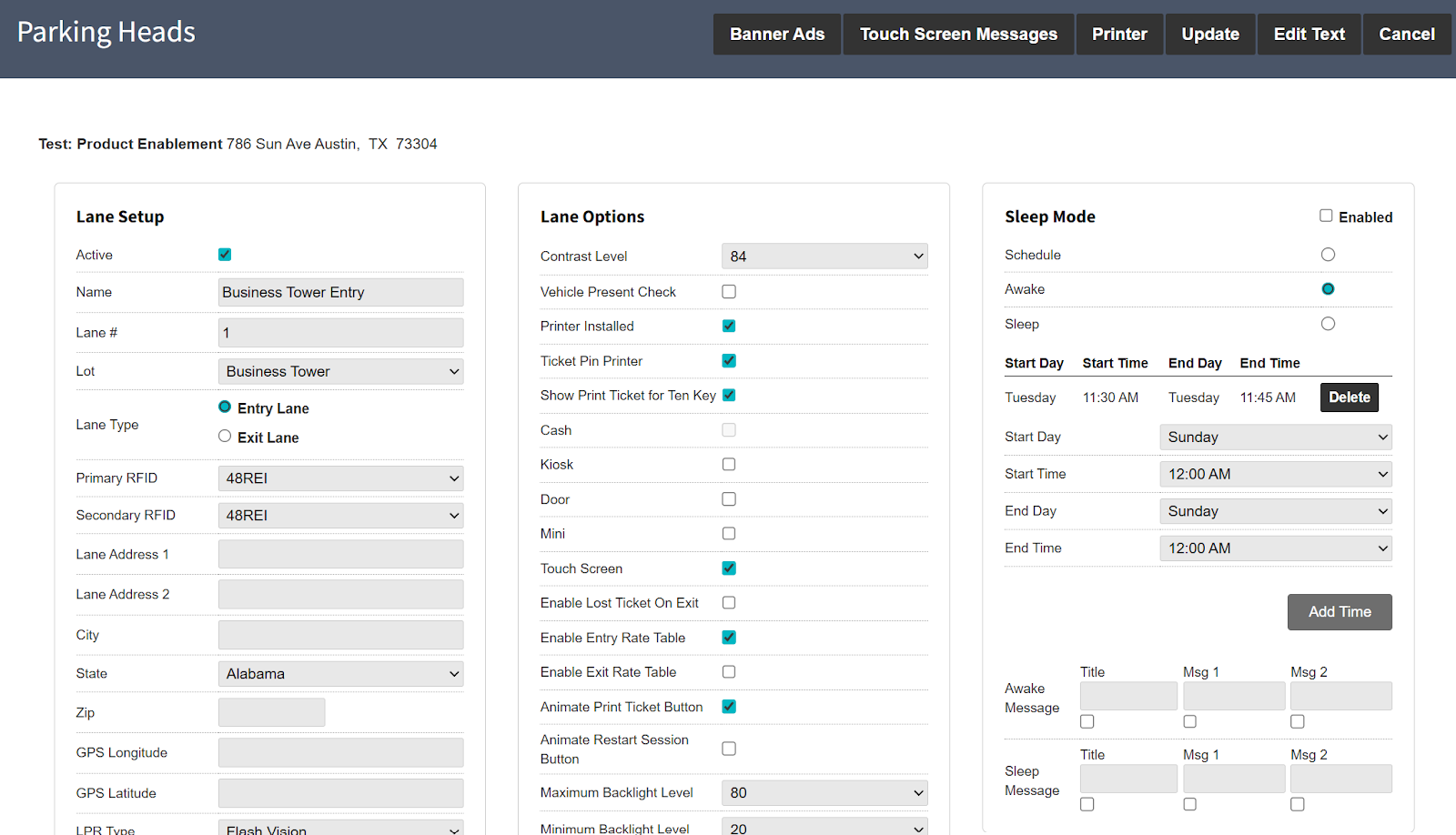
In the PK admin portal, go to Garage > Garage Setting > Lanes > (select lane). Enable Sleep Mode, then choose between one of these options: Schedule, Awake, and Sleep.
Schedule
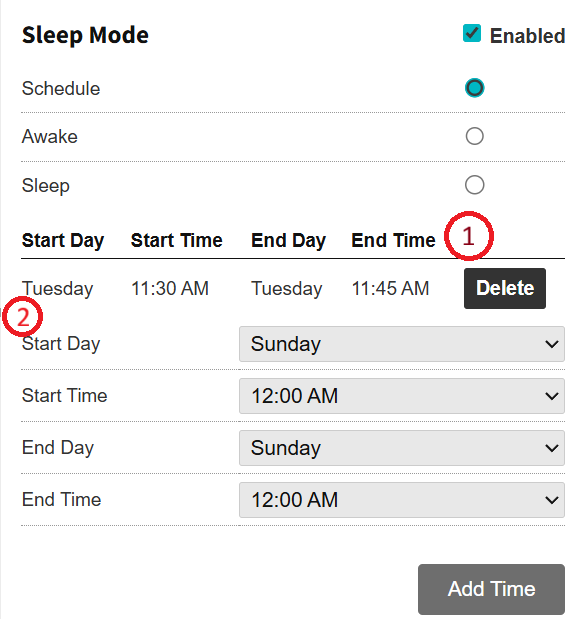
Selecting this option allows for the creation of a custom schedule that includes start day and time, and end day and time, by which the kiosk will automatically go to the inactive status and “wake up” following the selected days and times. Note that multiple schedules can be created to accommodate any need.
- Shows a created schedule that will take effect on the date and time selected.
- Shows the default schedule creation options.
Awake
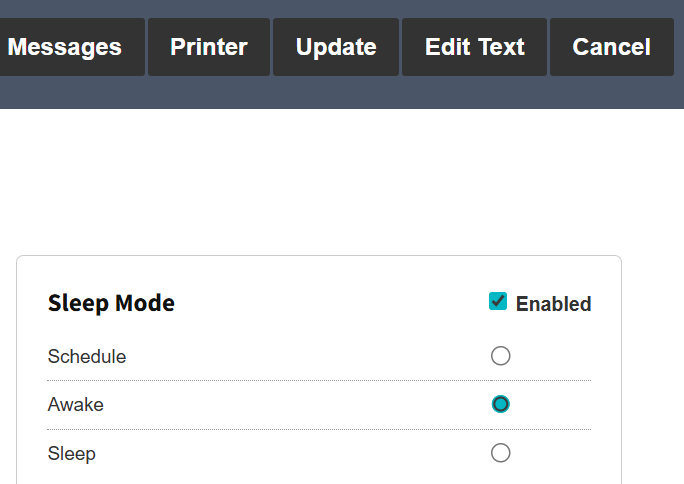
By selecting the Awake option and clicking the Update button, the kiosk will instantly become active during any inactive period. This includes whether the kiosk was placed as inactive by a schedule or manually.
Sleep
Selecting the Sleep option and clicking the Update button will instantly place the kiosk in inactive state; the kiosk will only be able to go back to operation by repeating the instructions shown above with the Awake option.
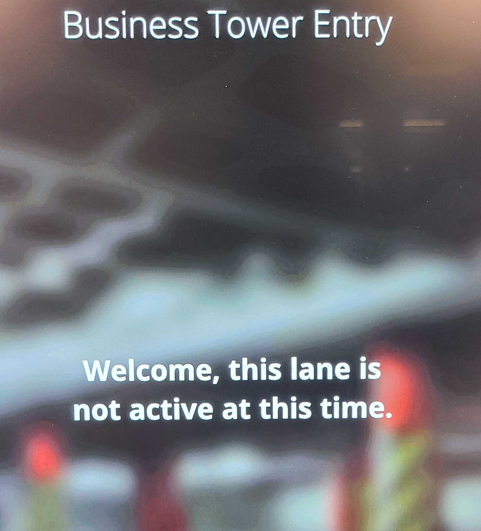
Screen Text Messages
Below the schedule creation section is a set of boxes for making changes to Awake Message and Sleep Message on the screen. A Title, Message 1, and Message 2 can be placed, each taking one line on the kiosk screen.
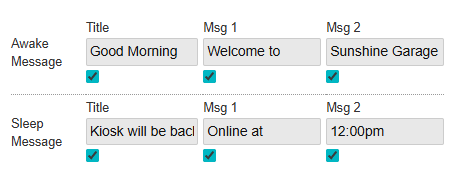
Each message box can be toggled on or off by checking or unchecking the box below each of them.
Sleep Mode Module
The Sleep Mode module must first be enabled by internal support.
Sleep Mode Settings
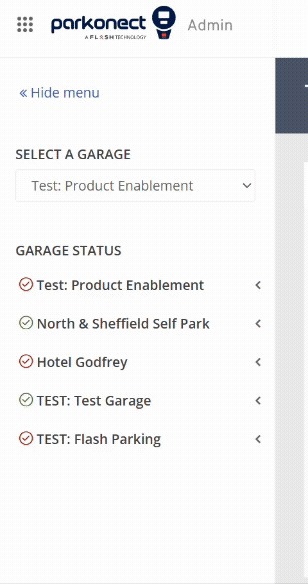
- In the Parkonect Portal, select the garage and click the Garage Settings option.
- Select Lanes and click the kiosk to be configured with the Sleep Mode settings.

- The Sleep Mode settings should be visible on the right-hand side of the kiosk configuration screen. Allowing you to configure any schedule or changes in sleep or awake to the kiosk by making changes and clicking the Update button.
Was this article helpful?
That’s Great!
Thank you for your feedback
Sorry! We couldn't be helpful
Thank you for your feedback
Feedback sent
We appreciate your effort and will try to fix the article