ParkWhiz Log In
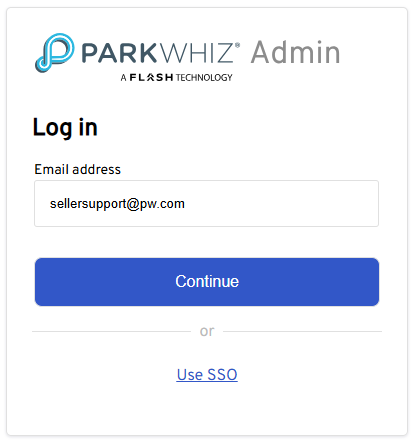
1. Go to https://admin.parkwhiz.com/
2. Enter your email address.
3. Continue
4. Enter your password > Sign in.
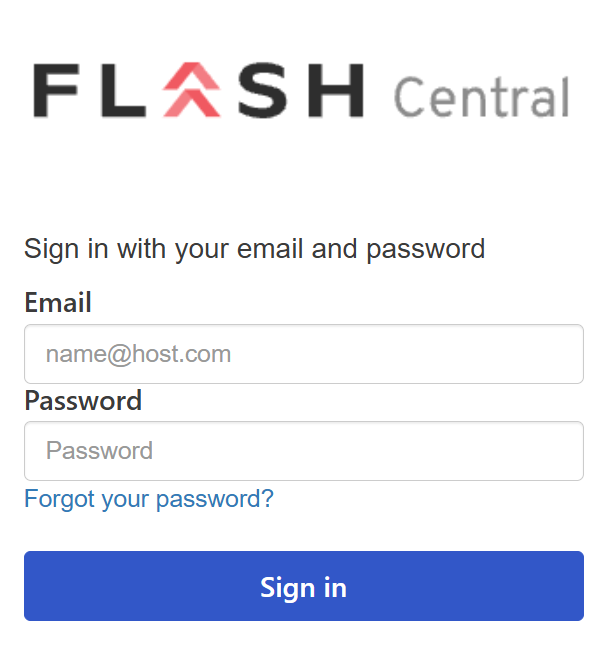
If you do not know the email address and password for your ParkWhiz Admin (Seller Console) account, contact sellers@parkwhiz.com.
5. You will be directed to your ParkWhiz Seller account.
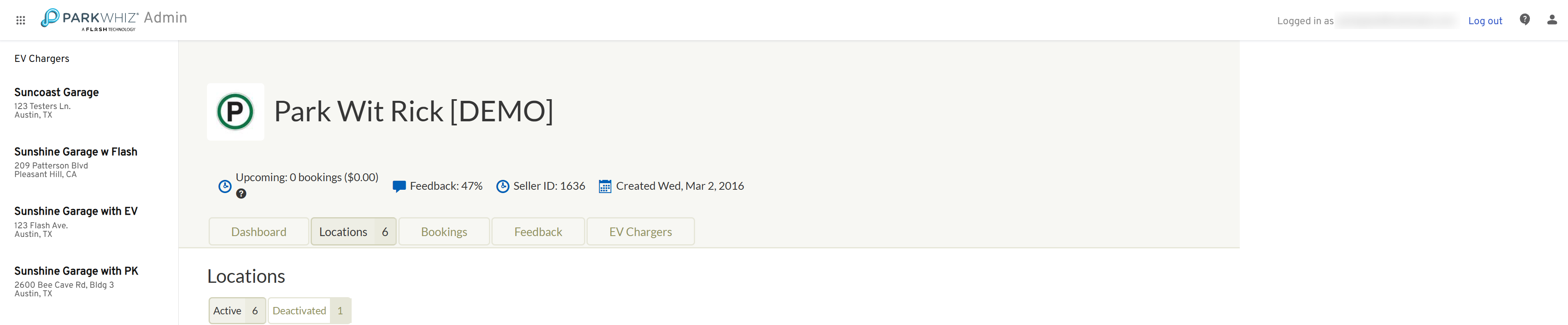
Seller Account View
In your Seller Account View, you can review summaries of data for all locations associated with your account.
All locations you have access to are listed on the left.
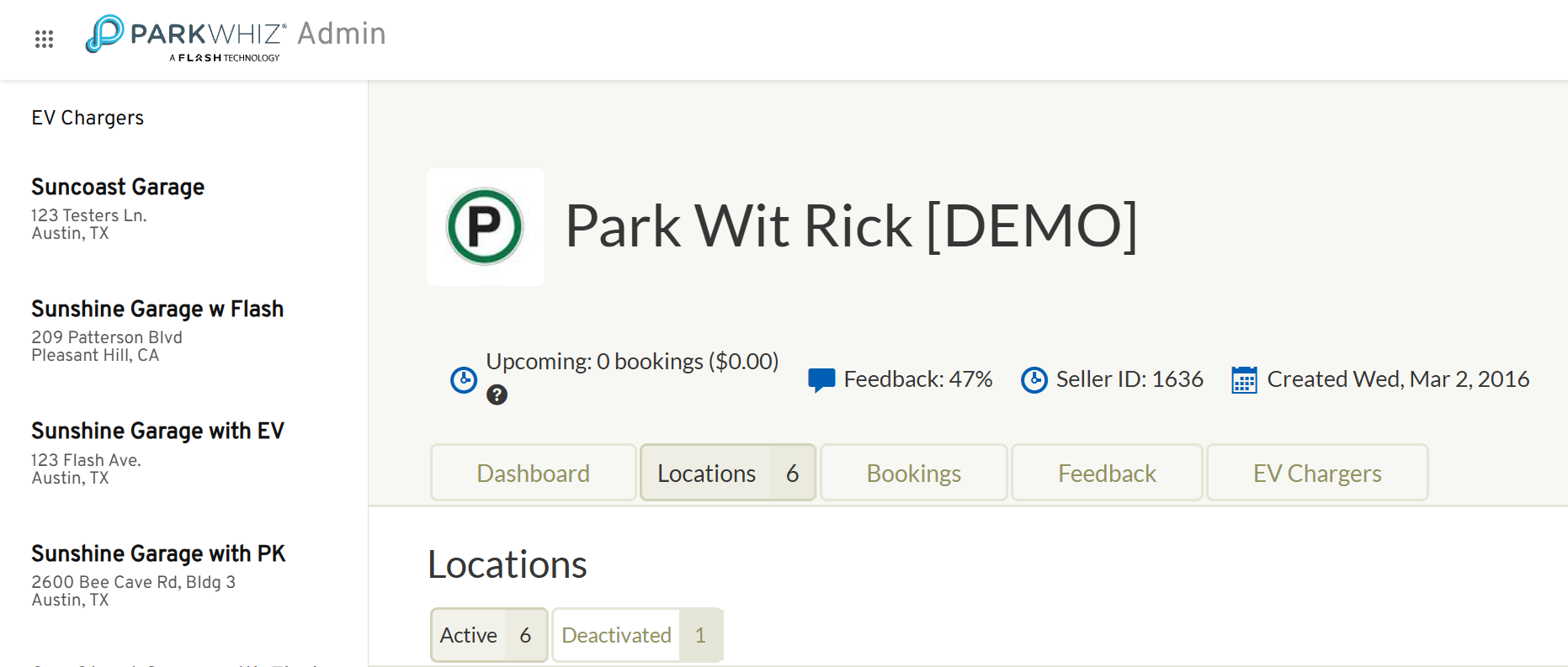
| Dashboard | Contains cumulative booking and revenue data for all Locations. |
| Details | This will show the payment info of your seller account. Please note that NO payment information will appear if the seller account is set to a "per location payment". |
| Locations | List of locations associated with your seller account that you have access to. |
| Bookings | View and filter summaries of all transactions for each of your locations by date. |
Feedback | Filter ratings and feedback by date and type, positive or negative. |
Location View
From your Account View, click the Locations tab to see all locations on your account. Select a location to view its details and data.
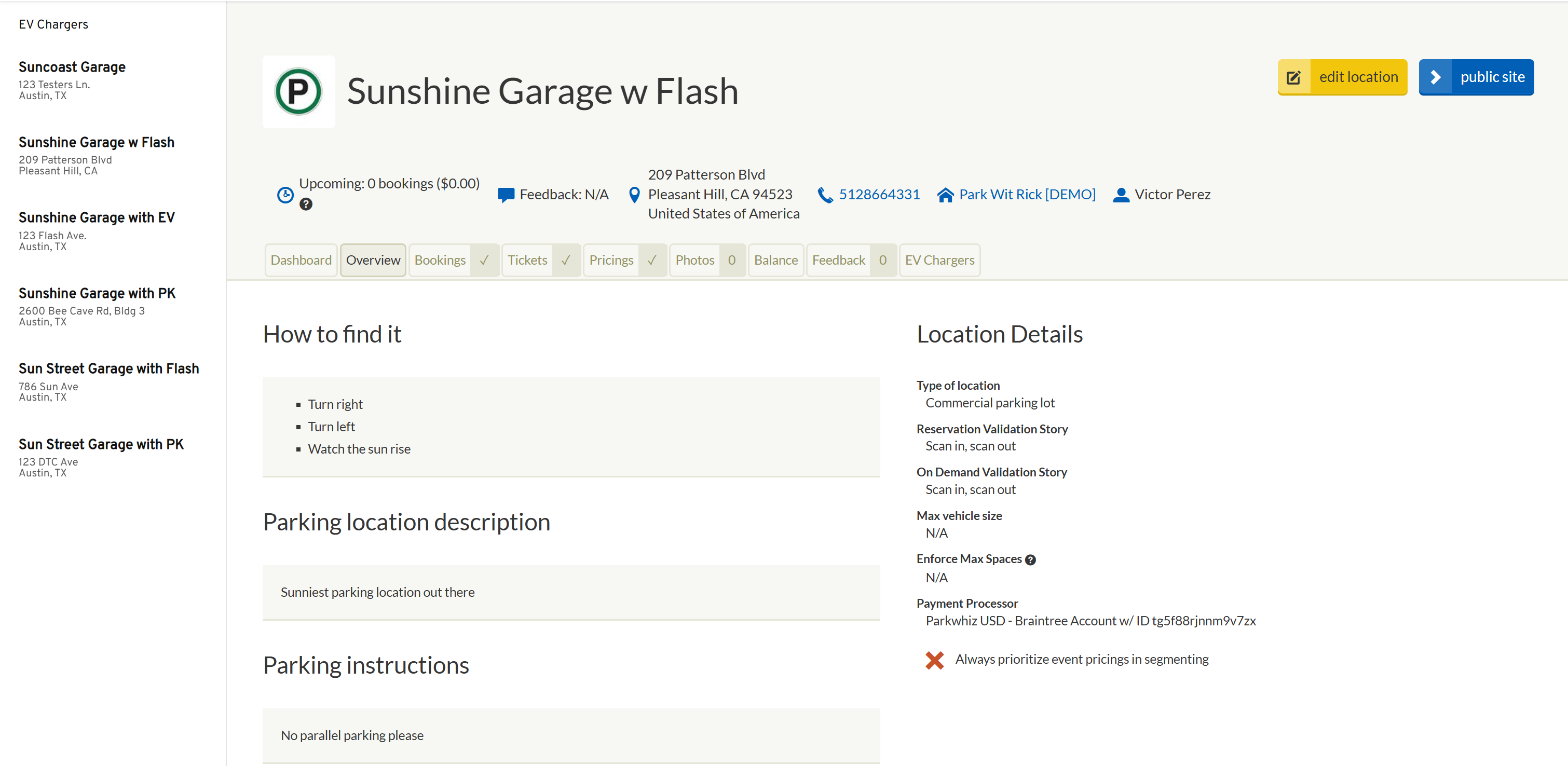
| Dashboard | Contains a number of useful figures and graphs to let you know how your location is performing. |
| Overview | Review all information displayed to customers on the public site. (If this information is incorrect, please contact sellers@parkwhiz.com to update. |
| Bookings | View and filter all bookings for the location by date. Information about new bookings and daily summaries will also be emailed daily to the location’s members unless email notifications are turned off. |
| Tickets | View and filter all On-Demand (Express Pay) tickets for the location by date. |
| Pricings | Build rate tables for daily and monthly parking; set special early bird, weekend, and event parking prices. (Only used for Reservations or Scan to Pay) |
| Members | Full list of members with location administrative access, and level of access for each. Please note that this is only accessible by members with administrative access. |
| Photos | Images of the parking location to better assist customers at the time of drive up. |
| Balance | Review sales, refunds, and cancellations for the location. Filter by transaction type, sort by date, and easily export to an Excel spreadsheet. |
| Feedback | Filter customer service ratings and feedback by date and type, positive or negative. |
Bank Seller Information
To update or add bank details for direct deposit, follow the steps outlined below.
These steps are only accessible to approved administrators within your organization. If you need assistance, please contact digitalsupport@parkwhiz.comAdd a Seller-Level Bank Account
Log in to the Seller Console
Select Edit Seller
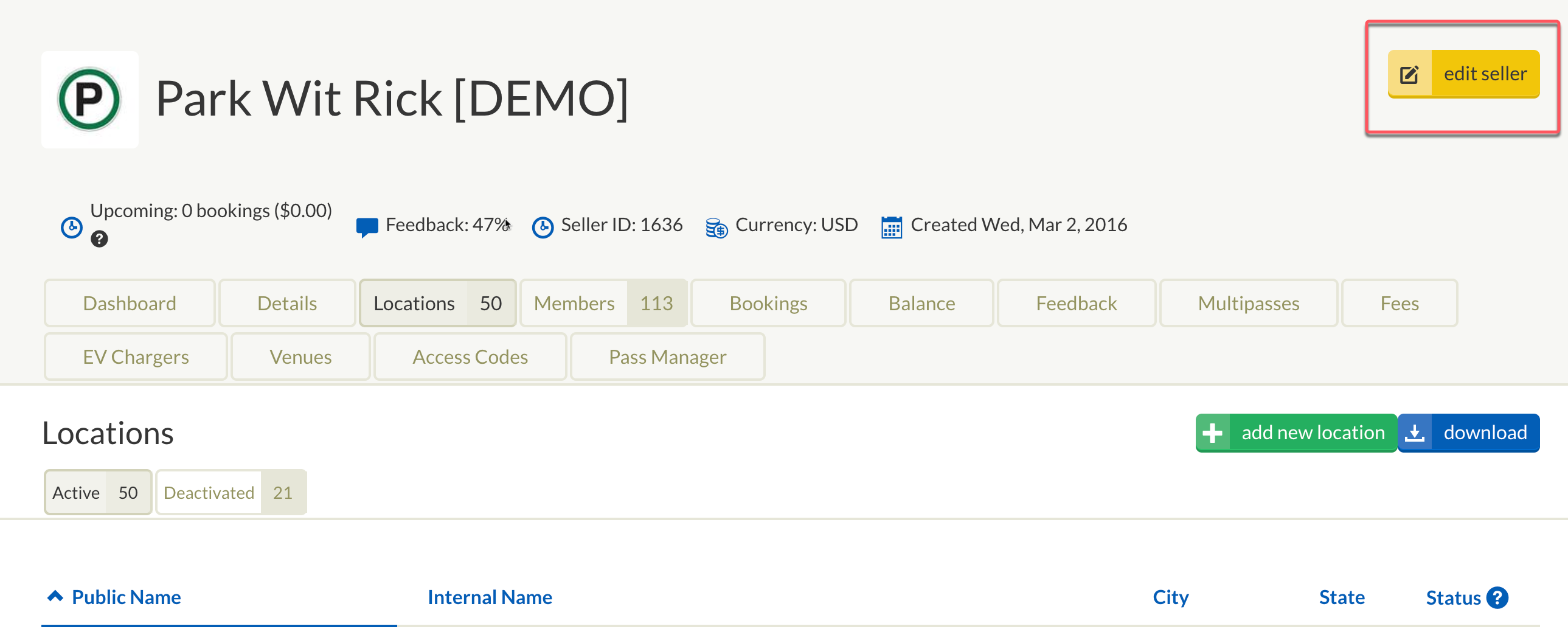
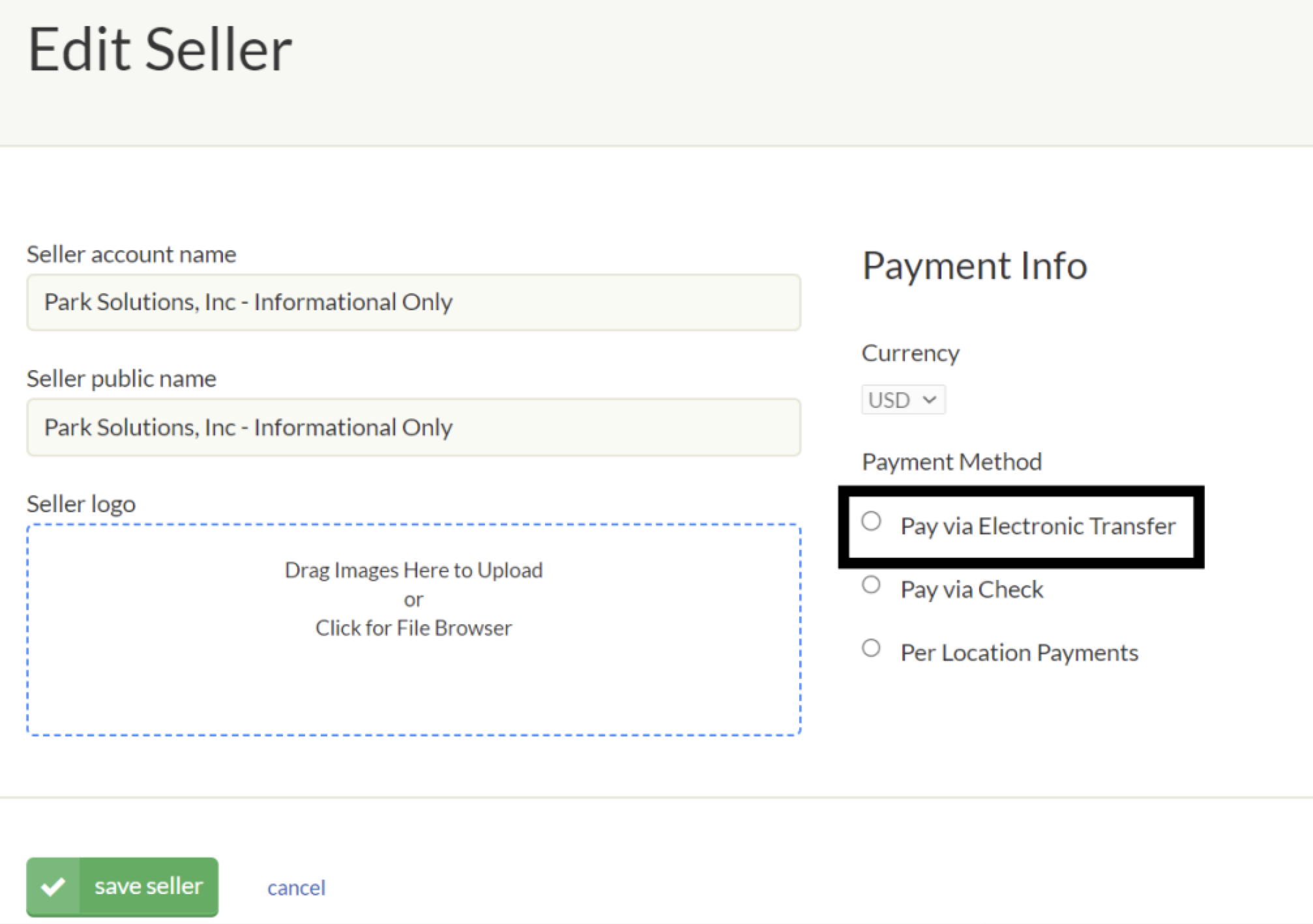
3. Select Pay via Electronic Transfer to display the bank information fields
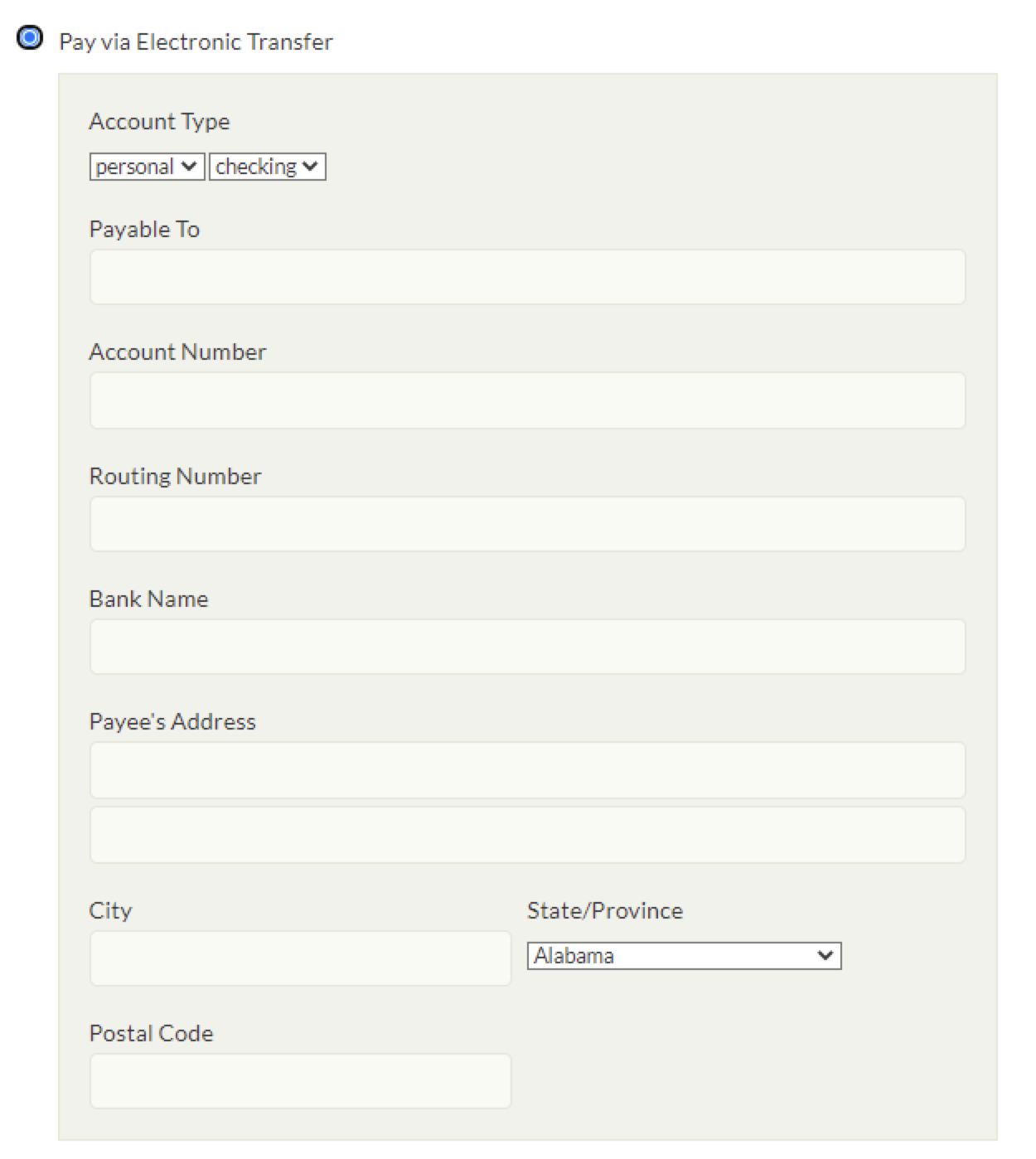
Complete the form
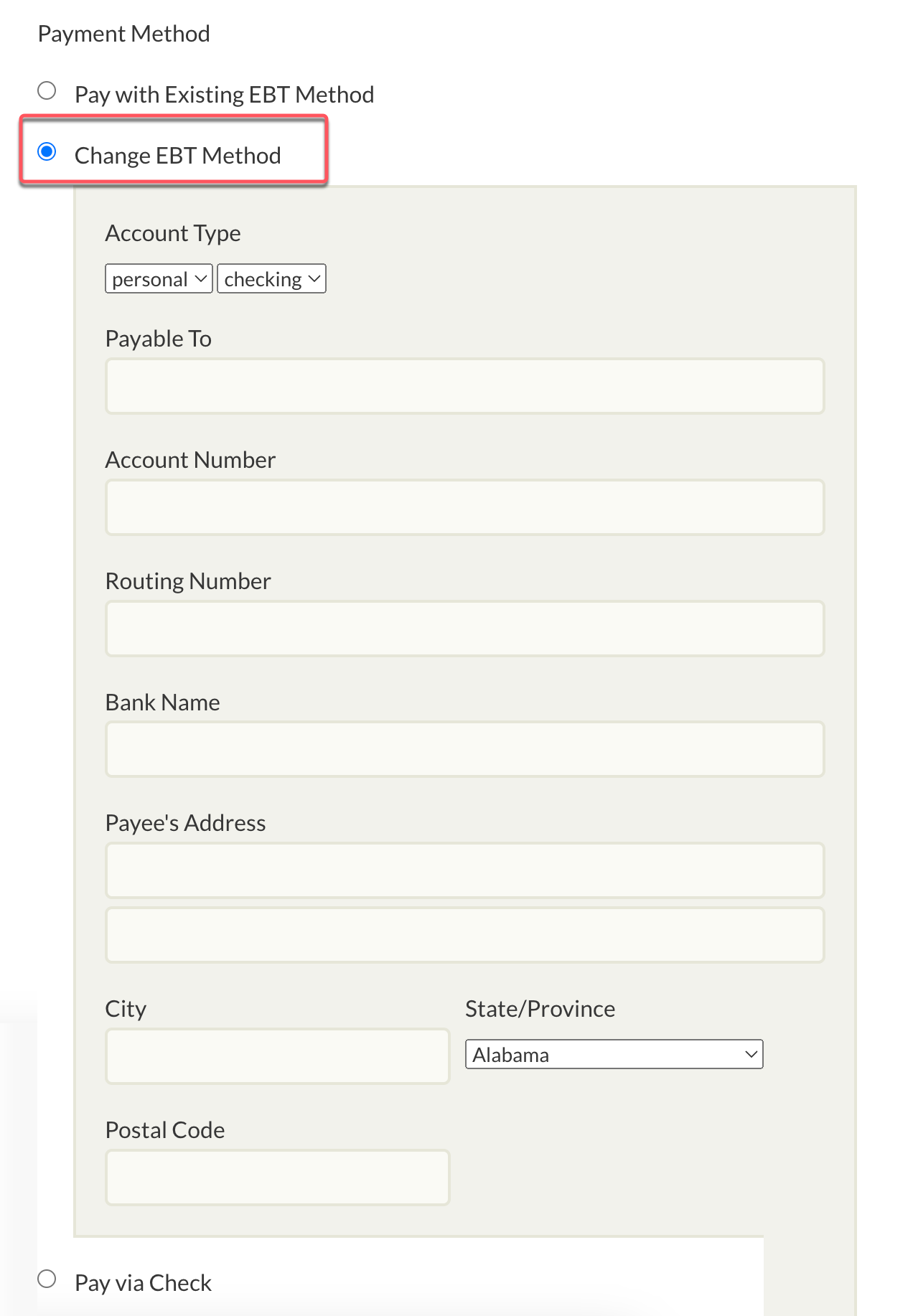
Account Type:
Personal or Business
Checking or Savings
Payable To: Business Name should not contain special characters
Account Number: Numeric field only, should not contain special characters
Routing Number: Numeric field only, must be 9 digits, should not contain special characters
Bank Name: Name checking account bank, should not contain special characters
Payees’ Address: Business Checking Address, should not contain special characters
Update a Seller Level Bank Account
Log in to the Seller Console
- Select Edit Seller
- Select Change EBT Method and complete the form
Add a Location-Level Bank Account
⚠ When setting Location-Level bank accounts, one must be set for each location.- Log in to the Seller Console
- Select Edit Seller
- Select Per Location Payments
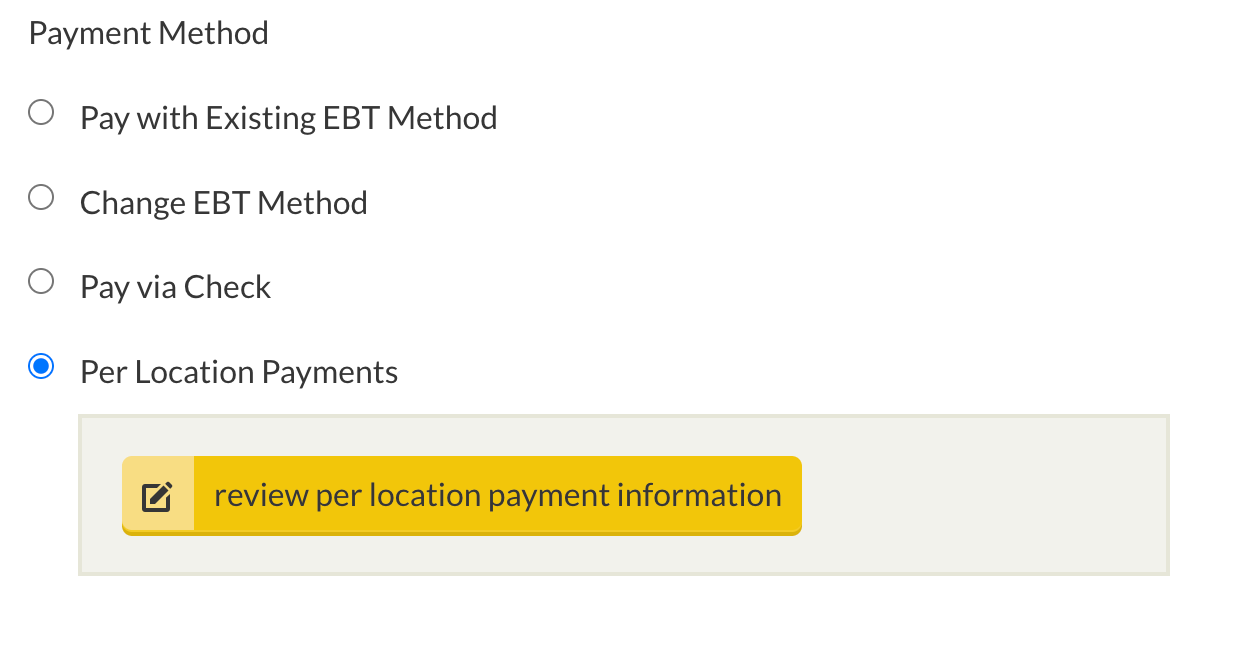
4. Select Pay via Electronic Transfer and complete the form
5. Repeat these steps until all locations have a bank account configured for electronic transfer

View Express Pay Ticket Details
The Ticket tab allows users to view and search for On-Demand Tickets (Express Pay), the ticket status is provided.
- Log in to admin.parkwhiz.com
- Select Location > Tickets tab
Filter options
- Ticket Date
- Status
Search options
- Ticket ID or (PARCS) number
- License Plate
3. Select go
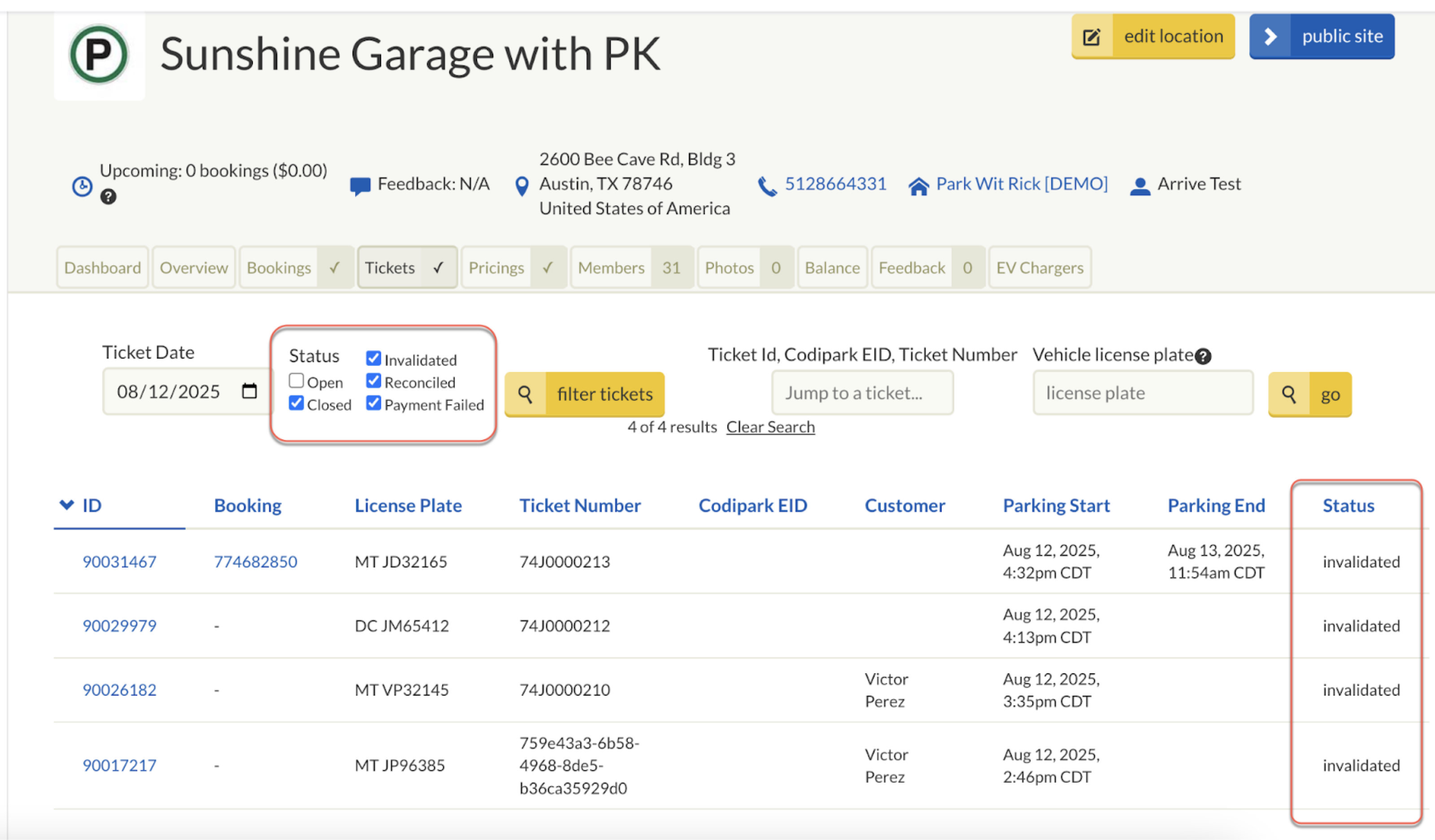
- Open: Currently open, and an exit has not closed the session.
- Invalidated: Digital parking session was cancelled (unlinked from the PARCS Transient ticket) or refunded.
- Reconciled: Paid
- Payment Failed: Payment declined after the driver exited.
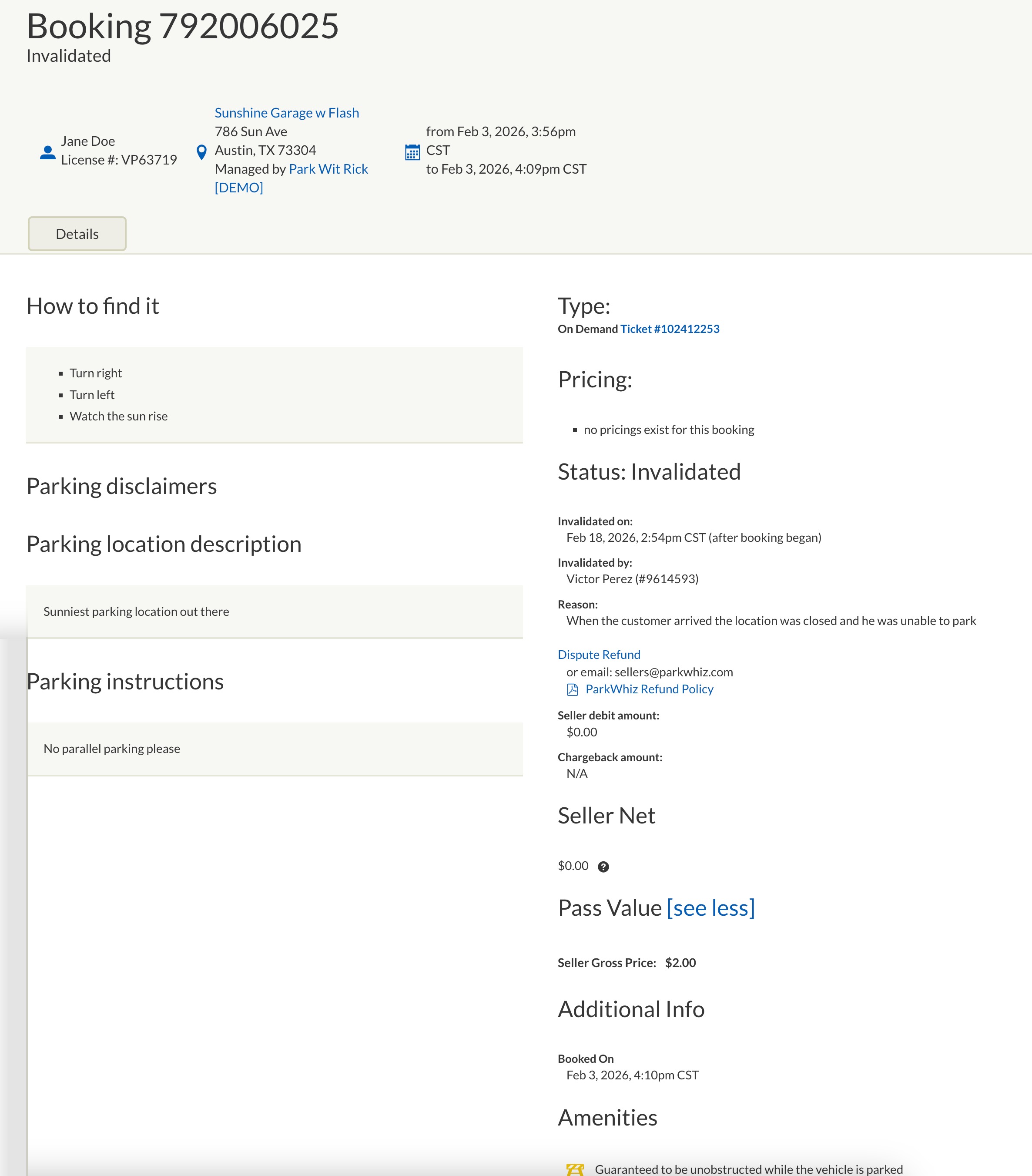
4. Select Ticket ID or Booking for more details
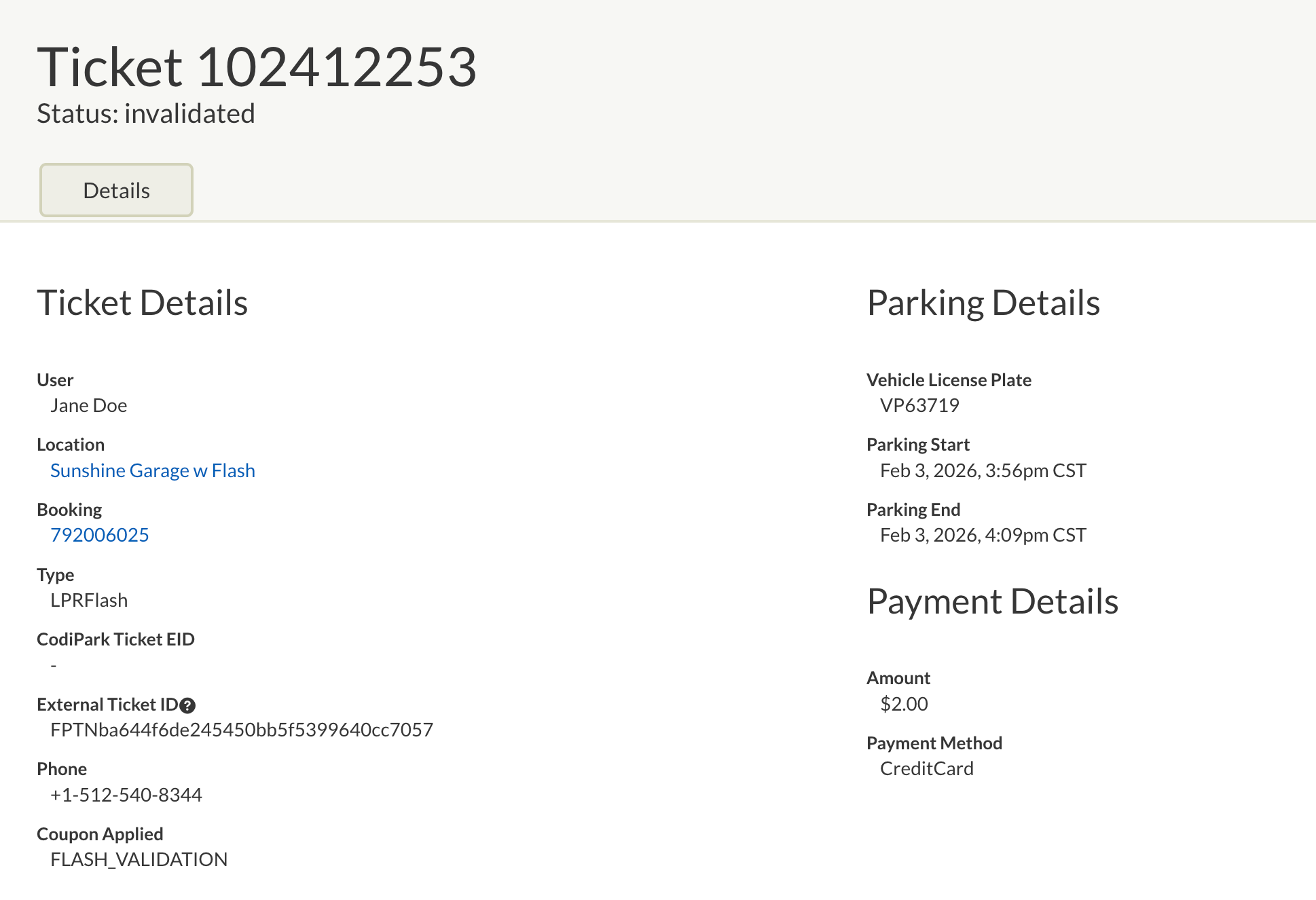
Ticket ID Details
Booking Details
Was this article helpful?
That’s Great!
Thank you for your feedback
Sorry! We couldn't be helpful
Thank you for your feedback
Feedback sent
We appreciate your effort and will try to fix the article