EXPRESS PAY REPORTING FOR PARKONECT
Digital Payments Collection Report
The Digital Payments Collection Report provides detailed transaction data and can be filtered to show only Express Pay payment collections. It includes the ticket number and Booking ID, the license plate as captured at entry and exit, parking start and end times, the parking fee, and other relevant session details.
While Parkonect Admin offers additional reports, this is the recommended report for reviewing Express Pay activity at Express Pay locations.
- Log in to secure.parkonect.com
- From the Garage dropdown menu, select the Reports tab
- Select Revenue & Validations
- Locate the Digital Payments Collection Report and click Run Report.
- Can be filtered by Date Range and Vendor.
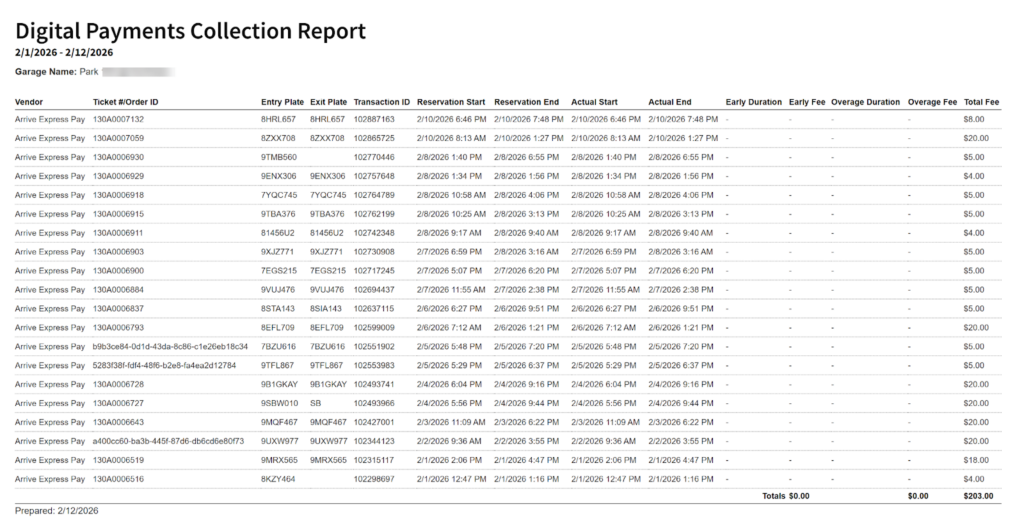
The reservation start and end time fields in this report are for parking reservations (PreSales). Express Pay sessions show the same date and time under reservation start/actual start and reservation end/actual end.Emailed Reports
During Express Pay onboarding, we set up email receipts for the following reports. Once the location has been live for 1-2 weeks, we'll begin sending the following reports.
Express Pay Completed Tickets for Parkonect
A detailed report shows all completed transactions within the selected date range. Includes relevant information for each Express Pay session:
- Location name and ID
- PARCS EID
- ParkWhiz Ticket ID
- ParkWhiz Booking ID and Booking URL
- Partner Name (ParkWhiz or ParkMobile)
- Transaction Product (Express Pay)
- License plate number
- Parking start and end time
- Base Price
- Discounts
- Net
- Transaction type (sale or refund)

Express Pay Summary for Parkonect
A quick look at how much revenue the selected parking location has generated over the selected date range. This report does not provide a ticket by ticket detail, but a grand total of all the Express Pay sessions. The report is broken down into Parkmobile Express Pay and ParkWhiz Express Pay sessions, with a total at the end.

ParkWhiz Admin Reporting
Bookings
Log in to admin.parkwhiz.com
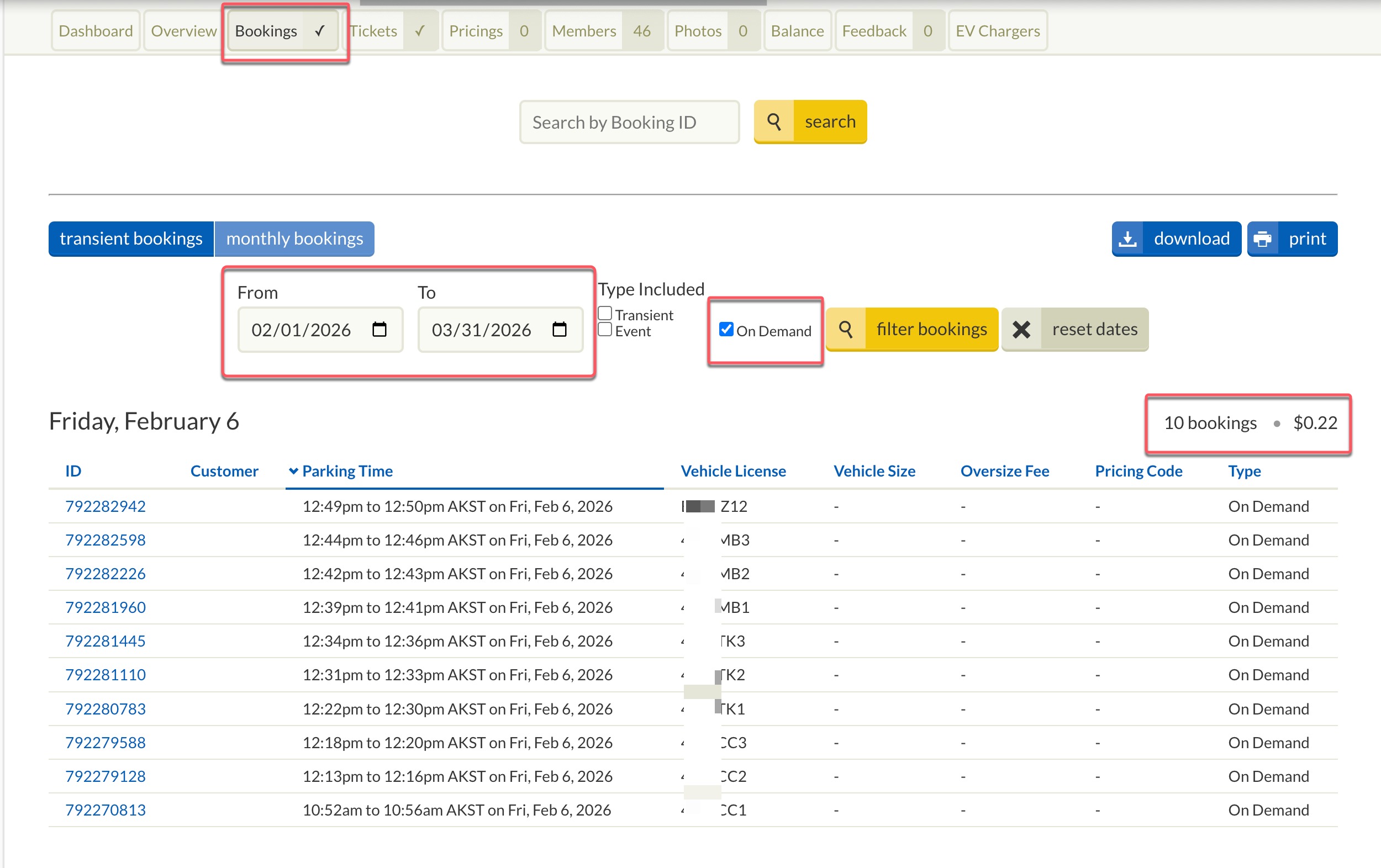
Select Location > Bookings tab
Enter filtered dates
Check On-Demand for Type Included
Filter Bookings
The reporting period will display all transactions by date, with Booking Count and Total amount in the top right.
Balance
- Log in to admin.parkwhiz.com
Select Location > Balance tab
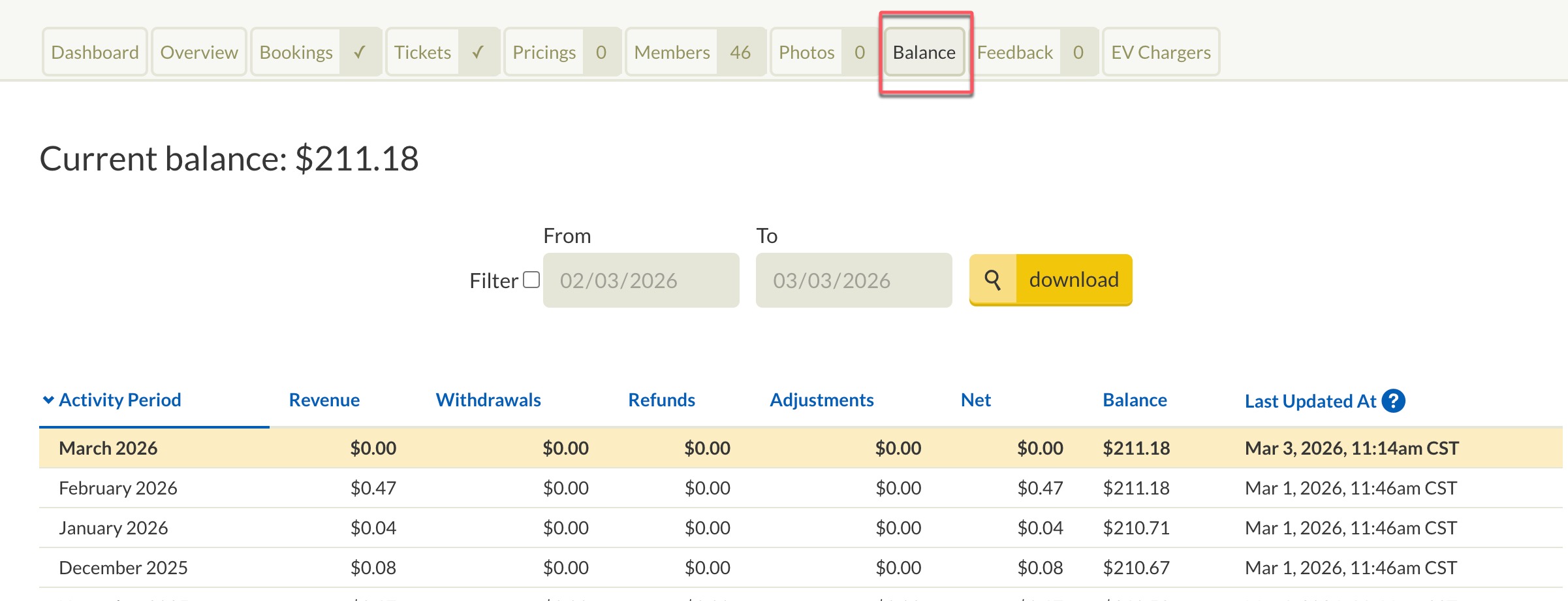
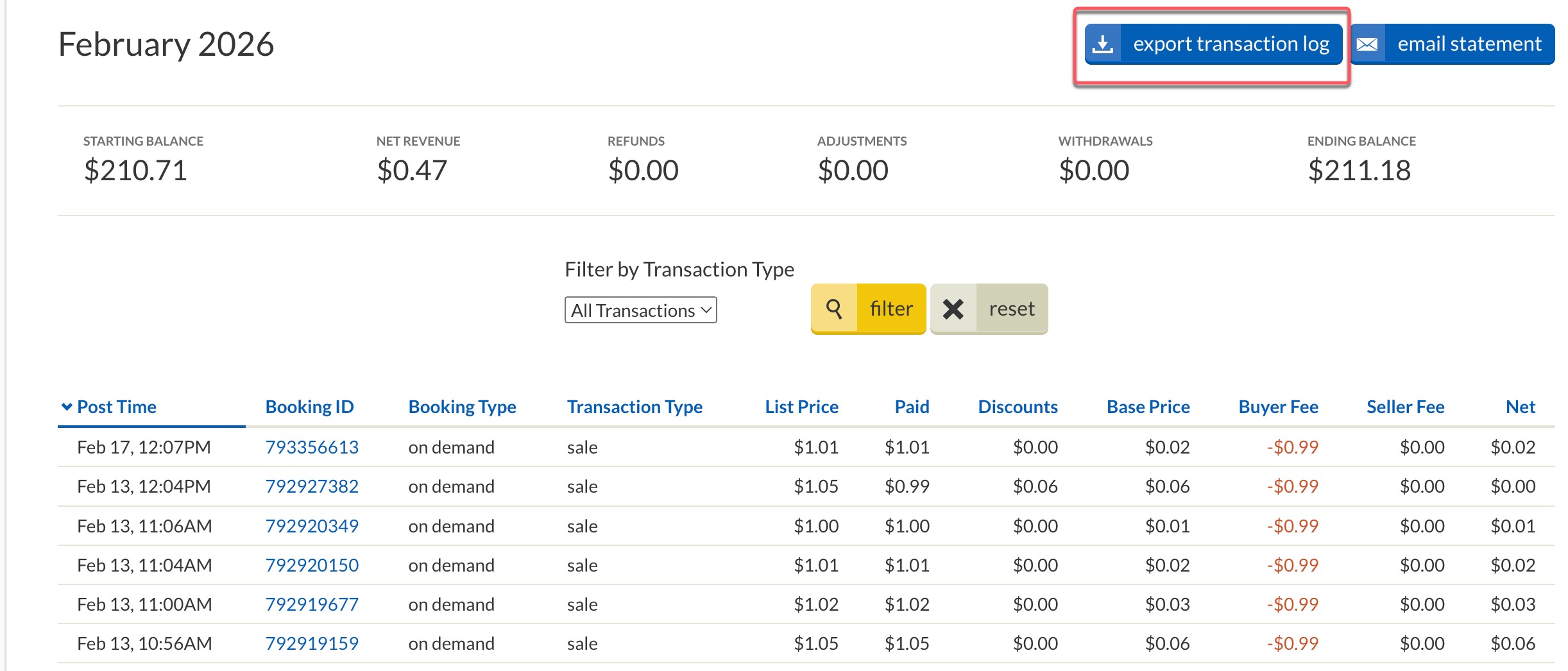
3. Select the month for the detailed transactions view.
4. Export the Transaction Log for filtering and total functions.
Was this article helpful?
That’s Great!
Thank you for your feedback
Sorry! We couldn't be helpful
Thank you for your feedback
Feedback sent
We appreciate your effort and will try to fix the article