"I DIDN'T MEAN TO ENROLL IN EXPRESS PAY. HOW DO I UNENROLL?"
Description:
The driver wants to unenroll their vehicle so their credit card is no longer charged automatically.
Agent Instructions & Details:
Option A (SMS Link Script):
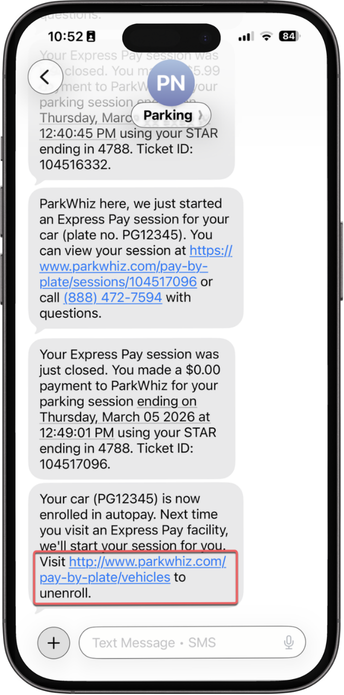
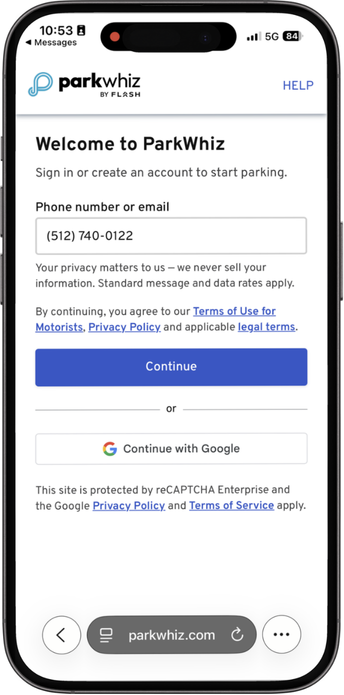
Say to the driver: "You can unenroll using the confirmation text message sent after your session closed. Click the enrollment link in that SMS, log in with your mobile phone number, and select the unenroll option for your vehicle."
| 1. Tell the driver: "Open the confirmation text message you received after enrolling. Tap the link inside to view your registered vehicles." |
| 2. Tell the driver: "Sign in by entering your phone number for verification when prompted." |
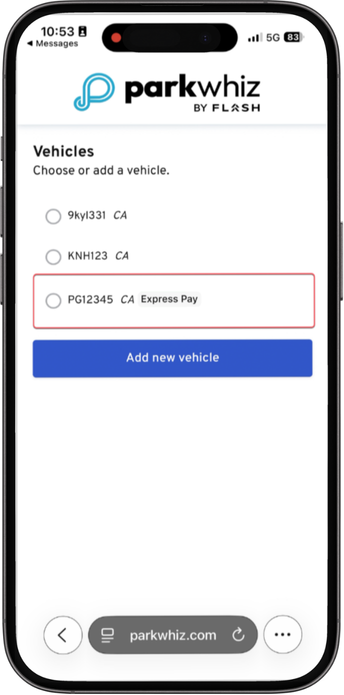
| 3. Tell the driver: "You will see a list of your saved license plates. Tap 'Edit' next to the plate displaying the Express Pay label." |
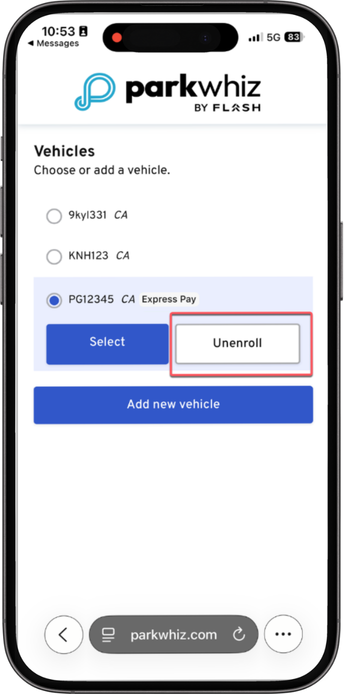
| 4. Tell the driver: "Tap the Unenroll button to remove that license plate from Express Pay." Agent Note: Remind the driver that if their vehicle is currently in an active parking session, they must complete or cancel the session first before unenrolling. |
Option B (ParkWhiz App Script):
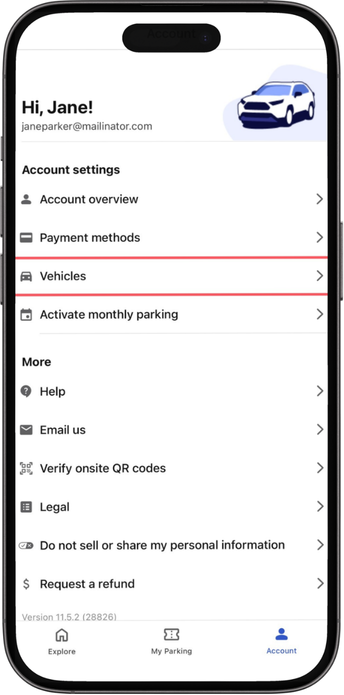
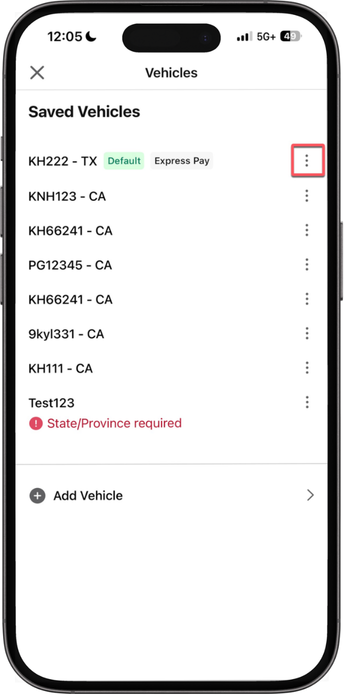
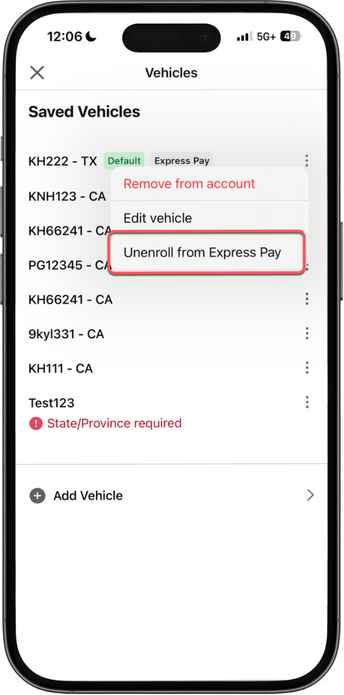
Say to the driver: "If you have the ParkWhiz app installed, open it and navigate to Account Settings. Tap 'Vehicles', select the three dots next to your license plate, and choose 'Unenroll from Express Pay'."
ParkWhiz App - iOS
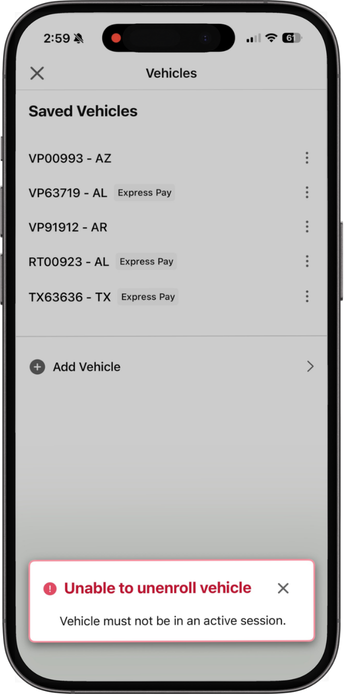
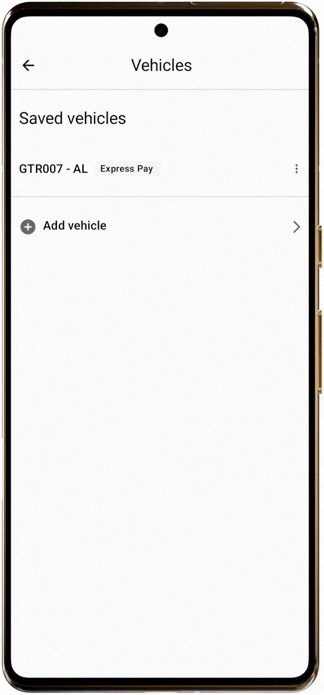
| 1. Tell the driver: "Go to your Account Settings in the ParkWhiz app and tap the 'Vehicles' option." |
| 2. Tell the driver: "Tap the three dots on the right side of the vehicle you want to unenroll." |
| 3. Tell the driver: "Select 'Unenroll from Express Pay' from the menu options." |
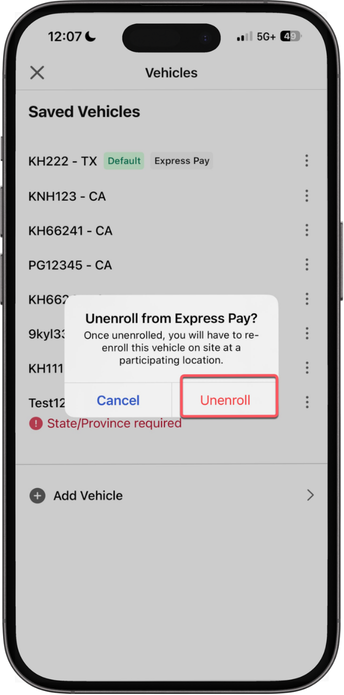
| 4. Tell the driver: "When the confirmation prompt appears, tap 'Unenroll' to confirm." |
| Agent Note: If the vehicle is in an active parking session, inform the driver that the session must be finished or canceled prior to unenrollment. |
Android App
Option C (ParkMobile App Script):
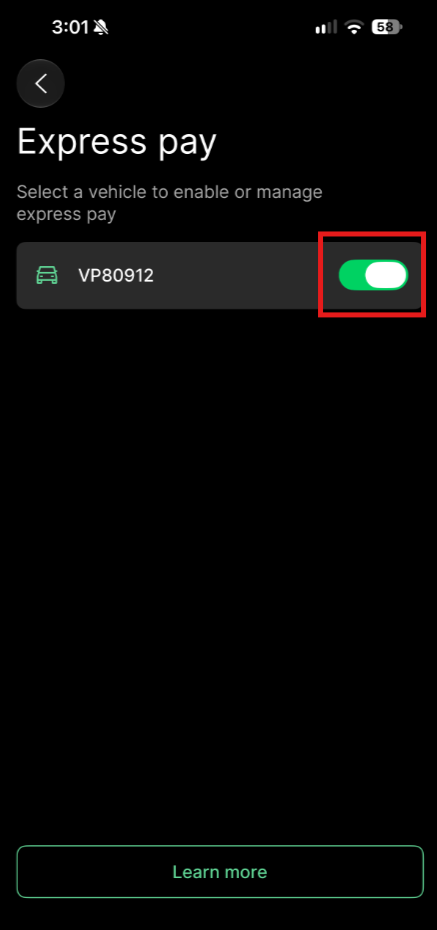
Say to the driver: "If you are using the ParkMobile app, open the main menu, select the Express Pay tab, and toggle off the vehicle you wish to disable."
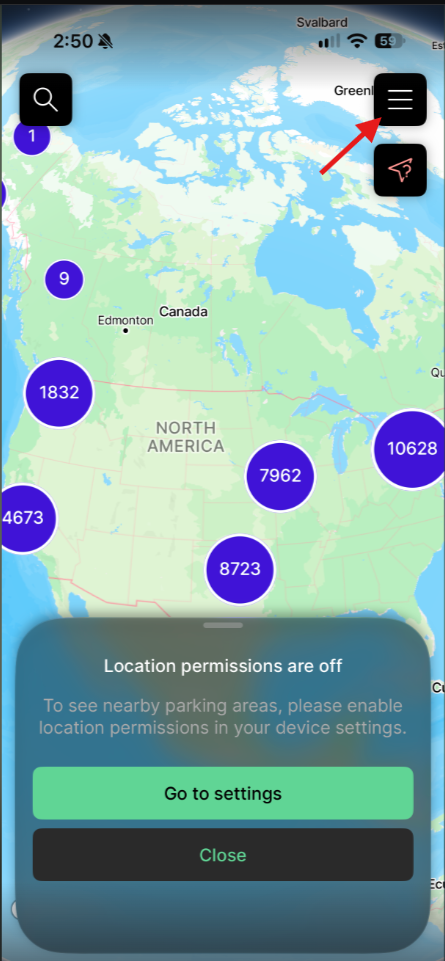
| 1. Tell the driver: "Tap the three lines in the top right corner to open the main menu." |
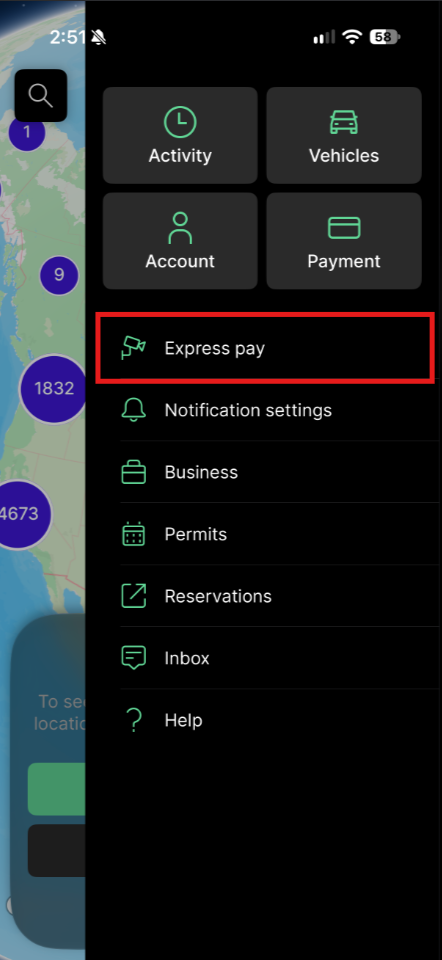
| 2. Tell the driver: "Select the Express Pay tab from the menu." |
| 3. Tell the driver: "Tap the toggle switch next to the vehicle you wish to disable." Agent Note: Remind the driver that active parking sessions must be completed or canceled before disabling Express Pay. |
Was this article helpful?
That’s Great!
Thank you for your feedback
Sorry! We couldn't be helpful
Thank you for your feedback
Feedback sent
We appreciate your effort and will try to fix the article