Flash PARCS Call Center Guide: What is the Express Pay Experience?

Modified on Tue, 13 Oct at 12:27 PM

WHAT IS THE EXPRESS PAY EXPERIENCE?


Description


Express Pay is a seamless, contactless payment solution powered by the ParkWhiz platform and Flash PARCS. It uses license plate recognition (LPR) to automate parking transactions. 


Agent Instructions & Details


  • To initiate Express Pay, drivers scan a displayed QR code or click an SMS link, leading them through a quick web-based sign-up process. 
  • Once a payment method and license plate are saved, the license plate acts as their credential for future entry and exit across all Express Pay-enabled locations. 
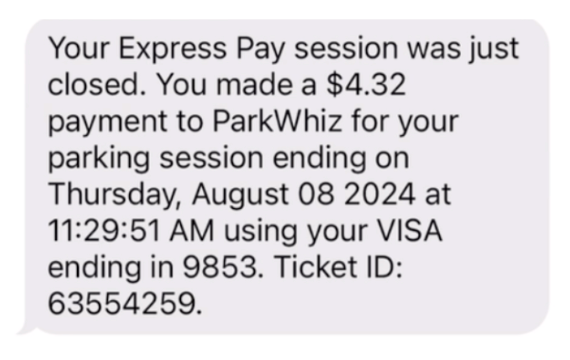
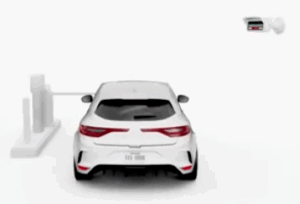
  • Upon exit, cameras verify the session, the gate opens automatically, and the parking fee is charged to the card on file. 

  1. Instruct the driver to take a ticket. 


Drivers interact with the Entry kiosk to receive a Transient ticket.


Can pull a paper ticket, use a credit card as a ticket, or enter a mobile number.


Agent Script:

"To start, please take a ticket at the entry kiosk. You can press the button to pull a paper ticket, insert your credit card, or enter your mobile phone number on the screen to receive a text link."


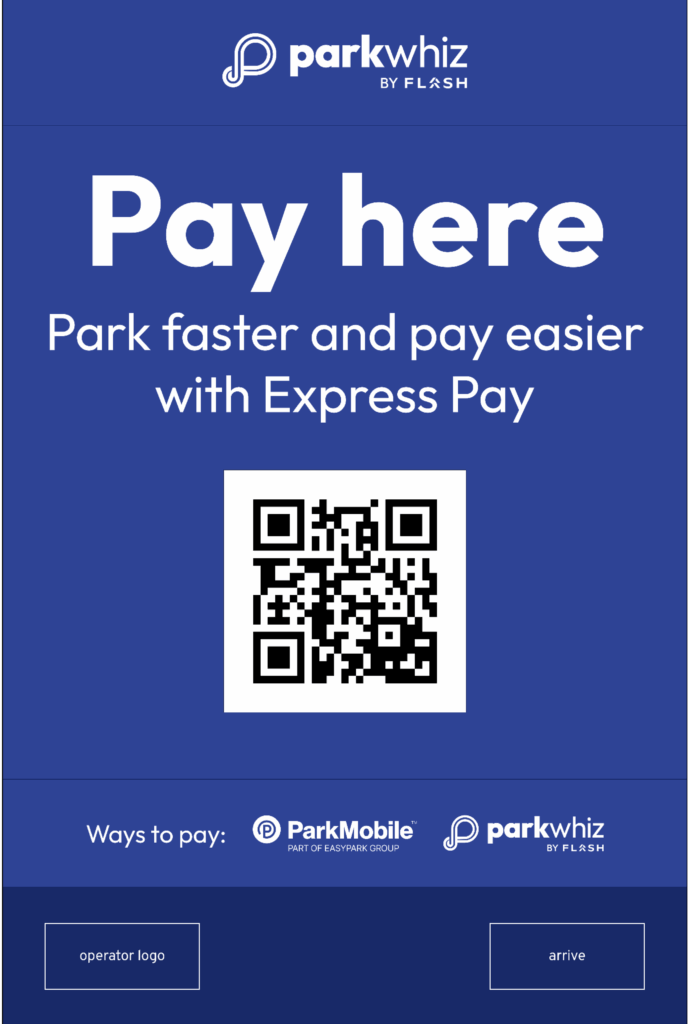
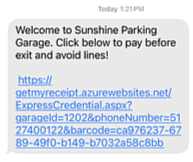
  1. Instruct the driver to scan the QR code to start an Express Pay Session.


Express Pay Initiation Options:


Scan the QR code on the sign: Use your mobile phone's camera to scan the displayed garage sign.


Mobile Number Entry on kiosk: Tap the link provided in the SMS message.


Express Pay Sign In


  1. Instruct the driver to select a payment option (Optional)


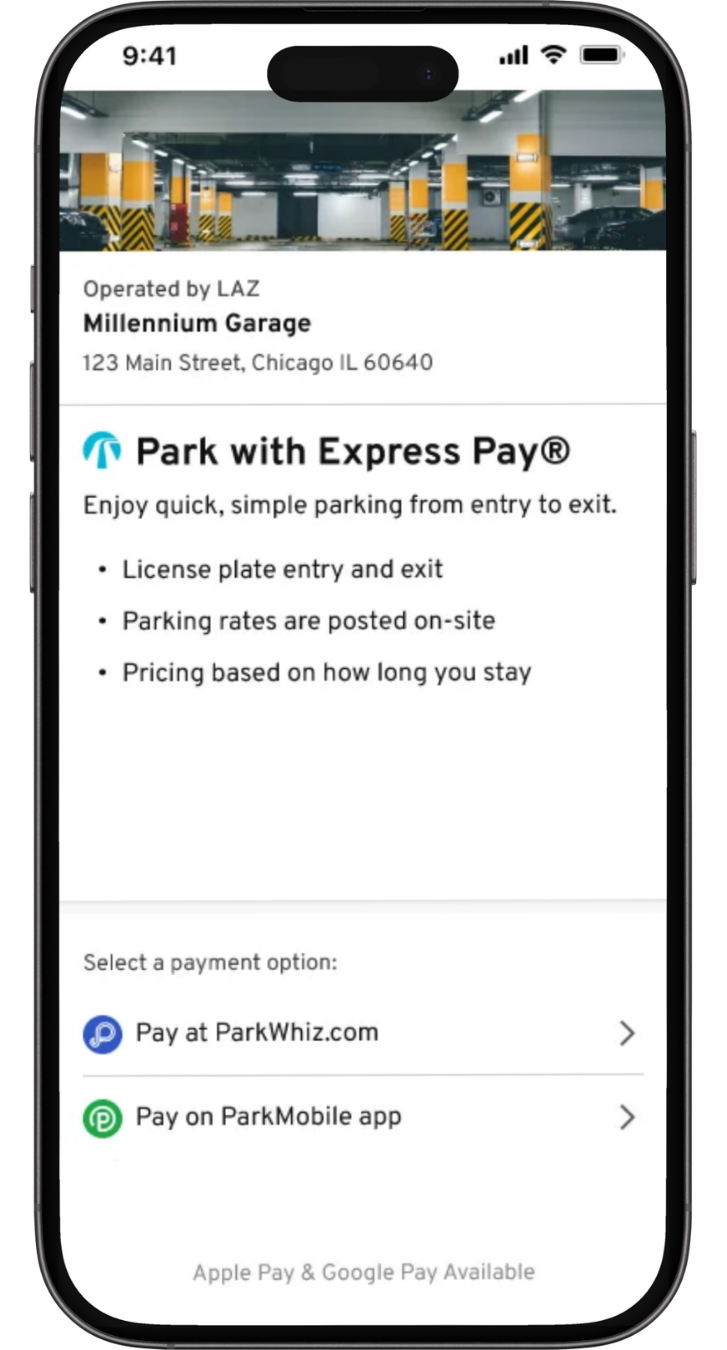
If more than one payment provider is configured for a location, drivers are directed to the Express Pay landing page to select how they want to pay before starting their session.

A location can have up to four payment providers configured. Supported providers include:

  • ParkMobile
  • ParkWhiz
  • Future payment providers

After selecting a payment option, the driver is redirected to that provider's checkout flow to complete the Express Pay session.

Note: The multiple payment options landing page is displayed only when two or more payment providers are configured for a location.


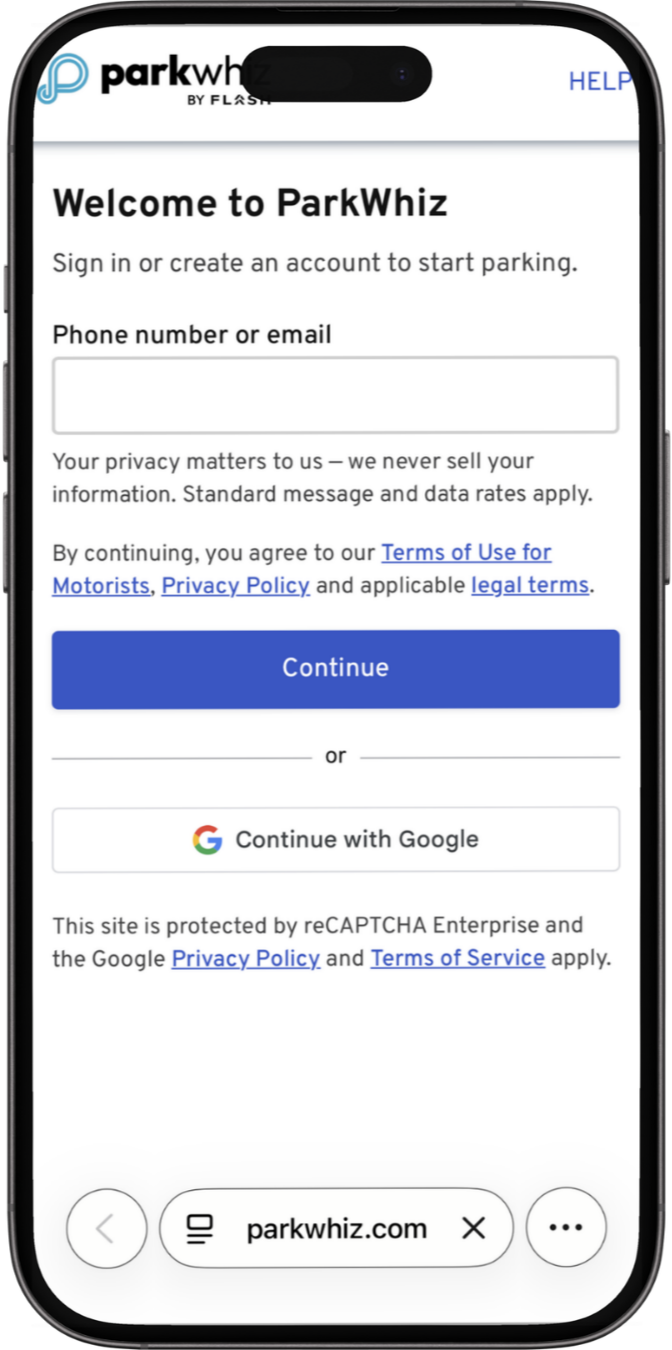
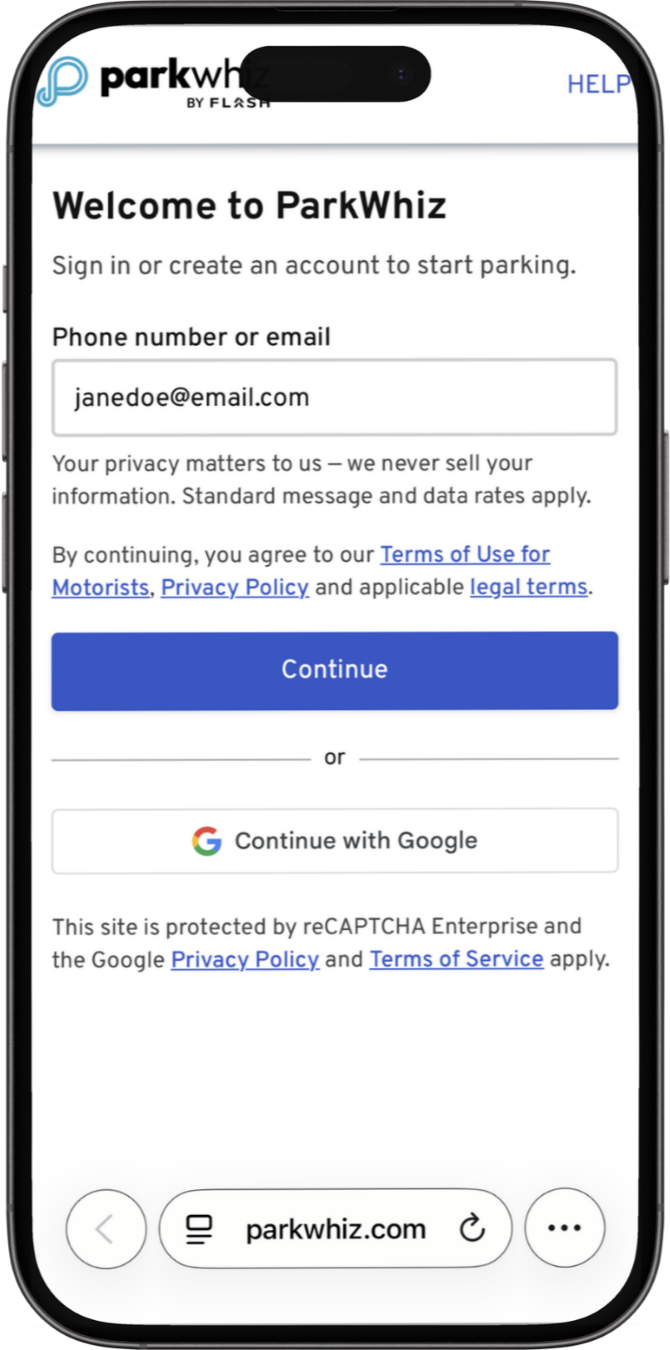
  1. Instruct the driver to enter a phone number, email, or log in with Google SSO. 


Driver enters a mobile number, email, or signs in using Google SSO to verify their ParkWhiz account.


If the user has a ParkWhiz account associated with the mobile number or email address provided, the saved vehicles and the credit card information will auto-populate.


  1. Inform the driver that if they are a new ParkWhiz user, they must provide an email address during their first registration. 


Existing ParkWhiz users skip this step since their email is already on file.


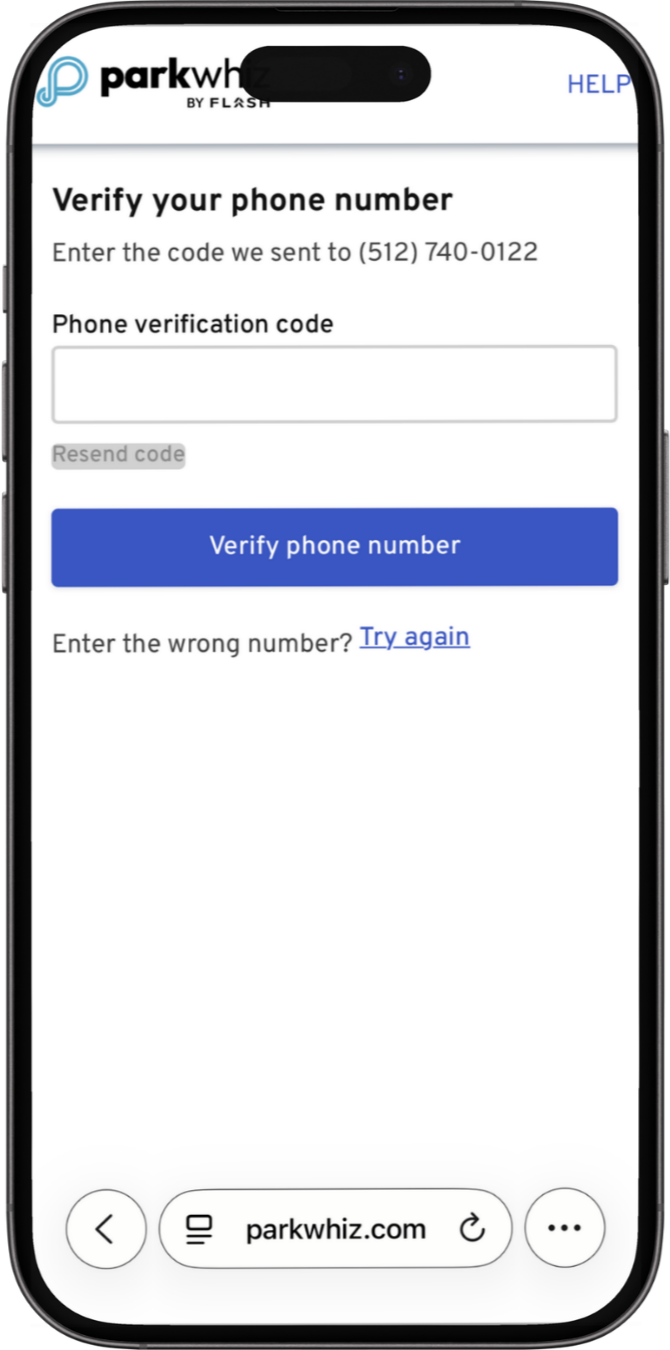
After the initial setup, email entry is not required again; future visits are verified by the linked phone number.


  1. Instruct the driver to enter the SMS verification code 

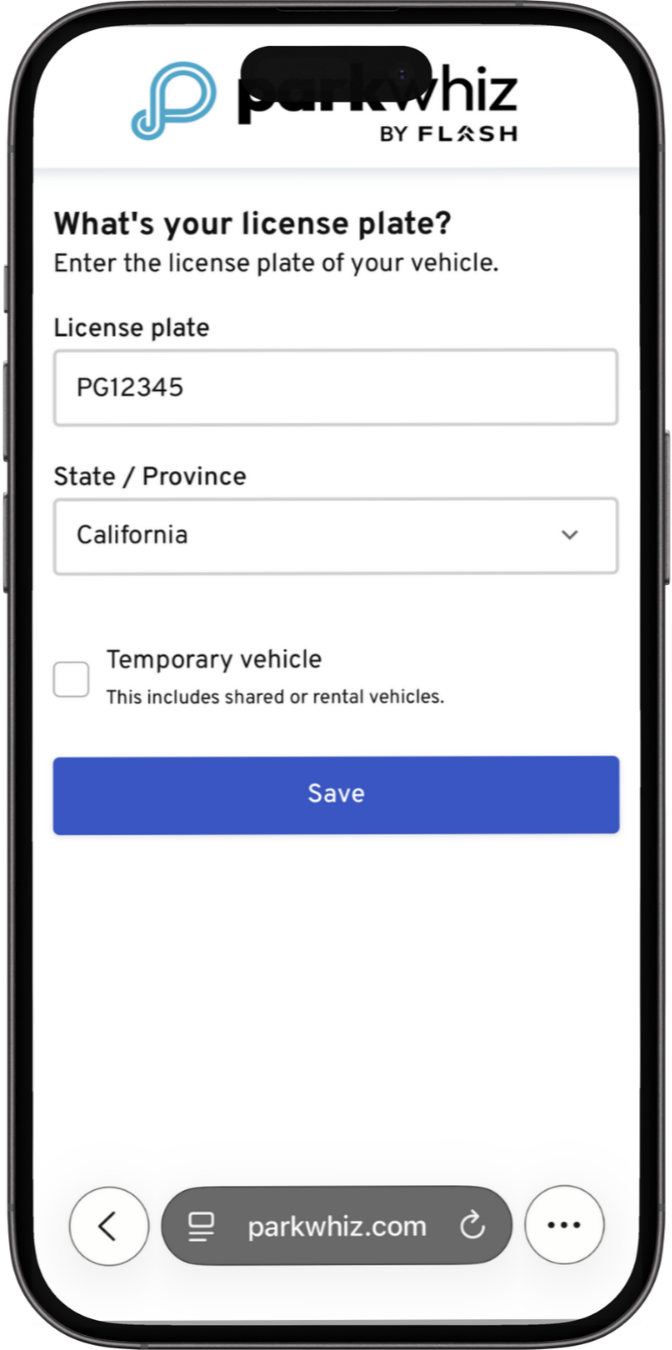
  1. Instruct the driver to add their license plate. 


For current ParkWhiz users, their account vehicles are automatically populated with an option to add a new vehicle.


  • Enter License plate

  • State/ Province

  • (Optional) Tap the checkbox for Temporary vehicles


The entered license plate must match the license plate captured recently on Entry.


Temporary license plates will not be saved to the ParkWhiz account. 

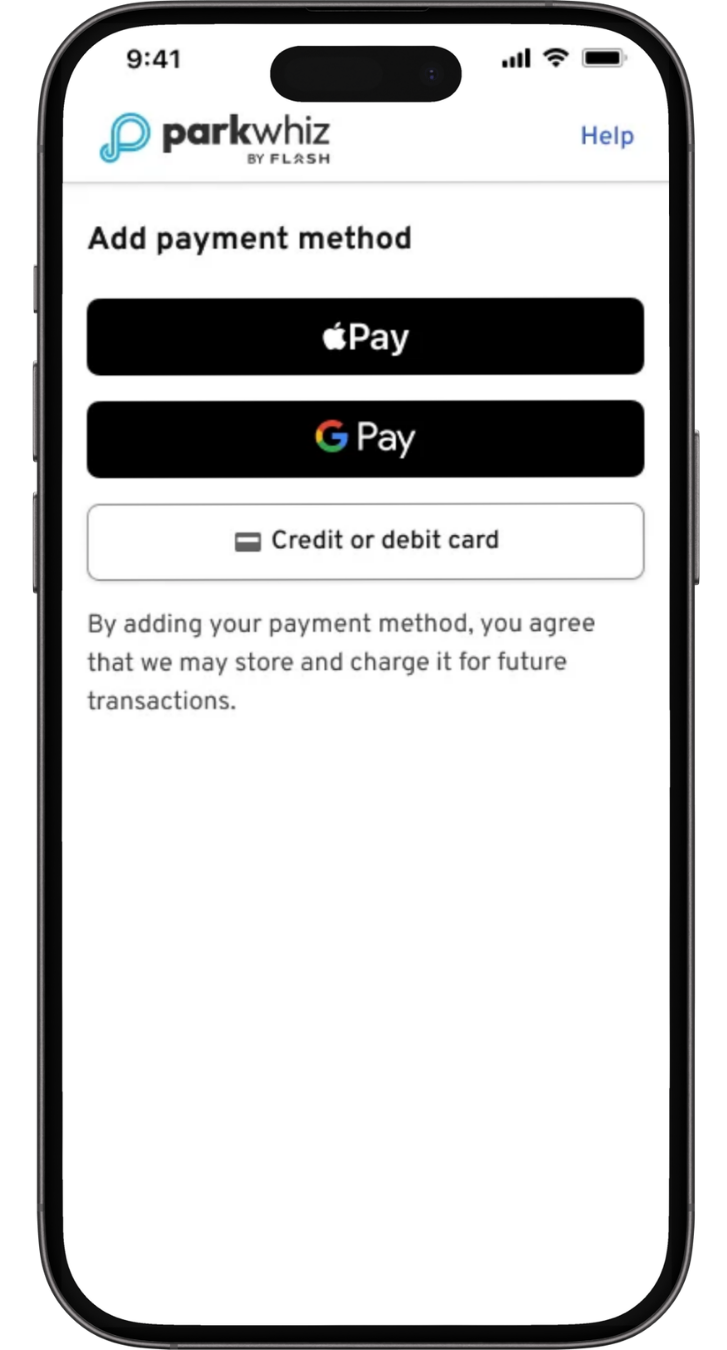
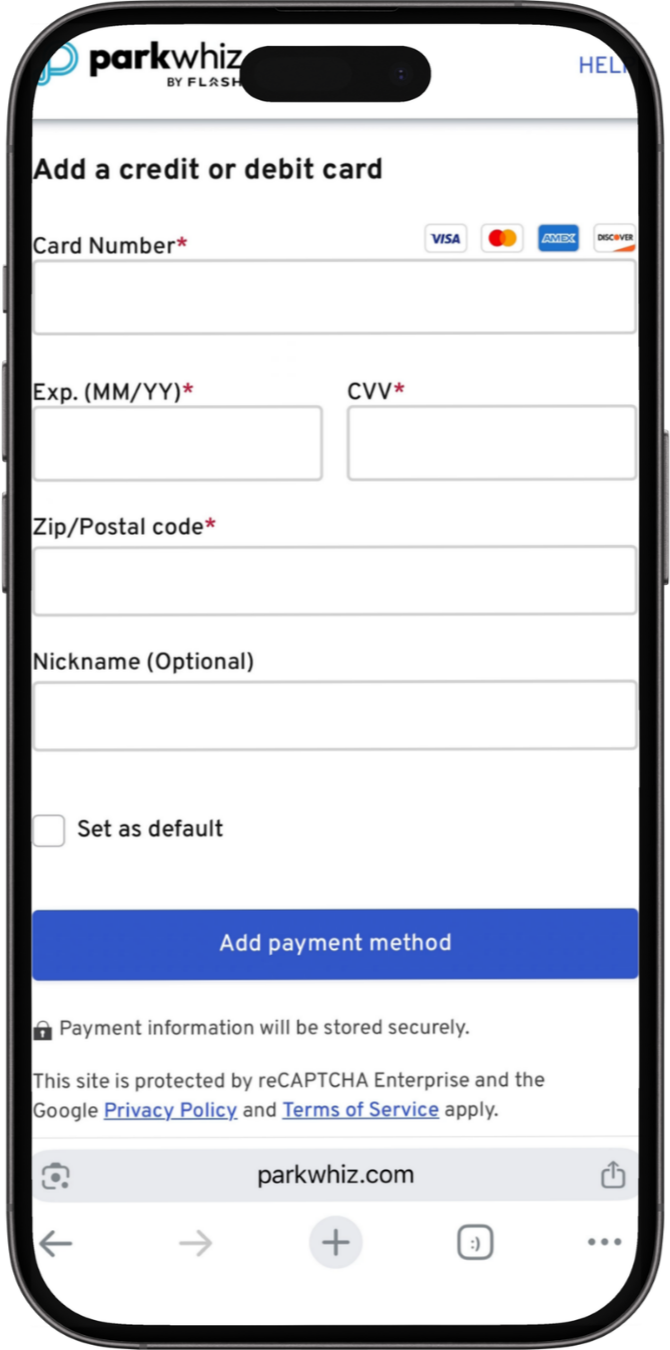
  1. Instruct the driver to add a payment method. 


Only new ParkWhiz users will be prompted to add or link a credit card.


For current ParkWhiz users, the credit card information will automatically populate from a previous use, skipping this step.


Users can quickly check out using Apple Pay or Google Pay.


All cards issued by major card networks (Visa, Mastercard, American Express) are accepted with Express Pay (including gift cards).


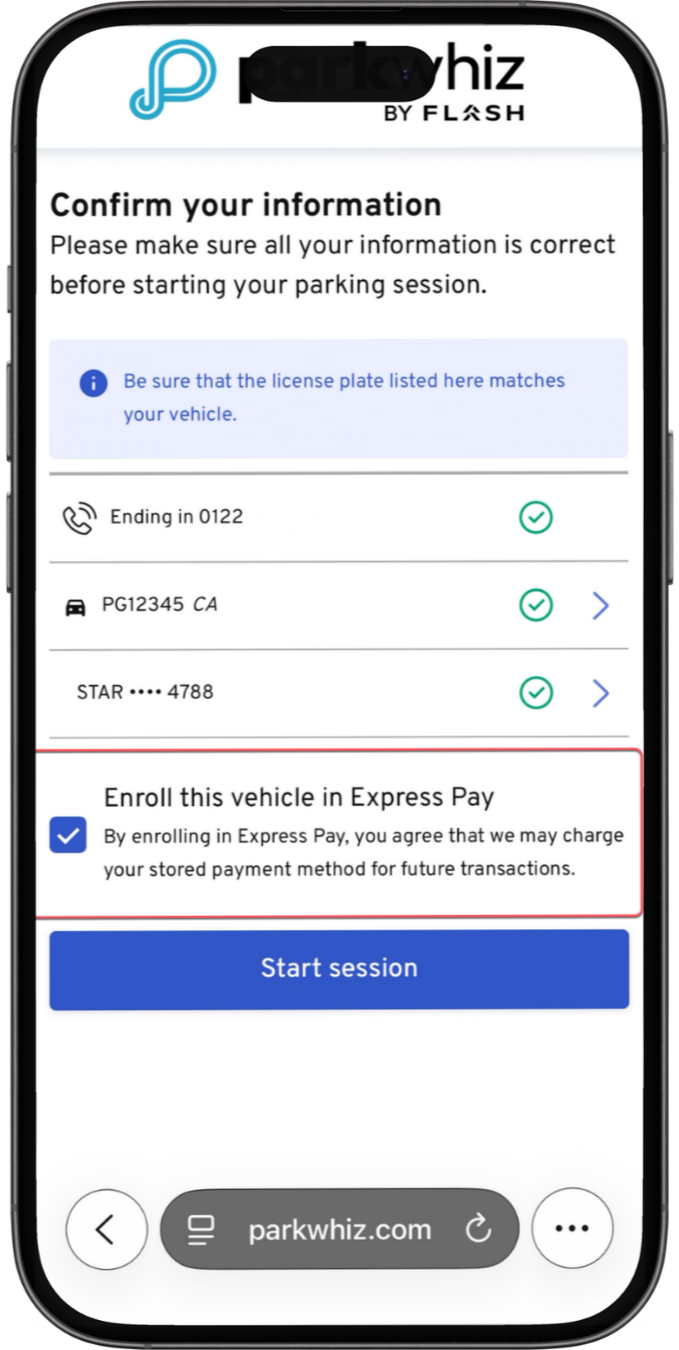
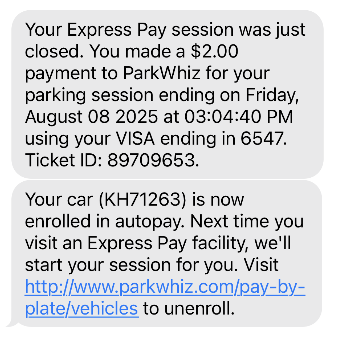
  1. Instruct the driver to start a session (with the option to enroll in Express Pay) 

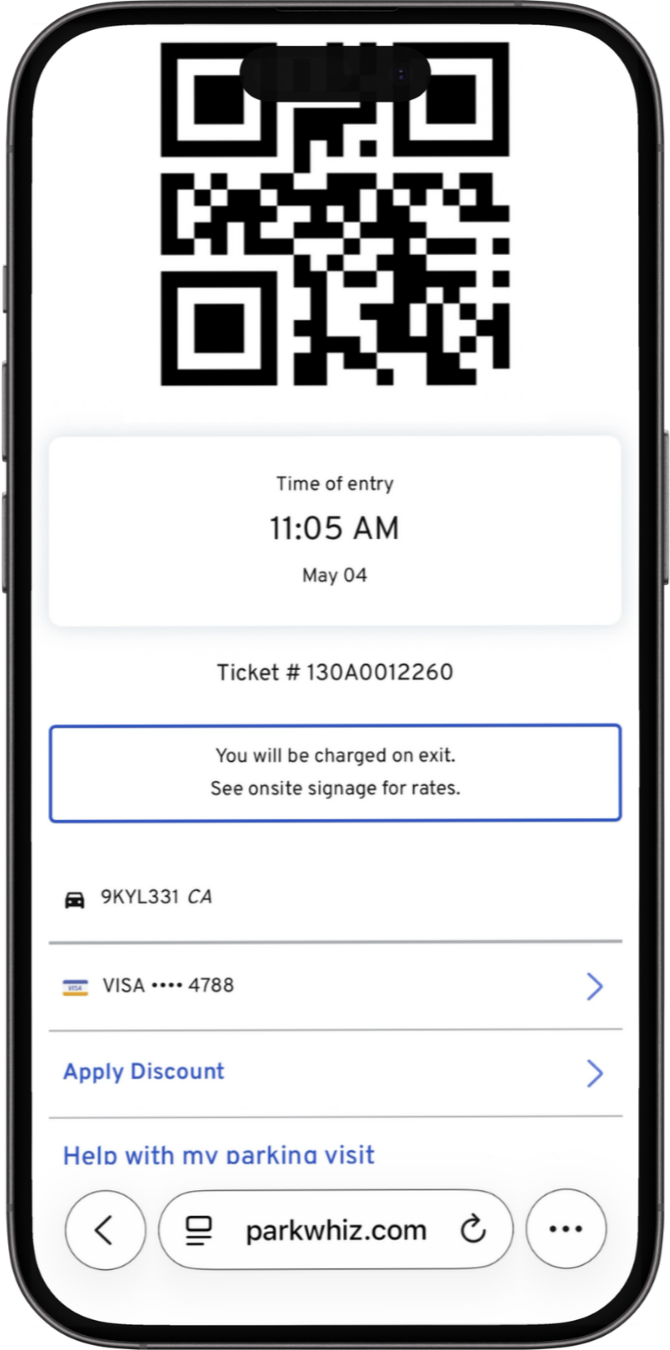
  1. Inform the driver that the Express Pay webpage reloads and provides them with a digital ticket containing: 


  • Ticket QR code

  • Session start date and time

  • Ticket number

  • Linked license plate

  • Credit card information (with option to edit)

  • Option to apply a discount (scan a validation barcode or enter a code manually)


Note: Rate estimate is currently not available, and the driver is instructed to see on-site signage for rates.


Scan the QR code at self-validation kiosks, door readers, or the exit kiosk if there are any license plate recognition issues. 


Agent: "You are all set! Is there anything else I can assist you with today? Thank you for choosing Express Pay, and have a great day!" 


Was this article helpful?

That’s Great!

Thank you for your feedback

Sorry! We couldn't be helpful

Thank you for your feedback

Let us know how can we improve this article!

Select at least one of the reasons
CAPTCHA verification is required.

Feedback sent

We appreciate your effort and will try to fix the article