"How can I delete my vehicle from my Express Pay Account?"
Description
The driver sold or lost a vehicle and needs to remove it from their profile entirely.
Agent Instructions & Details
ParkWhiz
- Instruct the driver to download the ParkWhiz app, ParkMobile app, or log in at ParkWhiz.com or Parkmobile.io/sign-in.
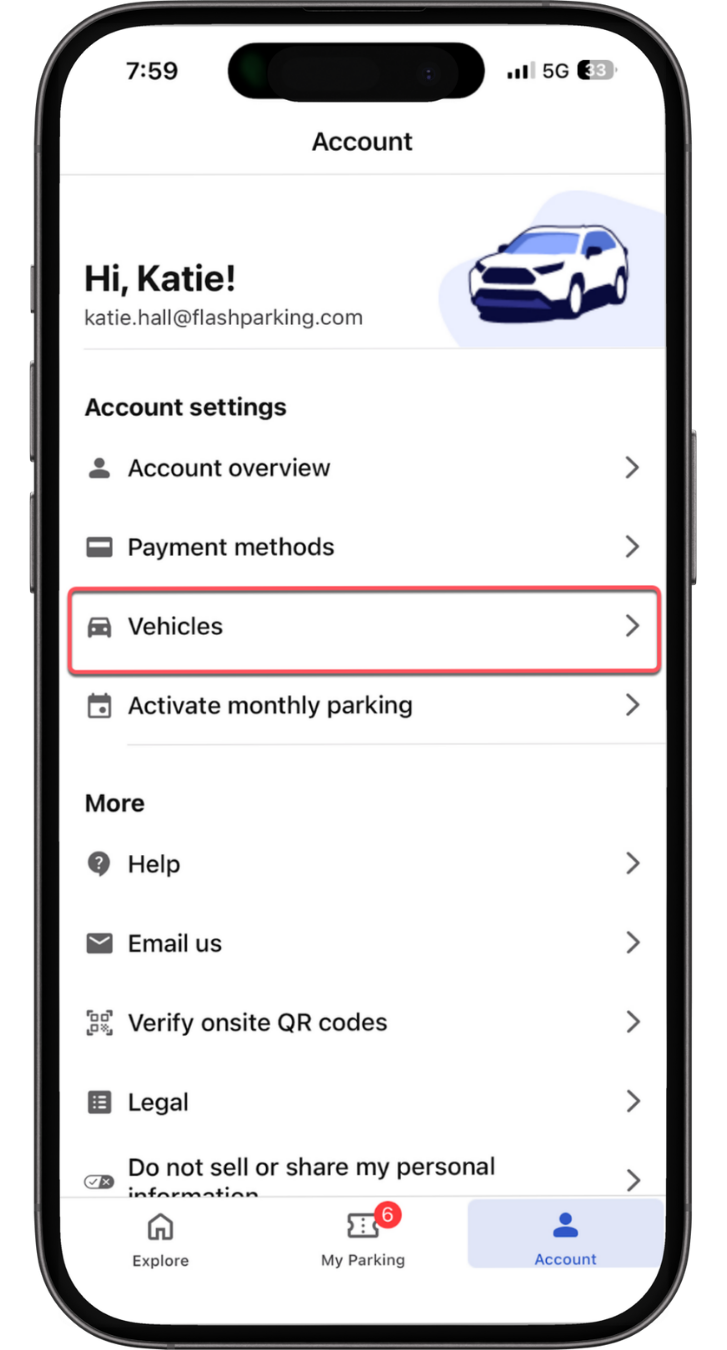
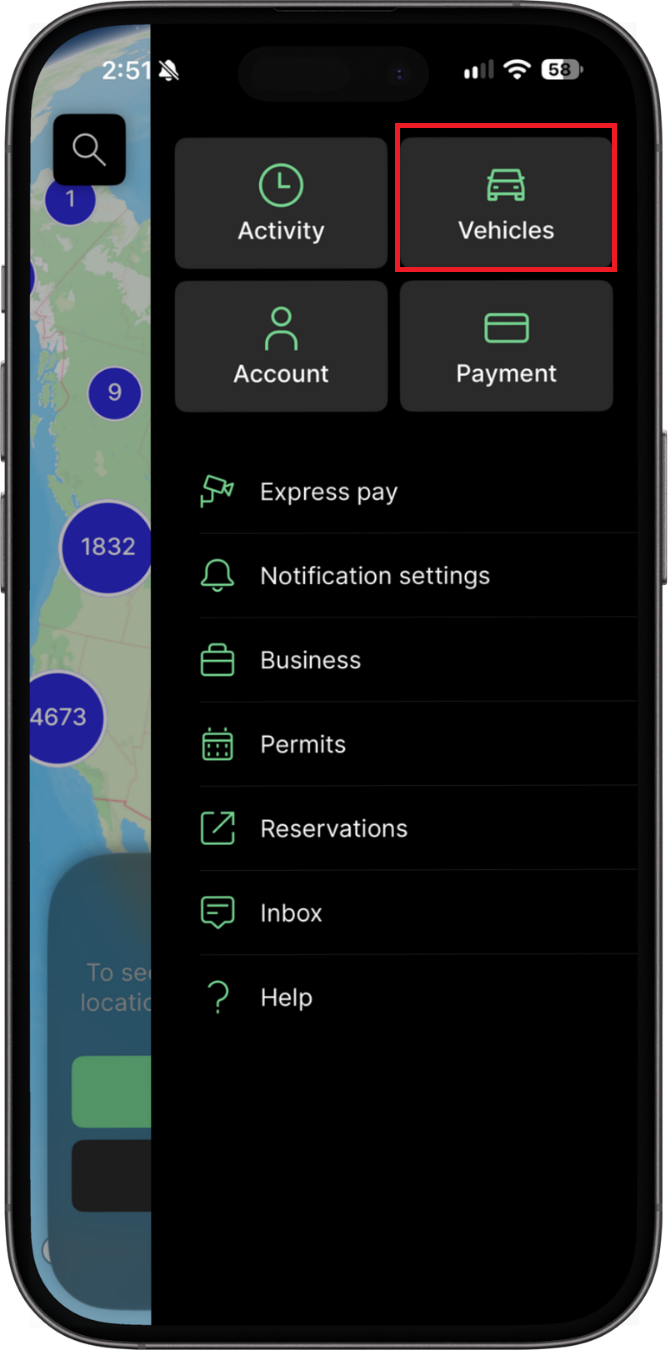
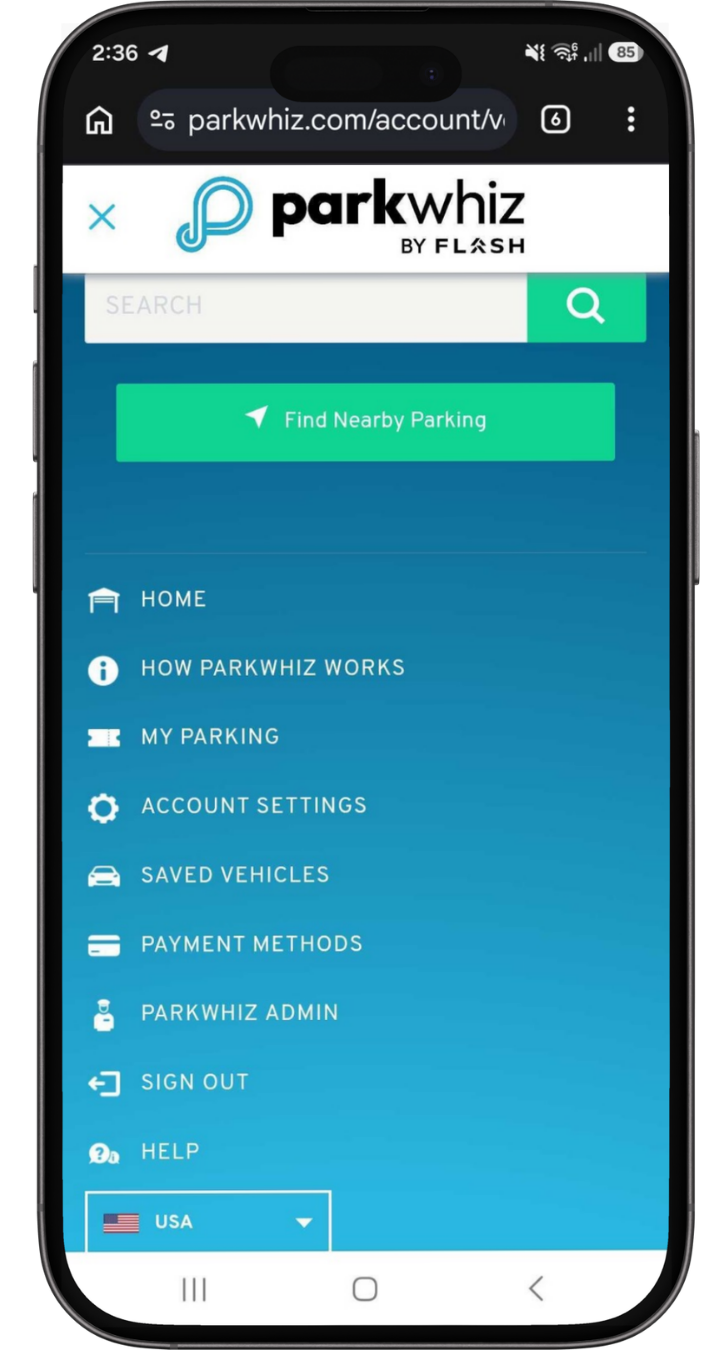
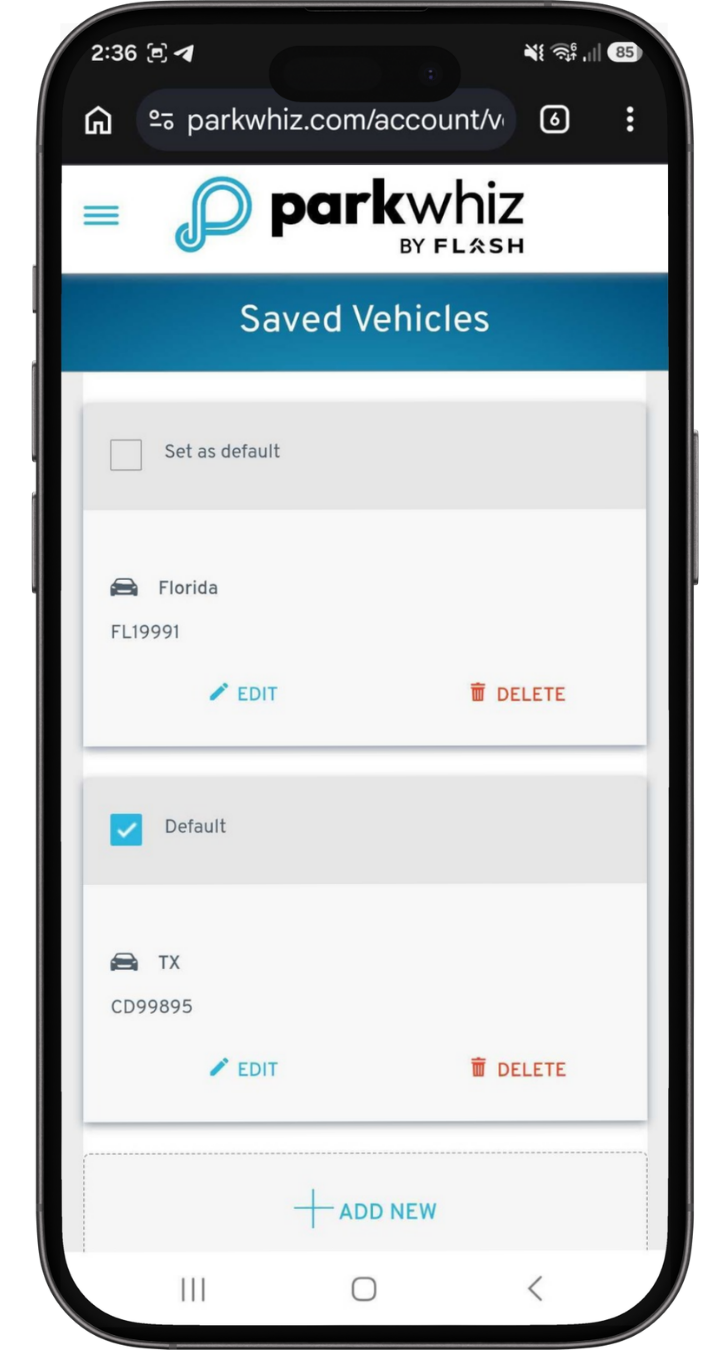
- Navigate to the "Vehicles" section in Account Settings.
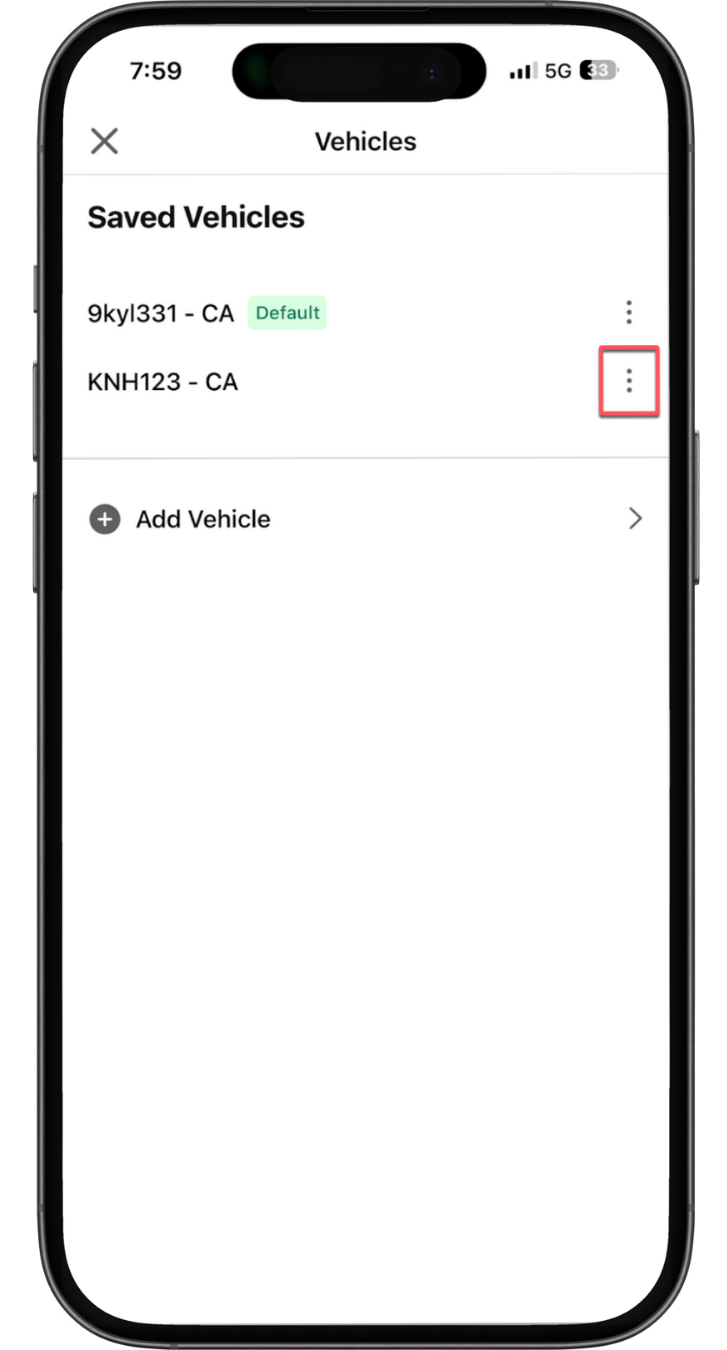
- Select the old vehicle, tap the three-dot options menu, and choose the option to "Delete" the vehicle. Deleting it from ParkWhiz will automatically unenroll it from Express Pay.
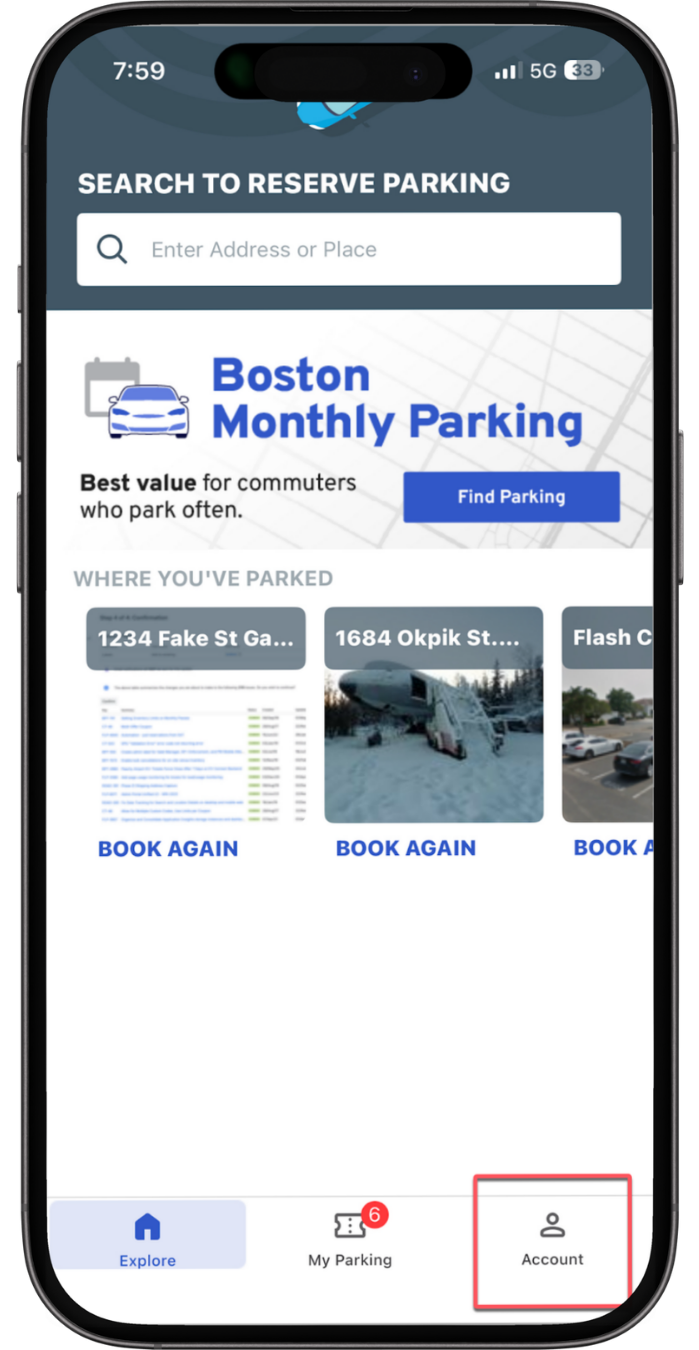
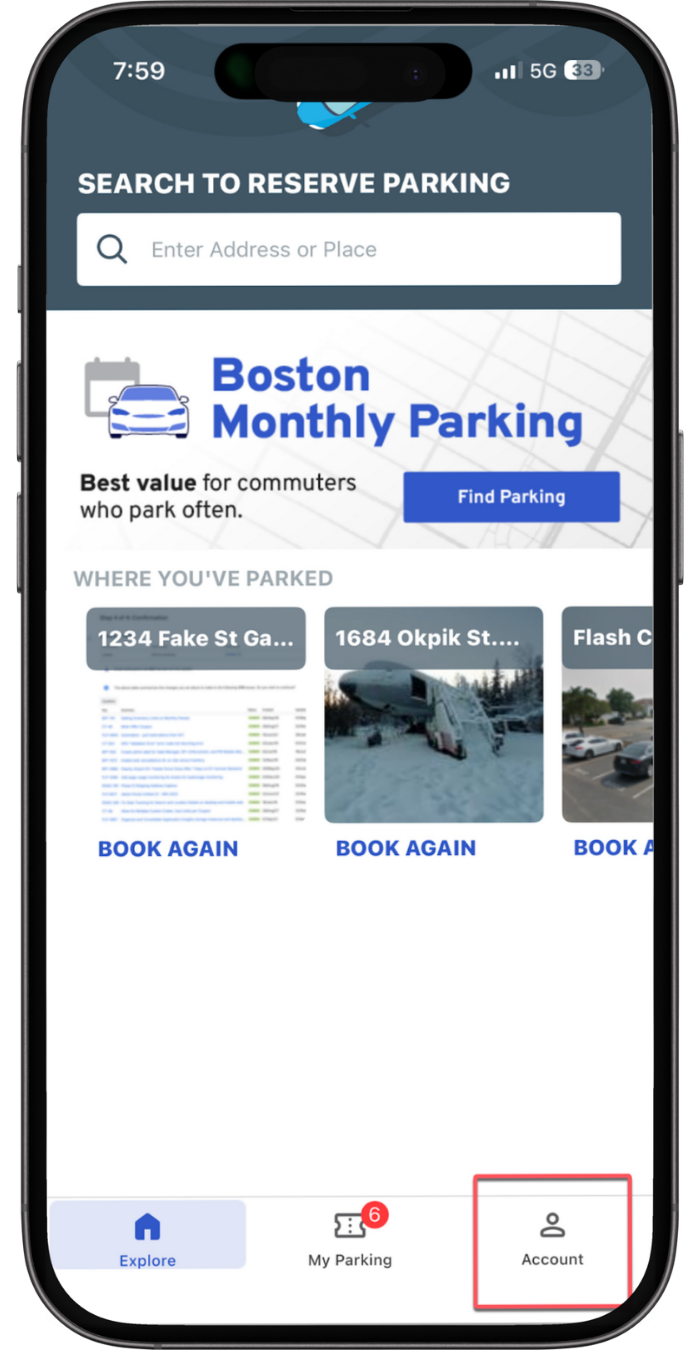
1. Instruct the driver to open the App: Tap to open the ParkWhiz application and ensure you are logged into your primary profile. Agent Script: |
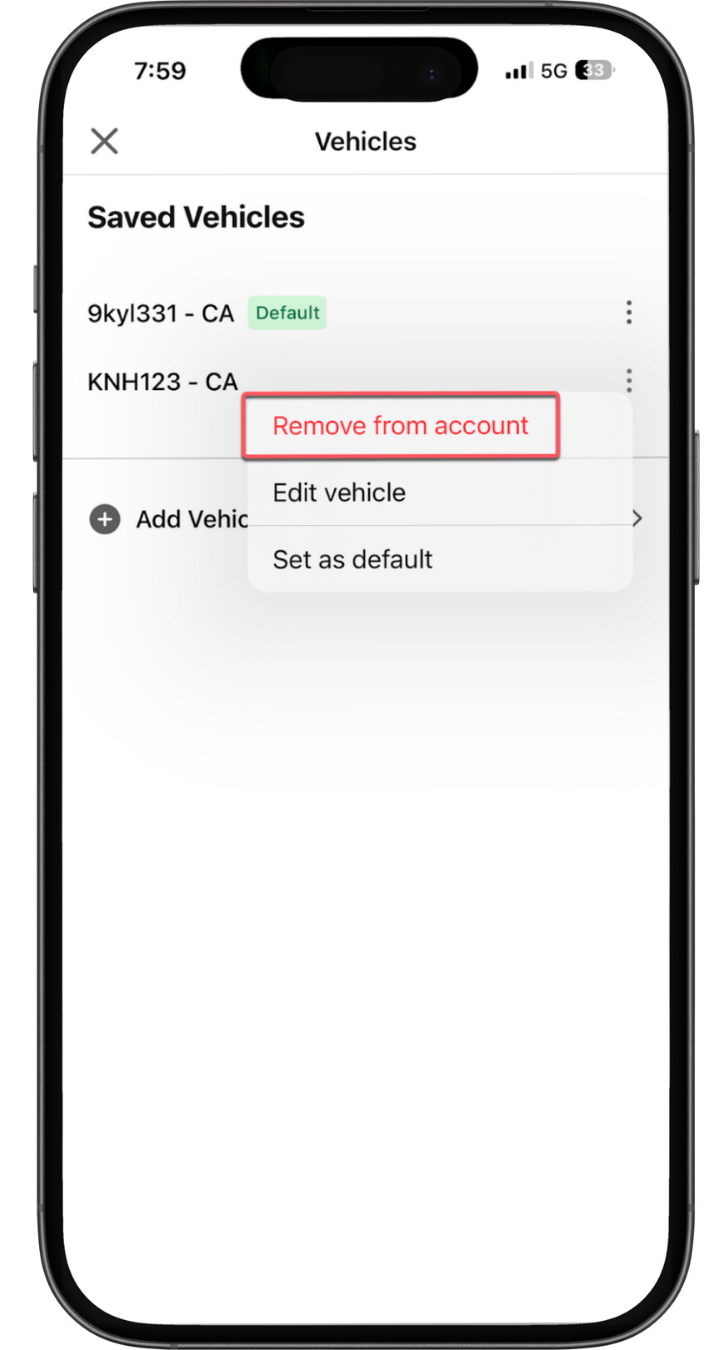
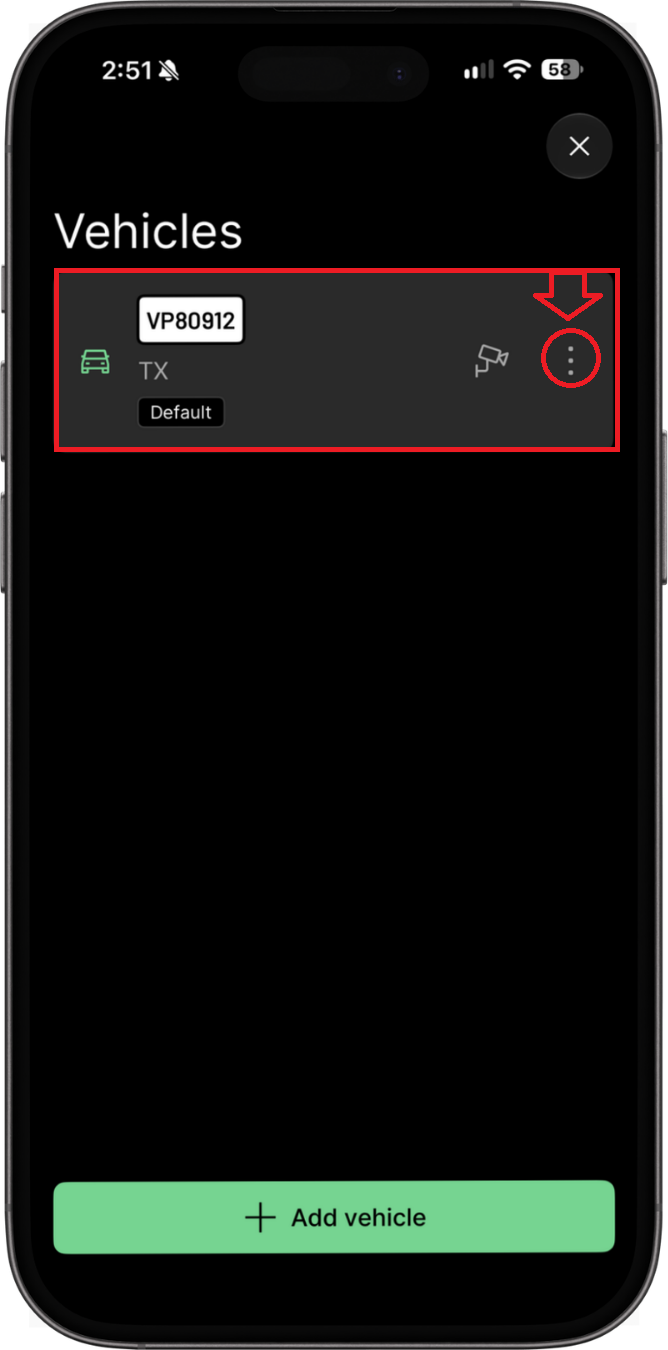
5. Instruct the driver to Remove/Delete Vehicle: Select the three-dot options menu (...) in the top-right corner of the vehicle's detail card, then tap Delete. Confirm the prompt when asked. Agent Script: "Perfect! Now that you have hit delete, can you refresh the page or step back to the main menu? You should see that your old vehicle is completely gone from the list. This means it is successfully removed from all automated gates and Express Pay. Is there anything else I can help you with today?" |

ParkMobile
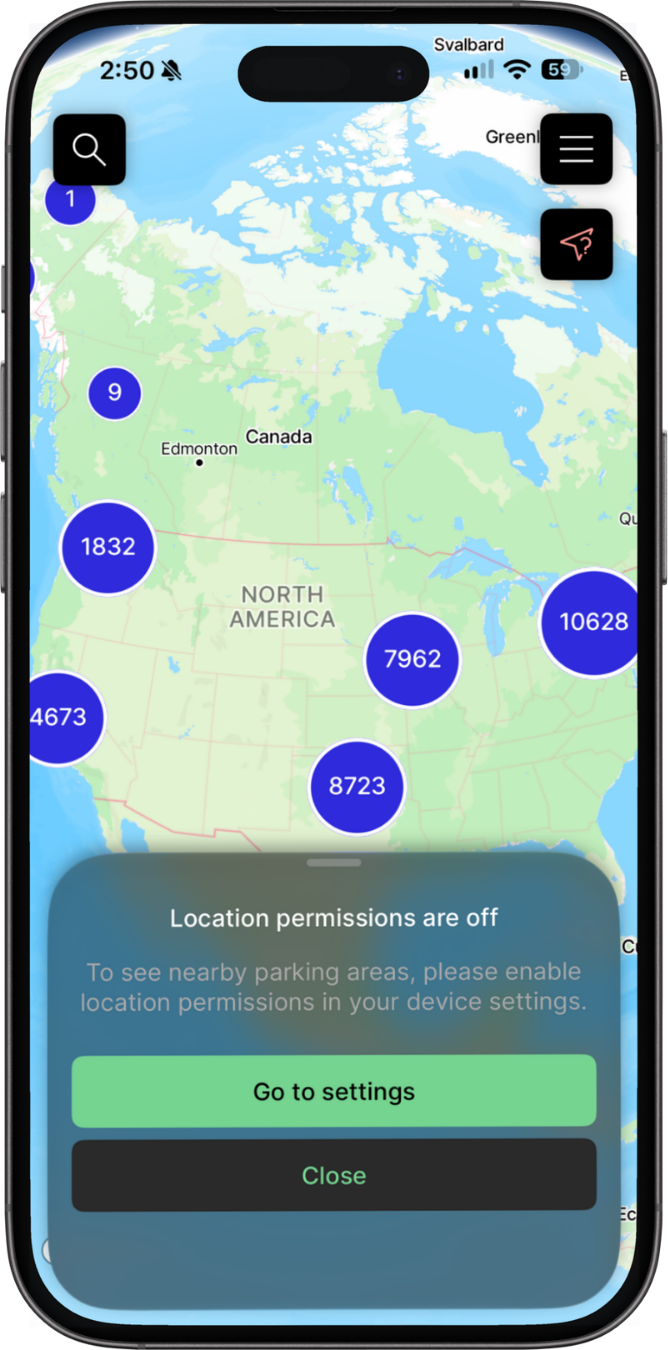
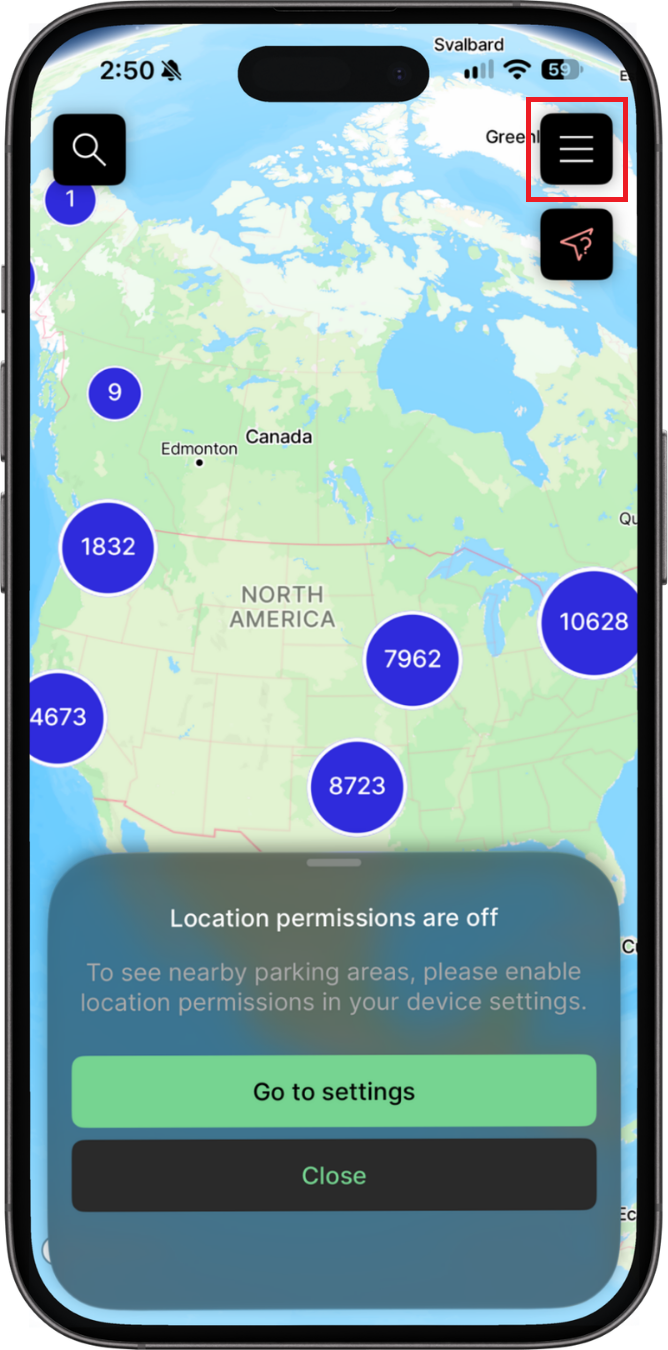
1. Instruct the driver to open the App: Tap to open the ParkMobile application and ensure you are logged into your primary profile. Agent Script: |
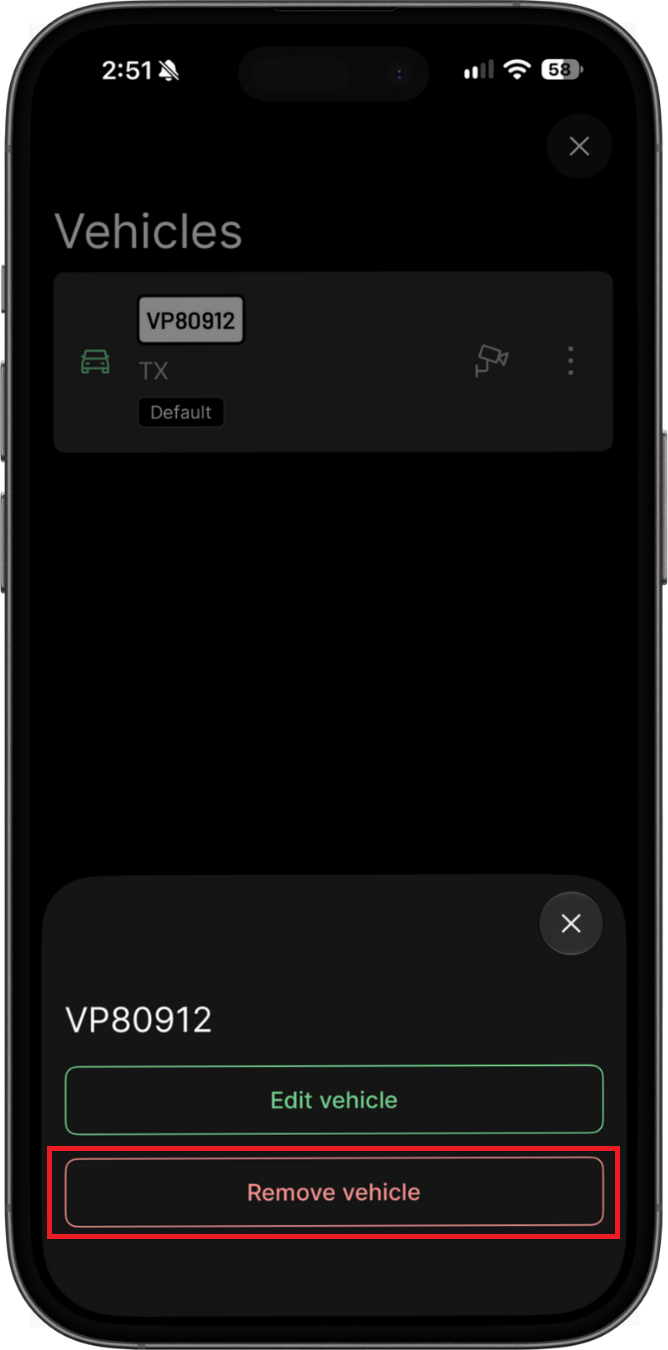
5. Instruct the driver to Remove/Delete Vehicle: Tap the button that says “Remove Vehicle”. Confirm the prompt when asked. Agent Script: "Perfect! Now that you have tapped “Remove Vehicle”, can you refresh the page or step back to the main menu? You should see that your old vehicle is completely gone from the list. This means it is successfully removed from all automated gates and Express Pay. Is there anything else I can help you with today?" |
Option B: Guiding Customers via the Web Portal
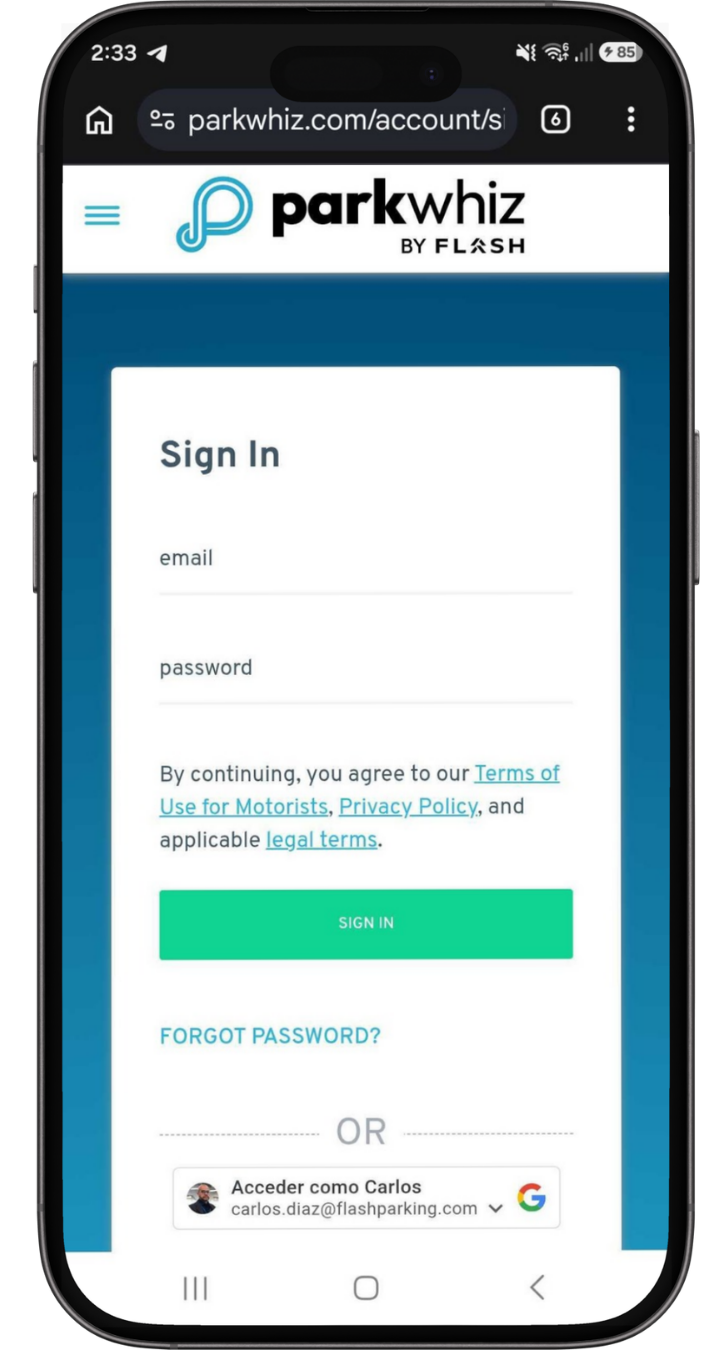
1. Instruct the driver to Log In: Go to parkwhiz.com and log in to the customer account. Agent Script: "No problem at all! Let's get that old vehicle removed using your web browser. Please open a new tab or page and go to parkwhiz.com. Once you are there, click the 'Log In' button in the top right-hand corner. Let me know when you've logged in successfully!" |
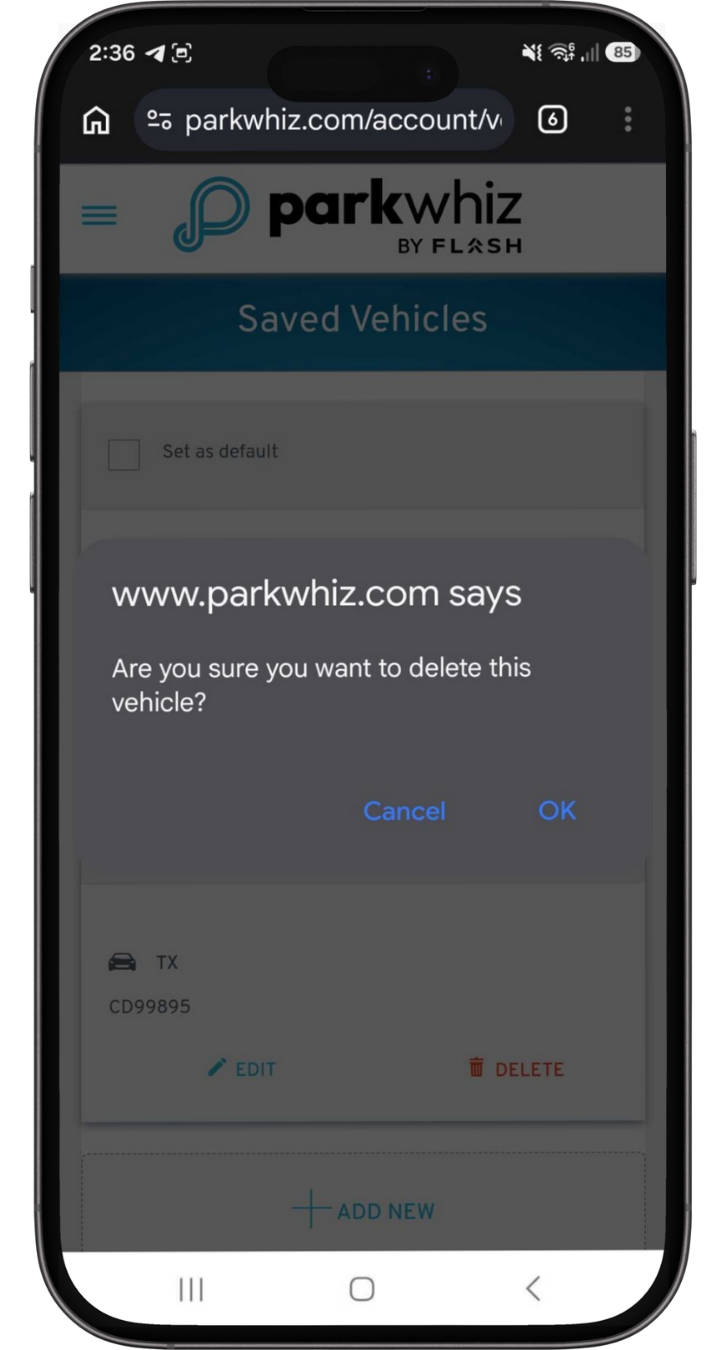
4. Instruct the driver to delete the Vehicle: Click OK when prompted to delete the vehicle. Agent Script: "Perfect! Now that you have hit OK, can you refresh the page or step back to the main menu? You should see that your old vehicle is completely gone from the list. This means it is successfully removed from all automated gates and Express Pay. Is there anything else I can help you with today? |
Was this article helpful?
That’s Great!
Thank you for your feedback
Sorry! We couldn't be helpful
Thank you for your feedback
Feedback sent
We appreciate your effort and will try to fix the article