"I'm a monthly parker, but am being prompted for payment at exit?
What Likely Happened
Monthly Parker does not have their license plate on file
- They are being treated as a transient parker instead and charged for their parking duration
The following guidance is for Parkonect locations only.Immediate Operator Guidance
Use the Convert Stay tool in Garage Log
The Parkonect Garage Log is available to Customer Admin and Remote Users.
- Log in to the Parkonect Admin portal.
- Select Garage > Garage Log tab
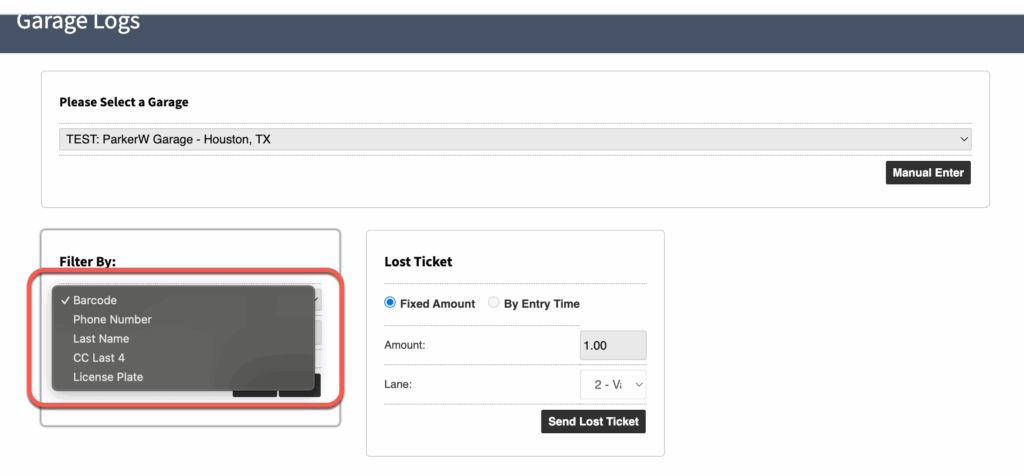
- Locate the Transient ticket using the Filter By tool
- The driver will provide their License Plate. (The Amount due screen displays the License Plate for easy reference.)
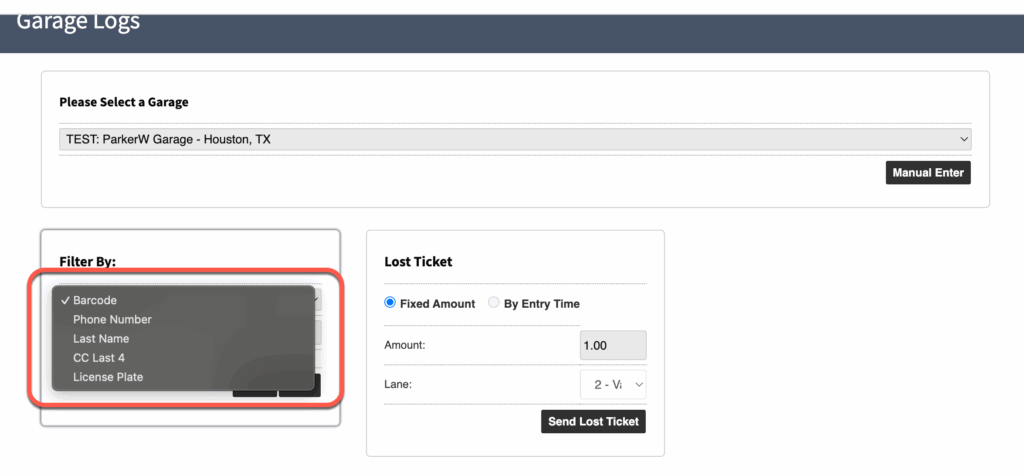
4. Once the Transient entry is located, click the plus sign to toggle options > Select the Convert Stay button.
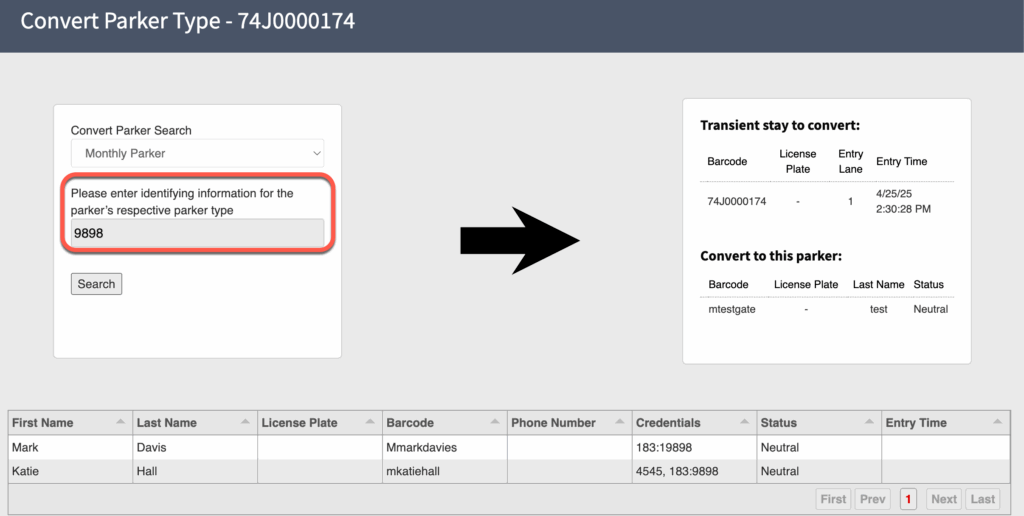
5. Search for the monthly parker by the provided information > Click Search
- Name
- Credential
- License Plate
- Phone Number
6. Click on the Monthly Parker row from the filtered list
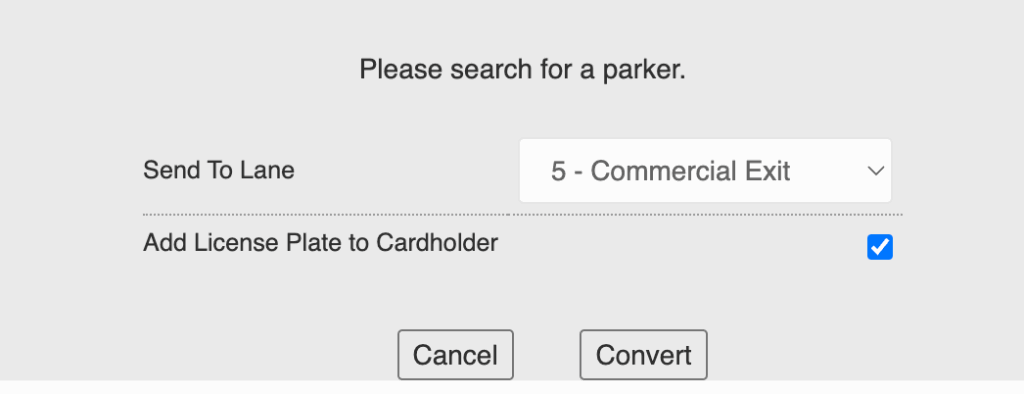
7. Select the driver’s Lane from the Send To Lane dropdown.
8. Click the Convert button > Confirm

9. After converting the Transient session to a Monthly stay, be sure to add the parker’s license plate to their Monthly account. This step is crucial to ensure they are properly recognized by the LPR system on future visits and to prevent repeat issues.
Was this article helpful?
That’s Great!
Thank you for your feedback
Sorry! We couldn't be helpful
Thank you for your feedback
Feedback sent
We appreciate your effort and will try to fix the article