PARKONECT MOBILE NUMBER ENTRY OPTION
Mobile Number Entry (also called 10-Key Entry) allows drivers to enter their mobile phone number at the entry kiosk instead of pulling a ticket. When used with Express Pay, this option automatically sends the driver a secure payment link that allows them to start and complete their parking session digitally.
This provides a ticketless parking experience and encourages drivers to use Express Pay for faster entry and exit.
How It Works
When a driver enters their mobile phone number at the kiosk:
The phone number is recorded as their parking credential.
The system sends the driver an SMS welcome message.
The SMS contains a secure Express Pay link that allows the driver to start their parking session and pay digitally.
Once the session is started, Express Pay manages the parking session and payment without requiring the driver to interact with the kiosk.
This provides a streamlined, ticketless entry experience and supports multiple digital payment workflows.
Mobile Number Entry is activated at the location level and cannot be configured for individual kiosks.Driver Experience
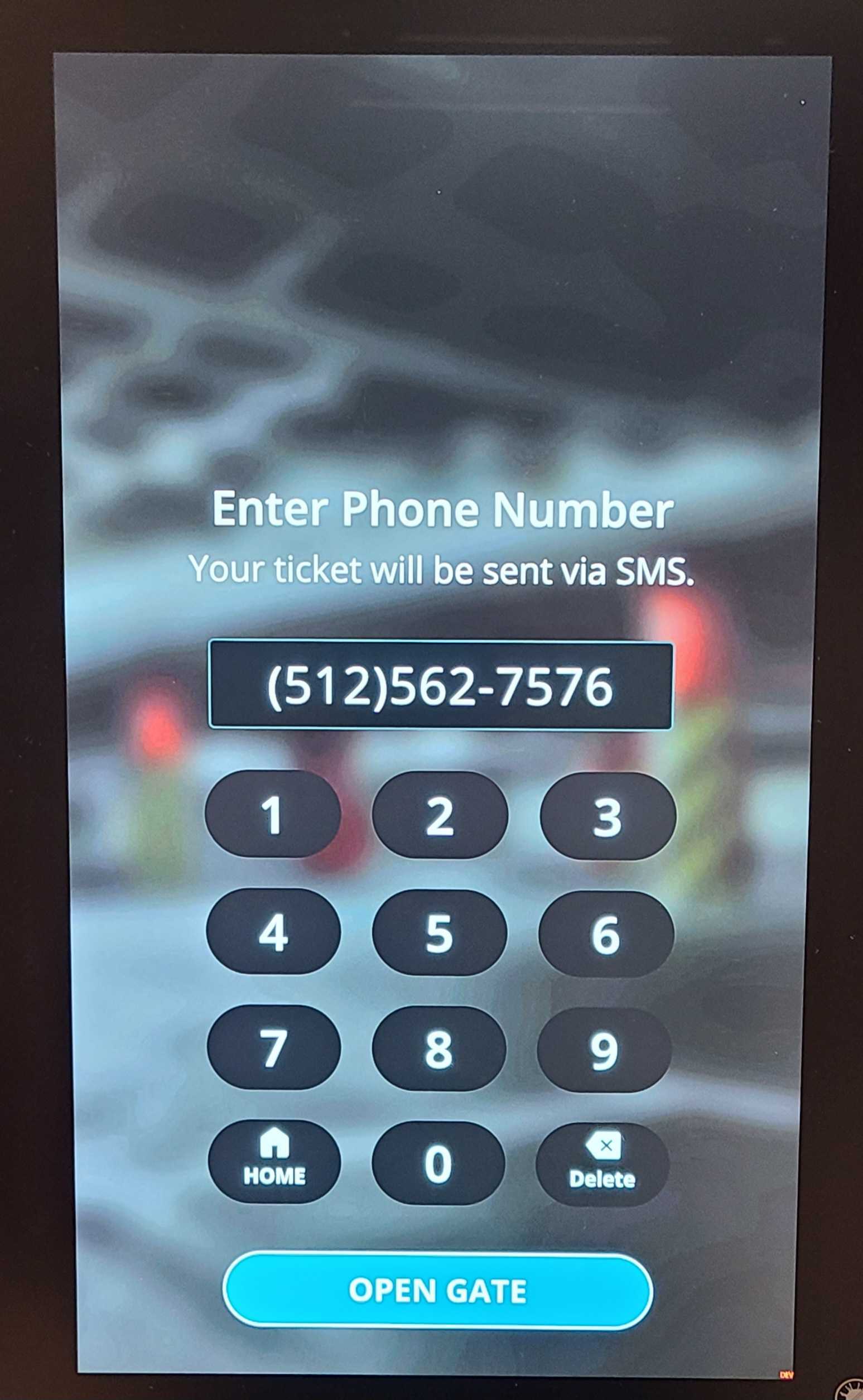
| 1. Tap Access with Phone At the entry kiosk, the driver can either pull a ticket or use the Access with Phone Entry option. | 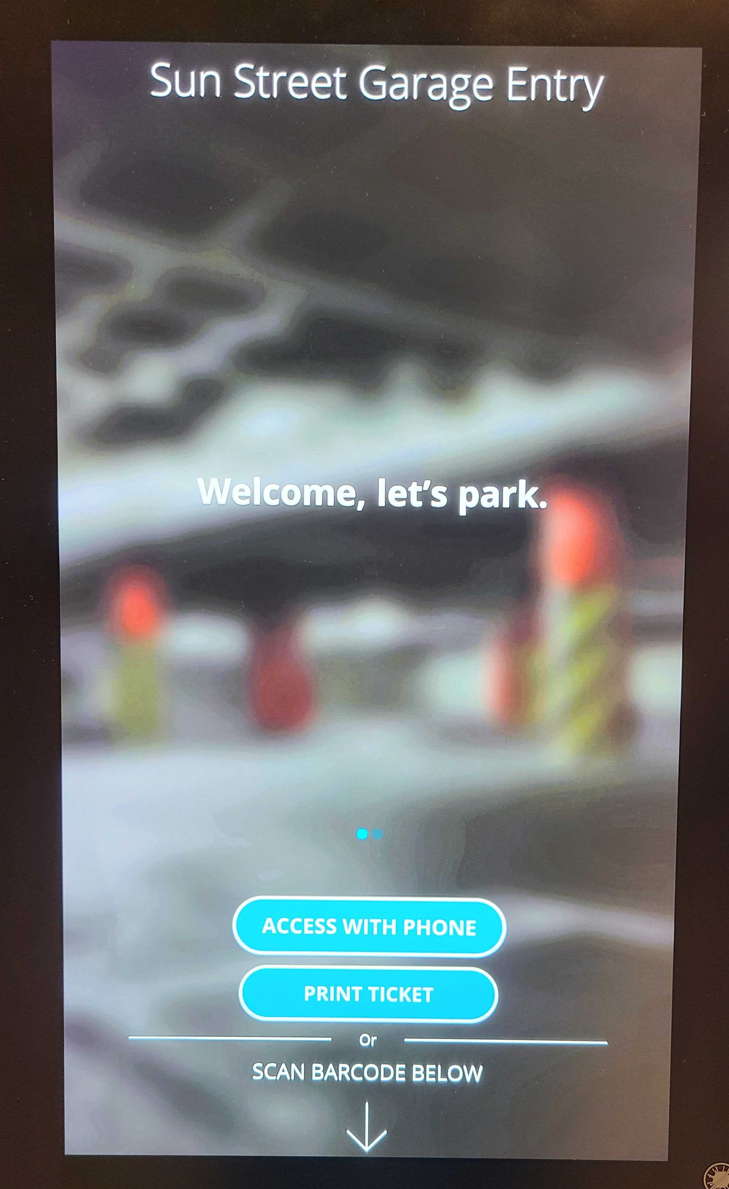 |
| 2. Enter Mobile Phone Number The driver enters their mobile phone number using the keypad and taps Open Gate. The gate opens, and the parking session begins. |
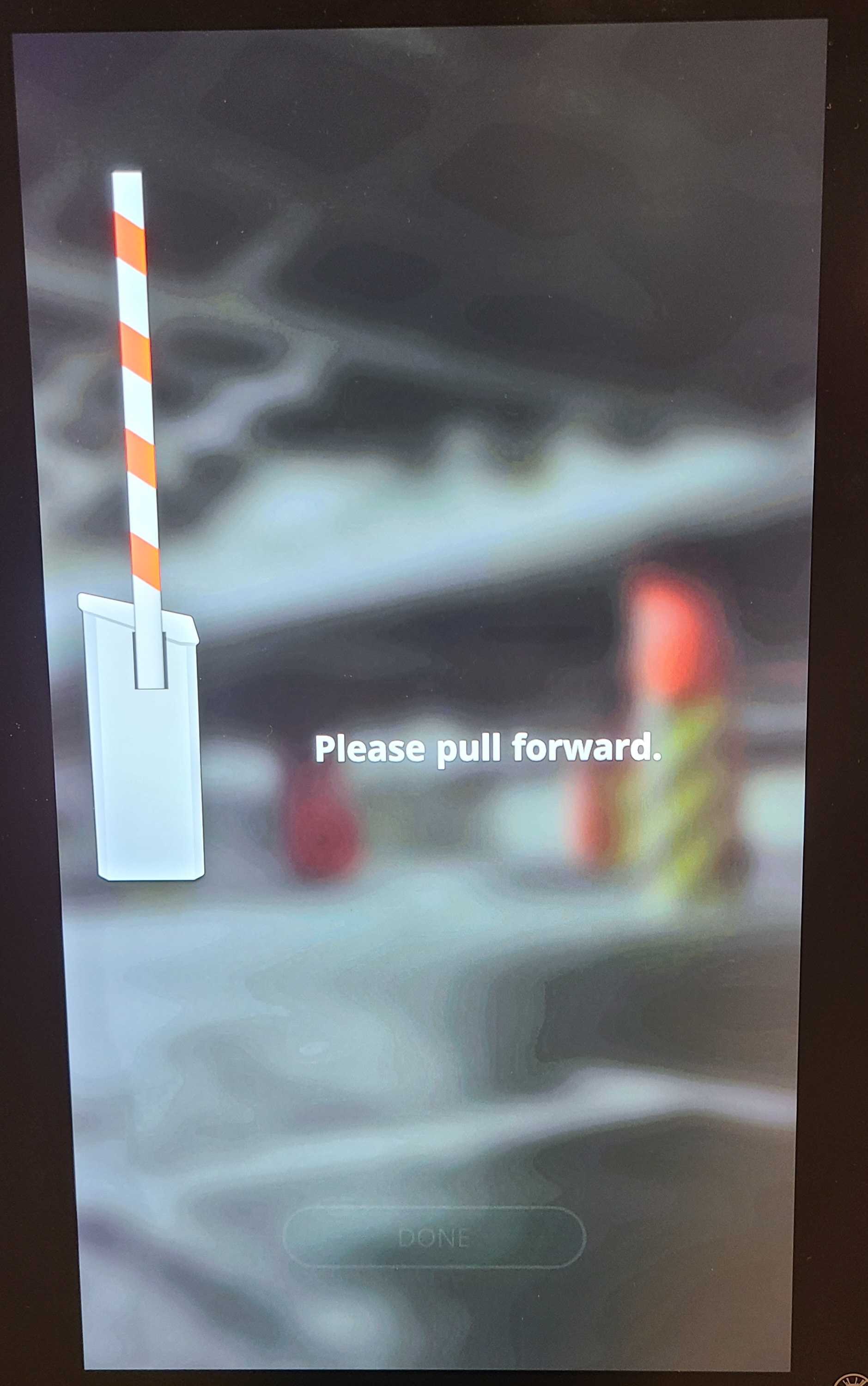 |
| 3. Receive Your Welcome SMS Once the gate opens, you’ll receive a text message with a warm welcome and a link for payment. Click on the link in the SMS to view the digital ticket QR code. | 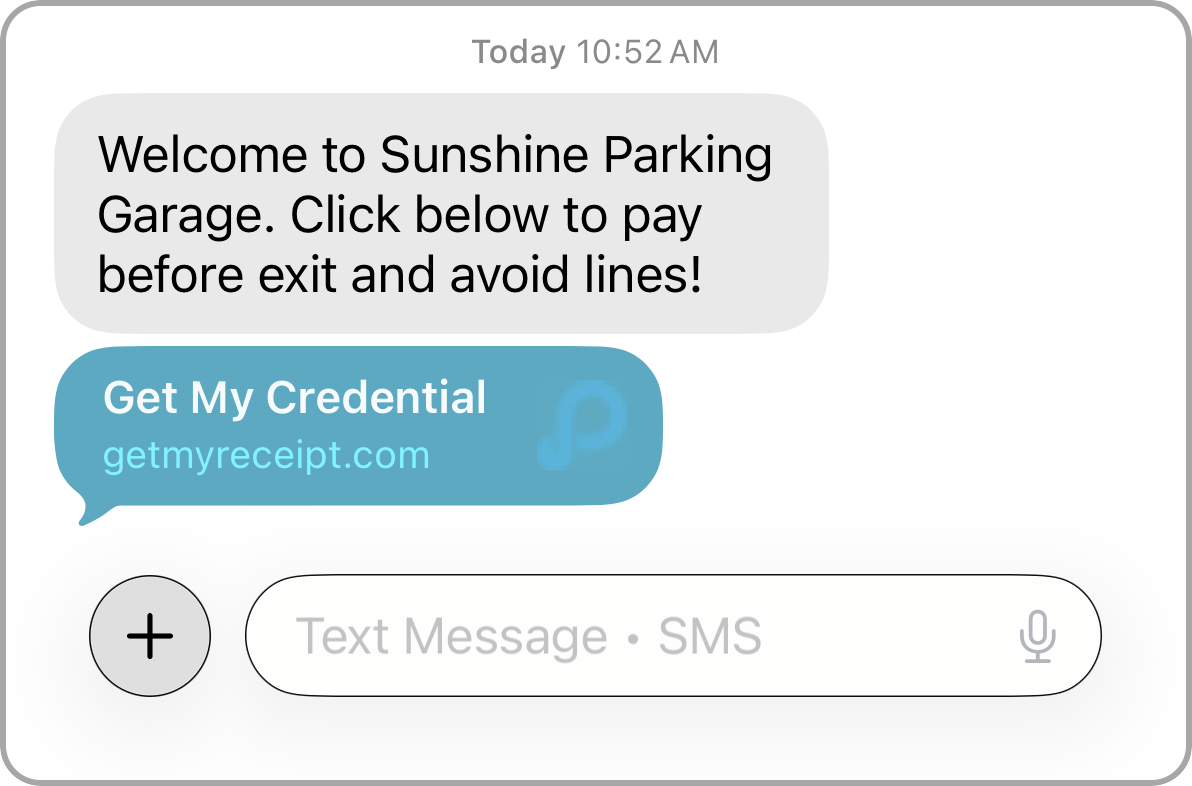 |
| 4. Access Your QR Code Open the link in the SMS to view your digital parking ticket. The ticket includes a QR code that can be scanned at exit or used at other PARCS stations, such as a validation station or door reader if required. To pay digitally, tap Pay Here in the SMS ticket. You will be redirected to Express Pay, where you can complete your payment and manage your parking session. The license plate captured at entry is recorded with the parking session and carried over to Express Pay as part of the ticket details. | 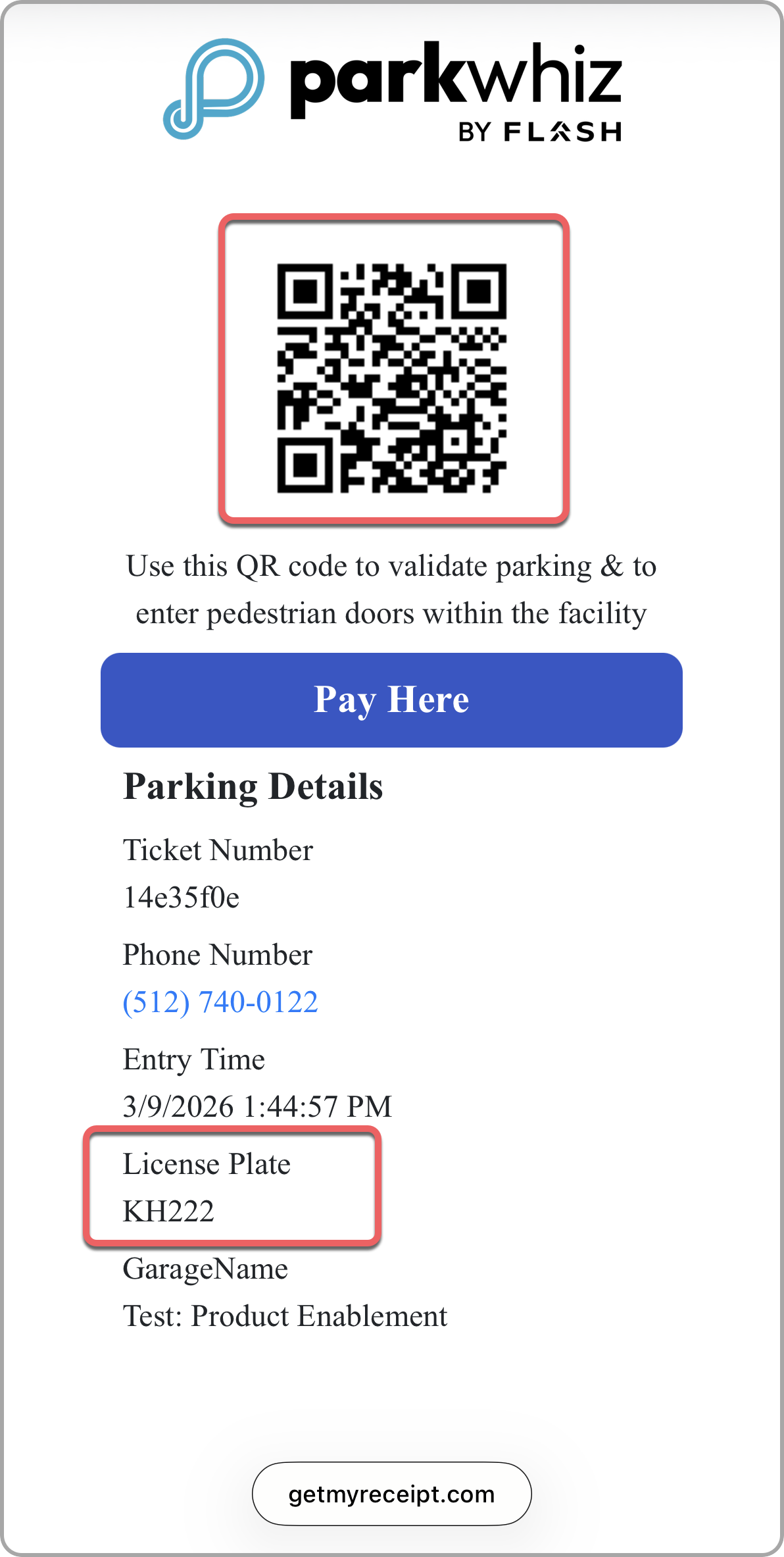 |
6. Confirm Plate | 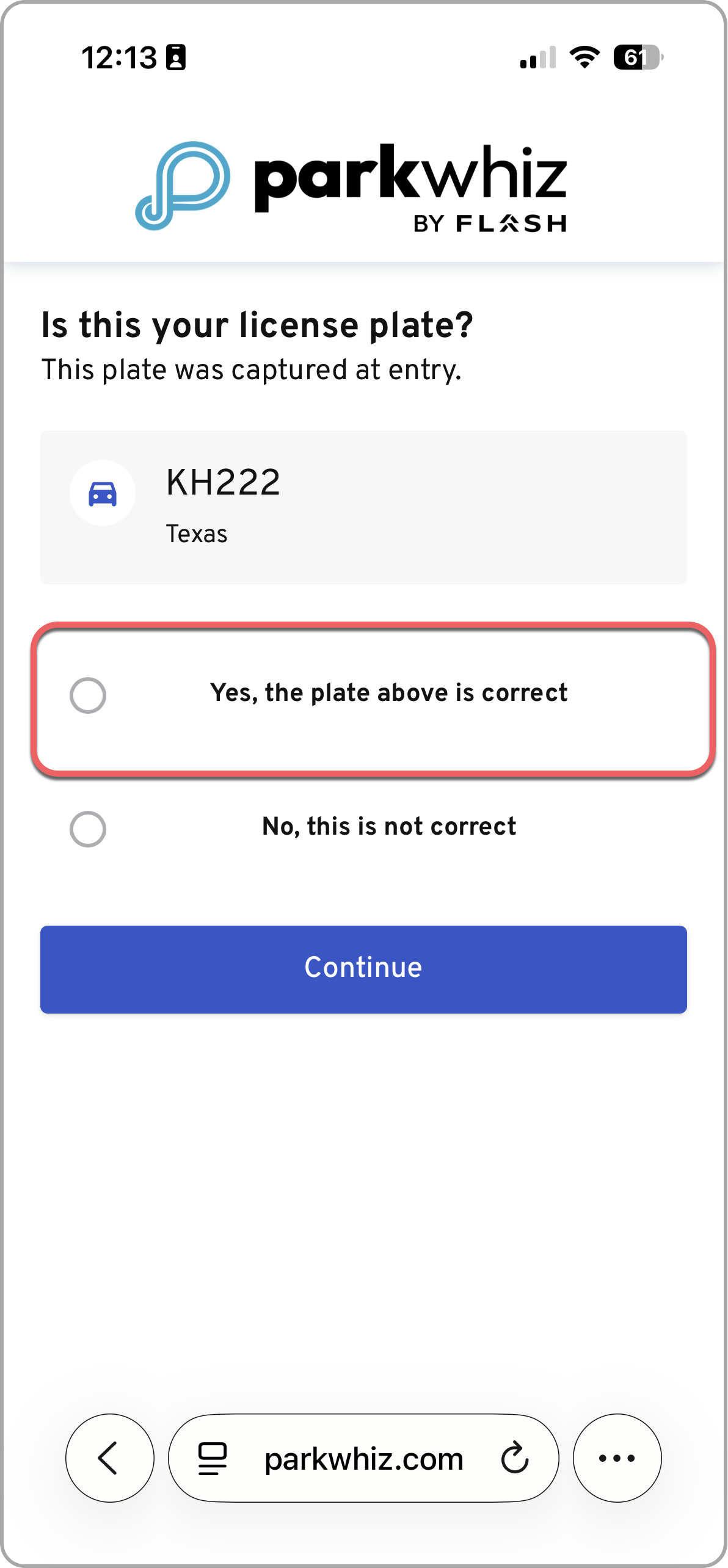 |
| 7. Start Your Express Pay Session If you are an existing ParkWhiz user, your saved payment method may already appear.
Tap Start Session to begin your Express Pay session. | 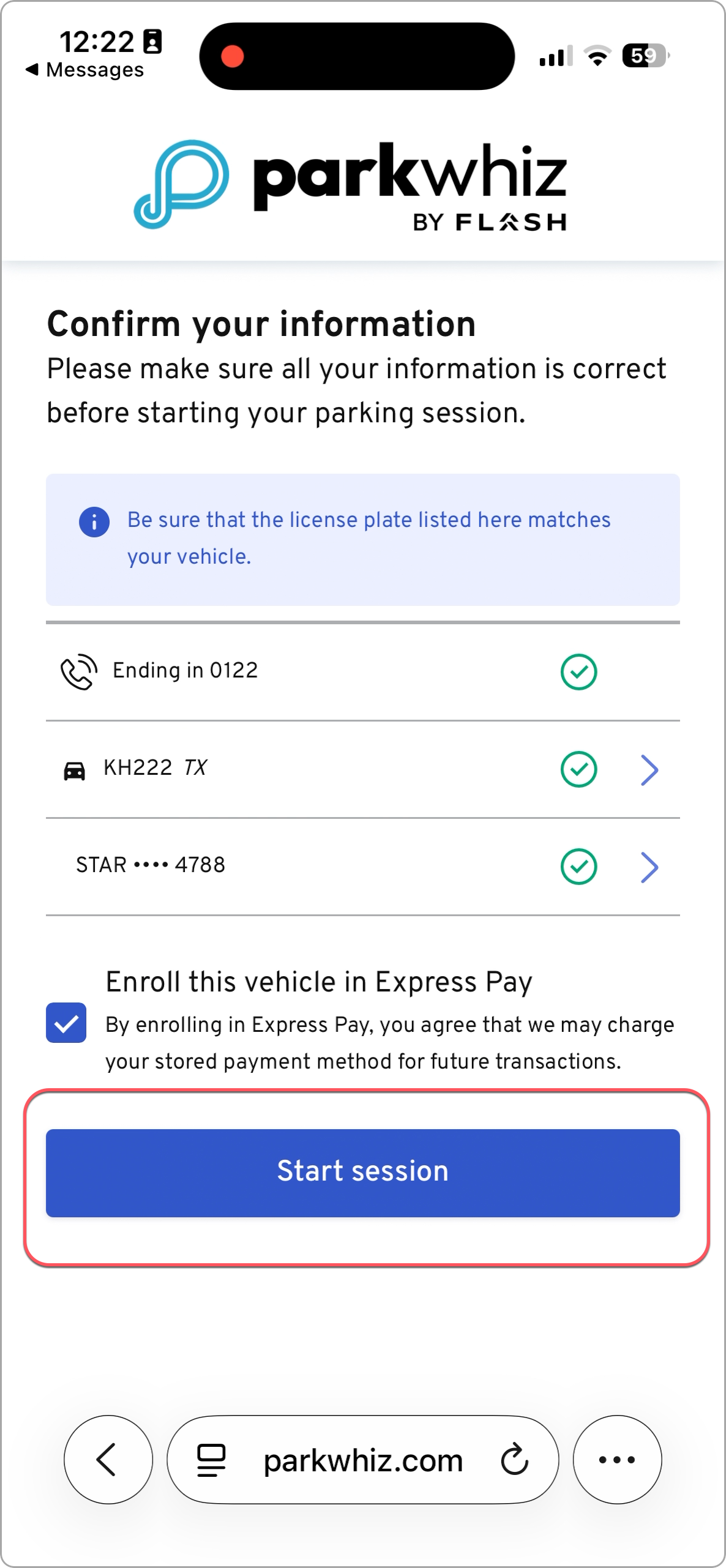 |
| 8. Express Pay Session Ticket QR Code The Express Pay webpage reloads and provides the driver with a digital ticket containing:
The QR code can be scanned at self-validation kiosks, door readers, or the exit kiosk if there are any issues with license plate recognition. | 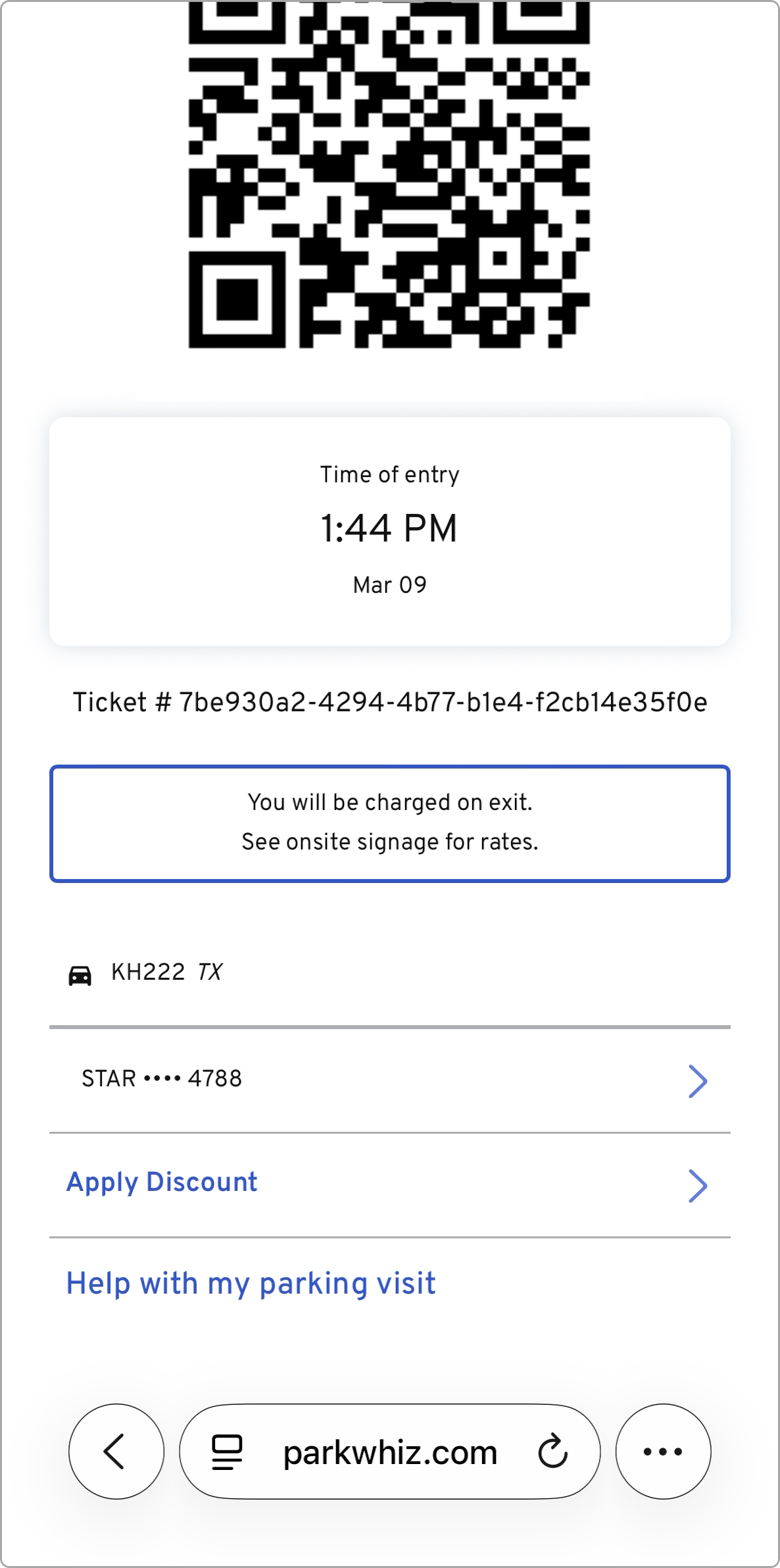 |
Locations Using Both Express Pay and Digital Ticket Checkout (DTC)
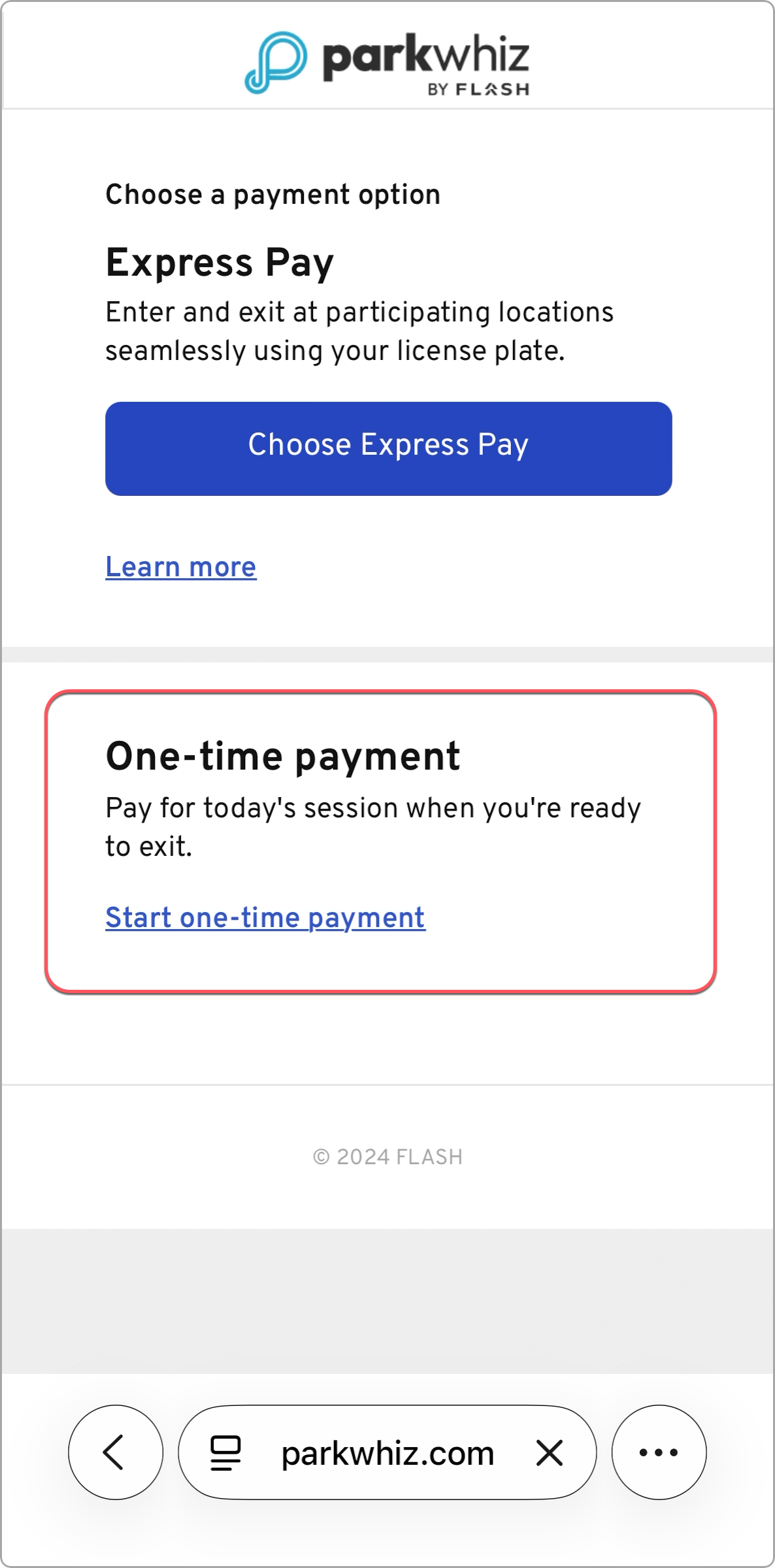
Some locations may operate with both Express Pay and Digital Ticket Checkout (DTC) enabled.
When this configuration is active, drivers who tap Pay Here from their digital ticket will be presented with two payment options.
Drivers can then choose whether to complete their payment using:
- Express Pay
Starts a parking session linked to the driver’s license plate. When the driver exits, the LPR system automatically closes the session and charges the payment method on file. - Digital Ticket Checkout (DTC)
Allows the driver to manually complete the digital payment before exiting the facility.
This dual option is only available at locations where both payment methods have been approved and enabled.
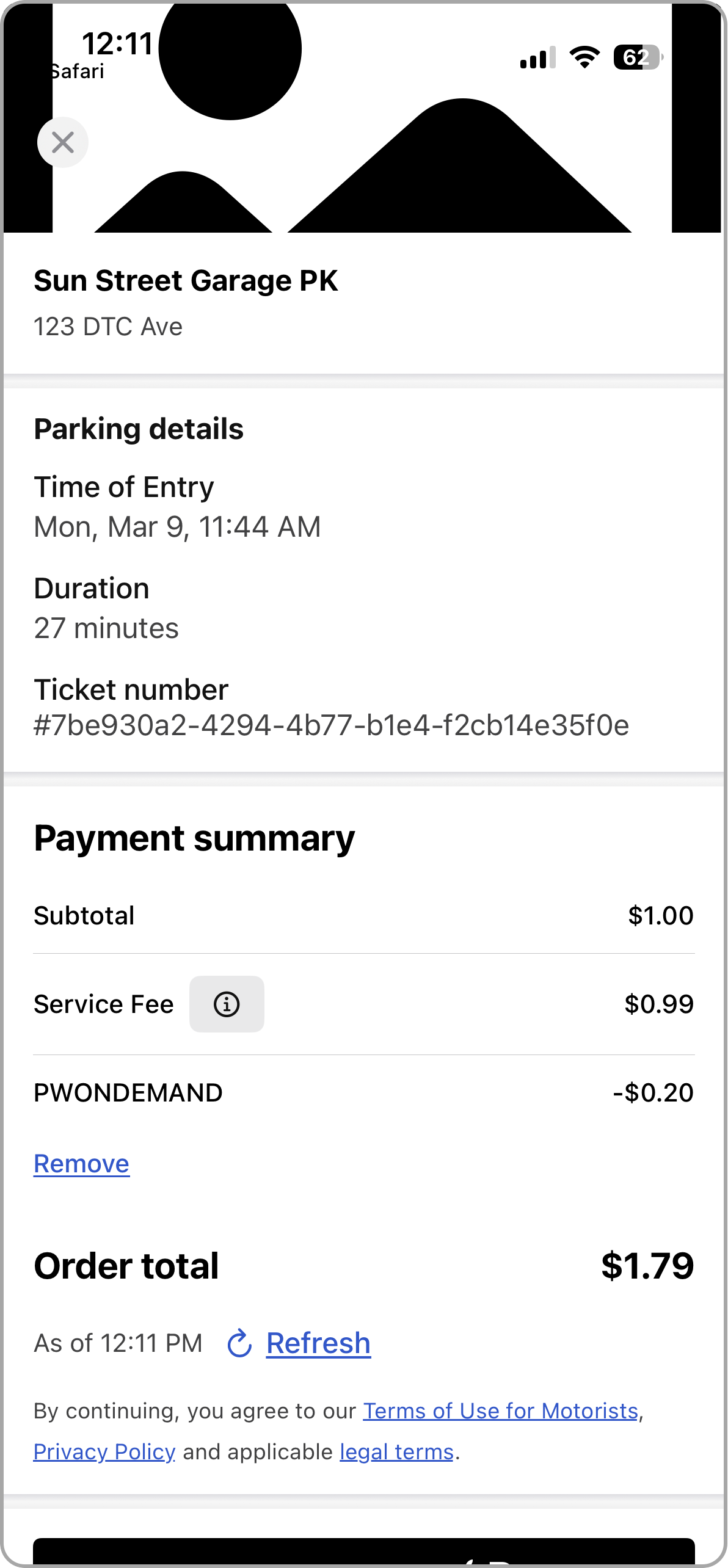
One-Time Payment Tapping Start One-Time Payment directs the driver to the Digital Ticket Checkout (DTC) experience.
|  |
DTC Payment Summary page displays:
Payment Options include
|  |
Was this article helpful?
That’s Great!
Thank you for your feedback
Sorry! We couldn't be helpful
Thank you for your feedback
Feedback sent
We appreciate your effort and will try to fix the article