ACCESS TO PARKONECT SINGLE SIGN-ON (SSO)
SSO/MFA video tutorial available.
Single Sign-On (SSO) allows you to access multiple Flash portals with a single email address and password.
Get Started
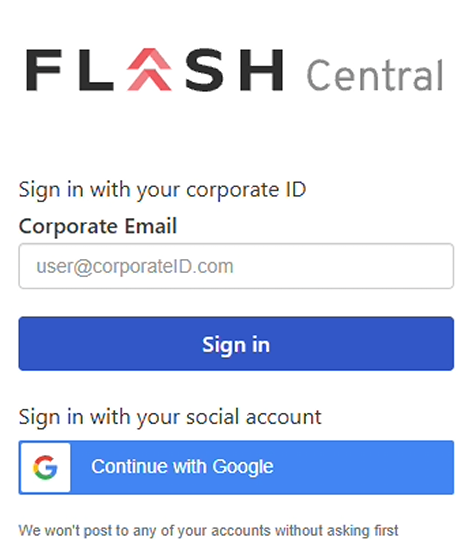
- Make sure you’ve been approved for access by your account administrator.
- Have an authenticator app ready, such as:
- Google Authenticator
- Microsoft Authenticator
- Authy
Set Your Password
- Look for an email with the subject line: “FLASH Temporary Password.”
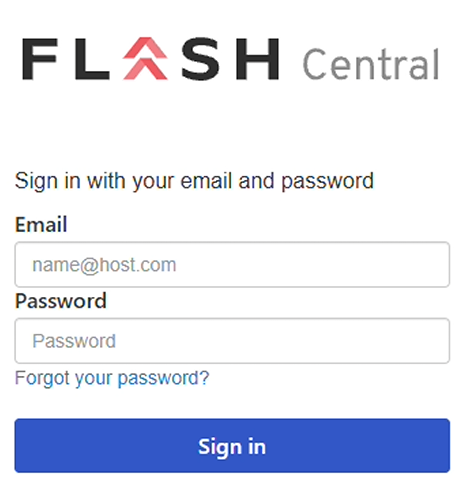
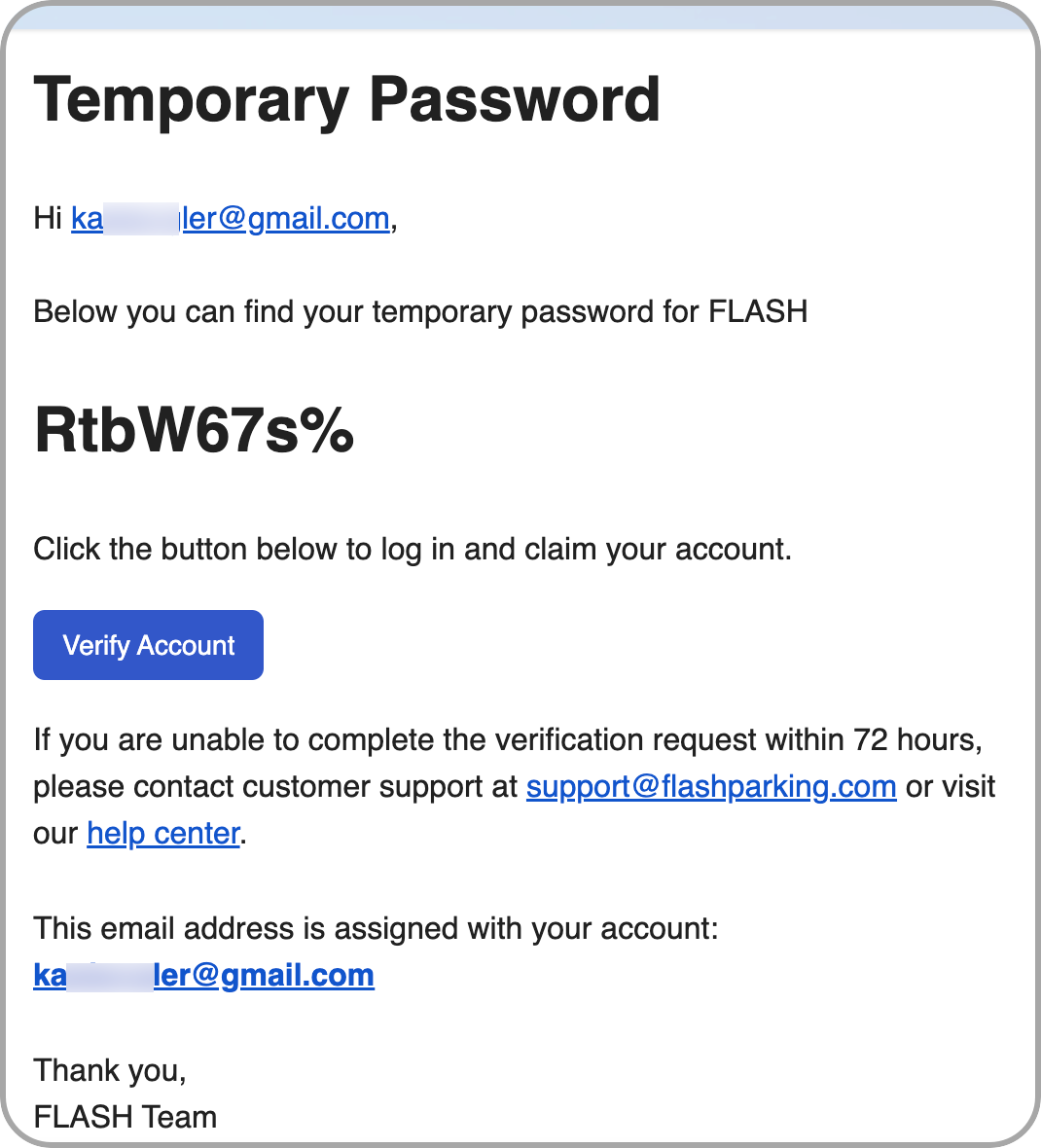
- Open the email and select Verify Account to create your new password.
Tip: Choose a strong, memorable password that meets all requirements listed below.
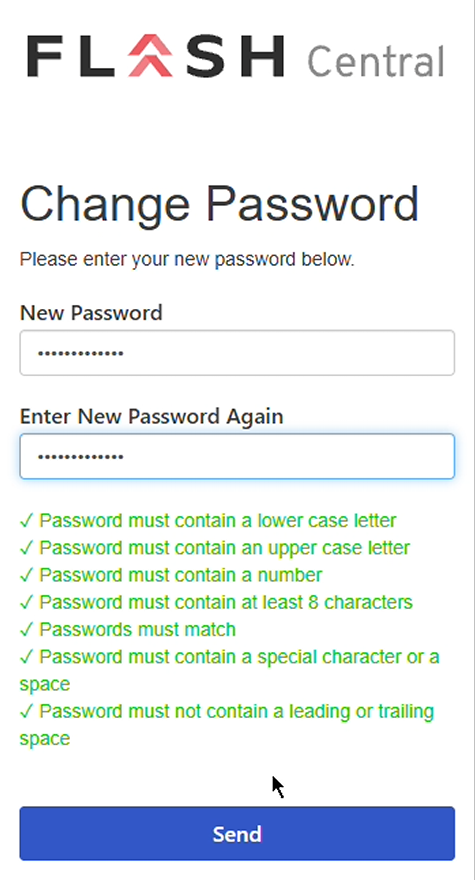
Enroll in Multi-Factor Authentication (MFA)
- Sign in using your email and the new password you just created.
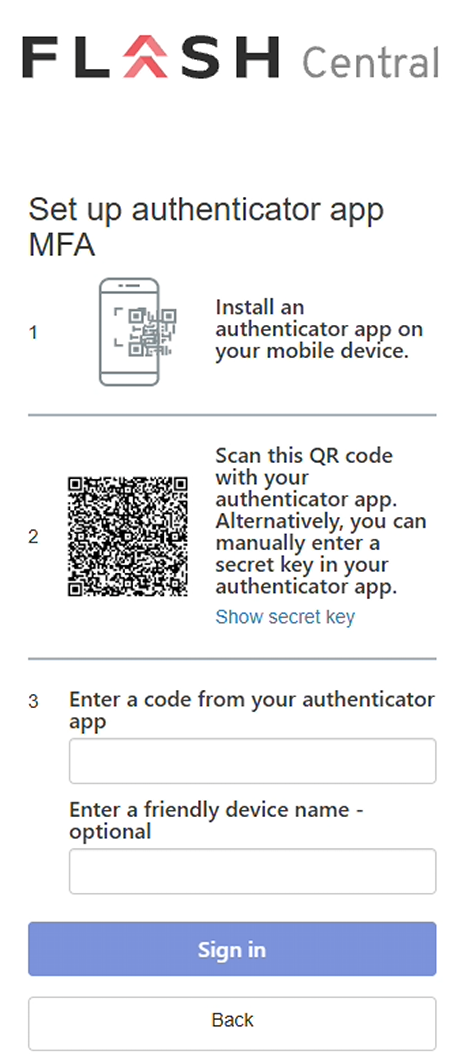
- When prompted, follow the steps to set up MFA:
- Open your authenticator app and scan the QR code or enter the code provided.
- Enter the one-time code from your authenticator app to verify.
- If backup codes are shown, save them securely for future recovery.
MFA adds a second layer of security to help protect sensitive actions.
Everyday Sign-In (After Setup)
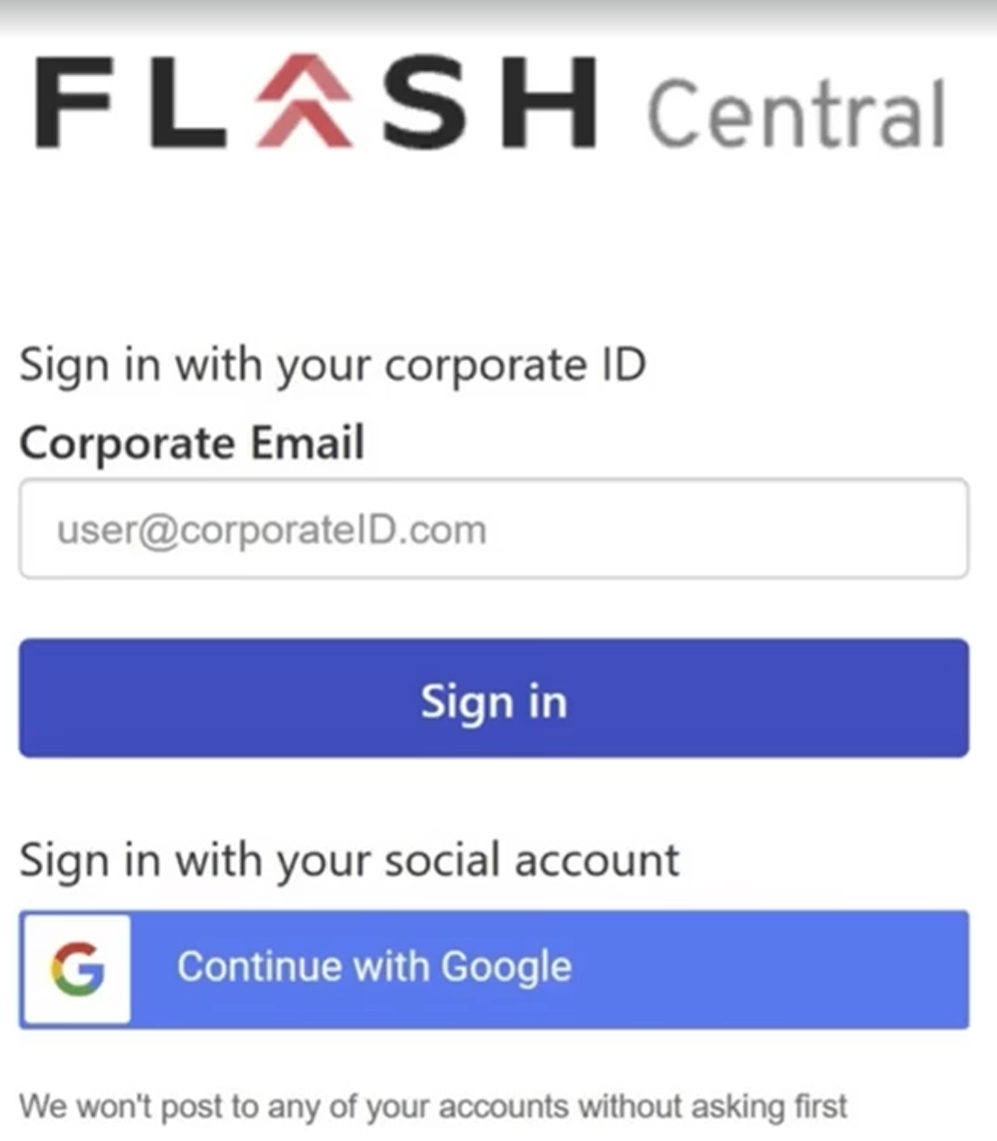
- Go to the login page and click “Sign in with SSO.”
- Approve the MFA prompt when asked.
- You’ll be signed in automatically to other supported Flash portals.
Troubleshooting
Don’t see the SSO option?
- Confirm that MFA enrollment is complete.
- If the issue persists, sign out, refresh your browser, or contact Support.
One-time code not working?
- Ensure your device’s clock is set to automatic. Generate a new code and try again.
Changed devices or lost your authenticator app?
- Use your backup codes or contact Support to reset MFA.
Was this article helpful?
That’s Great!
Thank you for your feedback
Sorry! We couldn't be helpful
Thank you for your feedback
Feedback sent
We appreciate your effort and will try to fix the article