Learn how to access the Flash Vision portal and search for specific vehicle encounters using license plate criteria. This guide simplifies the navigation process to help you quickly locate and review detailed parking data.
Portal Login
1. Navigate to https://vision.flashos.com (or https://vision.flashparking.ca/ for Canada)
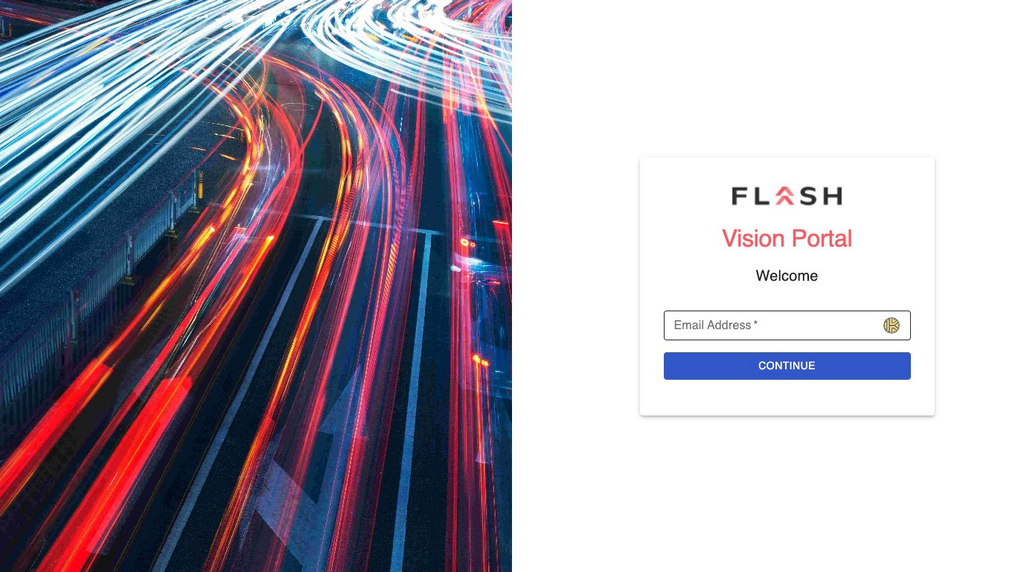
2. Enter your email in the Email Address field.
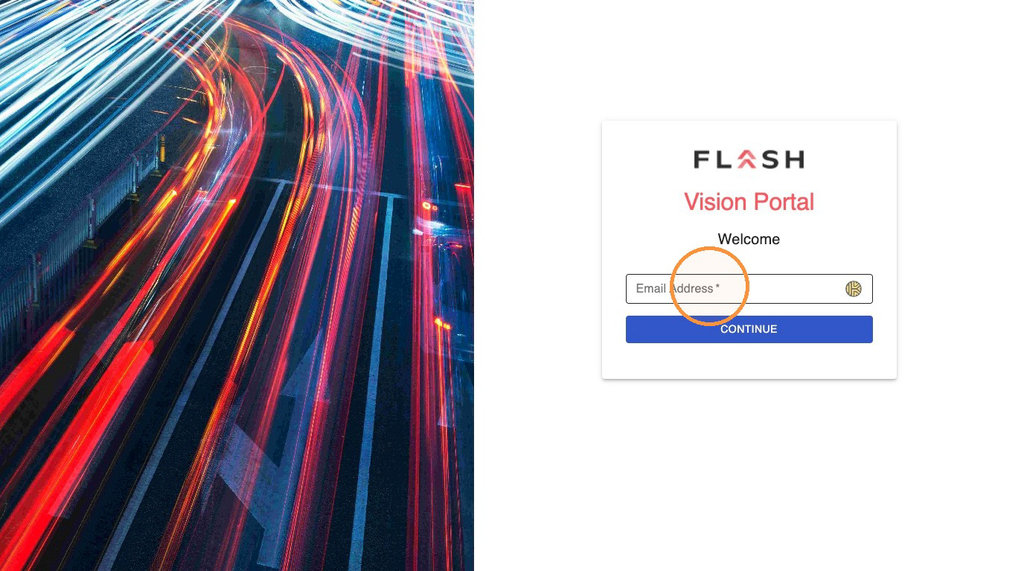
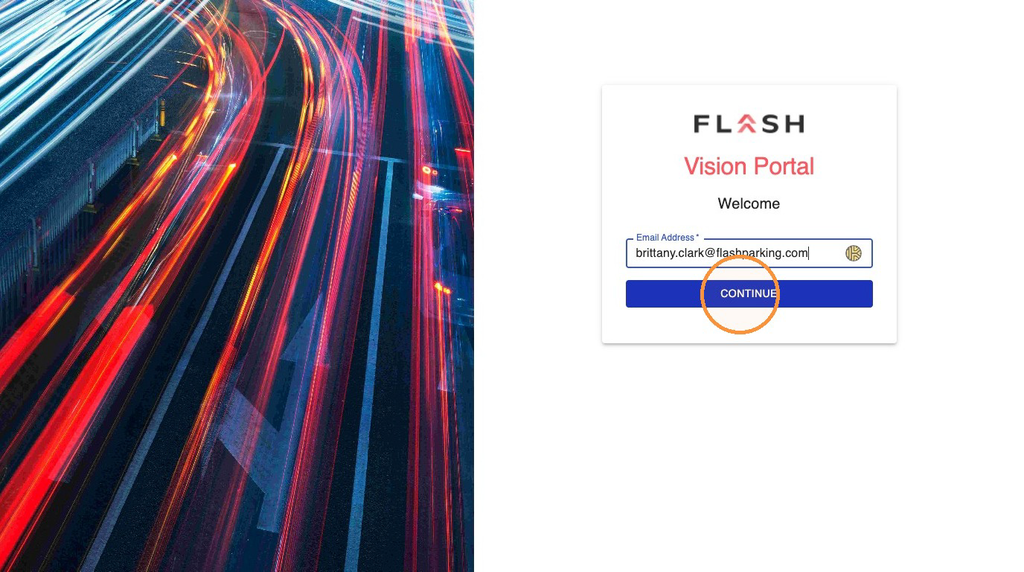
3. Click "Continue"
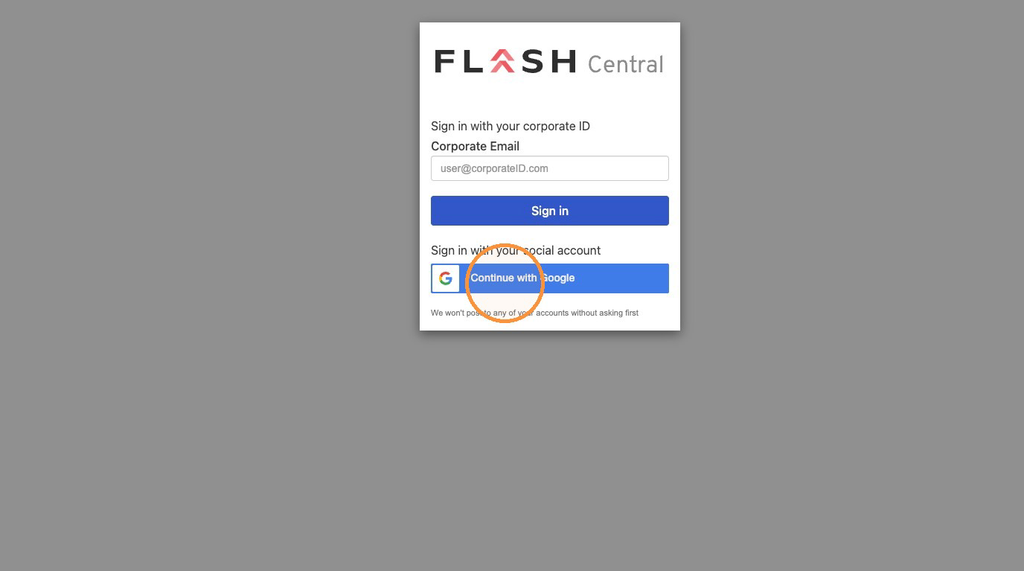
4. Click "Continue with Google"
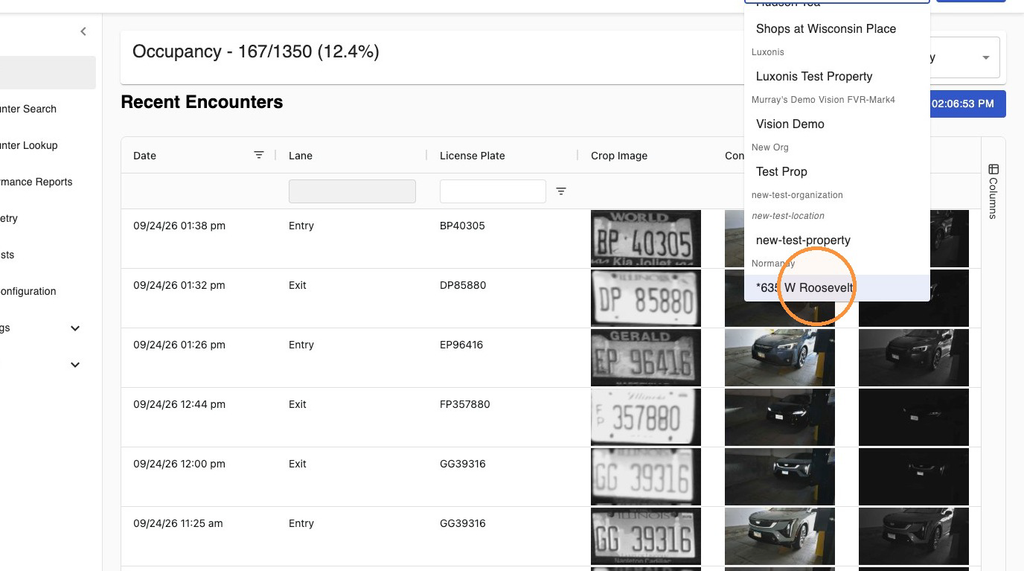
5. Click on the location, for example: "*635 W Roosevelt"
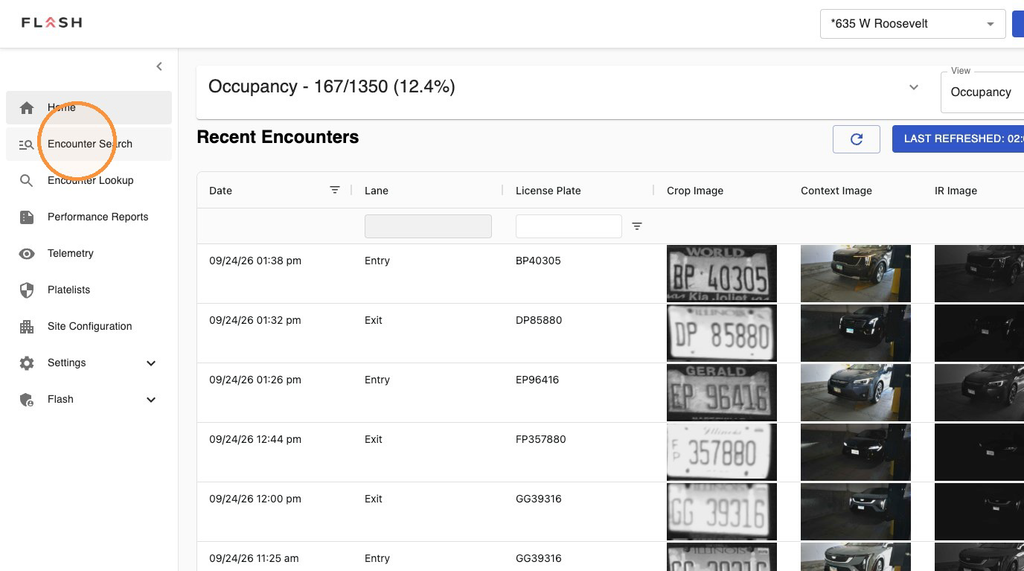
Encounter Search
6. Click "Encounter Search"
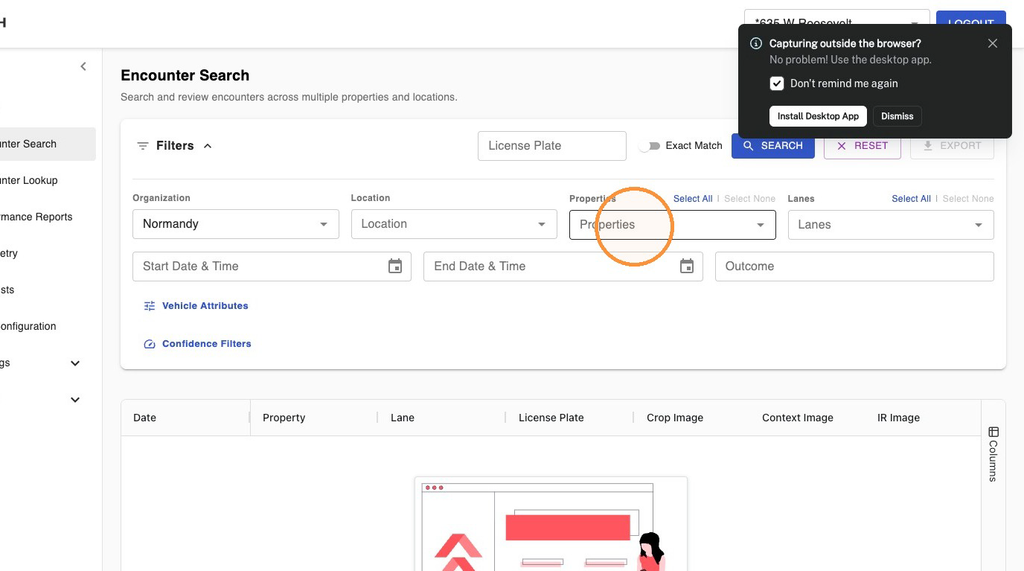
7. Click the "Properties" and "Location" fields to select the appropriate Locations and Properties.
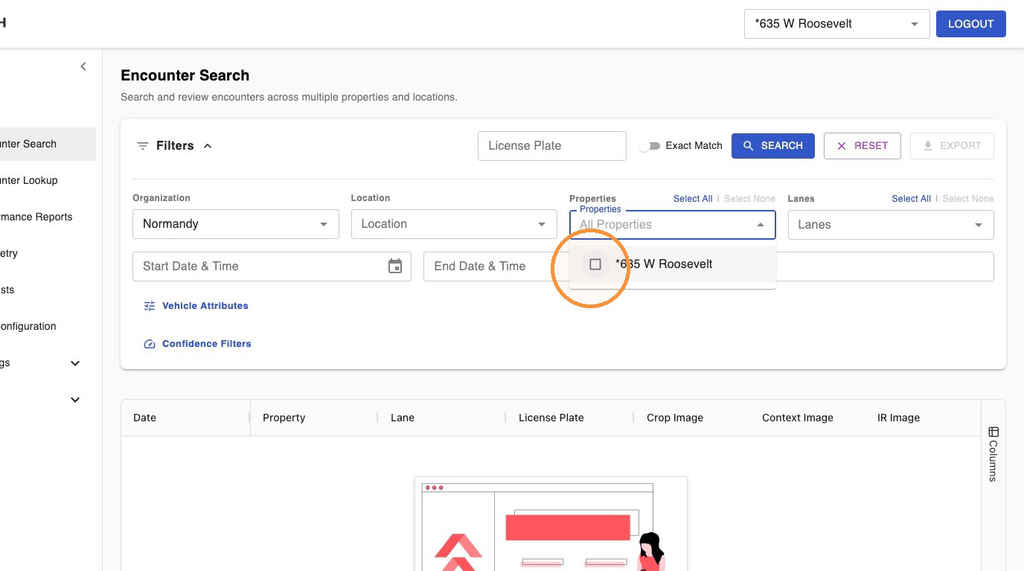
8. Example: Select "*635 W Roosevelt" in the Properties field.
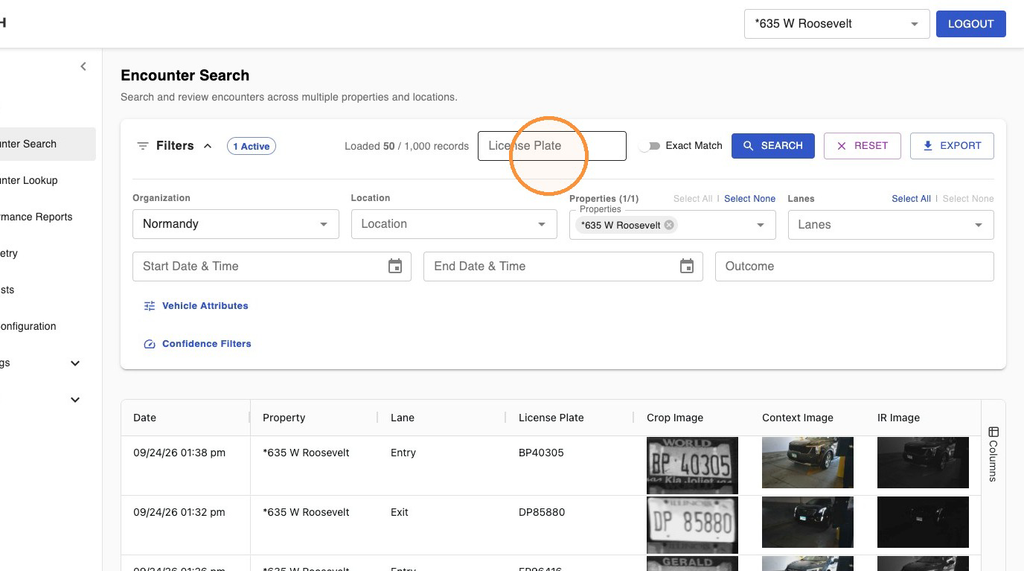
9. Click the "License Plate" field.
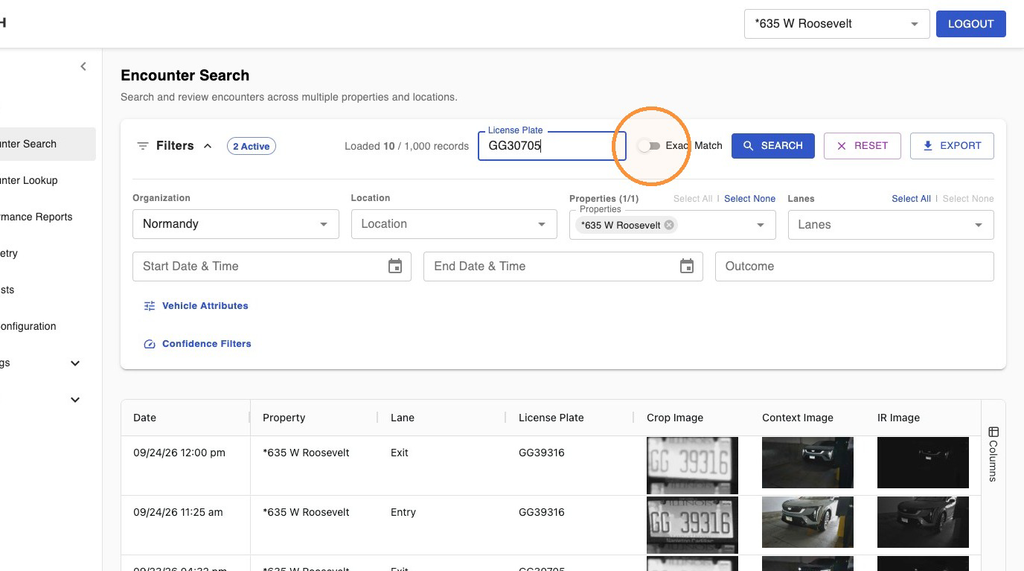
10. Type LP from the alert example: "GG30705"
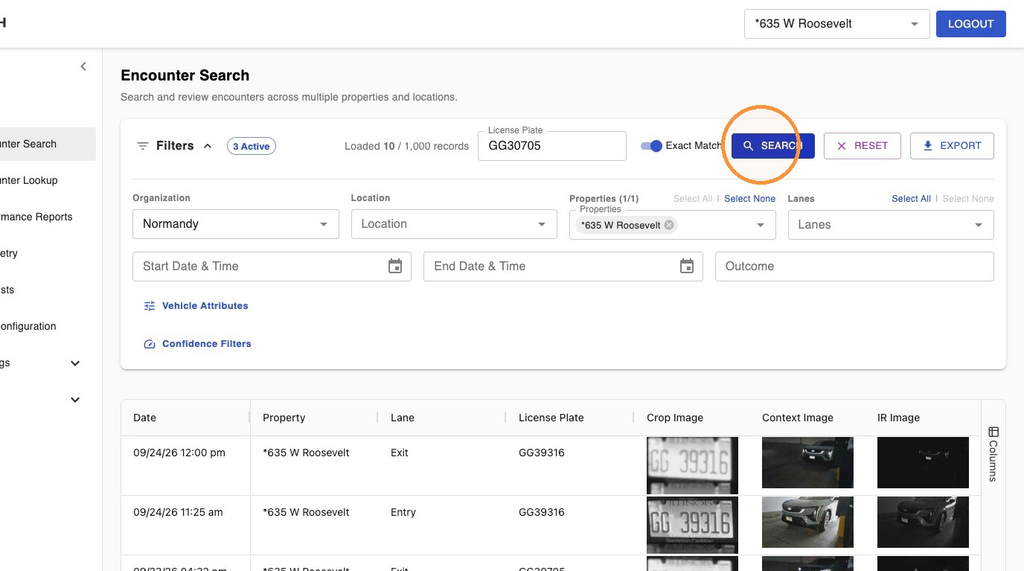
11. Click the "Exact Match" field.
12. Click "Search"
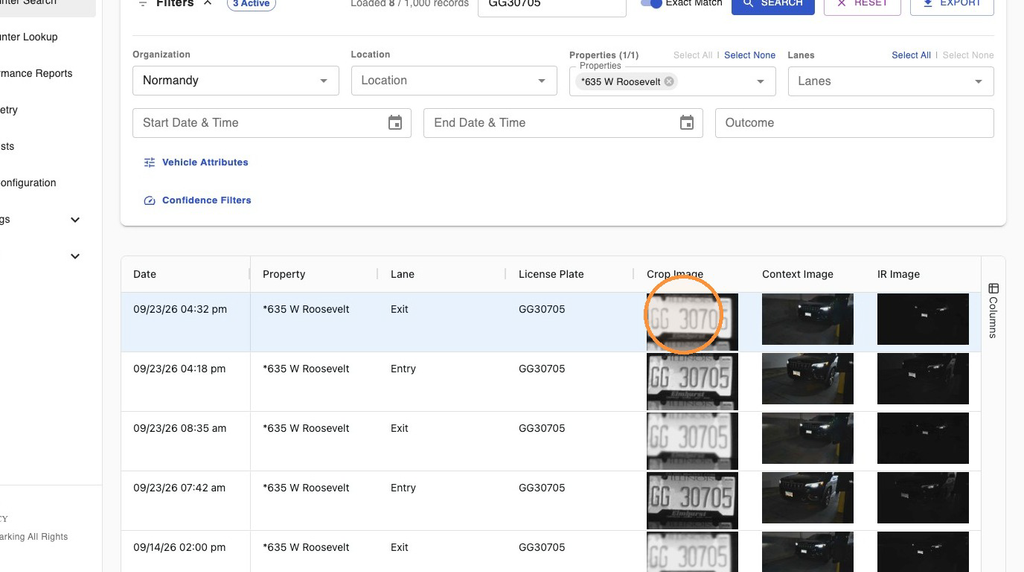
Review Encounter
13. Click the license-plate image for the GG30705 result.
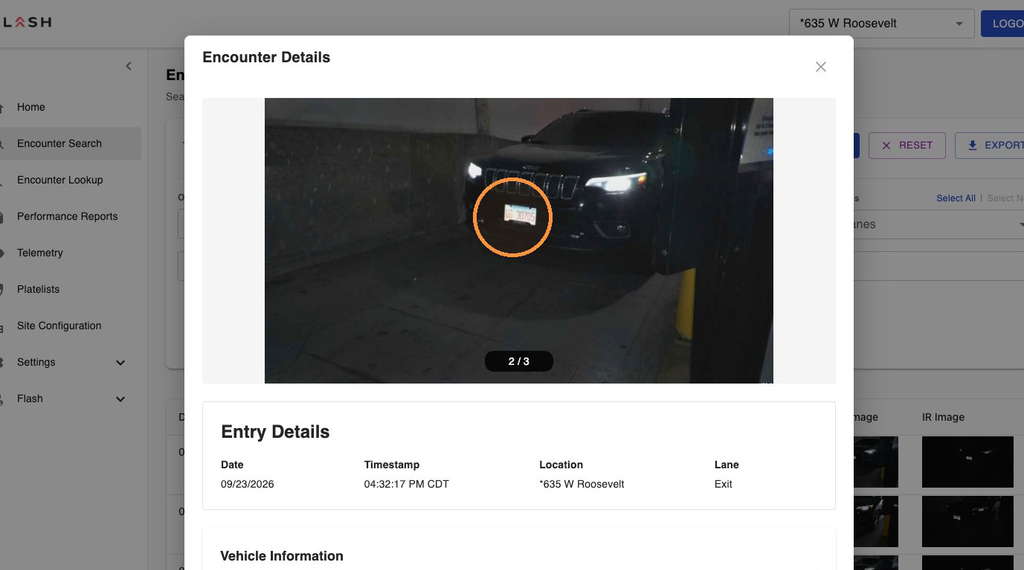
14. Click the next-image arrow.
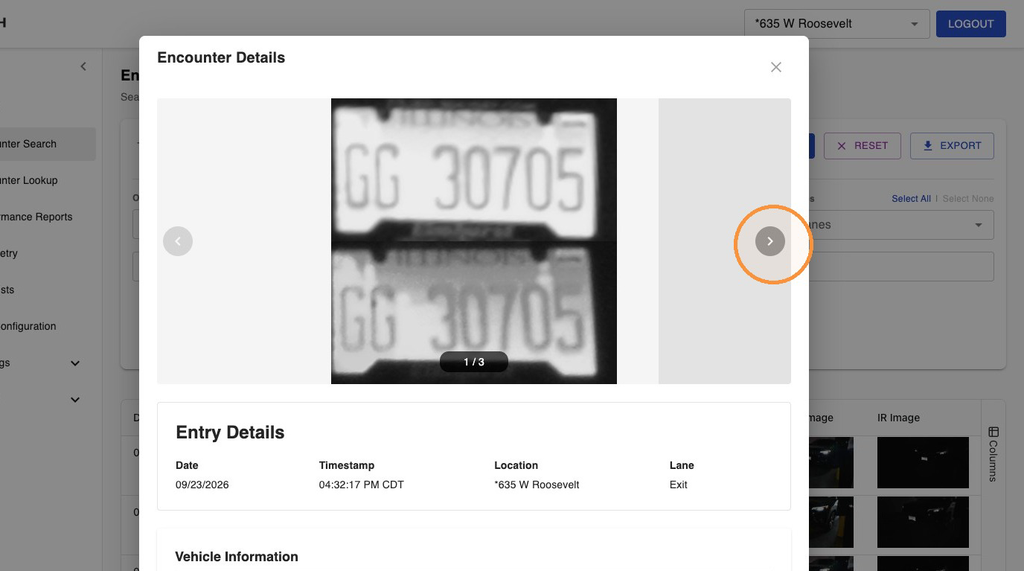
15. Click the vehicle image.
Was this article helpful?
That’s Great!
Thank you for your feedback
Sorry! We couldn't be helpful
Thank you for your feedback
Feedback sent
We appreciate your effort and will try to fix the article