LOGICAL ZONES (CAMPUS MODE)
Parkonect Logical Zones allow you to segment your parking facilities into distinct, manageable areas, such as specific floors or premium sections. By utilizing transfer stations to track driver movement and duration, you can apply zone-specific pricing, enforce permit rules, monitor live occupancy, and generate detailed reports, all while maintaining a single unified garage configuration.
Note: Reach out to sales@flashparking.com to implement this feature in your parking operation
How It Works
You can set up sections of the parking facility as Logical Zones, using your connecting lanes as transfer points to track a vehicle's location and duration. By identifying drivers via license plate recognition (LPR) or scanned credentials (with manual fallbacks for misreads) this tracking data allows you to calculate rates, enforce monthly permissions and fees, log garage activity, and monitor occupancy. Note that the system does not currently block entry into your zones when they reach full capacity.
Use Cases
You can use Logical Zones to:
- Apply different rates to individual floors or parking areas.
- Manage multiple connected parking garages under one facility.
- Track driver movement between parking areas through transfer stations.
- Restrict monthly parkers to specific zones or permitted parking times.
- Allow monthly parkers to pass through a zone without parking there.
- Calculate presales (reservation) or transient charges based on the zone.
- Monitor occupancy and garage activity by Logical Zone.
Example:
A garage contains three Logical Zones: Main Parking, VIP Parking, and Employee Parking.
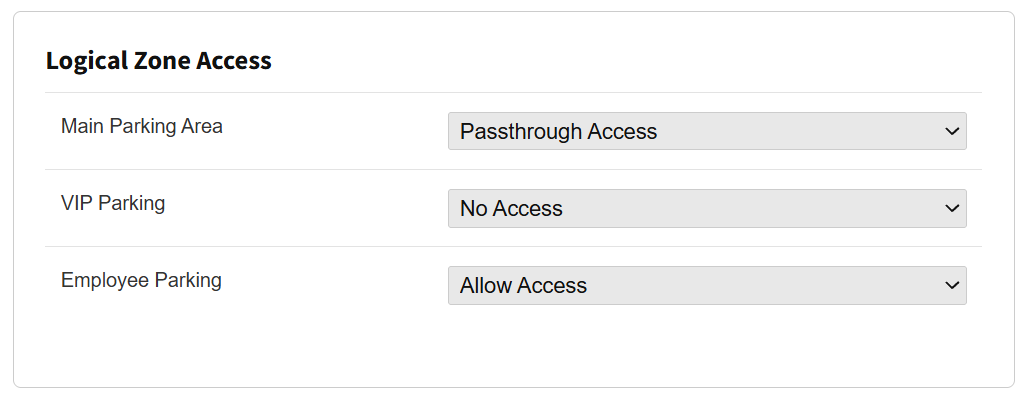
Transient parkers pay based on where they actually park. For instance, if you are an employee, you can park in Employee Parking and drive through Main Parking to get there, but you cannot park in VIP Parking. If you stay in a passthrough area longer than the allowed grace period or park in a zone you aren't authorized for, Parkonect logs a Logical Zone violation and charges the standard overage fee.
User Flows
Transients
- A driver enters the garage using your standard entry method.
- Parkonect creates a new stay and assigns the driver to their initial entry zone.
- As the driver passes through transfer stations, the system automatically updates their location to the new zone.
- The system determines the correct rate based on the driver's activity. It defaults to the zone where they spent the most time, or it uses the first zone where they hit a specific time threshold you configured.
- When the driver reaches a payment machine or the exit lane, Parkonect calculates the final total, automatically applying the correct rate, taxes, fees, and any adjustments.
- You can then view the full transaction and all associated zone details in your Garage Log and supported reports.
Presales (Reservations)
- The driver enters the garage using their reservation barcode or license plate.
- Parkonect creates the stay and automatically tracks their movement across your Logical Zones.
- Before the scheduled start time, the driver can update or cancel the reservation as long as entry hasn't occurred yet.
- Once the reservation begins, you can still apply permitted edits or time extensions to their stay.
- If the driver stays past their booked time or parks in a zone not covered by their reservation, the system automatically applies your configured overage rate.
- You can easily view the full rate and overage cost breakdown in your Garage Log.
- After any extra charges are settled, the driver exits using their original barcode or license plate.
Interpark Express Drivers (MINT)
- The driver is identified at entry using the configured Interpark Express credential.
- When multiple driver types could match, Parkonect evaluates them in the following order:
- 3rd Party Reservations
- Monthly
- Express
- When multiple driver types could match, Parkonect evaluates them in the following order:
- Parkonect records the driver’s Logical Zones and the duration spent in each zone.
- You may be provided with zone and duration information for rebilling.
- At exit, Parkonect automatically opens the gate and records the transaction as collected by you.
- The Garage Log displays a $0 amount due for the transaction.
Monthly Parkers
- The monthly parker enters using their credential or license plate.
- Parkonect evaluates the parker’s Logical Zone permissions and restrictions.
- When the parker passes through a transfer station, Parkonect updates their current Logical Zone.
- The parker’s activity is evaluated against the configured access type, time range, maximum daily duration, and passthrough grace period.
- Activity that does not comply with the configured restrictions is recorded as a Logical Zone violation.
- Depending on the garage configuration:
- Parkers are charged overages when scanning at the exit.
- Parkers exit without paying on-site, and you receive an automated notification to collect payment.
- The violation is included in the Monthly Zone Violation Report.
Transfer Stations
- The driver approaches a transfer station between Logical Zones.
- The LPR camera reads the license plate and attempts to associate it with an active stay.
- If the plate is recognized, the gate opens and Parkonect updates the driver’s location.
- If the camera is unavailable or the plate is misread, the driver must scan their credential to associate transfer activity with their stay.
- The driver continues into the destination Logical Zone.
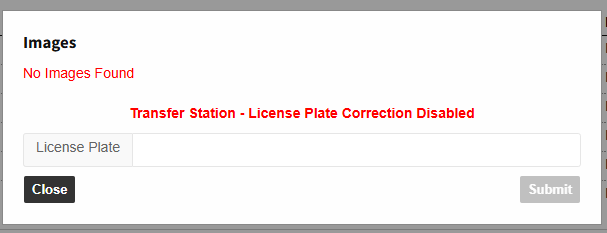
You cannot make license plate corrections for activity generated at transfer stations. You can only make corrections to LPR reads captured at the entry lane where the driver started their session or at an exit lane.
Monthly Enforcement
Monthly Enforcement allows you to apply Logical Zone restrictions to monthly accounts. These restrictions let you control which zones monthly drivers can access and how they use them.
Logical Zone violations are automatically logged for your reporting. Depending on your garage settings, overstaying may result in an overage charge at exit or a post-exit payment notification.
No Time-Based Restriction
When you select No Time-Based Restriction as the restriction type, you can assign Allow Access, Passthrough, or No Access permissions to each Logical Zone on a monthly account.

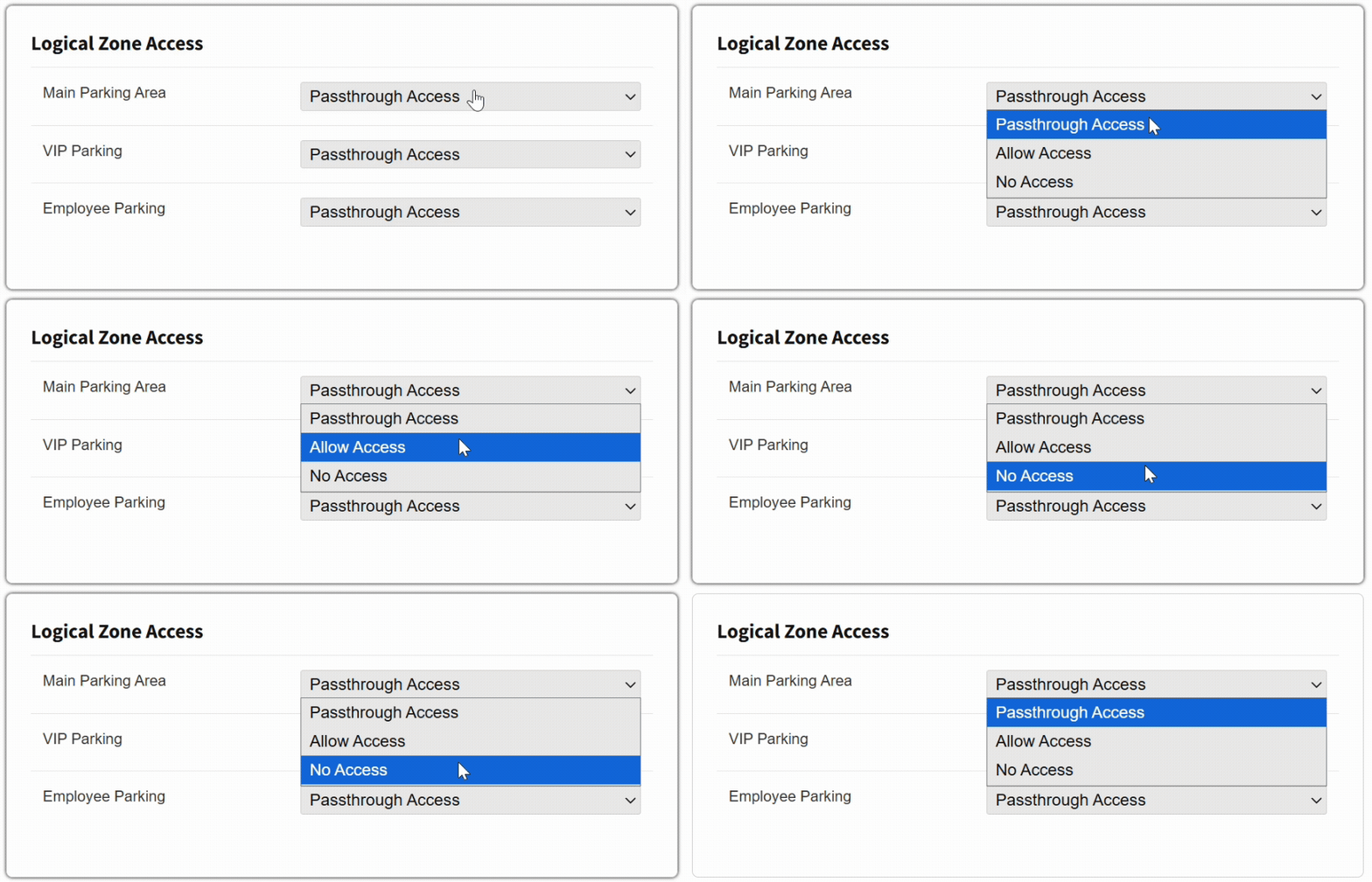
- Passthrough: Parkers can enter/access a zone and then move to other zones, but they cannot park/stay longer than the “Monthly Logical Zone Grace Period” set in minutes threshold (Garage Settings) or another zone(s) they have access to without it being a zone violation.
- Allow Access: Can access this logical zone.
- No Access: No access to this logical zone.
Time-Range Restriction
Time-range restrictions control access to selected Logical Zones during specific times. Outside the permitted time range, access to those zones is considered a violation.
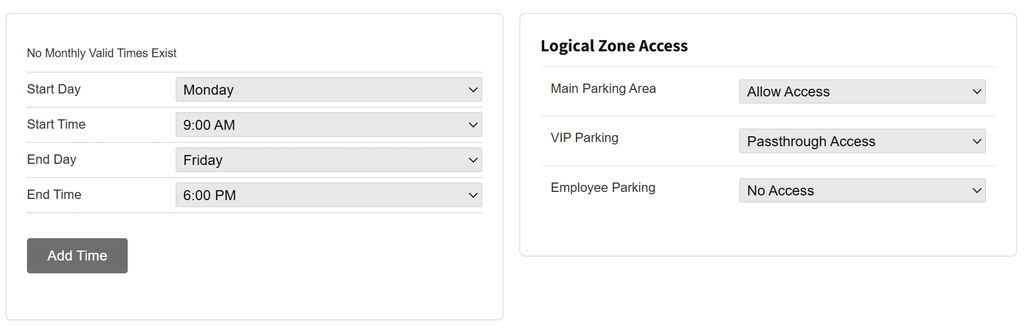
- Passthrough: Parkers can enter/access a zone and then move to other zones, but they cannot park/stay longer than the “Monthly Logical Zone Grace Period” set in minutes threshold (Garage Settings) or another zone(s) they have access to without it being a zone violation.
- Allow Access: Can access this logical zone.
- No Access: No access to this logical zone.
For instance, in the example above, the monthly parker is allowed to park in the Main Parking Area starting Monday 9:00 AM until Friday 6:00 PM. They are allowed to pass through the VIP parking area and transition to the Main Area, but cannot stay in the VIP Parking Area. They are not allowed to enter the Employee Parking zone.
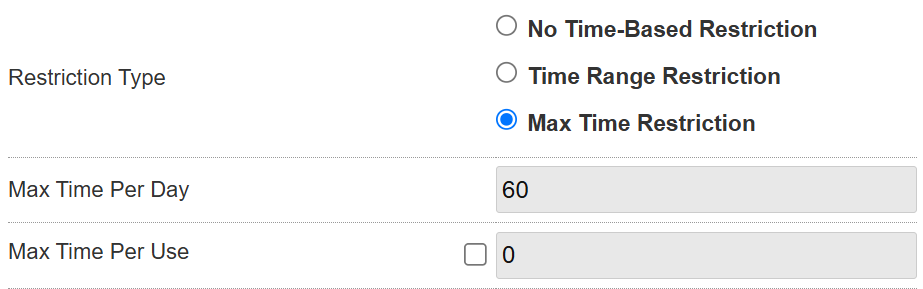
Max Time Per Day (Minutes)
This restriction lets you set the maximum number of minutes a monthly parker can remain in selected Logical Zones each day. Exceeding this limit results in a violation.
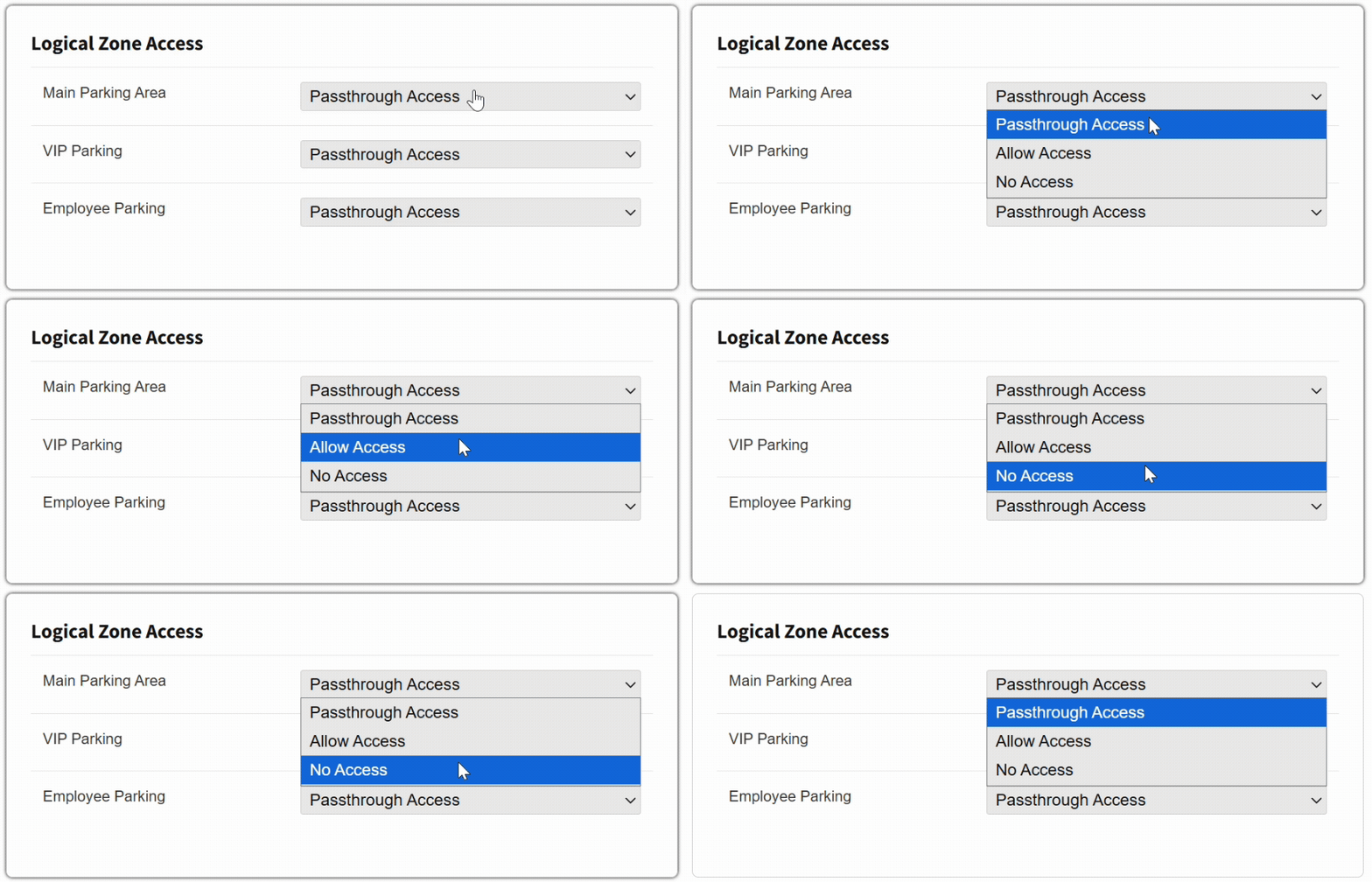
- Passthrough: Parkers can enter/access a zone and then move to other zones, but they cannot park/stay longer than the “Monthly Logical Zone Grace Period” set in minutes threshold (Garage Settings) or another zone(s) they have access to without it being a zone violation.
- Allow Access: Can access this logical zone.
- No Access: No access to this logical zone.
Monthly Logical Zone Grace Period (Minutes)
The Monthly Logical Zone Grace Period determines how long a monthly parker can remain in a passthrough zone before an overage is applied. It only applies to monthly accounts with Logical Zone restrictions enabled.
If multiple violations occur during the same stay, you charge based on the first zone violated. Depending on your garage settings, payment can be collected directly at exit.
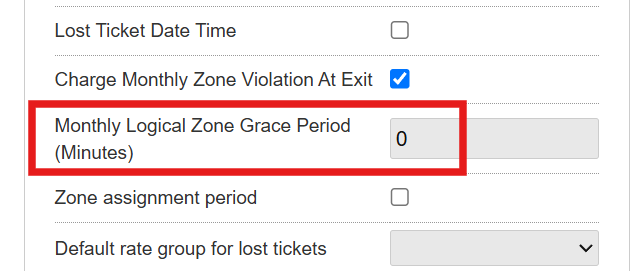
Charge Monthly Overage At Exit

When enabled, monthly parkers with a Logical Zone violation are charged when scanning at exit. When disabled, they can exit without paying and will receive an email or text message to settle payment for the violation.
Monthly Overage Email Notifications
Automated email notifications are sent to you when a monthly parker has a Logical Zone overage that is not charged at exit.
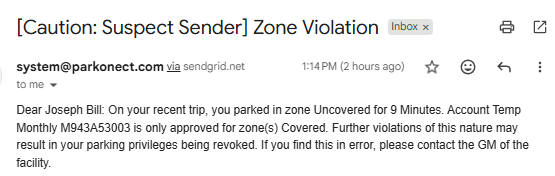
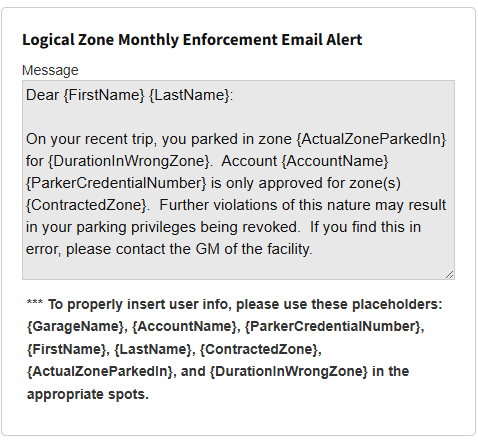
- First Name: Monthly parker’s first name.
- Last Name: Monthly parker’s last name.
- Zone Parked In: Logical Zone where the violation occurred.
- Account Name: Monthly account associated with the parker.
- Parker Credential Number: Credential number used by the monthly parker.
- Contracted Zone: Logical Zone assigned to the monthly parker.
- Duration in Wrong Zone: Total time the parker remained in an unauthorized Logical Zone.
- Violation Fee: Amount charged for the Logical Zone violation.
You can customize the email verbiage to fit your operations.
Transfer Stations
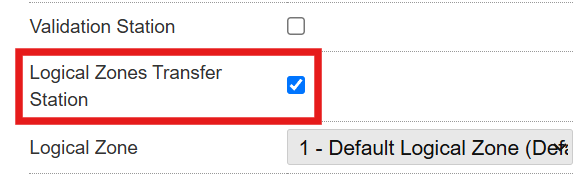
Transfer stations allow drivers to move between Logical Zones. When a lane is designated as a Transfer Station, the Logical Zone selected for that lane is the zone the driver enters after passing through it.
Transfer stations support LPR 2.0. If the camera is unavailable or misreads the license plate, the driver must scan their pass to enter the Logical Zone.
License Plate Corrections
In the LPR Event Log, license plate corrections cannot be made to activity generated at a transfer station. Corrections can only be made to LPR reads captured at the entry where the driver started their parking session or exit lane.
Example:
- Entry: Plate ABC123 is read.
- Transfer Station 1: Plate is misread as DEF123, requiring the driver to scan their pass.
- Transfer Station 2: Plate ABC123 is read correctly, allowing the driver through.
- Exit: Plate ABC123 is read correctly, allowing the driver to exit.
Logical Zones Compatibility
Compatible:
- LPR
- AVI
- RFID
Not Compatible:
Software:
- Credit Card In Out
- Event PrePay Mode
- Coupons
- License Plate Correction at Transfer Stations
- Express Pay (to be compatible in Phase 2)
- Ten-Key Phone Verification (to be compatible in Phase 2)
Hardware:
- LPR 1.0
- Gen 1 kiosks
- Switching to Gen 2 kiosks and LPR 2.0 is required. You can use Minis at transfer stations, though they offer limited functionality.
Reporting
Monthly Zone Violation Report
You can access the Monthly Zone Violation Report under Reports > Monthly when you have the Logical Zones module enabled. This report tracks monthly parkers and details their cardholder information, assigned versus occupied zones, exit times, enforcement violation dates, and violation durations.
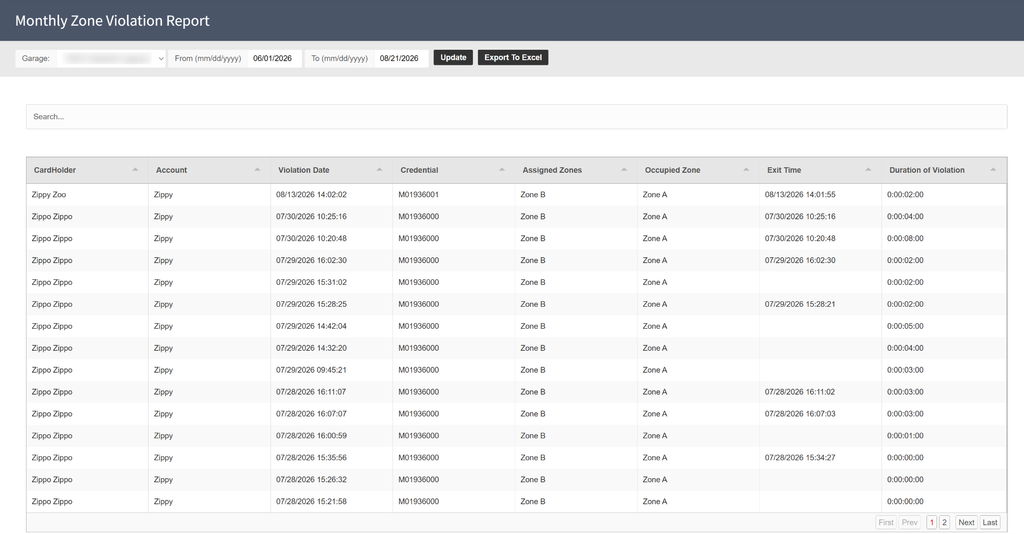
- Cardholder: Name of the monthly parker associated with the violation.
- Account: Account associated with the cardholder.
- Violation Date: Date and time the zone violation occurred.
- Credential: Credential used by the cardholder to access the garage.
- Assigned Zones: Logical zone(s) assigned to the cardholder.
- Occupied Zone: Logical zone the cardholder occupied during the violation.
- Exit Time: Date and time the cardholder exited the occupied zone.
- Duration of Violation: Total time the cardholder remained in an unauthorized logical zone.
Live Occupancy by Logical Zone
The Live Occupancy widget includes a By Logical Zone dropdown that displays the real-time occupancy for each configured logical zone.
- From the left navigation menu, select the garage.
- Click Dashboard.
- In the Live Occupancy widget, select By Logical Zonefrom the dropdown menu.
- The widget displays current occupancy for each logical zone you configured in the garage.
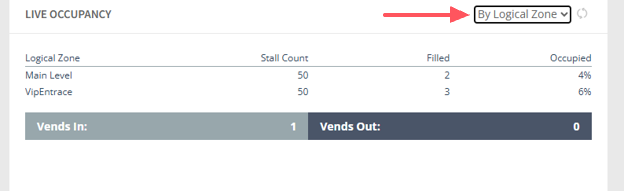
- Logical Zone: Name of the configured logical zone.
- Stall Count: Total number of parking stalls assigned to the logical zone.
- Filled: Number of stalls currently occupied in the logical zone.
- Occupied: Percentage of the logical zone’s total stalls that are currently filled.
Garage Summary Report
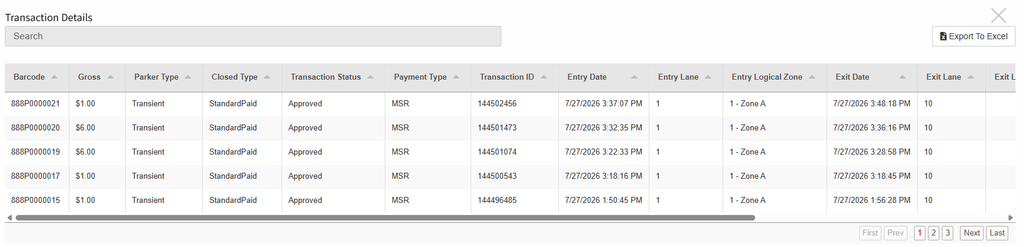
Provides a reconciliation of all garage activity within the selected date range. The report includes nine sections:
- Tickets Dispensed
- Sales Summary
- Collected At
- Sales by Type
- Validations
- Tickets Converted to Hotel
- Gate Vends
- Revenue by Lane
- Unpaid Exits
The report details display the Logical Zone in the column to the right of the Lane column.
Total Revenue Report
Provides a summary of all revenue collected within the selected date range, organized by transaction type. The report includes three sections:
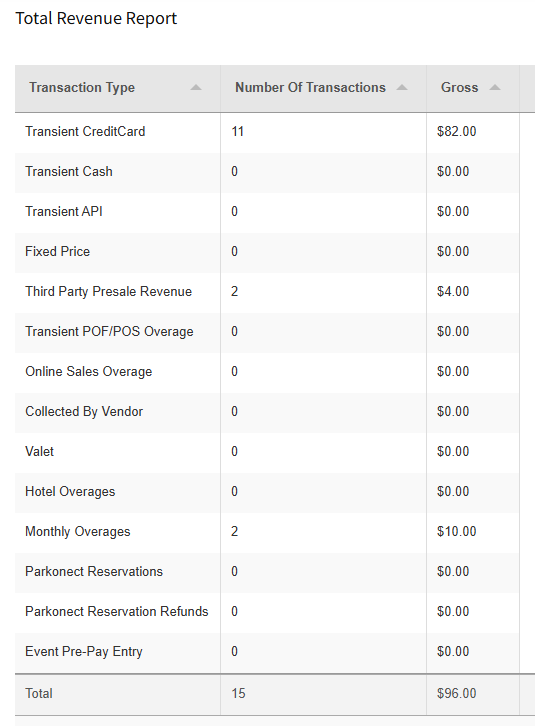
- Total Revenue: Transaction amounts organized by type.
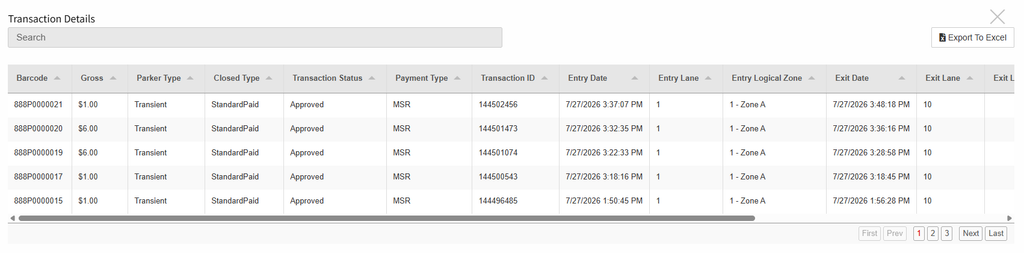
- Transaction Log: Transaction details, including Parker Type, Lane and Logical Zone.
- Unpaid Exits: The number of unpaid exit transactions.
When you select a transaction type, the report details display the Logical Zone in the column to the right of the Lane column.
Revenue by Rate Report
Provides a summary of revenue collected at your garage level by rate band, with separate totals for standard rates and special rates, such as Early Bird Specials.
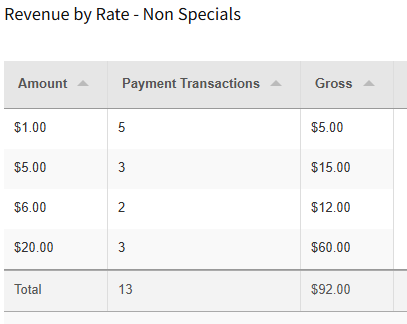
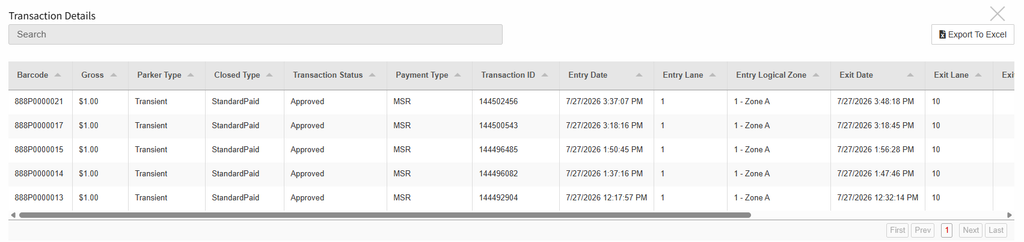
The report details display the Logical Zone to the right of the Lane column.
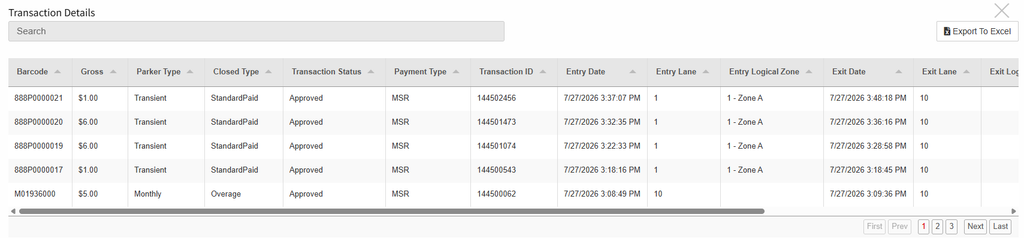
Revenue By Lane
Provides a summary of transactions for each payment lane or POF in your facility within the selected date range, including transaction counts and gross credit revenue.

The report details display the Logical Zone in the column to the right of the Lane column.
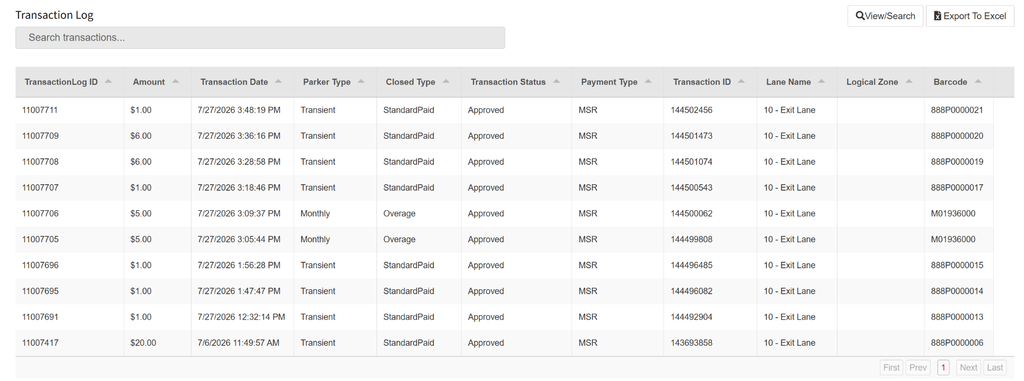
Transaction Log
Provides a detailed list of all transactions processed through Parkonect hardware, including the amount, date, parker type, payment type, lane, Logical Zone, and barcode.
The Logical Zone is displayed in the column to the right of the Lane Name column.
Was this article helpful?
That’s Great!
Thank you for your feedback
Sorry! We couldn't be helpful
Thank you for your feedback
Feedback sent
We appreciate your effort and will try to fix the article