Customer Scenario
"I didn't mean to enroll in Express Pay. How do I cancel?"
Customer Instructions
After the Express Pay session closes, drivers select the http://www.parkwhiz.com/pay-by-plate/vehicles link sent via SMS after initial enrollment. Drivers log in using the mobile number to view any vehicles enrolled in Express Pay, then select the option to unenroll the vehicle.
Alternatively, the vehicle can be deleted from the ParkWhiz account which will unenroll from Express Pay. This requires downloading app or logging in at parkwhiz.com.ParkWhiz MobileApp
The unenroll option is currently available on the ParkWhiz iOS mobile app and Android mobile app.
| 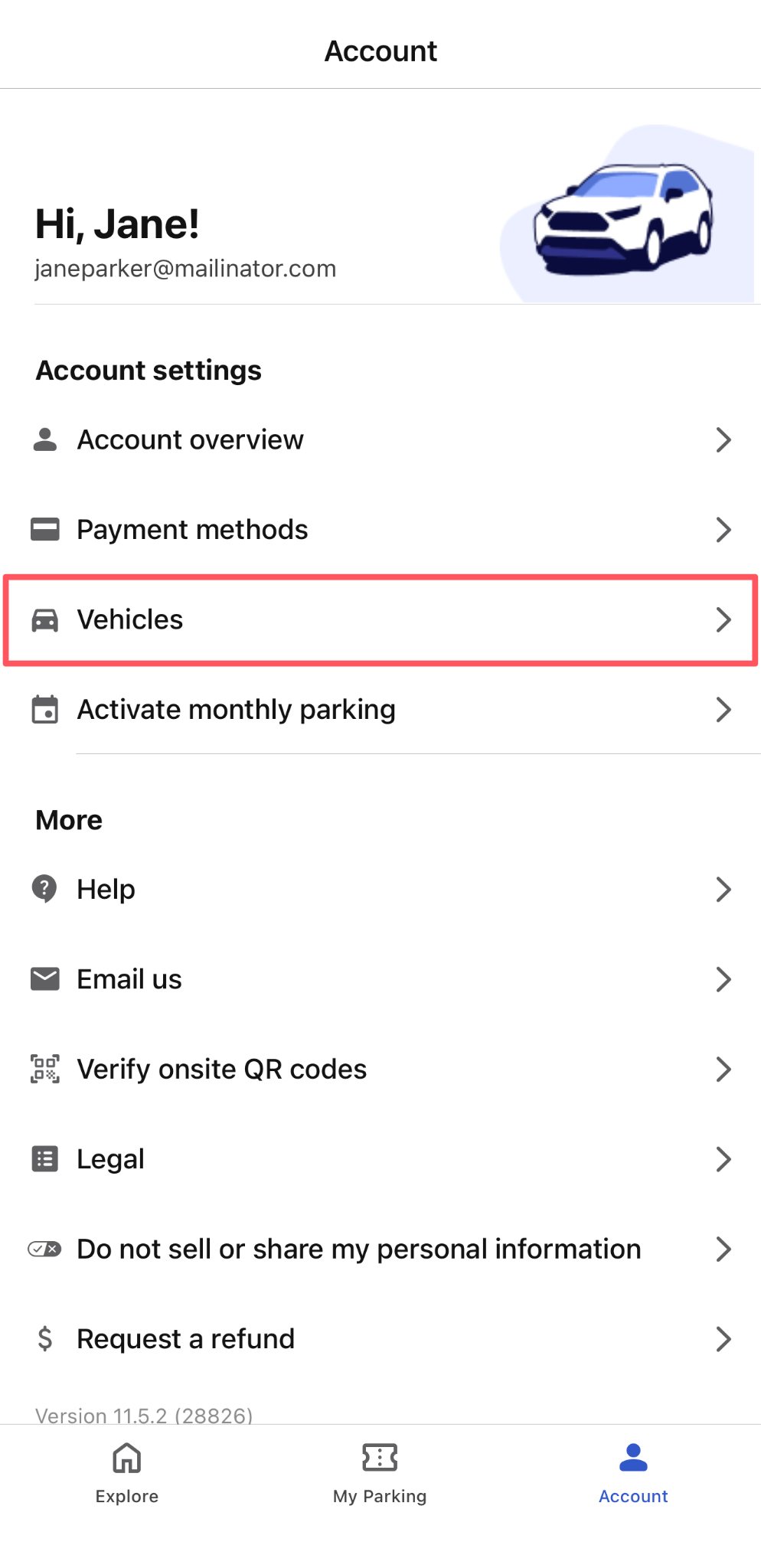 | |
| 2. Tap the three-dotted option on the right-hand side of the selected vehicle to unenroll. | 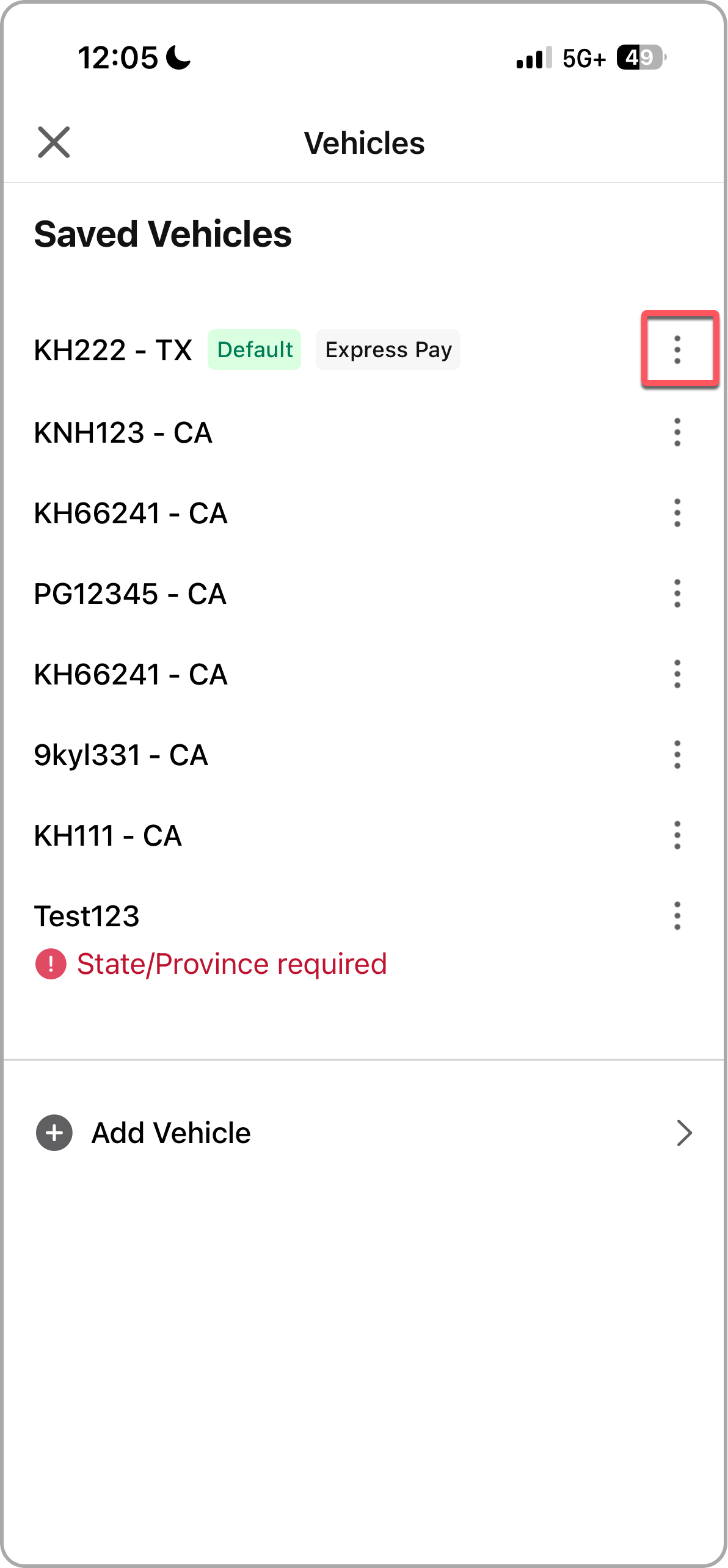 | |
| 3. Select the option to Unenroll from Express Pay. | 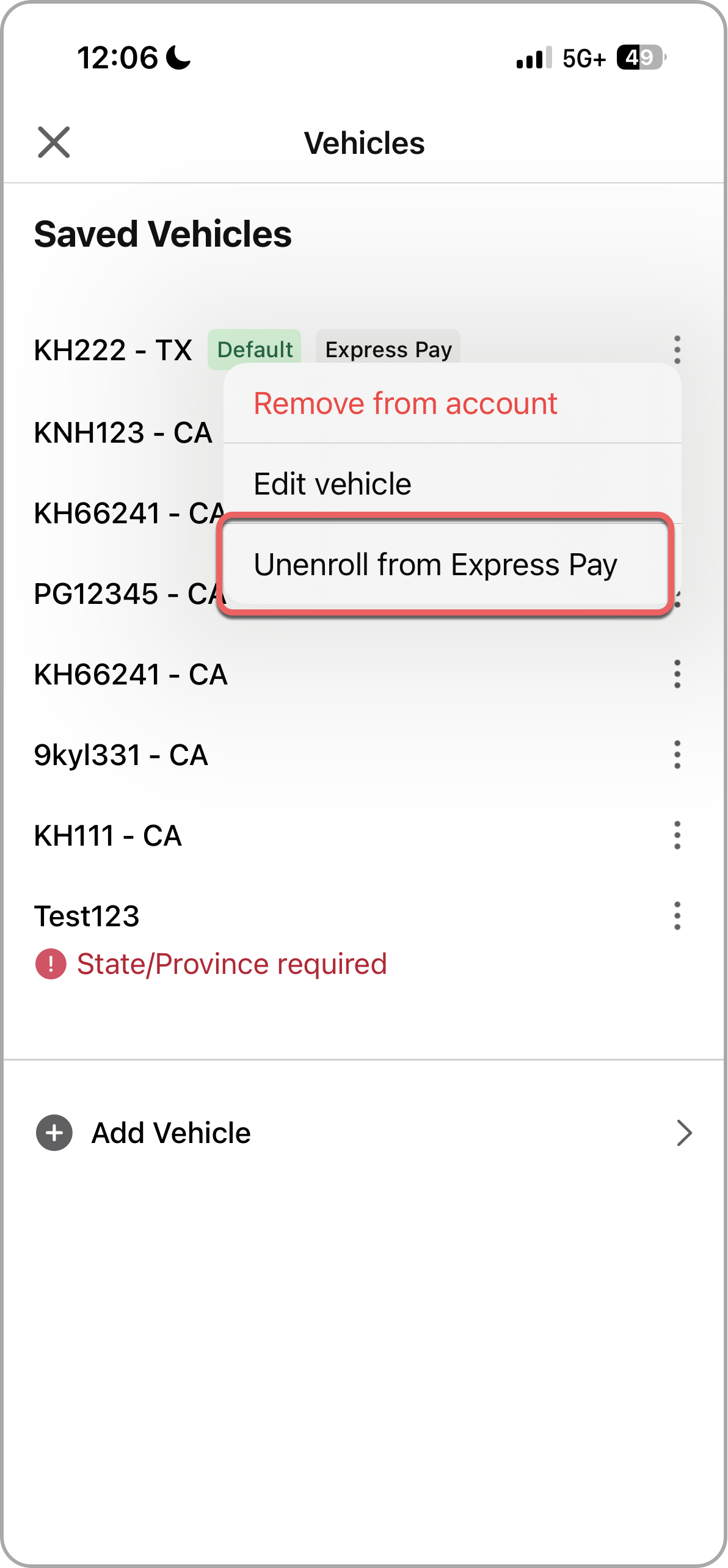 | |
| 4. A message to confirm unenrollment from Express Pay will appear; select Unenroll. | 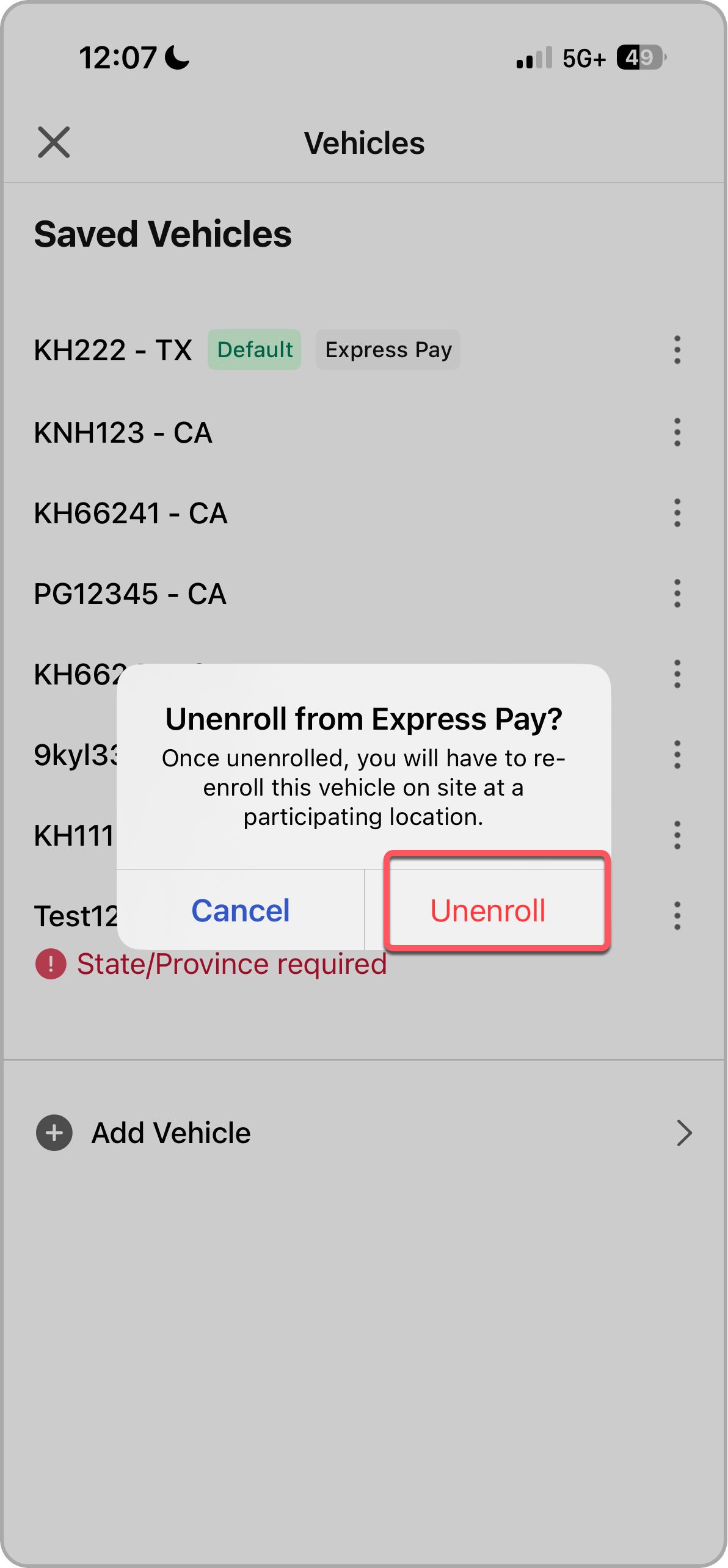 | |
| 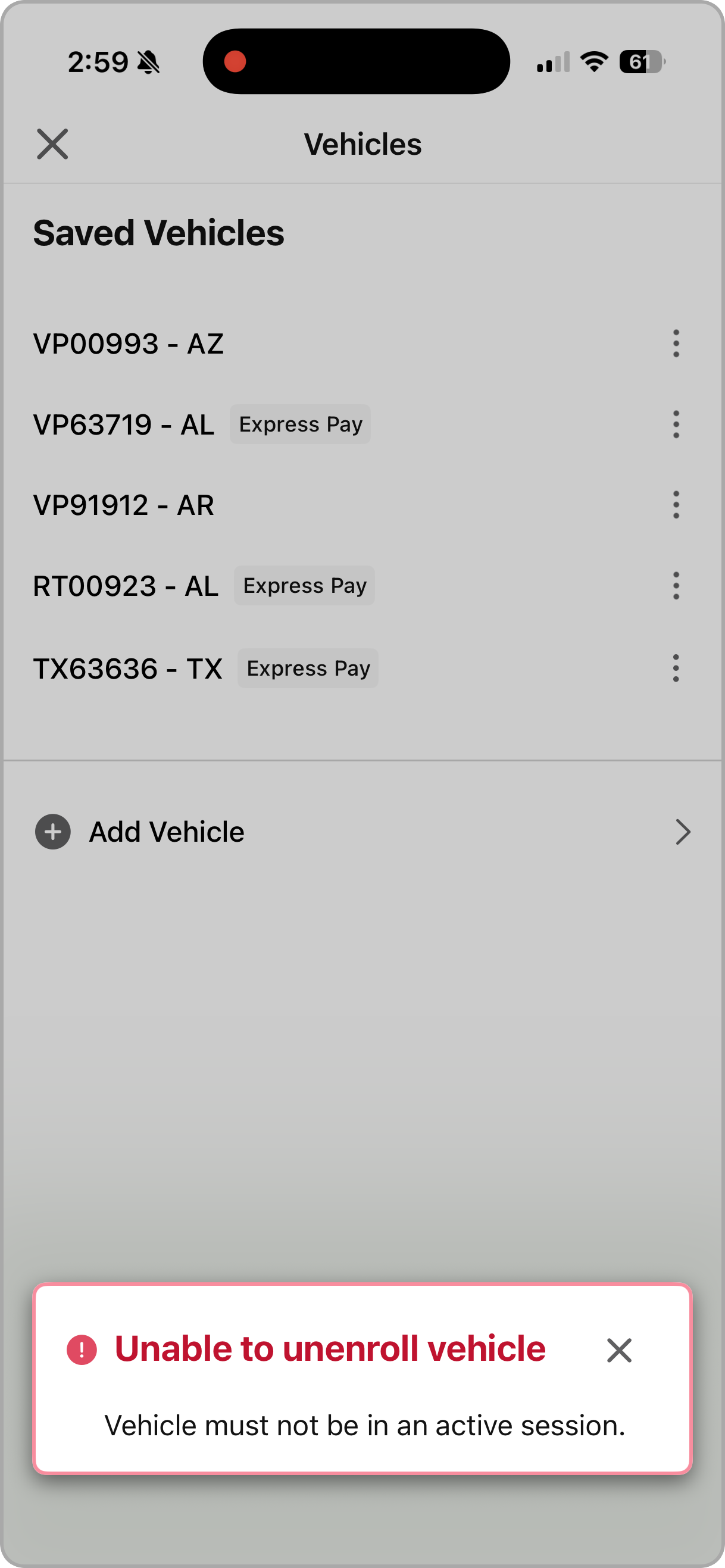 |
Android App
| 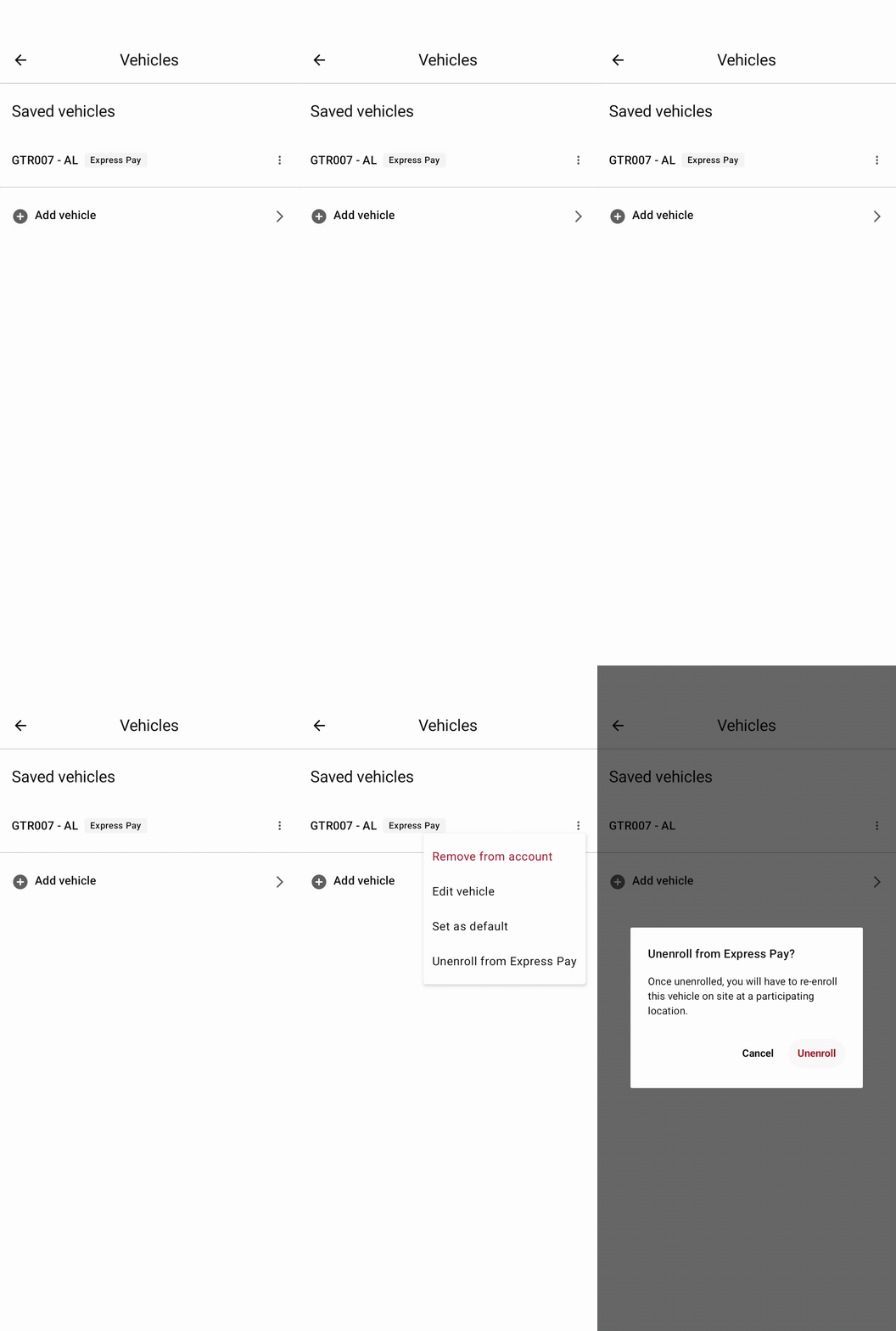 |
ParkWhiz Mobile Web
| 1. After enrolling a vehicle in Express Pay, the driver receives a confirmation text with a link to unenroll the license plate if needed. Tap the link to view vehicles. | 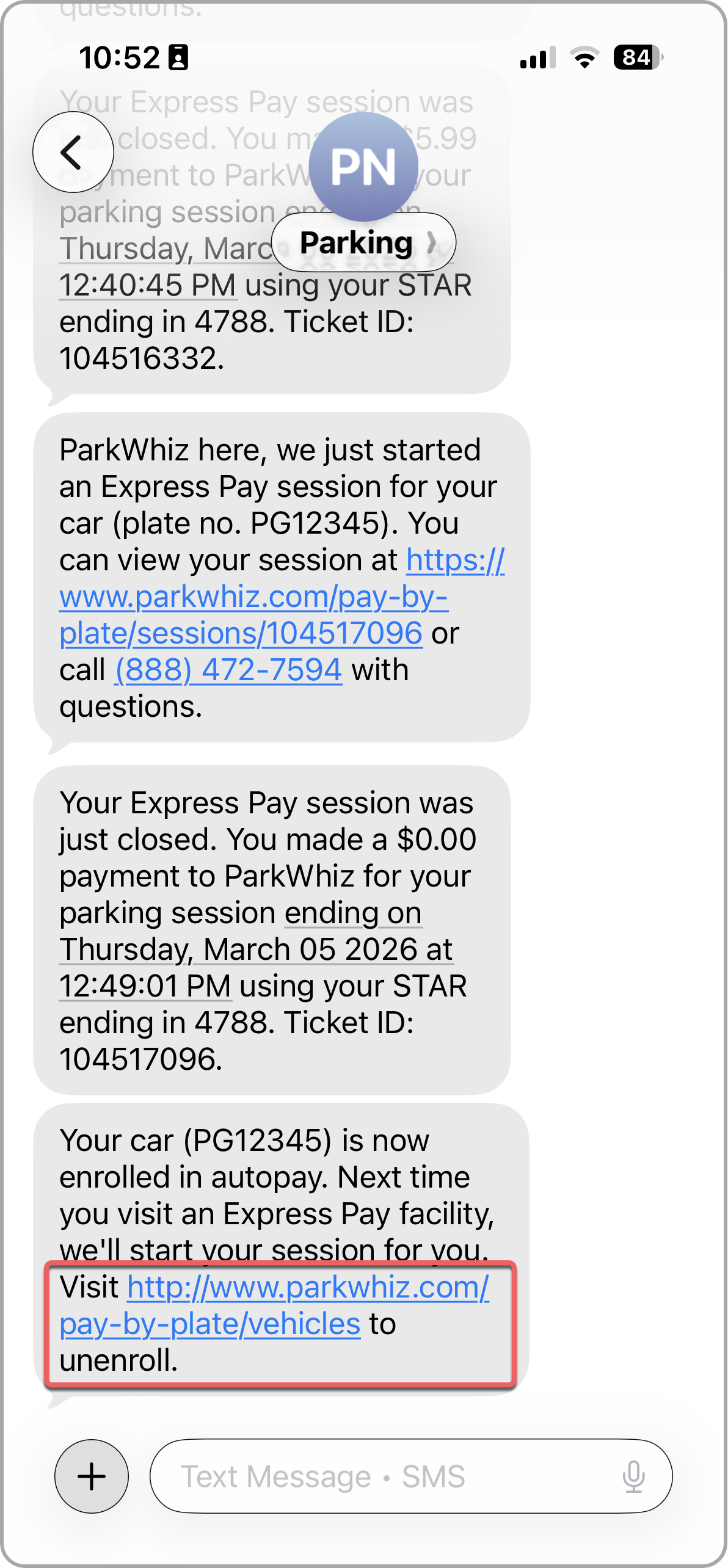 |
| 2. Users are prompted to "sign in" by using phone number verification. | 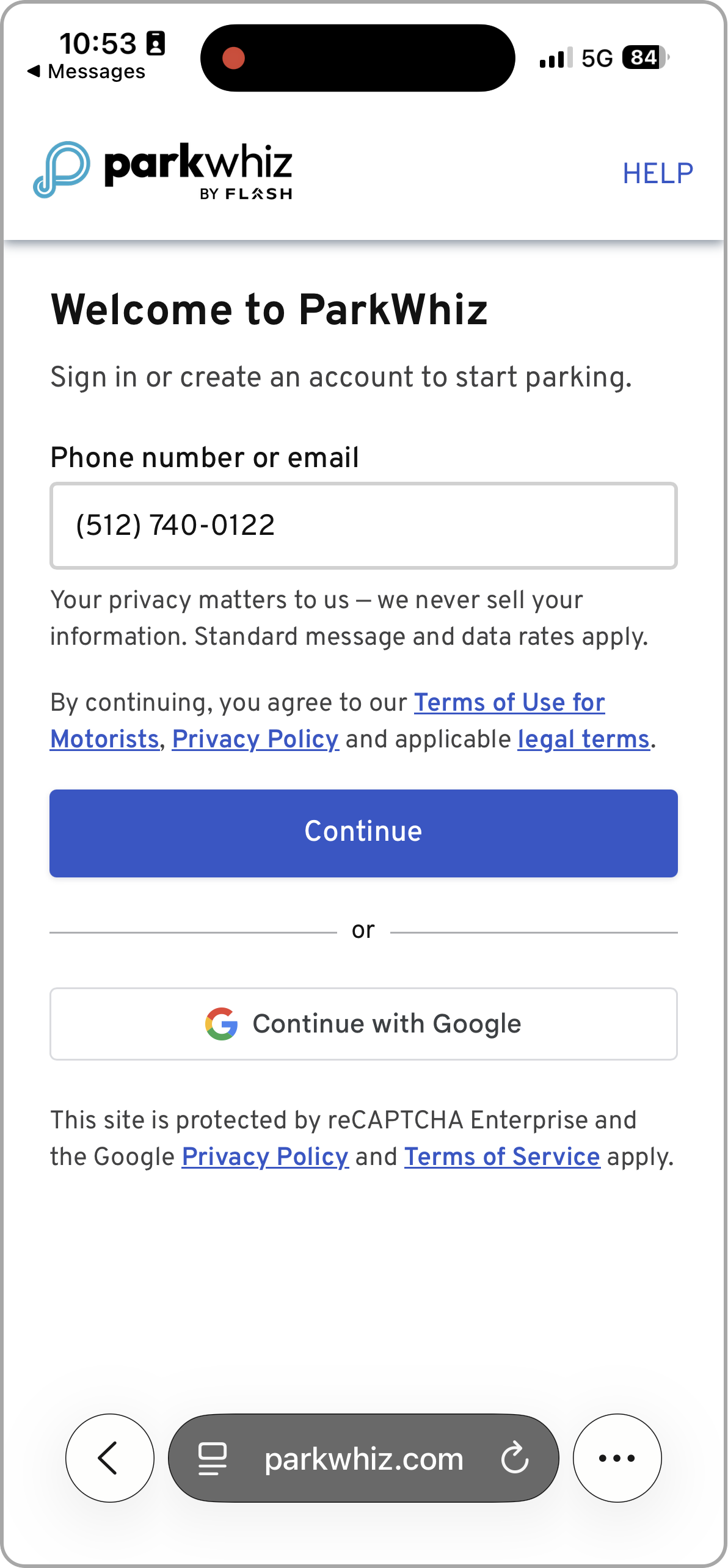 |
| 3. A list of saved license plates will be displayed with Express Pay enrollment status notated. Tap Edit next to the plate with the auto-pay label. | 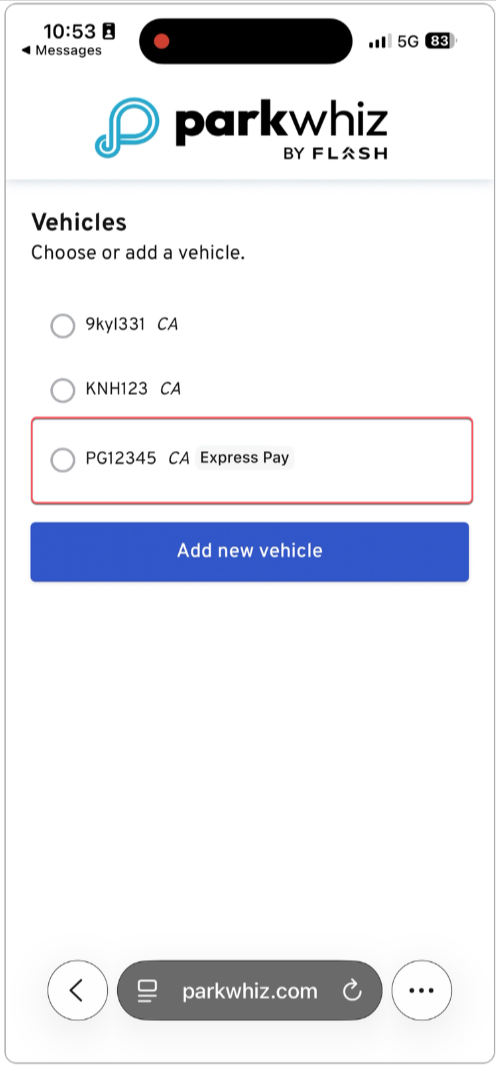 |
4. Tap the Unenroll button to remove the license plate from Express Pay. | 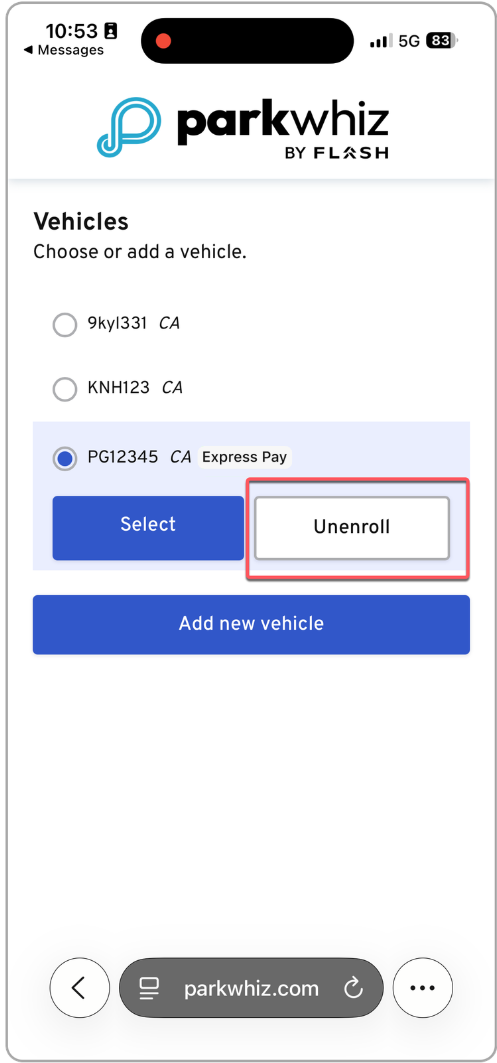 |
Was this article helpful?
That’s Great!
Thank you for your feedback
Sorry! We couldn't be helpful
Thank you for your feedback
Feedback sent
We appreciate your effort and will try to fix the article