Express Pay: Off-site Parkwhiz Account Creation
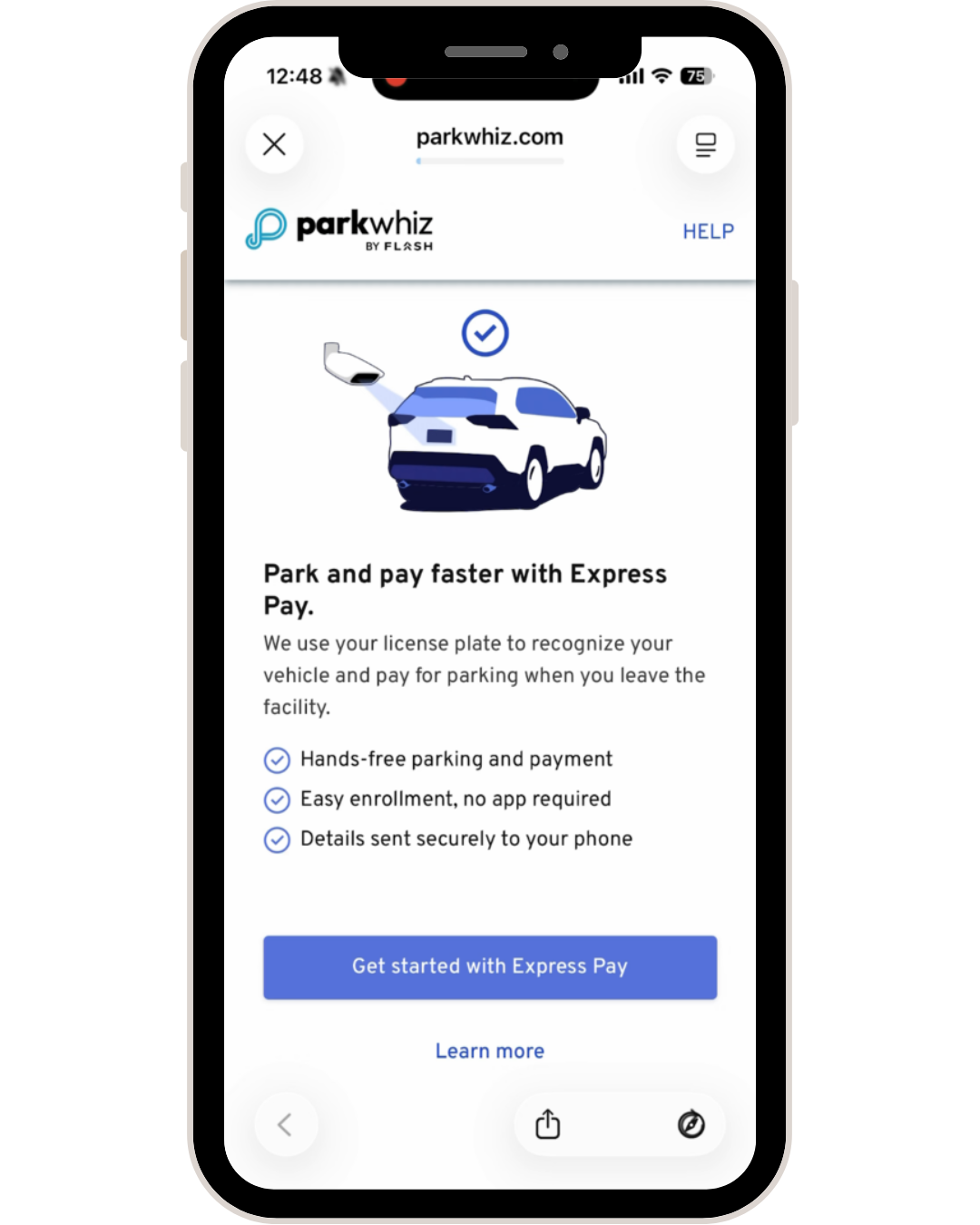
Parkwhiz offers new users an off-site Express Pay enrollment option through the Parkwhiz app or at https://www.parkwhiz.com/pay-by-plate/off-site/landing. Users simply create an account, add their vehicle, and add a preferred payment method from their very first visit to an Express Pay location.
Users cannot enroll for automatic payments when creating their account offsite. To sign up for automatic payments using Express Pay, users must visit an Express Pay-enabled garage.
How Users Create an Account Offsite (Web)
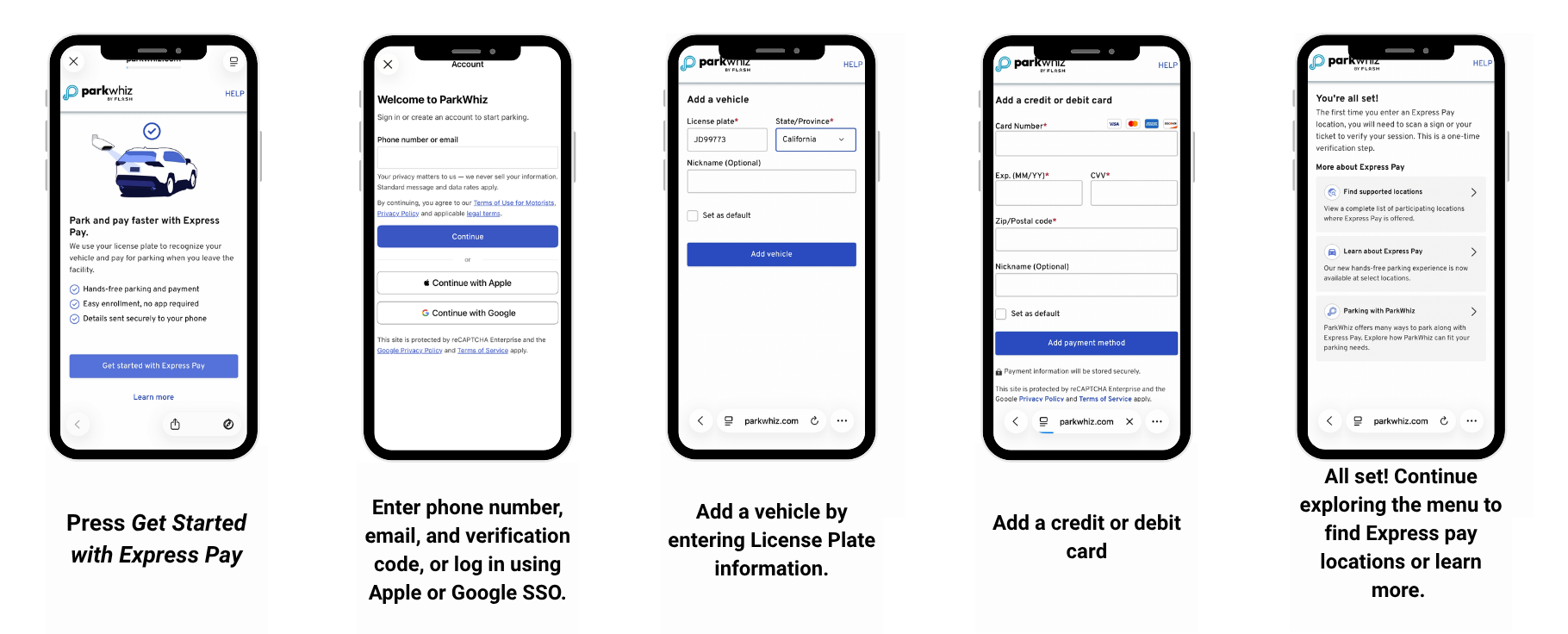
Press Get Started with Express Pay
The customer provides their email address (or signs up with Apple or Google) and phone number. Parkwhiz will send a verification code to validate the phone number.
After the customer’s credentials are verified, they will be prompted to add or select a vehicle.
The customer enters their credit or debit card information
Done! They are presented with a menu with the following options:
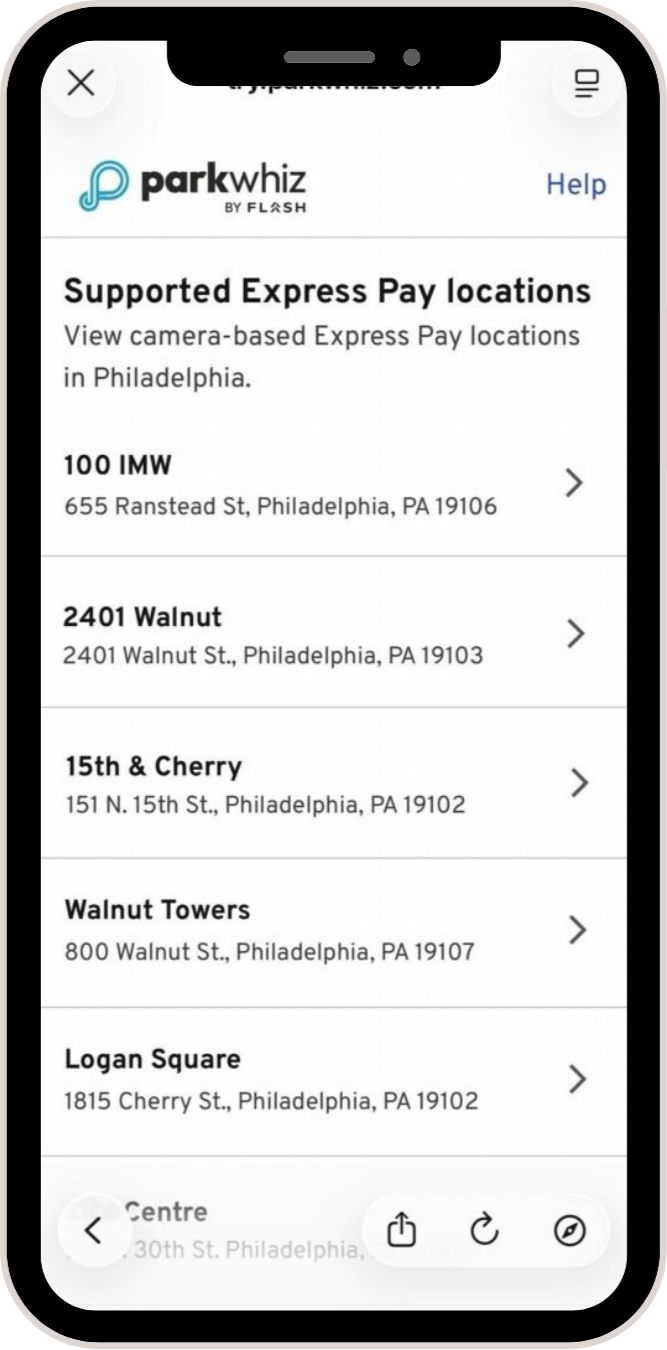
Find supported locations: This takes the user to a list of parking locations that support Express Pay
Learn about Express Pay: Shows a brief description of how Express Pay works, how ParkWhiz handles vehicle information, and when payments are processed.
Parking with ParkWhiz: Takes the customer to try parkwhiz.com where other ParkWhiz products are presented, such as Reservations and others.
How Users Create an Account Offsite (App)
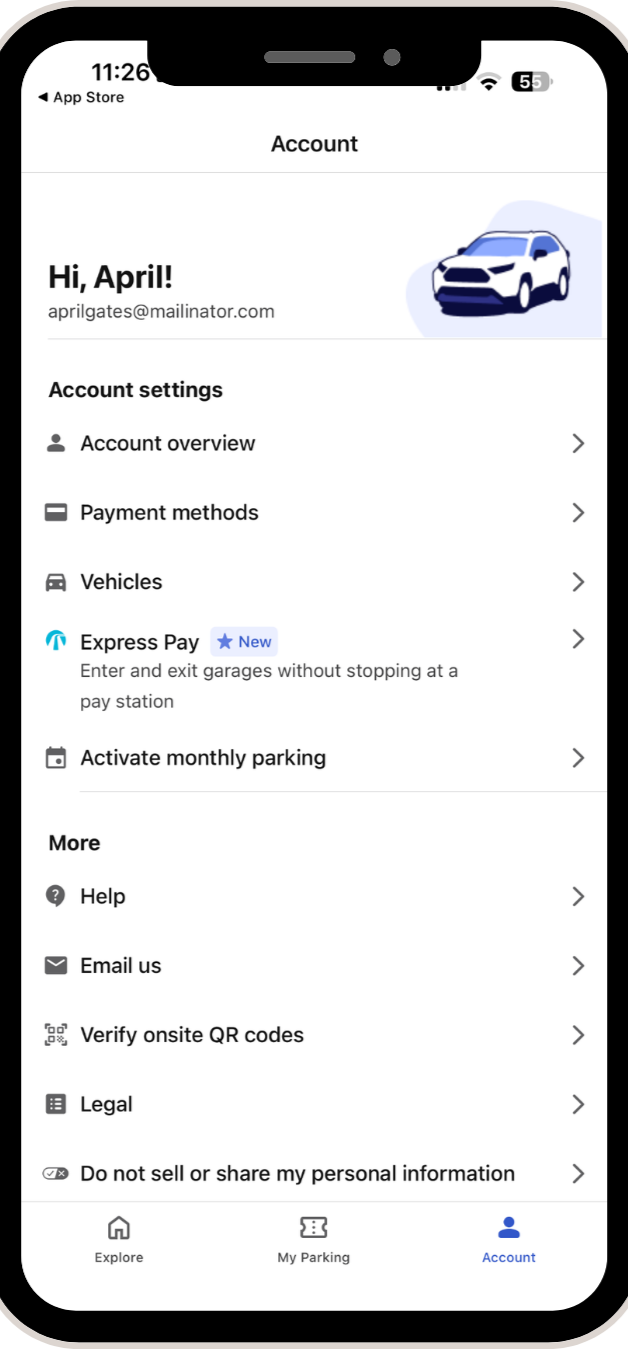
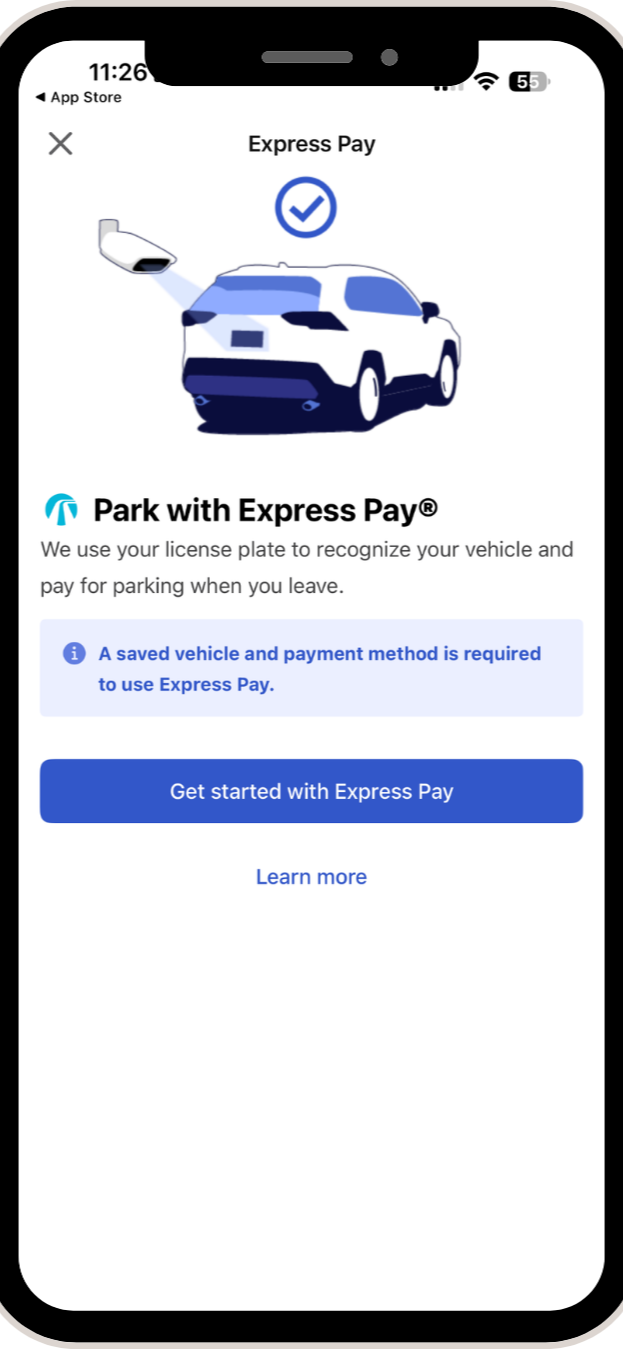
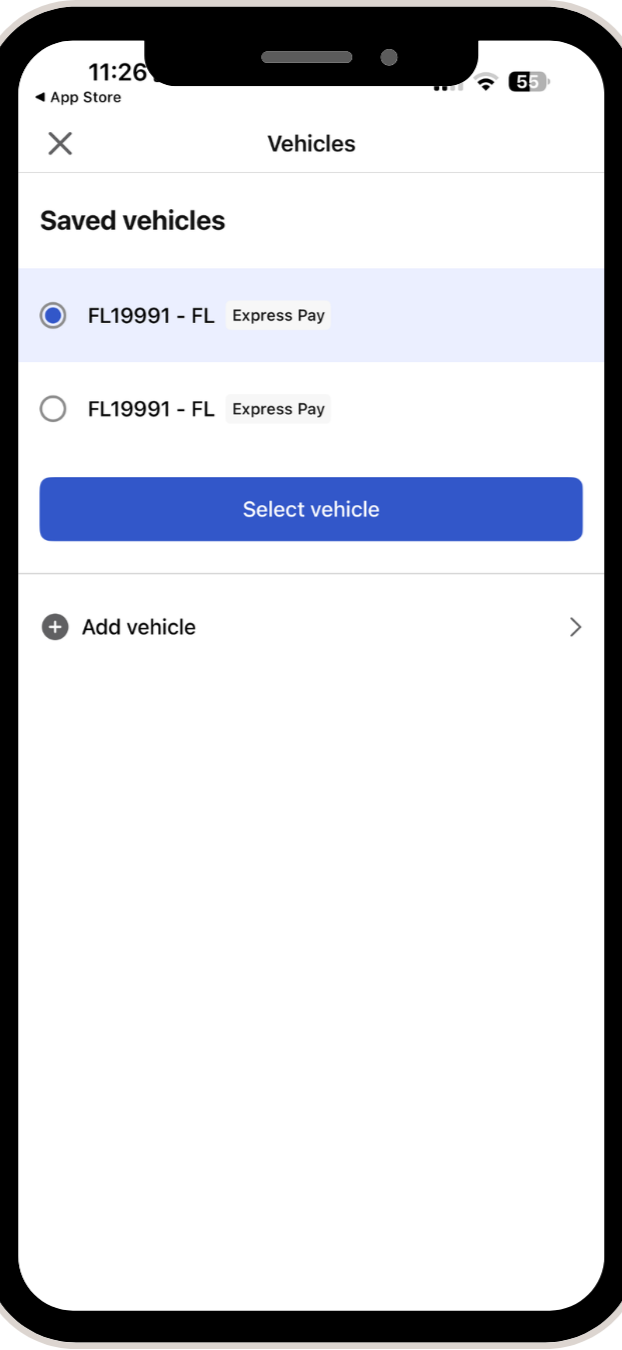
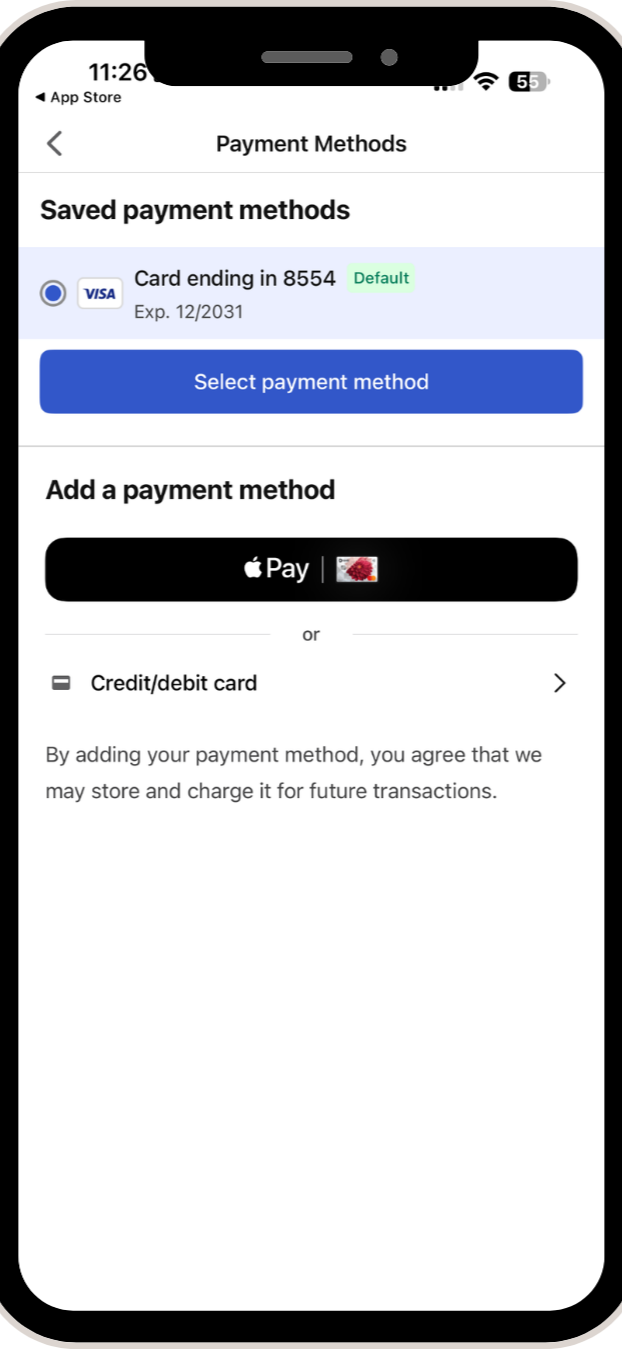
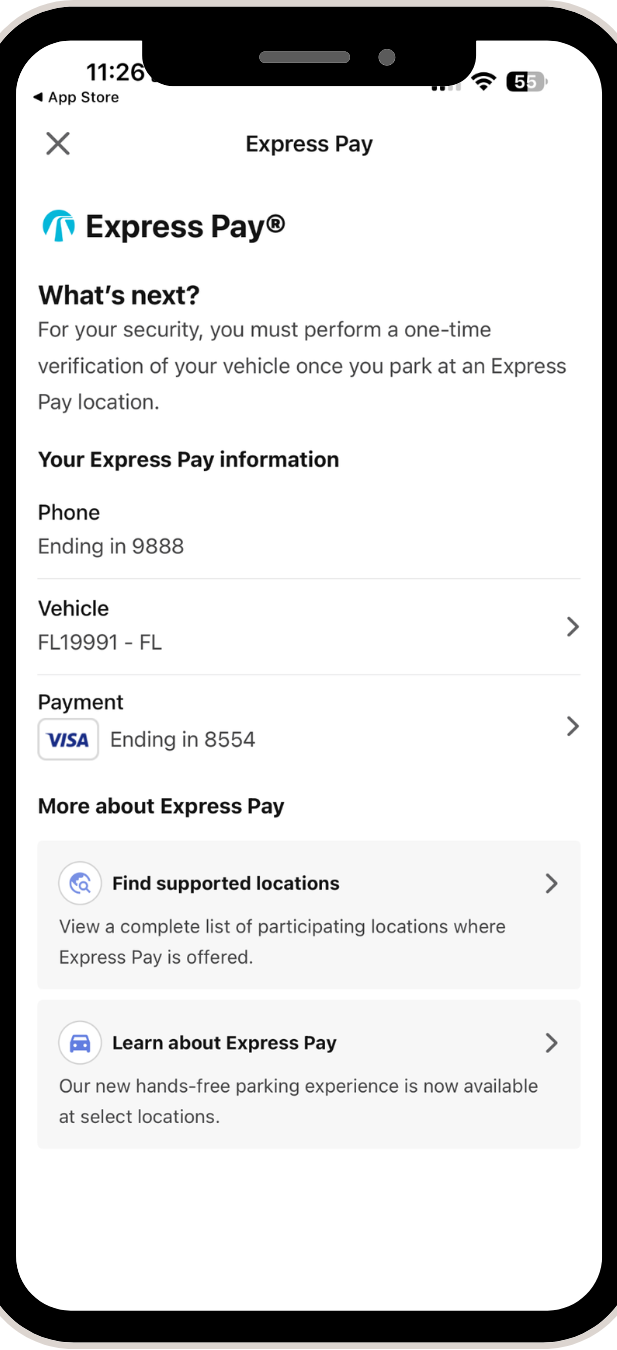
Select Express Pay: From the Account menu, tap on Express Pay under Account settings. If the user is not logged in or signed in, they will be required to create an account or sign in before proceeding with the Express Pay offsite account creation steps.
Start Setup: Tap the blue Get started with Express Pay button on the Express Pay overview screen.
Choose Vehicle: Select your desired license plate from the Saved vehicles list and tap Select vehicle (or tap Add vehicle if none are listed).
Choose Payment Method: Select your preferred card from Saved payment methods and tap Select payment method (or add a new card/Apple Pay option below).
Review Enrollment: Review your Express Pay information on the final confirmation screen, noting that a one-time verification will take place the next time you park at an Express Pay location.
Find Supported Locations
When users sign up using the offsite account creation tool, they can easily look up nearby locations that support Express Pay. Tapping on a location opens Google Maps.
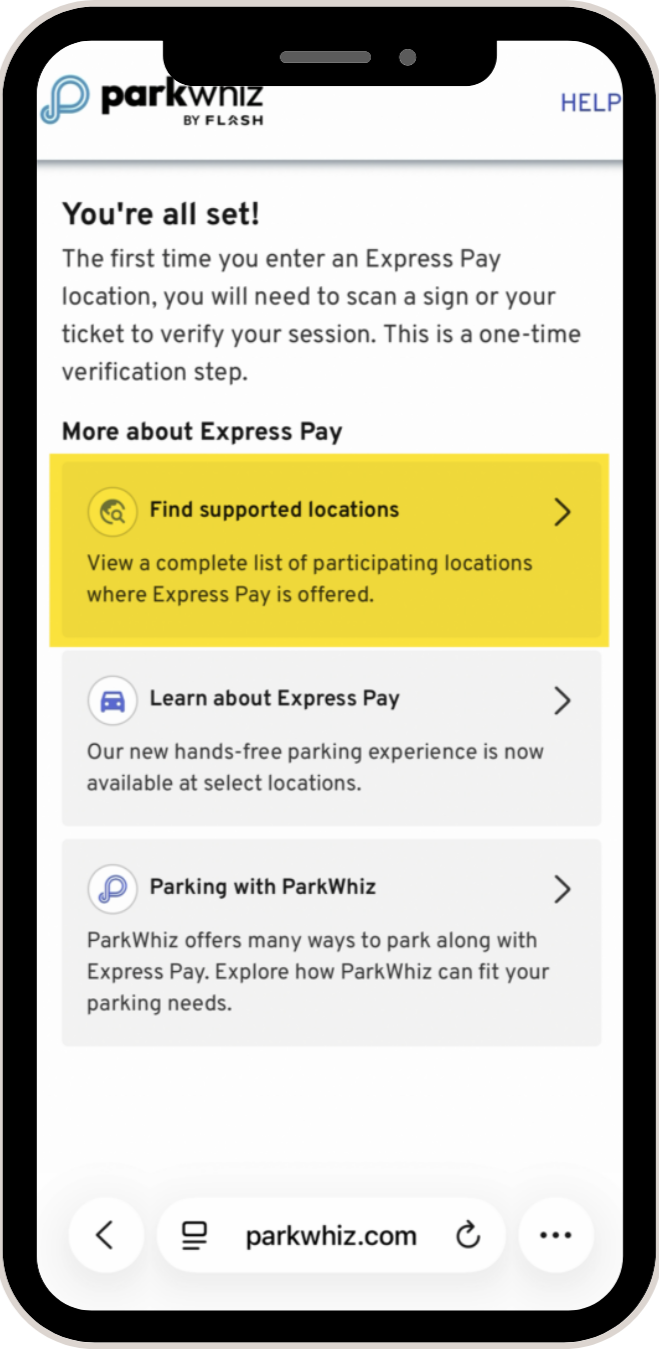
Learn About Express Pay
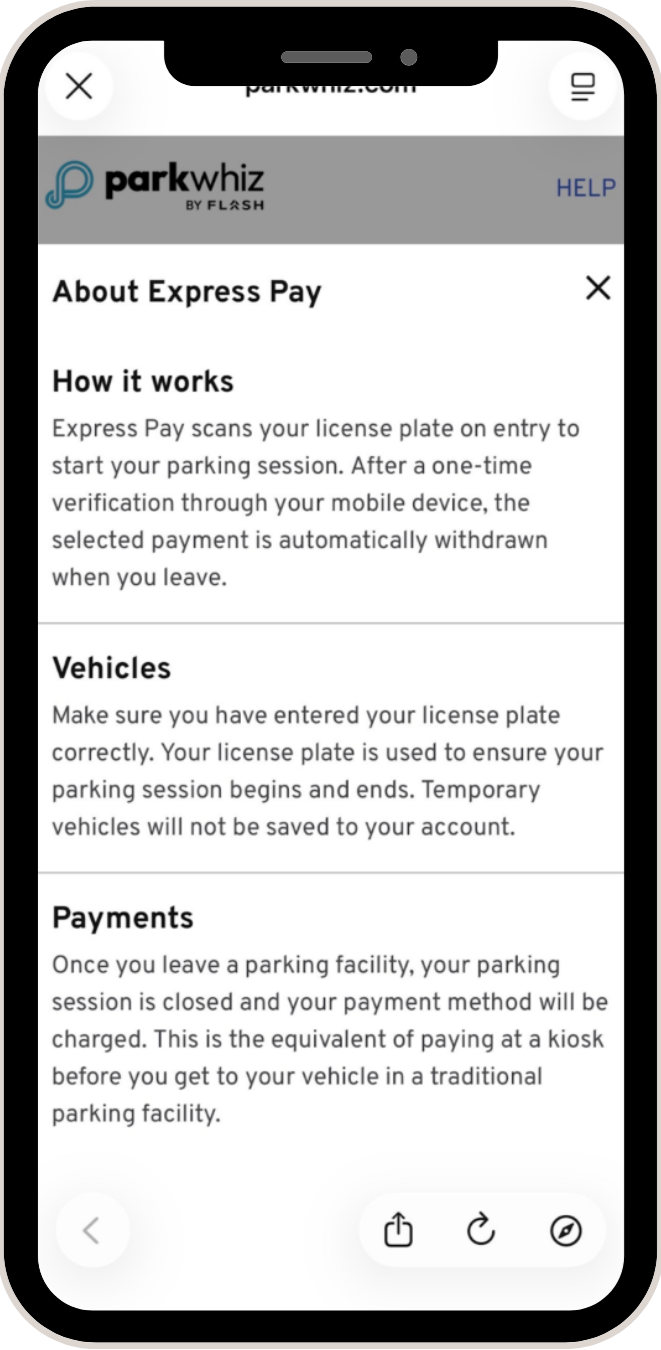
This is a brief explanation of how Express Pay works for new users who want to understand the feature’s functionality. They can read this by tapping Learn More on the initial screen or Learn About Express Pay on the final screen.
Was this article helpful?
That’s Great!
Thank you for your feedback
Sorry! We couldn't be helpful
Thank you for your feedback
Feedback sent
We appreciate your effort and will try to fix the article