USING APPLE PAY AND GOOGLE PAY WITH EXPRESS PAY
Whether you’re setting up your account for the first time or simply updating your details, you can now use Apple Pay and Google Pay directly within Express Pay. This guide is designed to help you navigate these updates with ease.
What’s inside this guide:
- Step-by-step setup: A clear walkthrough of how to securely save your favorite digital wallet as a primary payment method.
- The experience: A look at what to expect during your checkout or update session.
- Clear visibility: Examples of how your payment details will appear across your account, so you always know which card is being used.
First time users with no payment method on file
If you’re new to ParkWhiz, welcome! To get you on your way quickly, Express Pay will ask you to add a payment method before you start your first parking session.
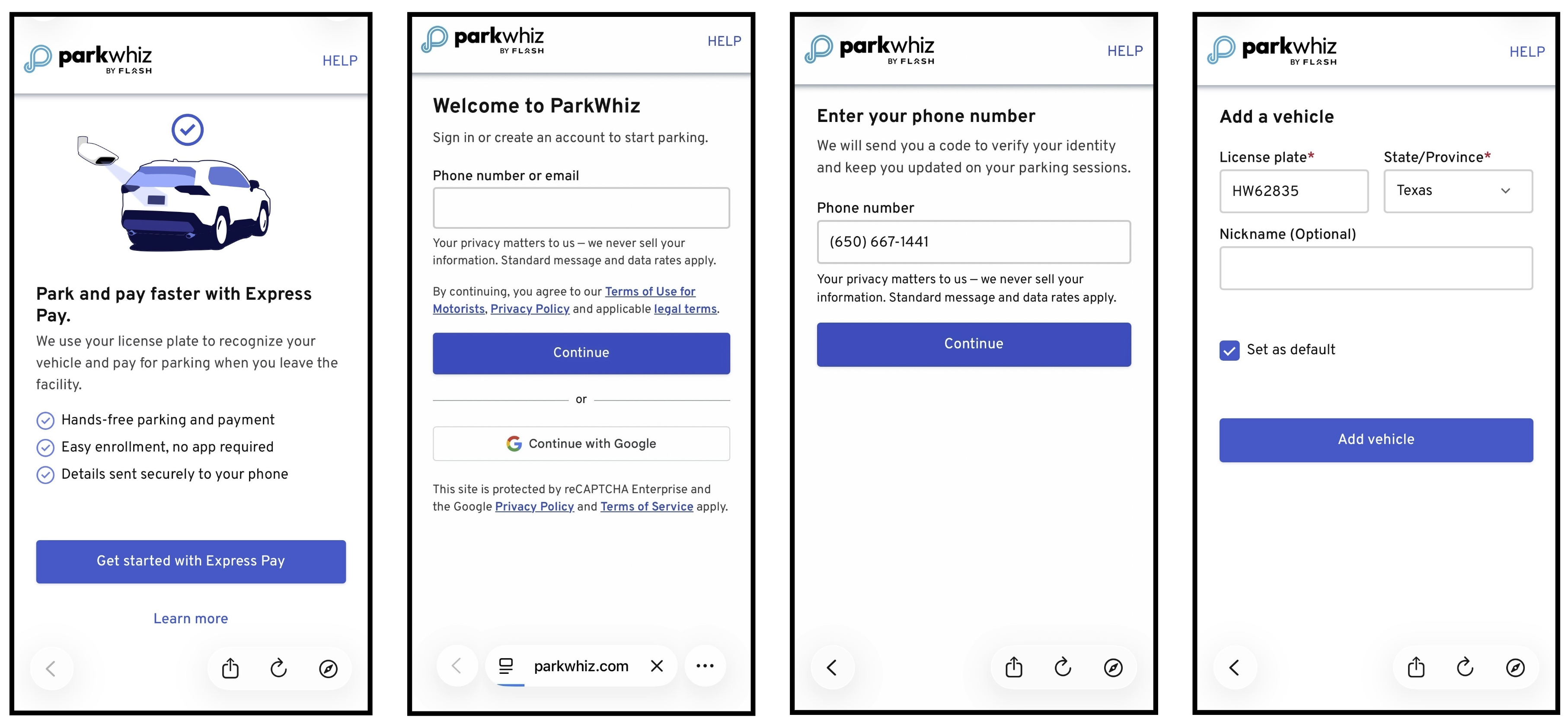
Off-site account creation experience
- Kick off your setup: Open your account creation link and tap Get started with Express Pay.
- Verify your identity: Enter your phone number and email to receive a validation code.
- Pro tip: You can also select Continue with Google for a faster sign-in experience.
- Register your vehicle: Tap Continue and enter your license plate number and State/Province. You can even give your car a nickname to make it easy to identify later. Tap Add vehicle.
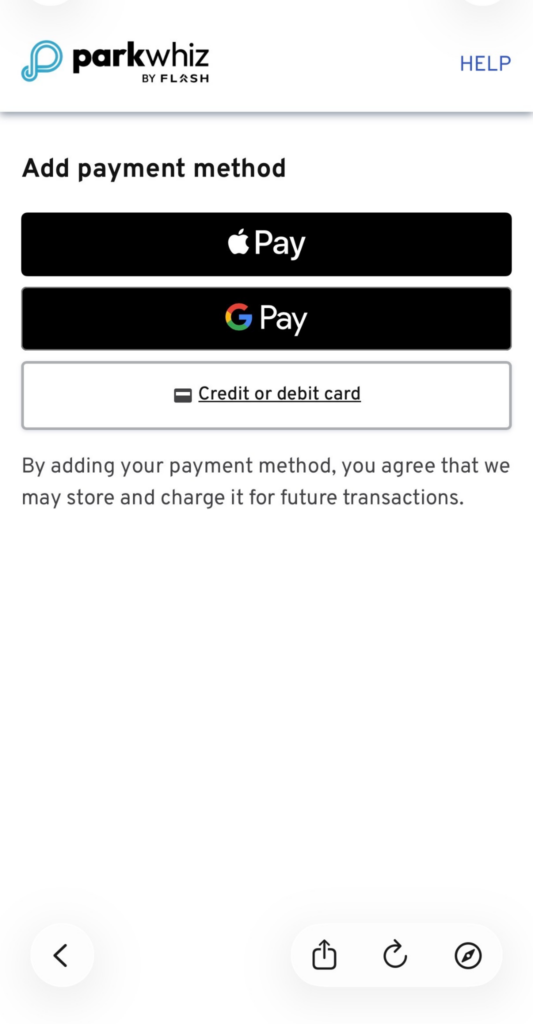
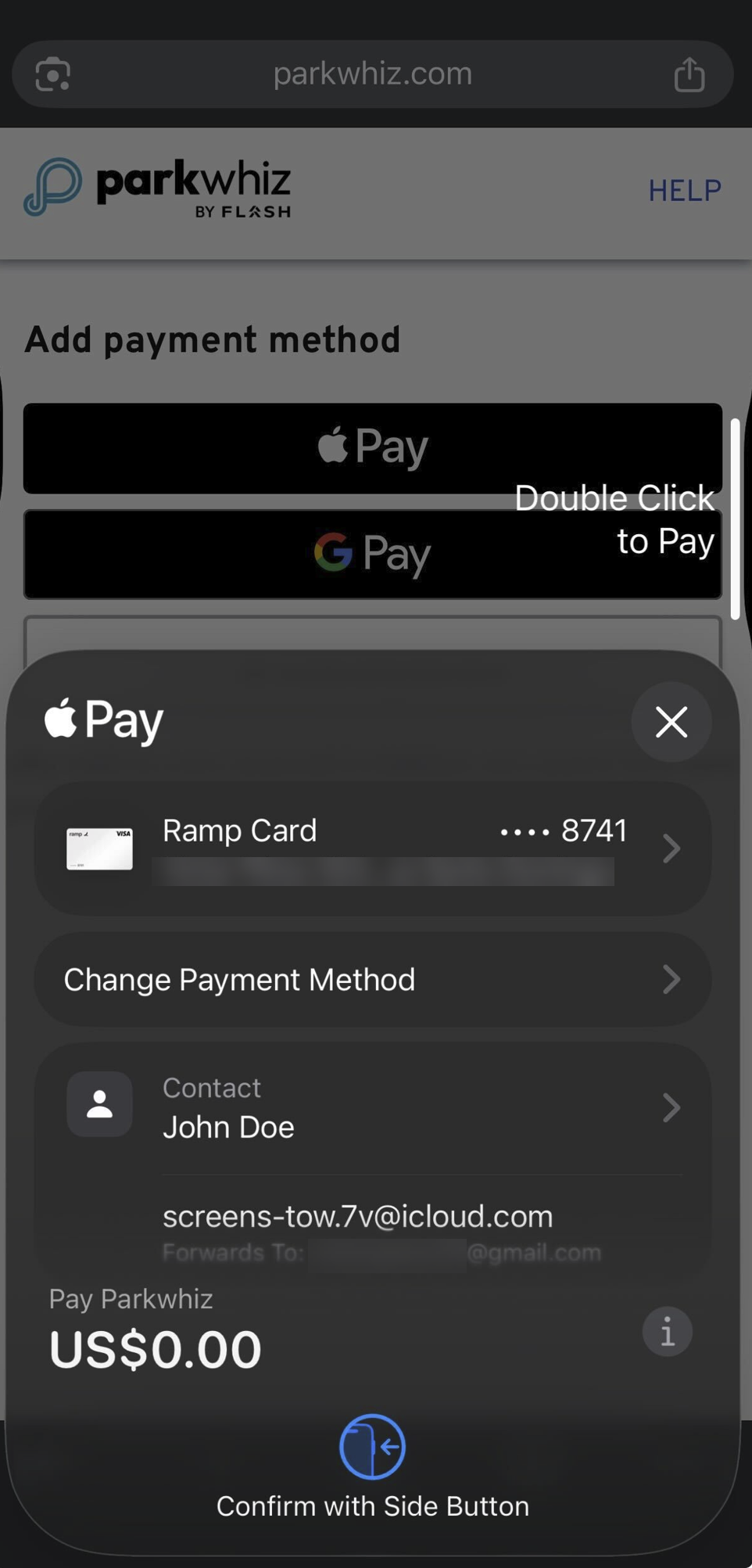
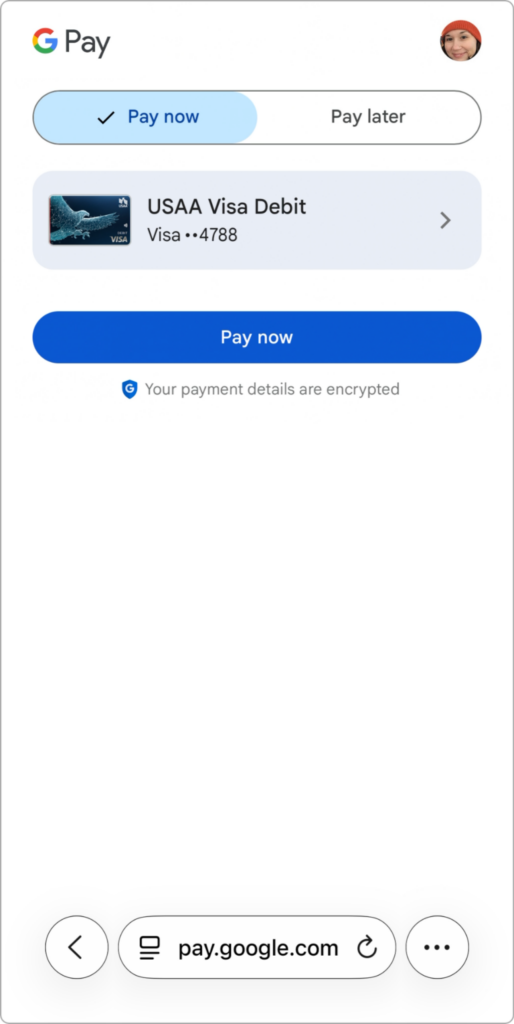
- Add payment method: Simply select Apple Pay or Google Pay as your preferred payment method.
Apple Pay | Google Pay |
 |  |
You’re all set! Your digital wallet is linked and your vehicle is registered. All that's left is to find a spot and enjoy a smarter way to park.
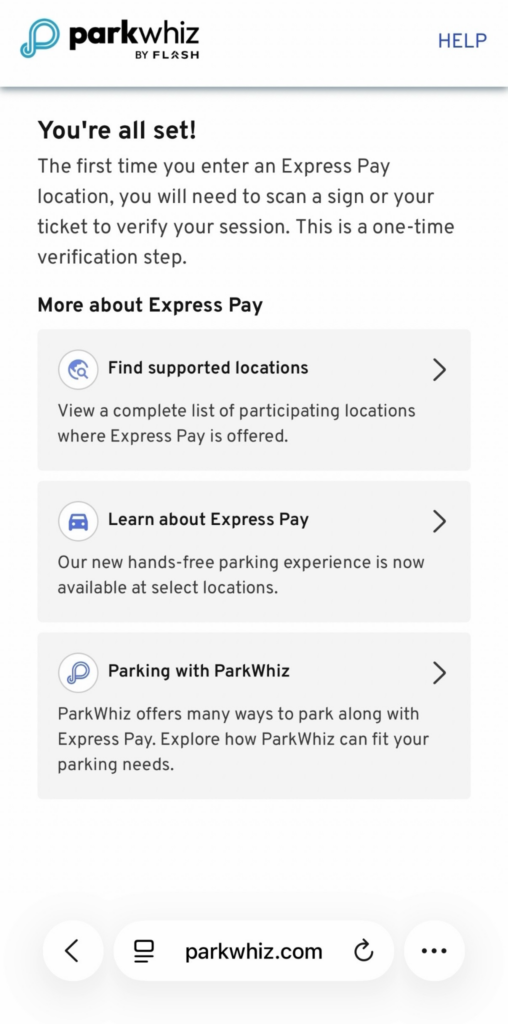
Explore the menu
Now that you’ve joined:
- Find Supported Locations: Not sure where to use it? Tap here to see a full list of parking spots that currently accept Express Pay.
- Learn About Express Pay: Need a refresher? This section gives you a quick breakdown of how the service works.
- Parking with ParkWhiz: Curious about what else we offer? Explore other ways to park—like pre-booking a guaranteed spot with Reservations—by visiting our main site.
Returning users with a payment method on file
If you’ve parked with us before Express Pay will automatically show your saved payment method by default, so you can get moving without a second thought. However, if you want to switch things up—like moving over to a digital wallet—it only takes a few taps.
When you arrive at an Express Pay location:
- Scan: Use your phone to scan the QR codes on site.
- Verify: Check the license plate displayed on your screen.
- Is it right? Tap Yes or Save.
- Need a change? Tap No, or simply correct license plate information.
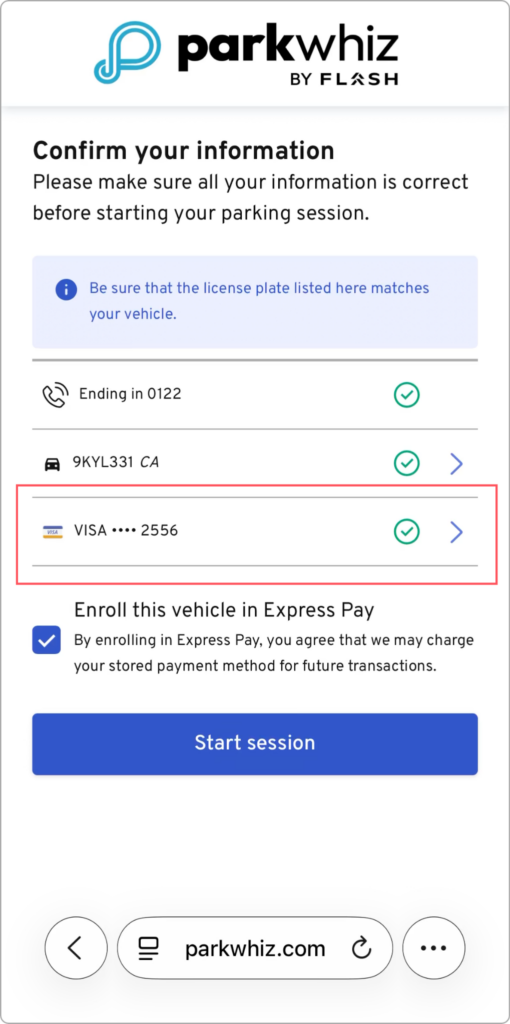
- Tap Continue.
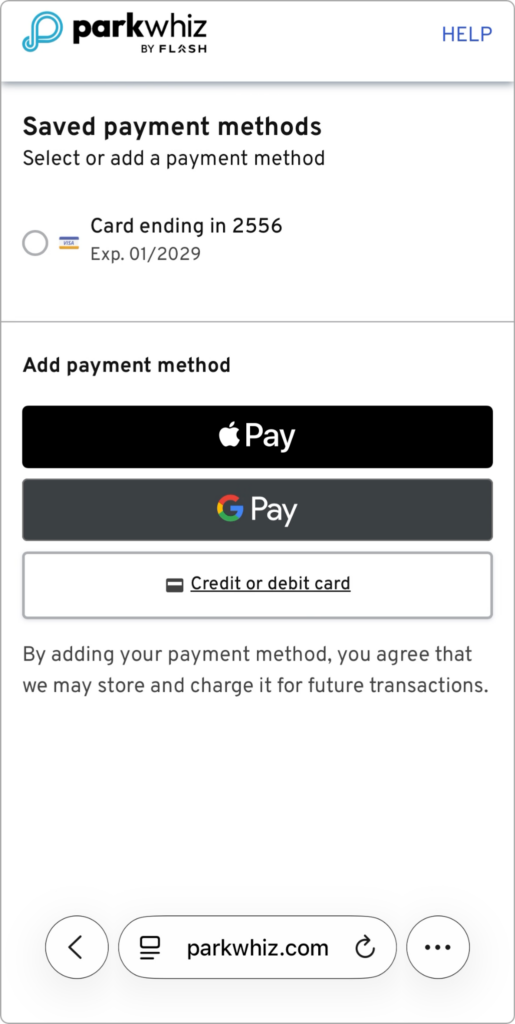
- Tap the saved card to change the payment method.
- Add payment method: Simply select Apple Pay or Google Pay as your preferred payment method.
Apple Pay | Google Pay |
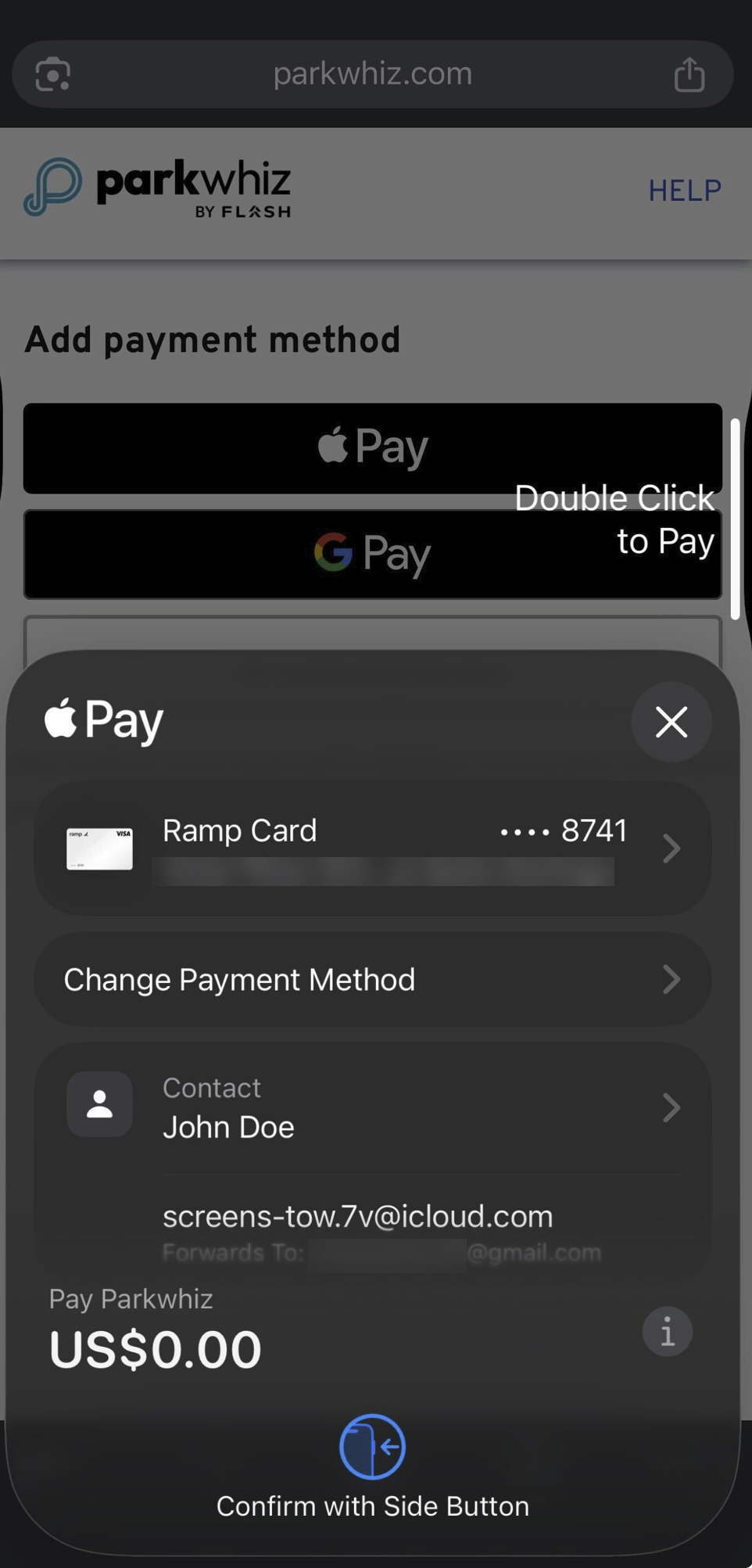 | 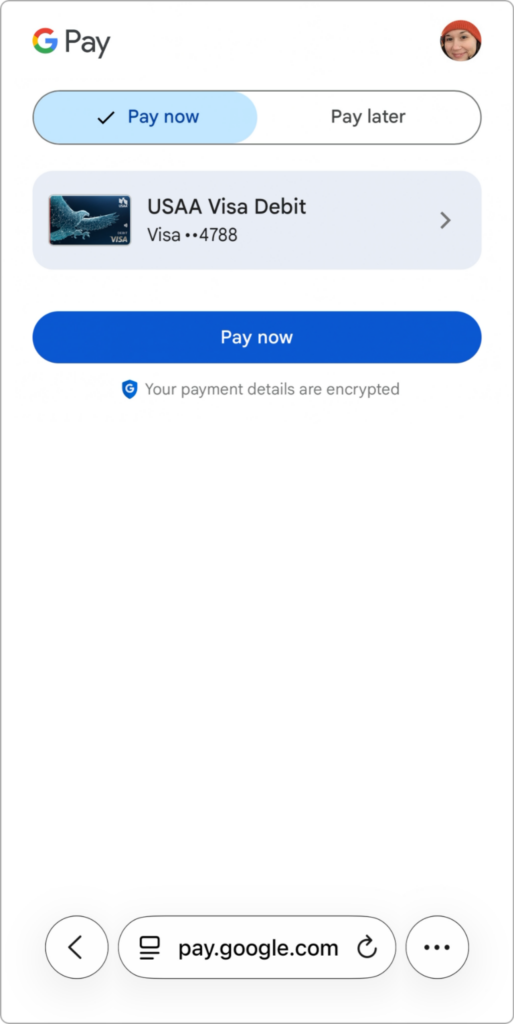 |
- Tap Start Session
- The Express Pay digital ticket displays with the saved payment method.
Understanding how your e-Wallet is displayed
When you link your digital wallet, you might notice that the payment details look a little different depending on whether you are using an iPhone or an Android. Don't worry, this is perfectly normal!
Here is a quick breakdown of what you’ll see:
| Wallet Type | What is displayed |
| Apple Pay | Shows the last 4 digits of your Apple Wallet virtual card number. |
| Google Pay | Shows the last 4 digits of your linked physical card. |
SMS Receipt
Once your parking session is wrapped up, we’ll send you an SMS receipt so you have everything for your records.
If you used a digital wallet, your receipt will specifically mention Apple Pay or Google Pay.
Apple Pay | Google Pay |
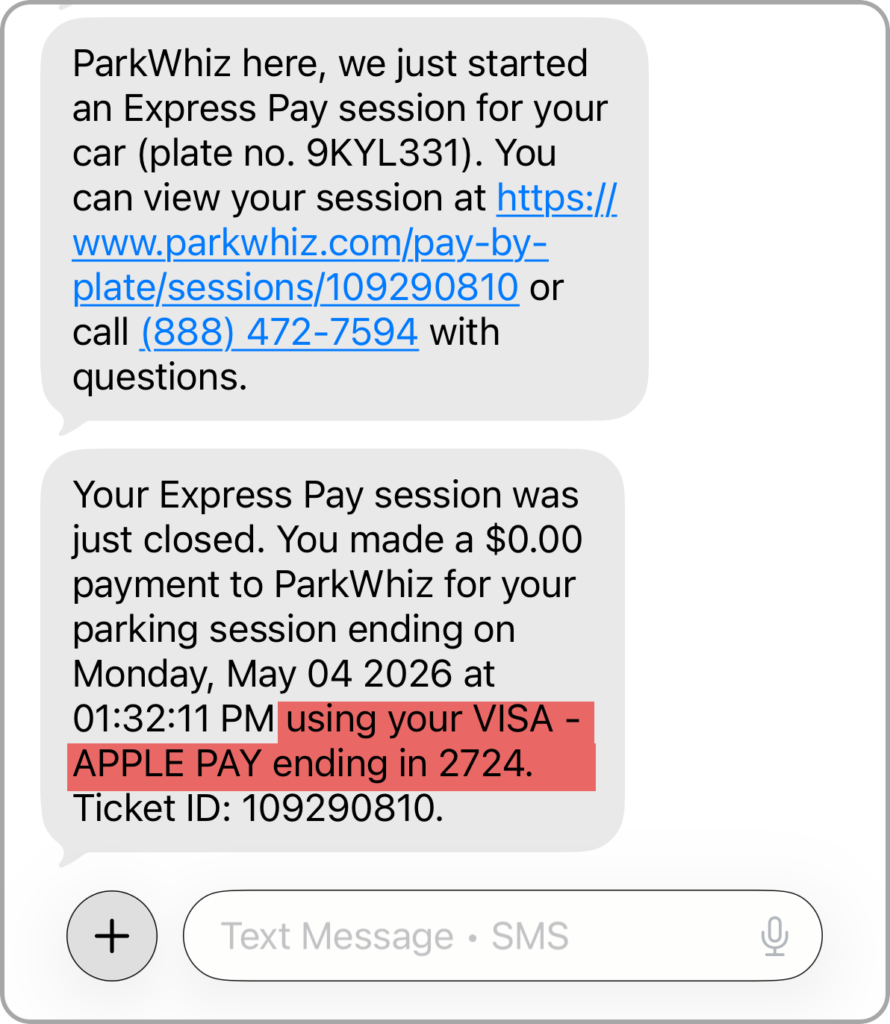 | 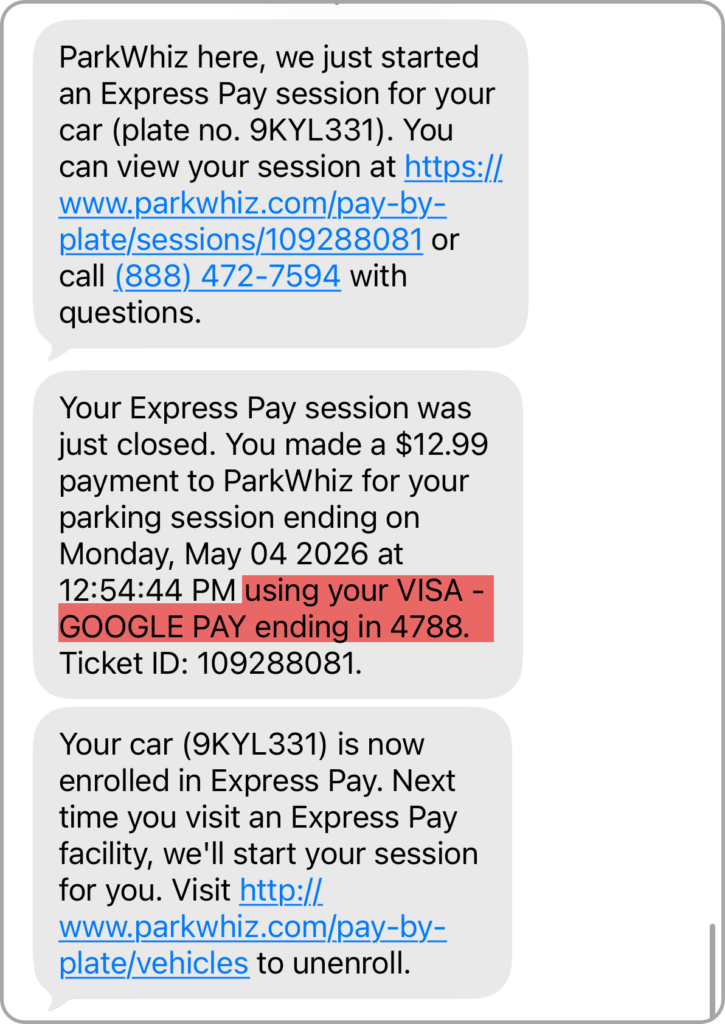 |
Managing Your Payment During an Active Session
What you need to know:
- e-Wallet Availability: Apple Pay and Google Pay will not appear as options while you have an active session.
- Manual Updates: If you need to change how you're paying mid-session, you can still manually add or update a standard credit or debit card on file.
Was this article helpful?
That’s Great!
Thank you for your feedback
Sorry! We couldn't be helpful
Thank you for your feedback
Feedback sent
We appreciate your effort and will try to fix the article