EXPRESS PAY DRIVER EXPERIENCE
First Time Express Pay User
A driver’s first Express Pay visit begins by manually starting a session. After entering the facility, the driver must start their session by either:
- Scanning the QR code posted at the location, or
- Tapping the entry link sent by SMS
New ParkWhiz users will be asked to enter an email address and add a payment method before starting their first session.
Existing ParkWhiz users are recognized by their mobile number, and saved payment methods will automatically populate for the Express Pay session.
Enrollment Option
During setup, drivers can choose to Enroll this vehicle in Express Pay.
- If enrolled, the vehicle will be automatically recognized during future visits at Express Pay-enabled locations, allowing entry and exit without starting a session manually.
- If not enrolled, the driver will still receive automatic payment at exit for the current visit, but the vehicle will not be enrolled for automatic recognition on future visits, at either the same location or at other Express Pay locations.
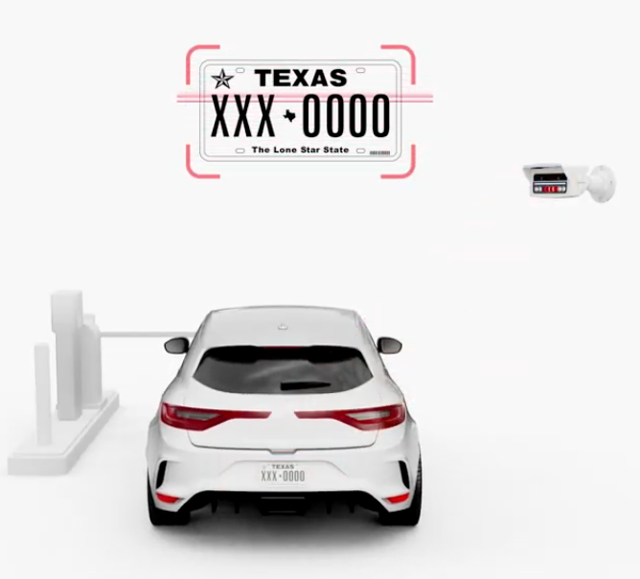
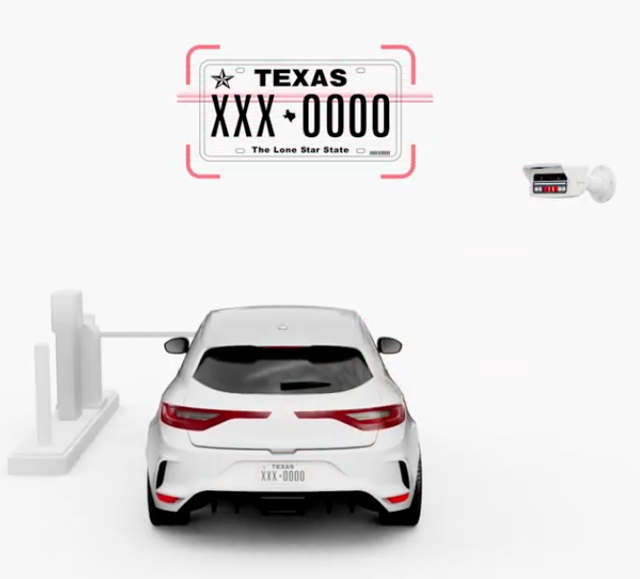
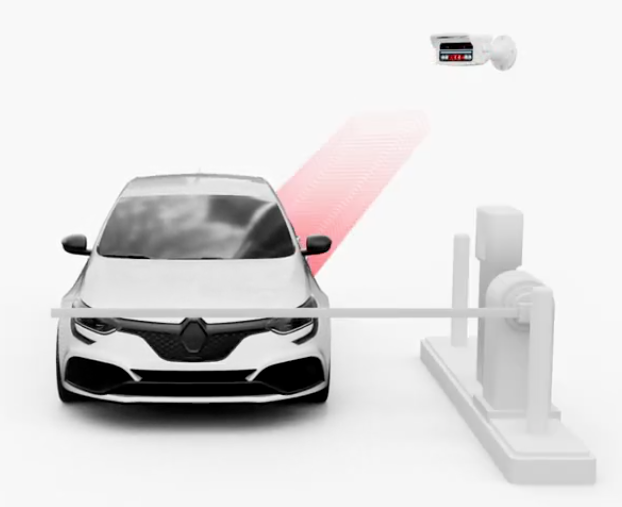
Driver enters the Express Pay PARCS facility, and LPR captures the license plate
|  |
| Driver scans QR code to start Express Pay Session Express Pay Initiation Options:
Note: Flash PARCS QR codes will not be supported immediately upon release. | 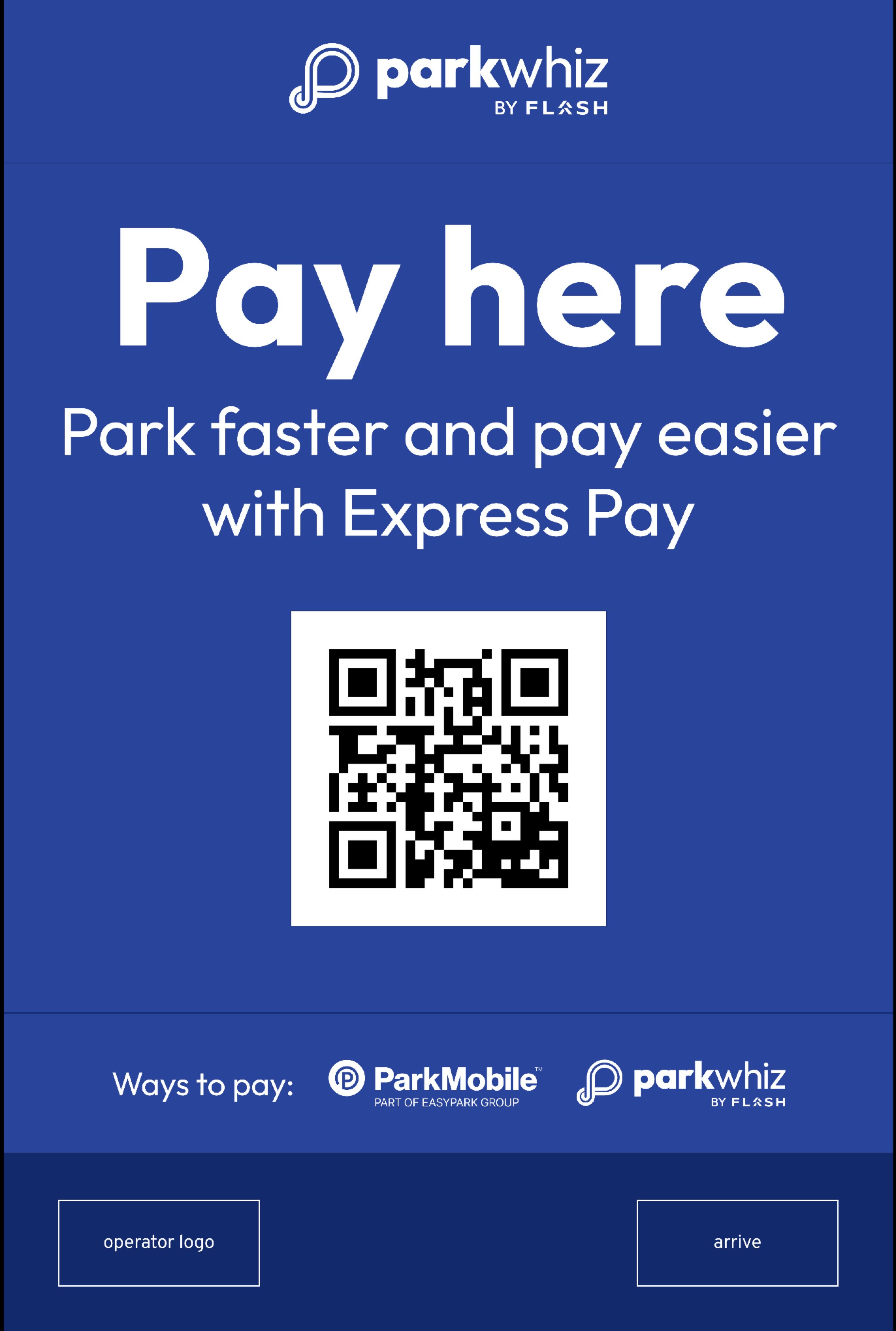 |
Driver selects a payment option (Optional) If more than one payment provider is configured, drivers are directed to a landing page where they can choose how they want to pay before starting their Express Pay session.
After selecting a payment option, the driver is redirected to the selected provider's checkout experience to complete the Express Pay session. Note: The payment options displayed depend on the providers configured for the location. To enable multiple payment options, contact support. | 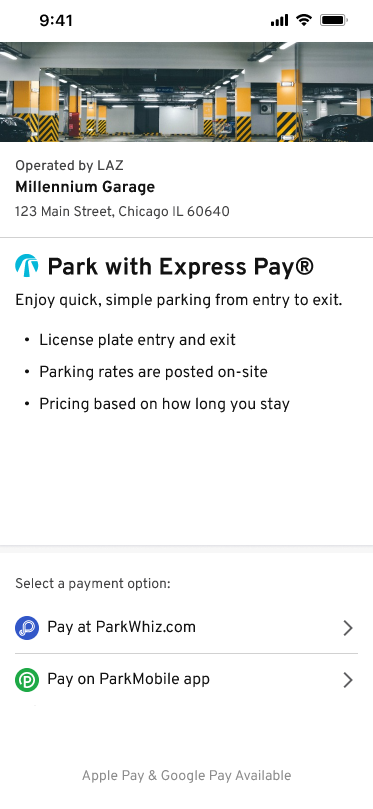 |
Driver Enters Phone Number
Driver Enters the SMS Verification Code | 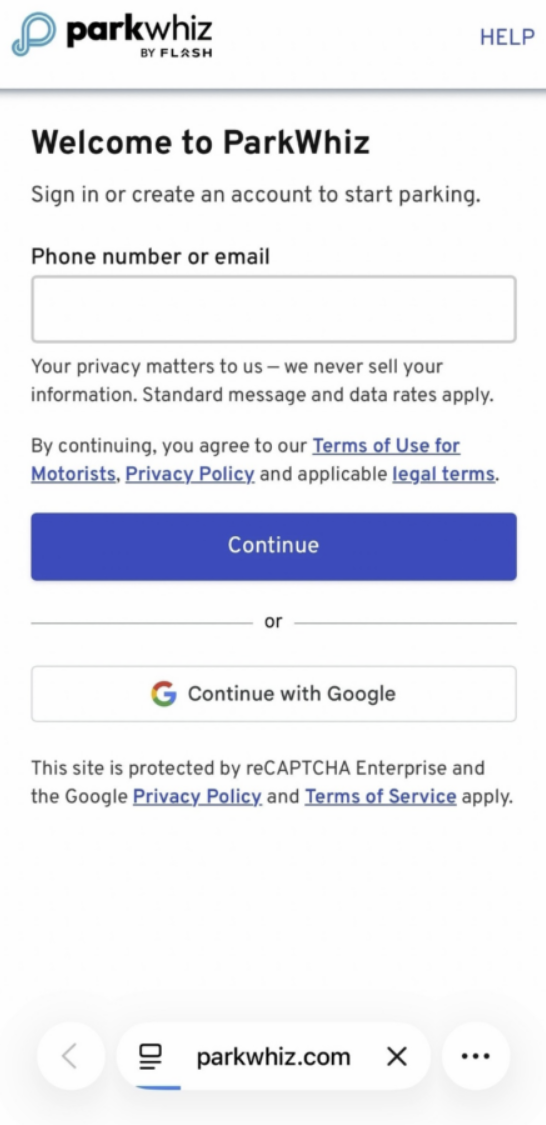 |
| What’s the driver's license plate? For current ParkWhiz users, the account vehicles are automatically populated with an option to add a new vehicle.
The entered license plate must match the one recently captured on Entry. Temporary license plates will not default to enroll in Express Pay. | 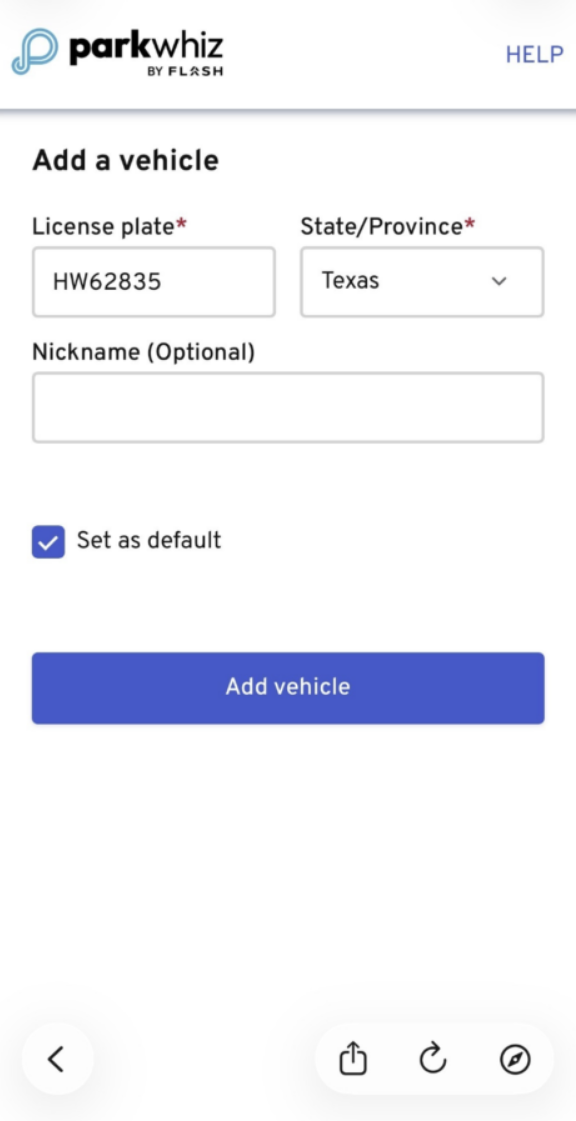 |
| Driver Adds a Payment Method: Express Pay supports Apple Pay, Google Pay, and credit or debit card payment methods. Driver Authenticates to Save Payment Method: Complete the device’s authentication (Face ID, Touch ID, or passcode). Click here to learn more about e-wallet payments. | 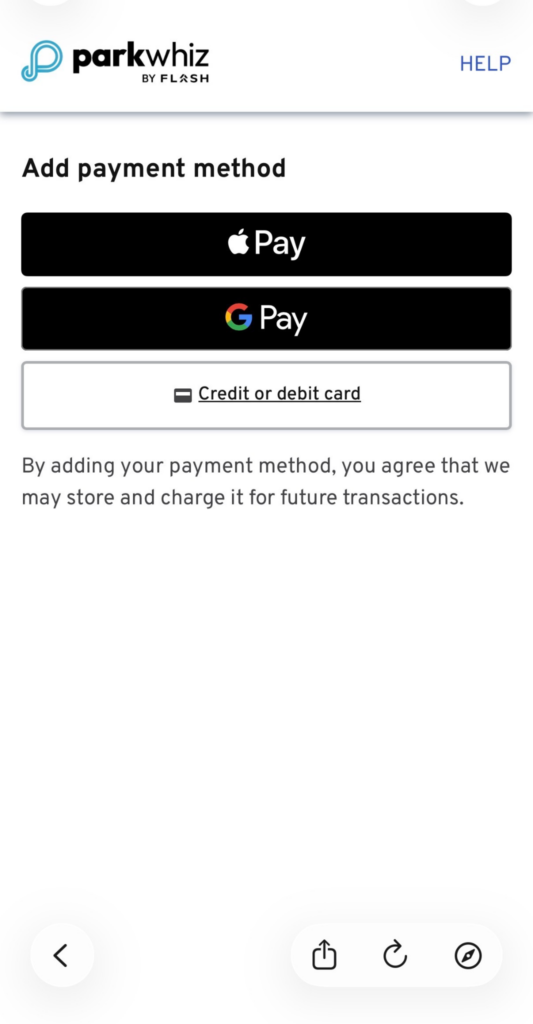 |
| Driver Starts Session Driver confirms the following information:
Enrolling links the vehicle and payment method to Express Pay. Once enrolled, the vehicle can be automatically recognized at Express Pay-enabled locations. Gates open based on license plate recognition, and the parking fee is automatically charged to the card on file when exiting. If Enroll this vehicle in Express Pay is not selected, automatic payment will apply to this visit only. Driver taps Start Session Tapping Start Session confirms the enrollment and links the digital payment method to the PARCS transient ticket for this parking session. Note: Parking duration is calculated from when the license plate is captured at entry, not from when the driver taps Start Session. Select partners have the ability to hold the exit gate until payment if confirmed, if payment fails, the driver pays at the kiosk. | 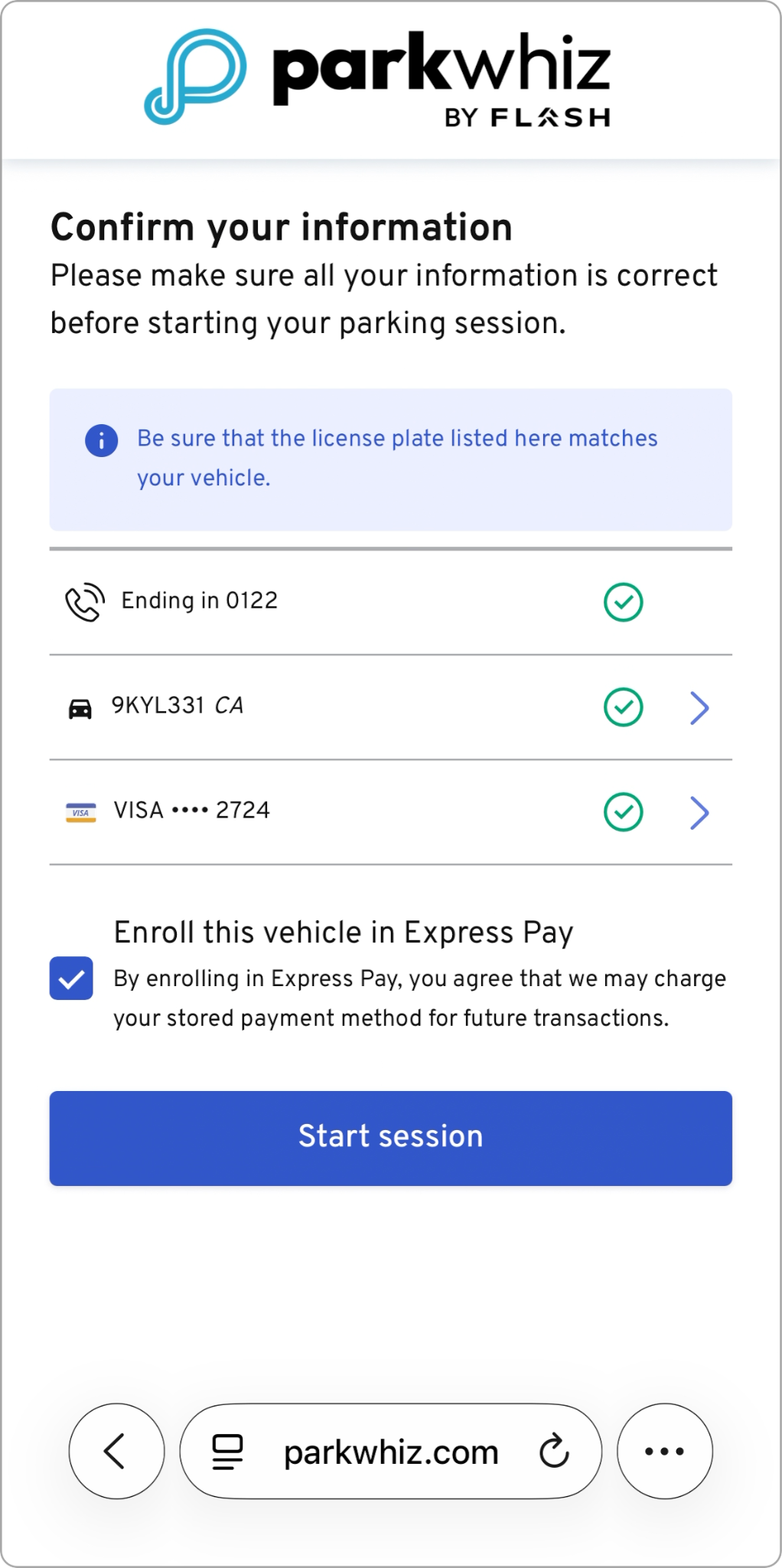 |
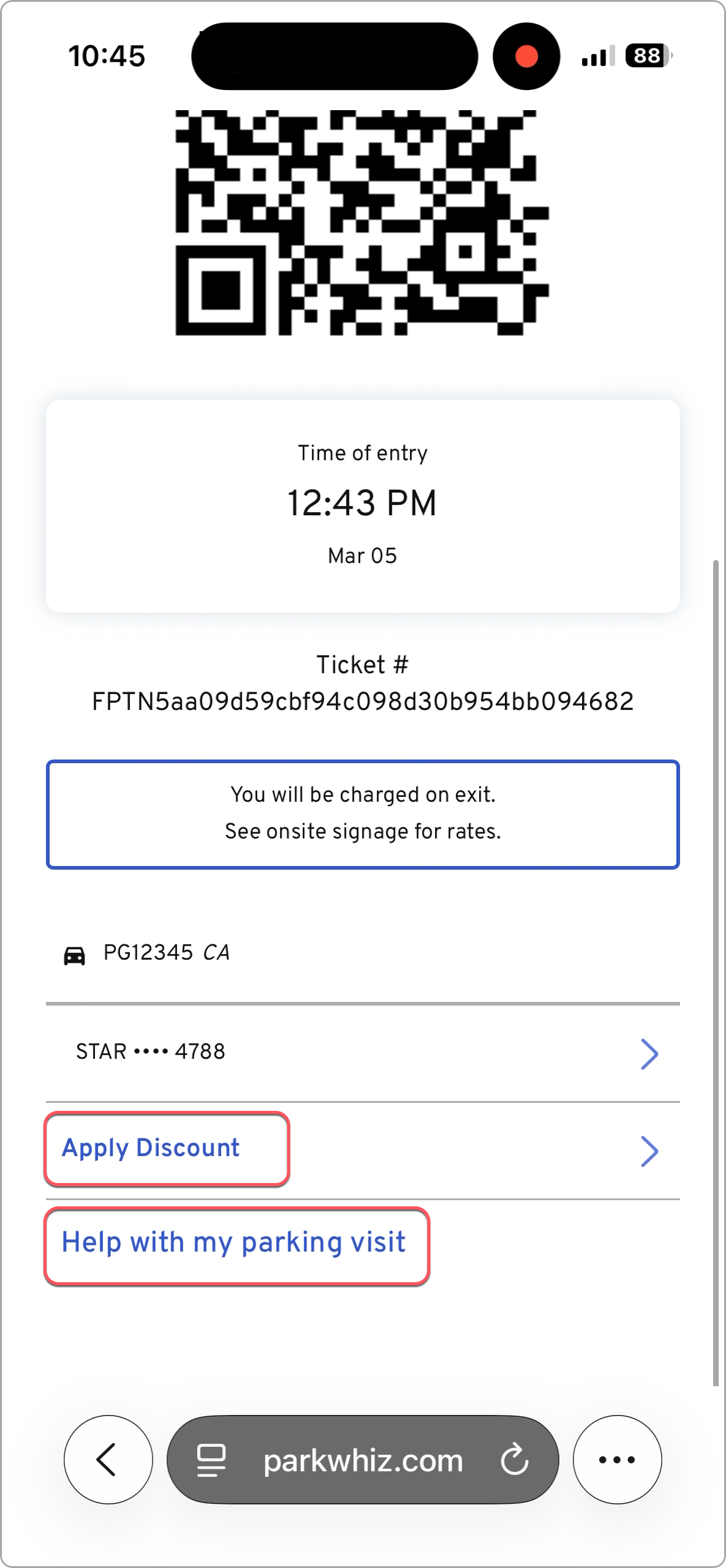
Session Ticket QR Code The Express Pay webpage reloads and provides the driver with a digital ticket containing:
The QR code can be scanned at self-validation kiosks, door readers, or the exit kiosk if there are any issues with license plate recognition. | 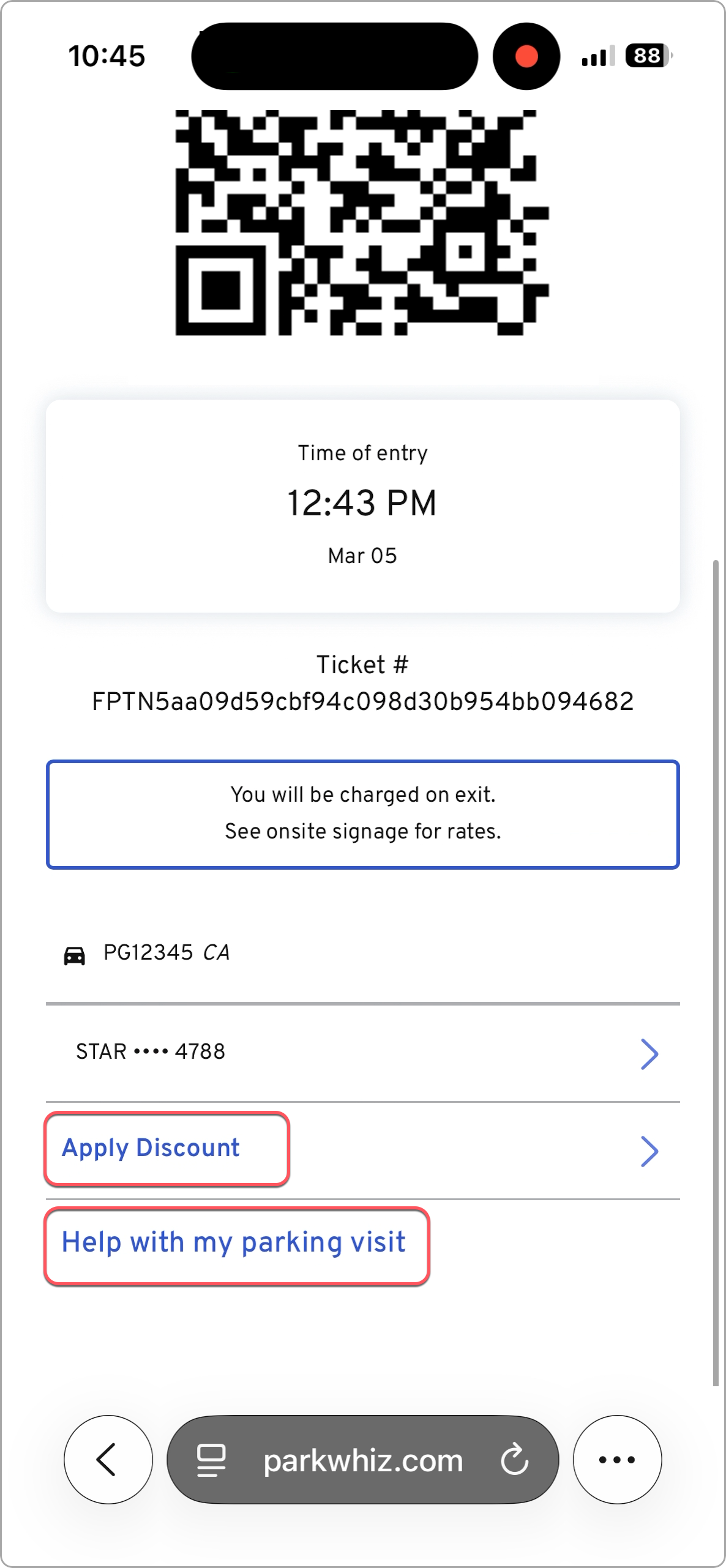 |
Driver exits the parking facility
| 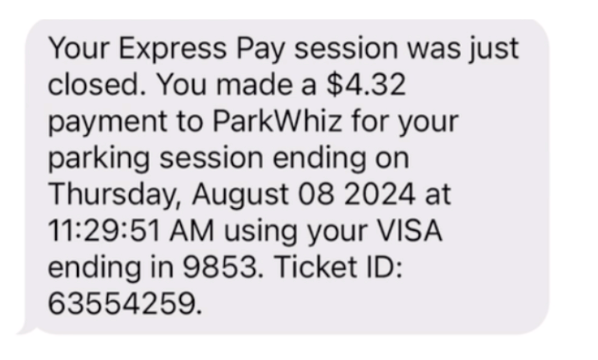 |
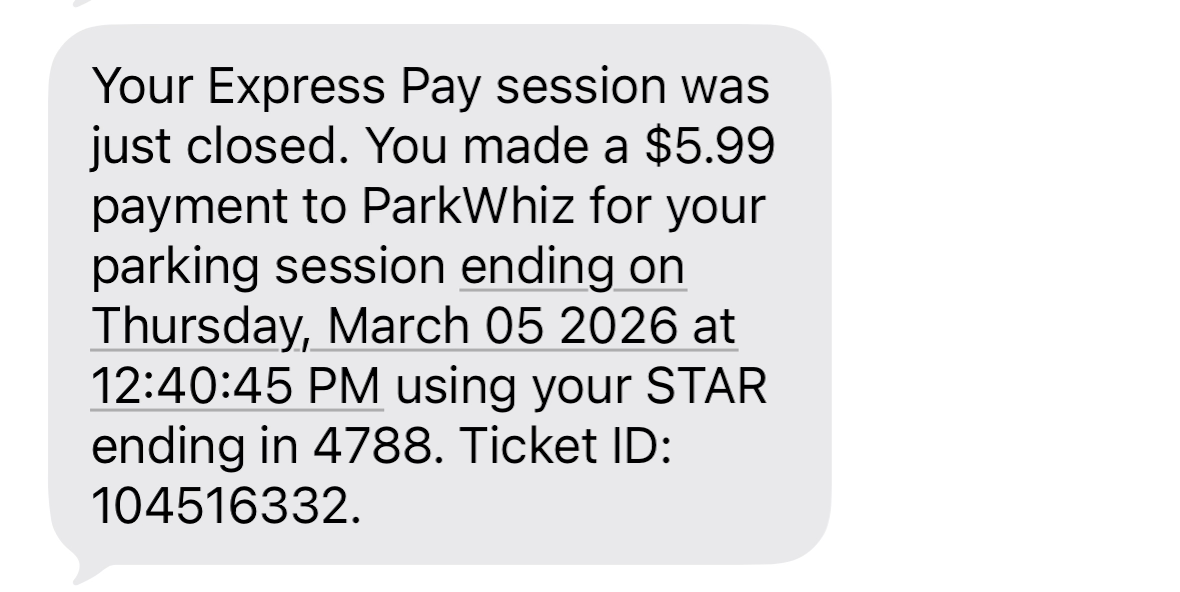
| Express Pay Enrolled Users at Exit If the driver enrolled in Express Pay, they will receive a follow-up enrollment message with the option to unenroll if needed. | 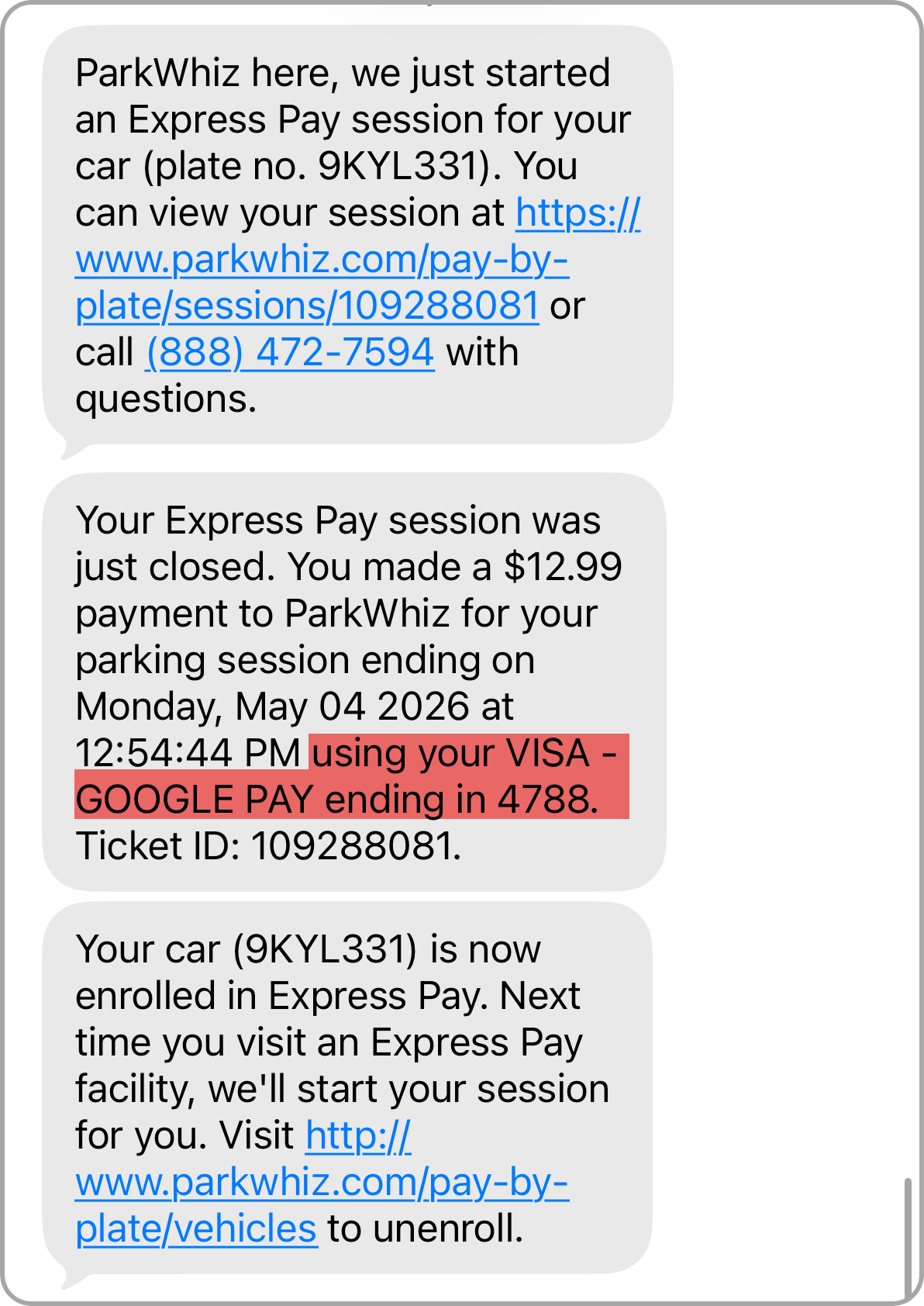 |
Enrolled Express Pay Drivers
Once a driver enrolls their vehicle in Express Pay, their license plate becomes their credential at all Express Pay-enabled locations. As an enrolled Express Pay driver, gates open automatically on entry and exit using license plate recognition.
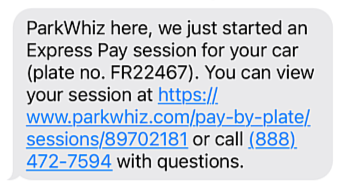
- Upon entry: The driver receives a welcome SMS confirming the session start. The message includes a link to their digital ticket, which displays a QR code. The QR code can be used at peripheral equipment (such as door readers or self-validator kiosks) and also serves as an alternative exit method if needed.
- Upon exit: The driver receives an SMS confirming the amount paid and the last four digits of the credit card on file.
ENTRY
|  |
POST-ENTRY
|  |
PRE-EXIT
|  |
EXIT
|  |
POST EXIT
|  |
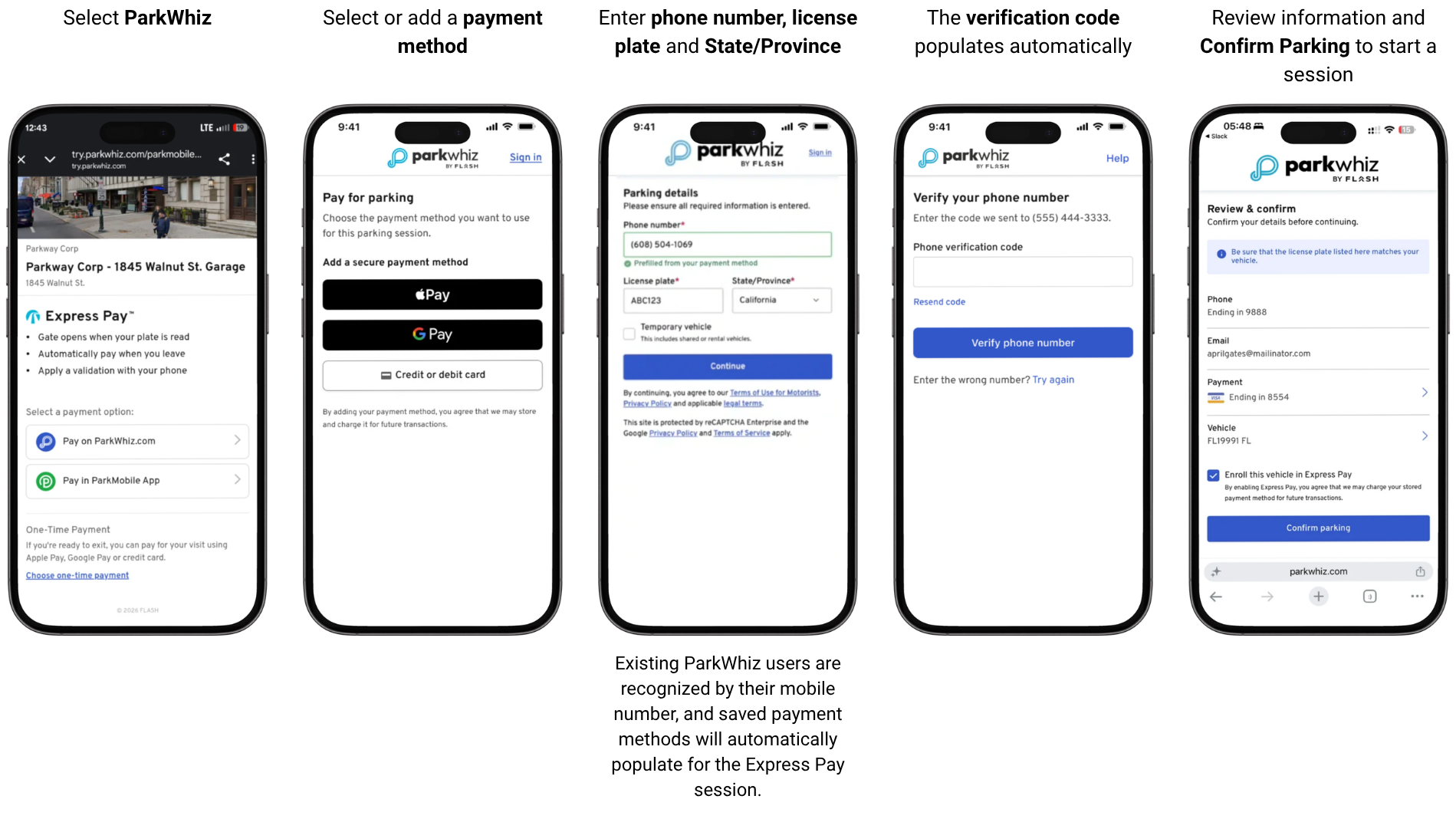
Express Pay Simple Checkout
Express Pay Simple Checkout provides drivers with a faster, simpler way to complete checkout. The streamlined experience reduces unnecessary steps and prioritizes digital wallet payment options, making it easier to start an Express Pay parking session. This feature is optional and available at no additional cost.
Contact support@flashparking.com to enable Express Pay Simple Checkout at your location.
Express Pay Receipts
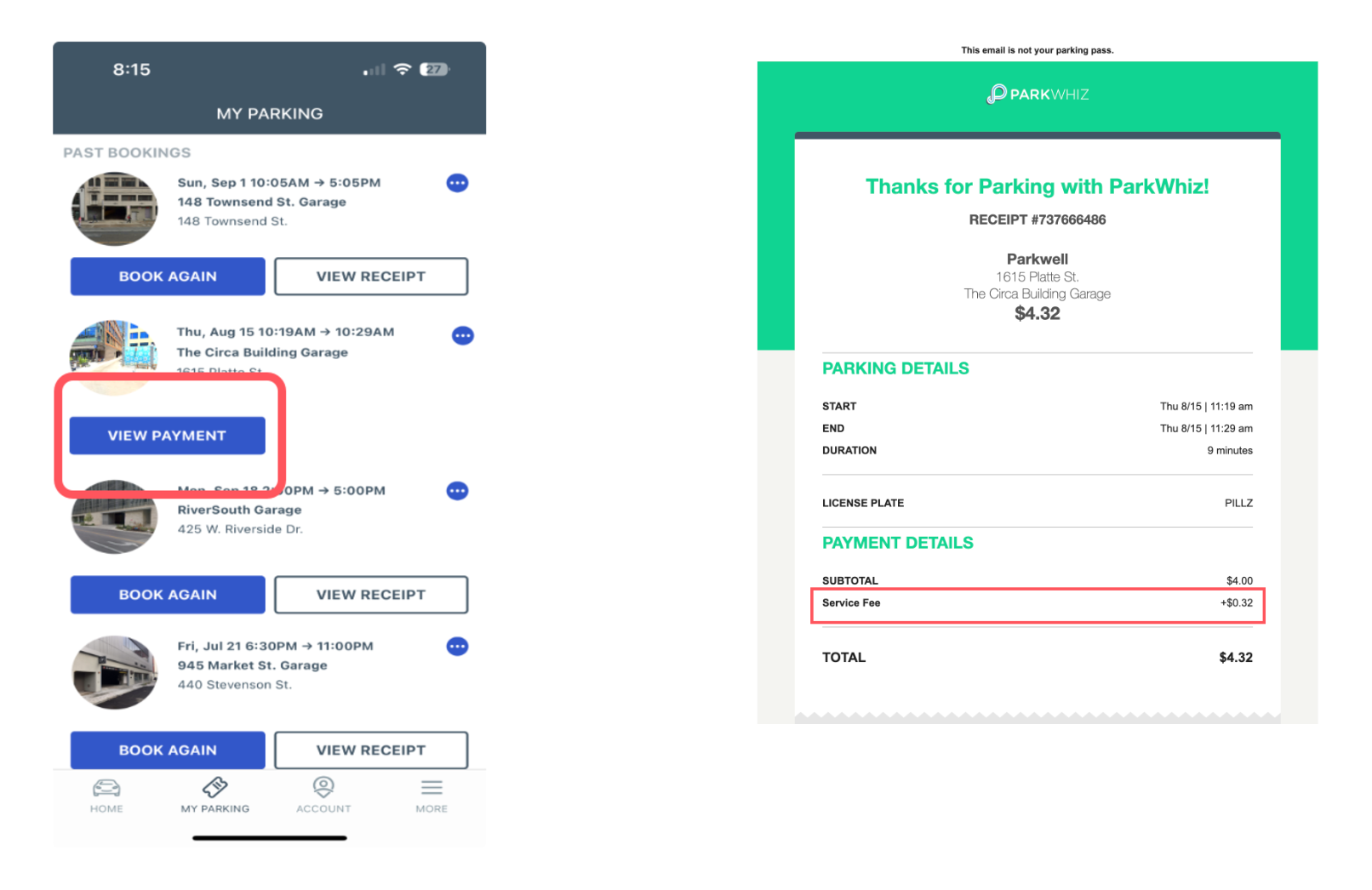
Receipts are available for all Express Pay transactions. In addition to the SMS payment confirmation, receipts are provided via email to the ParkWhiz-associated email address. The payments are also viewable in the ParkWhiz account under My Parking.
Fees
The additional transaction fees are itemized on the receipts provided, which are sent via email or are viewable in the ParkWhiz mobile app.
Was this article helpful?
That’s Great!
Thank you for your feedback
Sorry! We couldn't be helpful
Thank you for your feedback
Feedback sent
We appreciate your effort and will try to fix the article