ADDING OR EDITING A LICENSE PLATE ON A TRANSIENT PARKING SESSION
As a Parking Operator, you can add or edit the license plate associated with a transient parking session directly in the Parkonect Garage Log. This is commonly used to resolve sessions that didn’t start correctly or to fix mismatches caused by License Plate Recognition (LPR) misreads or driver entry errors, helping ensure a smooth exit experience and accurate session records.
Correcting a license plate also resolves LPR mismatches so the parker can successfully use Express Pay to complete payment and exit without issues.
Who can perform this action
The following user roles have permission to add or edit license plates:
- Customer Admin
- Remote User
- Garage Admin
- Parking Manager
Add or edit a License Plate in the Garage Log
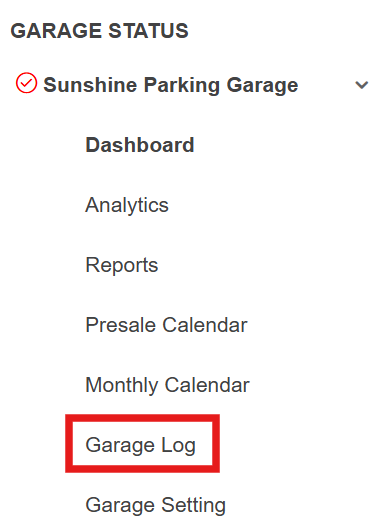
- In the Parkonect Admin Portal, under GARAGE STATUS > (select garage) > Garage Log.
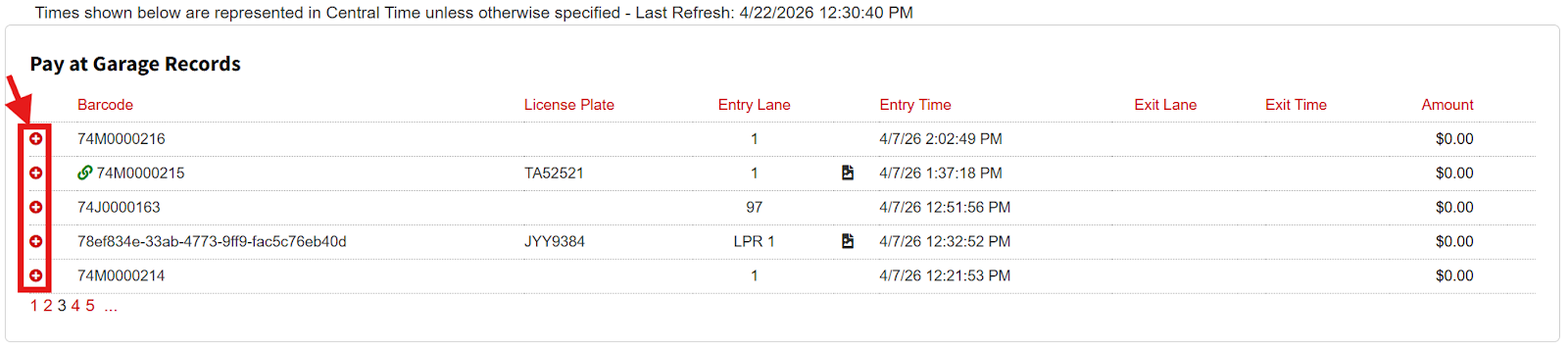
- Under Pay at Garage Records, look for the driver’s session > click the (+) button for dropdown options.
- Locate the driver session by the provided ticket number.
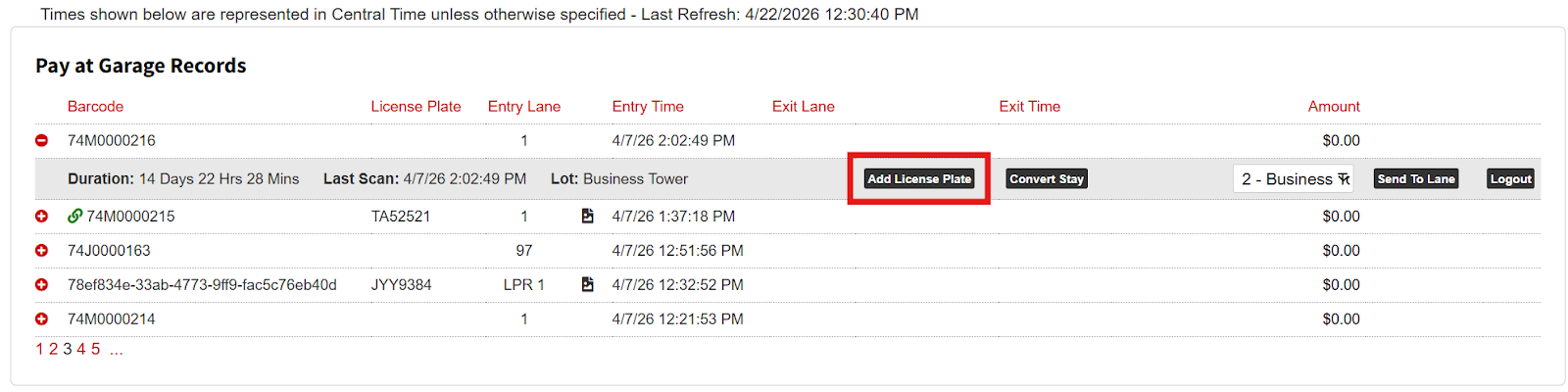
- Click the Add License Plate button to open the pop-up and manually add a LP to the session.
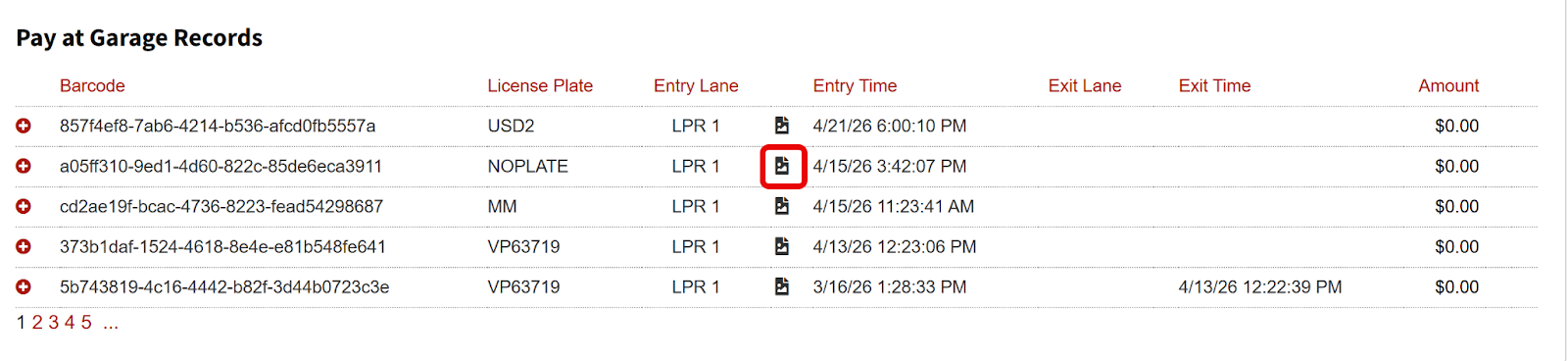
- If you are looking to edit a License Plate, then click on the image icon.
- Enter the LP number in the License Plate field > click the Submit button to save changes.
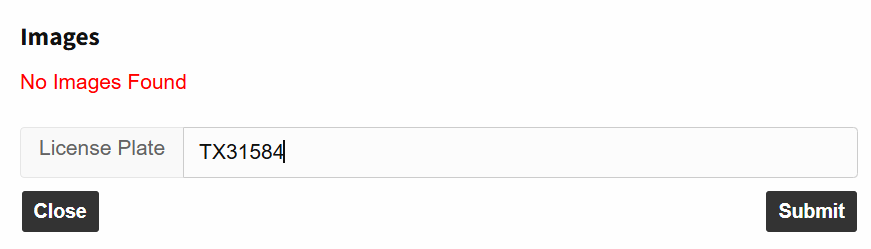
The original plate is saved even if its incorrect, so if the plate is read incorrectly again at exit the vehicle will be allowed to leave the garage since the plate is linked to the corrected number in the Garage Log.
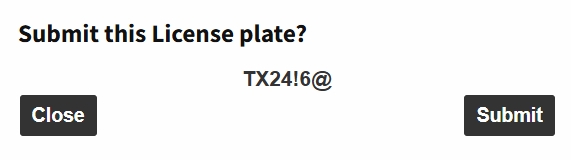
When trying to add or edit a License Plate for an existing parking session keep in mind that the field only accepts alphanumeric values (numbers and letters) and does not accept special characters such as ‘-’, ‘@’ or blank spaces.

Be aware if the LP credential or parker's barcode, or Monthly log does not appear, the session might have been mistakenly read and might be found in the Failed Scans tab in the Garage Log.
Add or edit a License Plate in the LPR Log
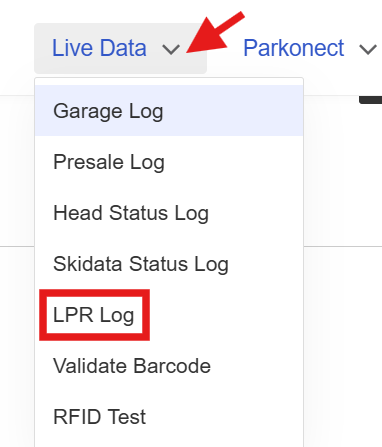
License Plates can also be added or edited in the LPR Log by a Customer Administrator user.
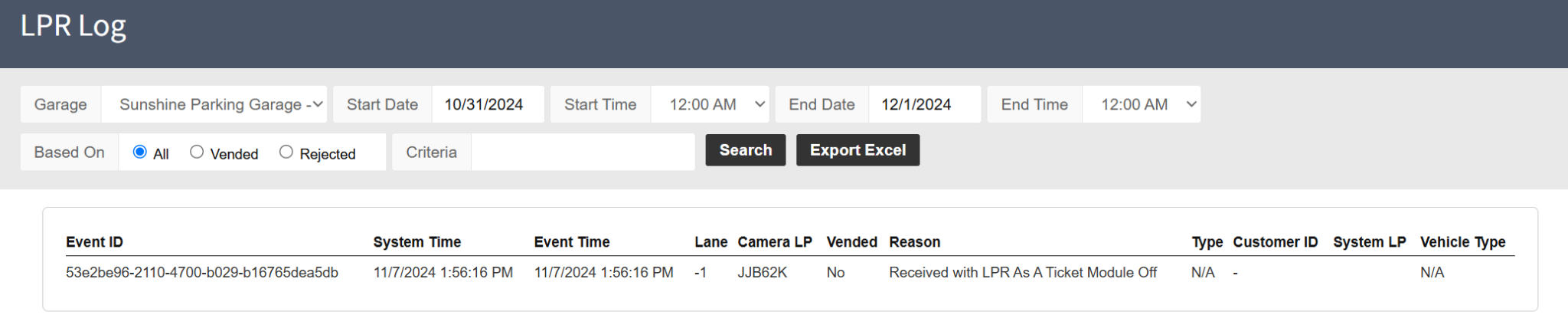
Select the desired parameters to look up the session, and select the parker to edit or add an LP.
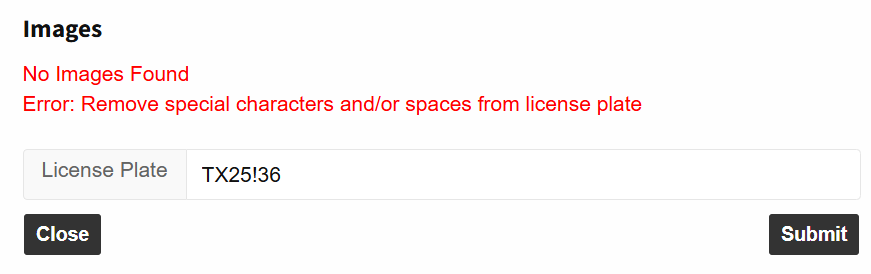
Likewise, no special characters or spaces can be added, as this will show an error when trying to save the plate for the selected parker.
The same correction methods apply to Express Pay sessions.
Was this article helpful?
That’s Great!
Thank you for your feedback
Sorry! We couldn't be helpful
Thank you for your feedback
Feedback sent
We appreciate your effort and will try to fix the article