EXPRESS PAY SIMPLE CHECKOUT (FLASH PARCS)
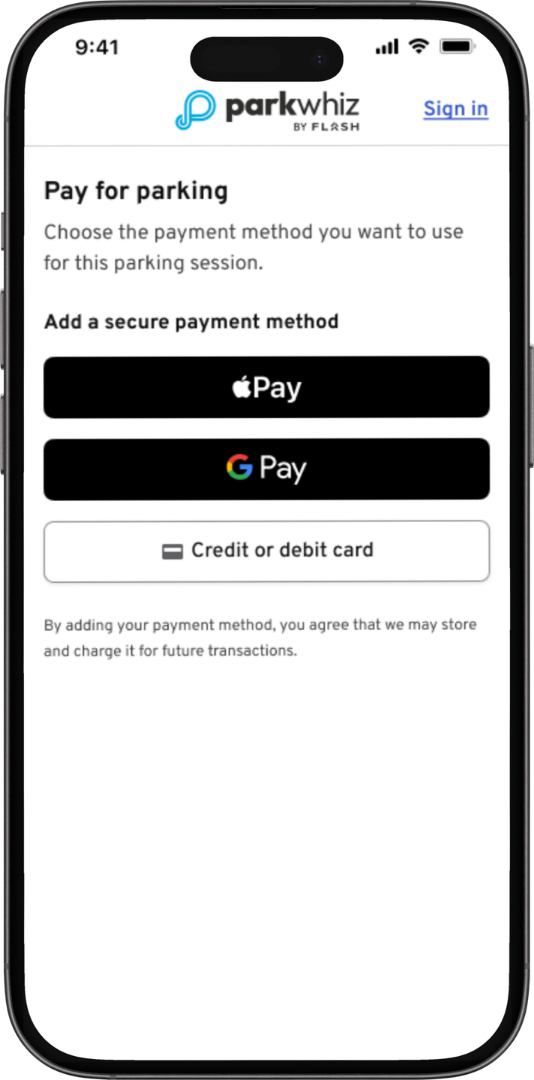
Express Pay Simple Checkout provides drivers with a faster, simpler way to complete checkout. The streamlined experience reduces unnecessary steps and prioritizes digital wallet payment options, making it easier to start an Express Pay parking session. This feature is optional and available at no additional cost.
Contact support@flashparking.com to enable Express Pay Simple Checkout at your location.
What’s Improved?
- Faster checkout: Fewer steps are required to start an Express Pay parking session.
- Less information to enter: Saved phone number, vehicle, and payment information is automatically filled in when available.
- Faster experience for returning drivers: Enrolled drivers with saved information can skip steps they have already completed.
- Simplified verification: Drivers are only asked to verify information when required.
- Easy setup for new drivers: New drivers are guided through adding the information needed to start their parking session.
How It Works
Logged Out/New Users
| 1. After scanning their ticket or entering their phone number at entry to start the Express Pay flow, the driver selects ParkWhiz as their payment option. | 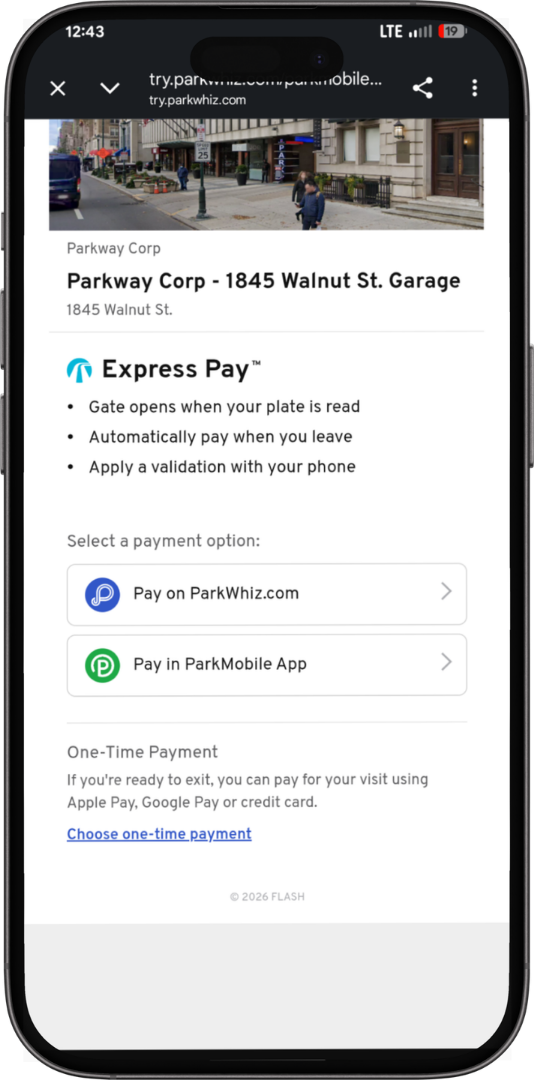 |
| 2. The driver selects an existing payment method or adds a new one. | 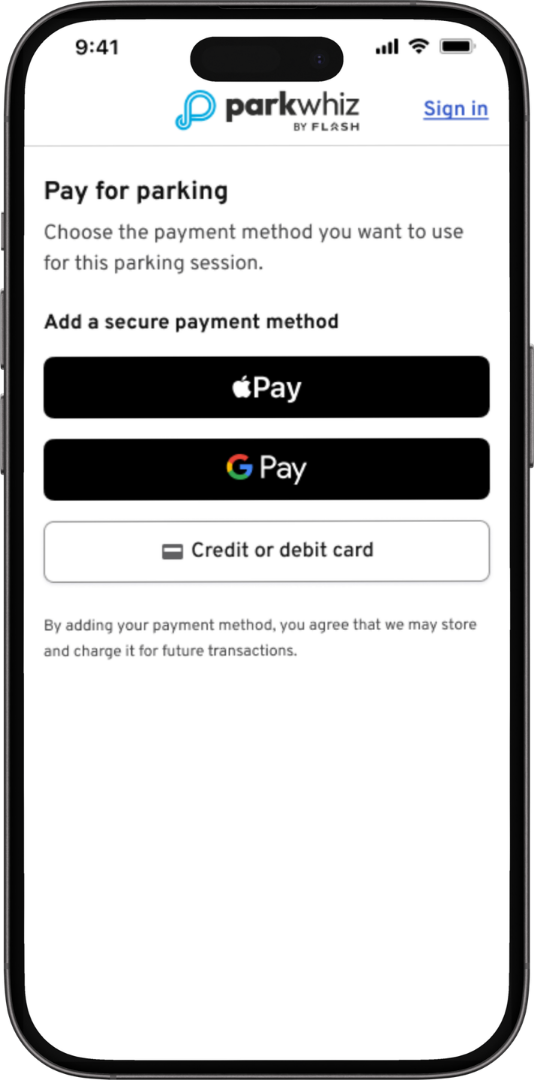 |
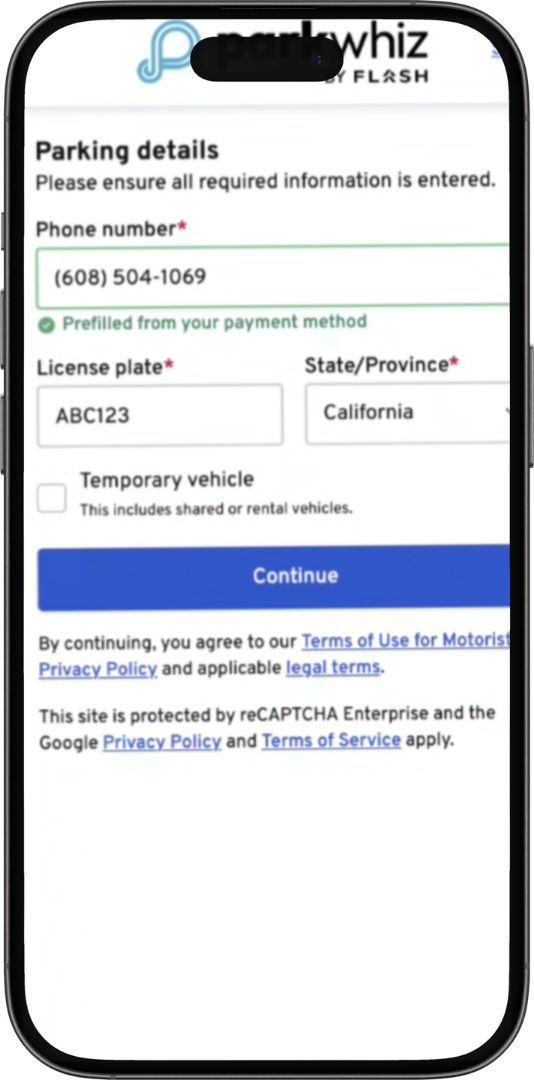
| 3. The driver enters their phone number, license plate, and state/province. For existing ParkWhiz users, the phone number and saved payment method automatically populate. | |
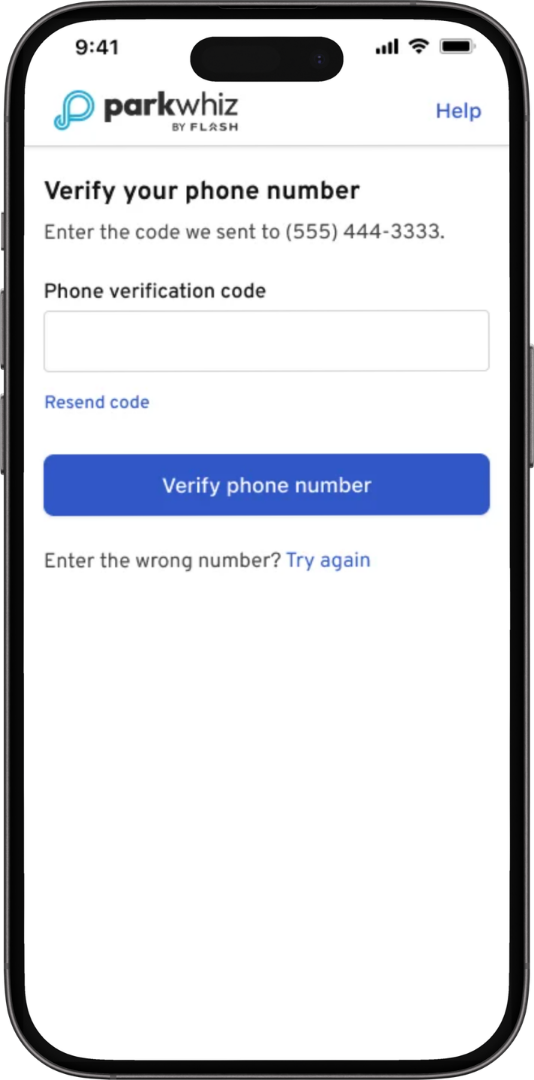
| 4. The driver verifies their phone number using a one-time passcode (OTP). The verification code automatically populates. | |
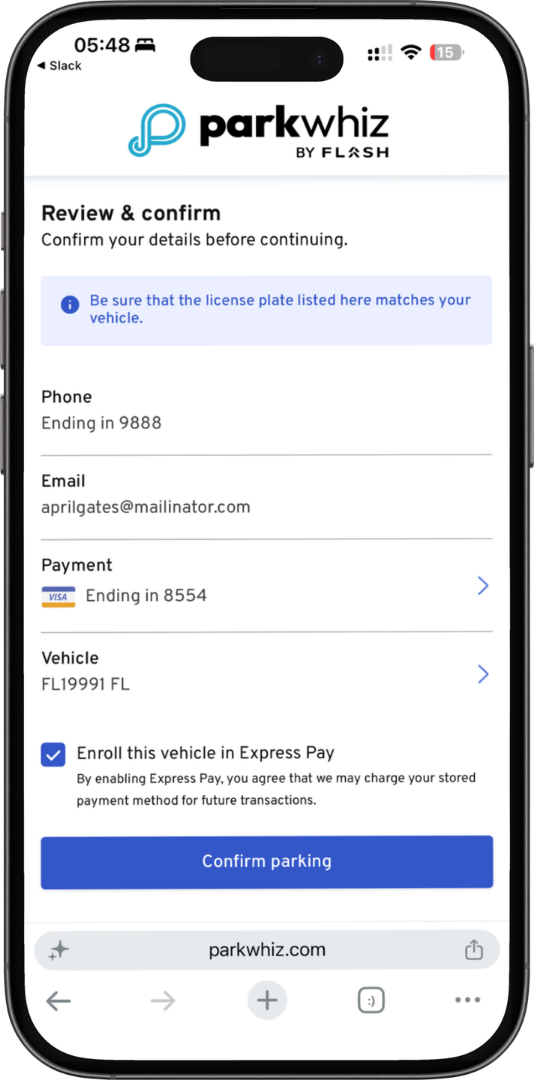
| 5. The driver reviews their information and selects Confirm parking to start the parking session. The “Enroll this vehicle in Express Pay” checkbox is selected by default. | |
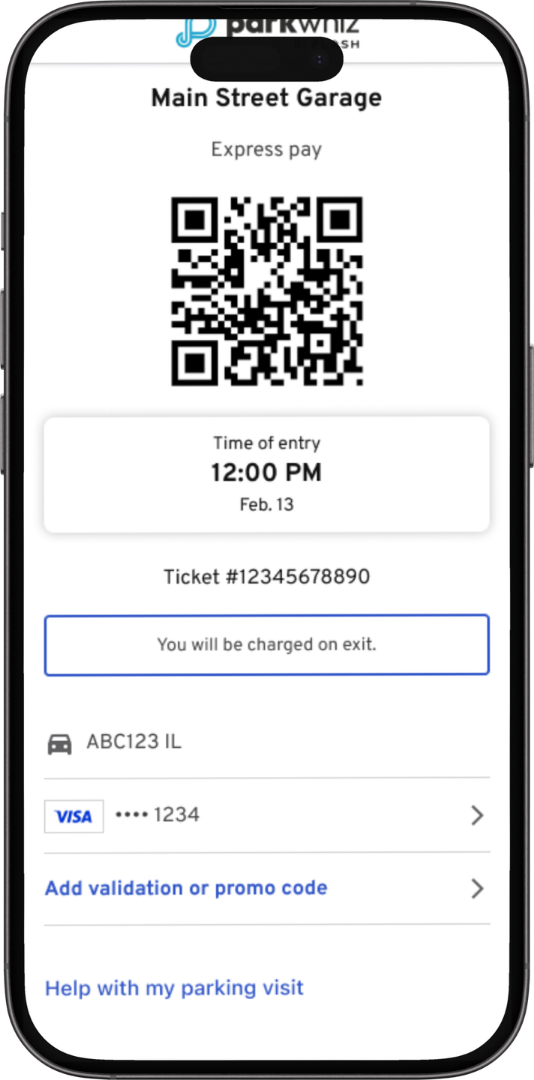
| 6. Session started. |
Enrolled/Logged in Users
| 1. After scanning their ticket or entering their phone number at entry to start the Express Pay flow, the driver selects ParkWhiz as their payment option. | 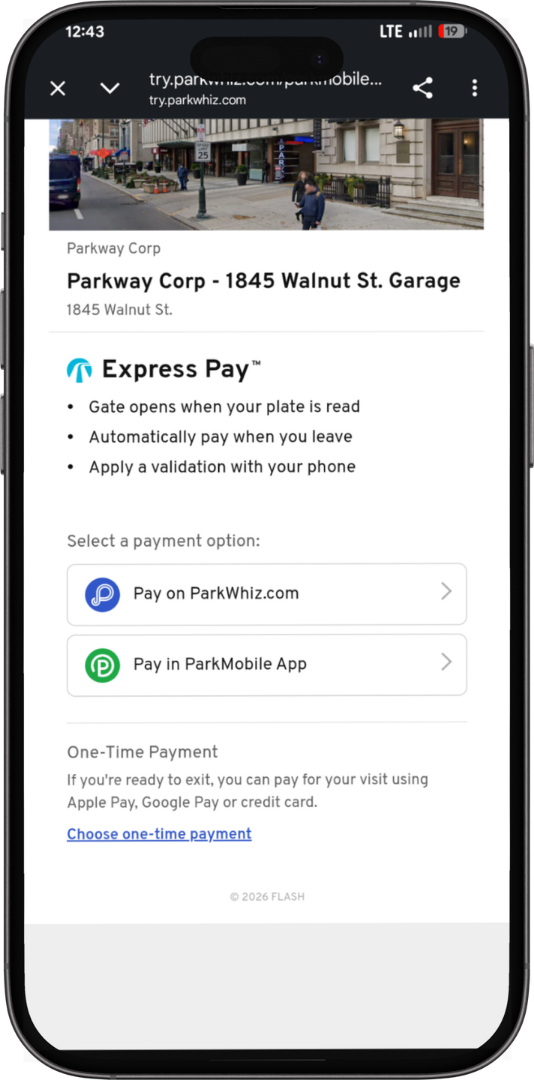 |
| 2. The driver selects an existing payment method or adds a new one. | 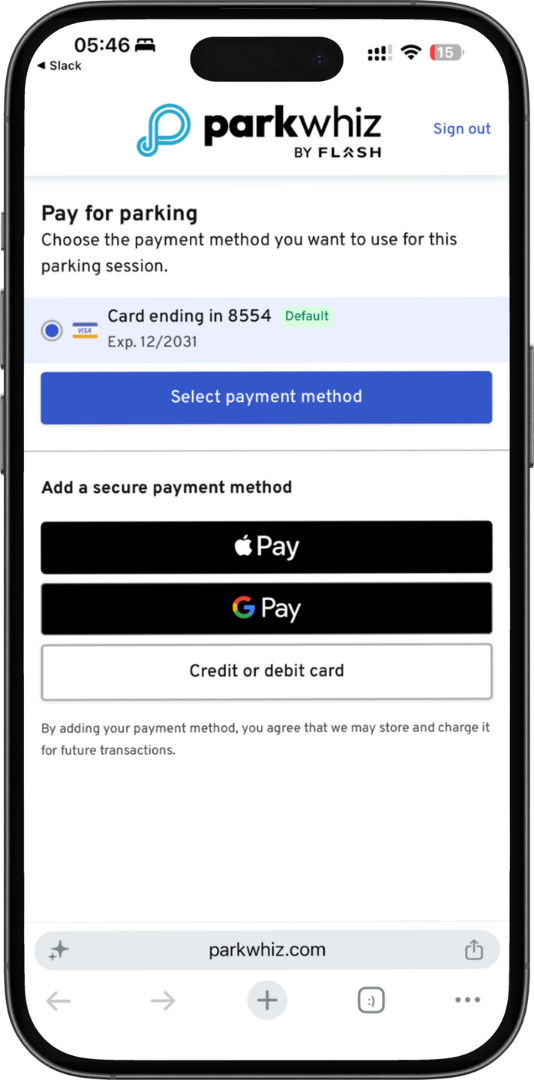 |
| 3. When the phone number is already verified and a default vehicle is available, the driver selects Continue. | 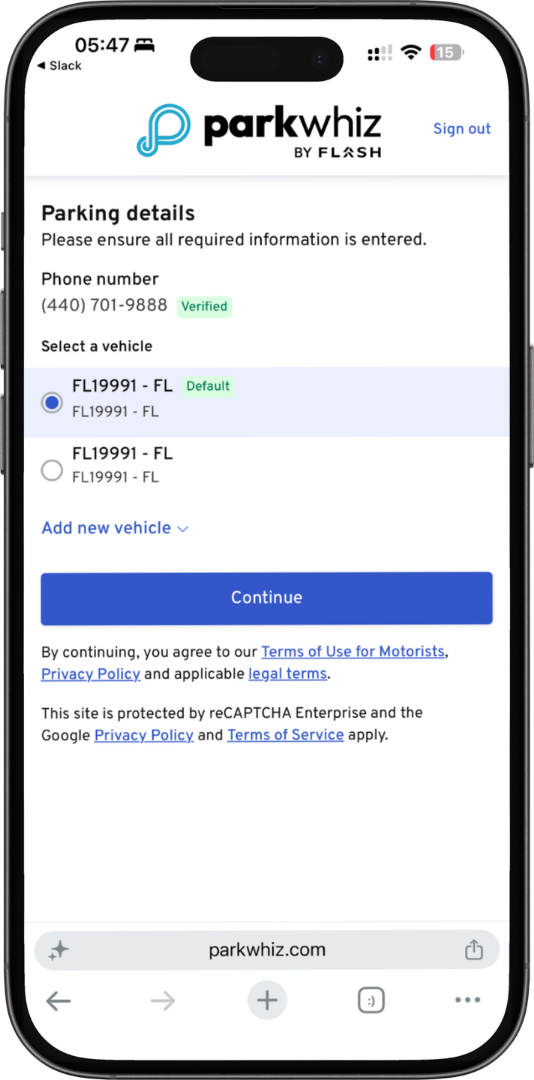 |
| 4. The driver reviews their information and selects Confirm parking to start the parking session. The “Enroll this vehicle in Express Pay” checkbox is selected by default. | 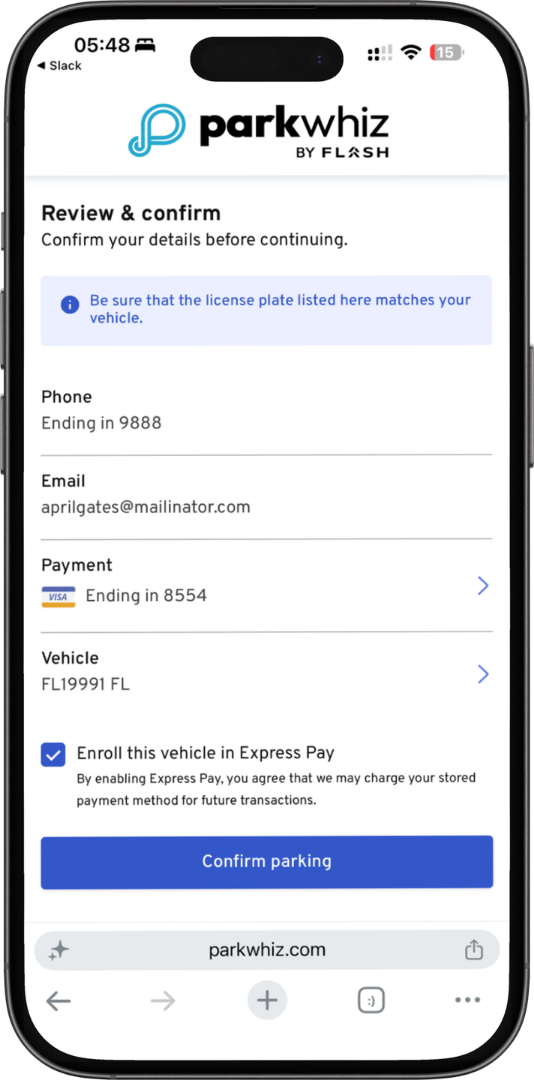 |
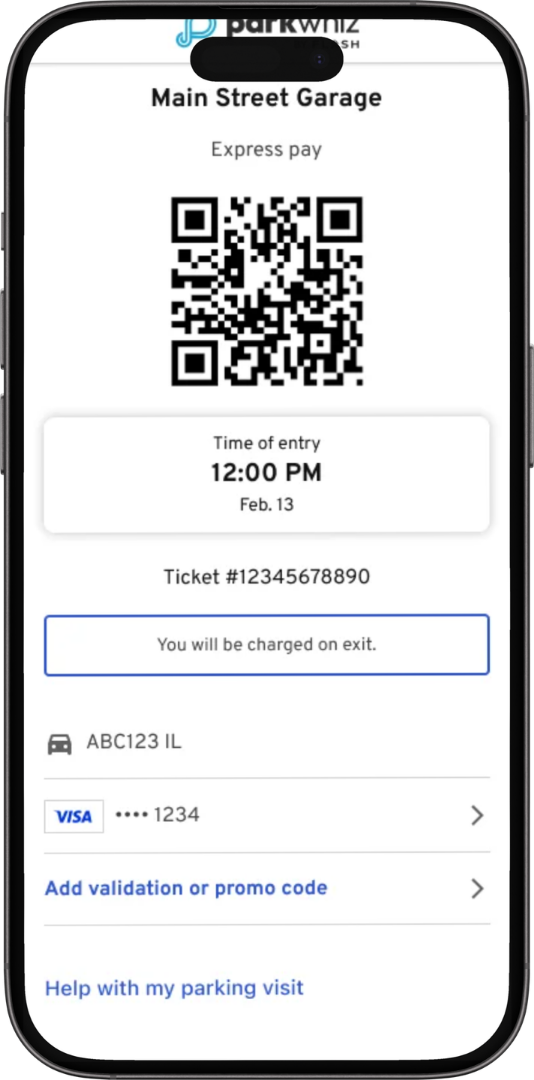
| 5. Session started. |
Was this article helpful?
That’s Great!
Thank you for your feedback
Sorry! We couldn't be helpful
Thank you for your feedback
Feedback sent
We appreciate your effort and will try to fix the article